Up next in 10



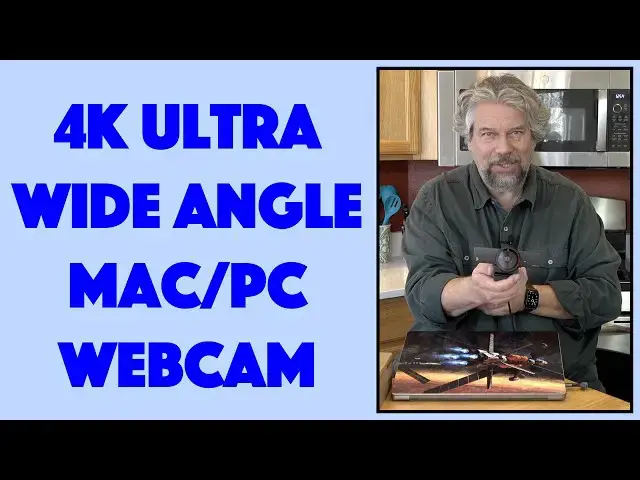
[Discount code in description] Fed up with your low-resolution webcam that makes you look like you're hiding in a dark alley every time you're on a Zoom call, FaceTime chat, or Microsoft Meet event? Then you'll find the Wyrestorm Focus 210 4K UHD Ultra-Wide-Angle Webcam a gamechanger! Not only that, but it includes noise reduction microphones, AI auto-framing, and even presenter tracking, all while being Mac and PC compatible. Demo and review by tech expert Dave Taylor.
Check it out at: https://amzn.to/3OqeGGe
** Don't miss this 20% discount code. Use code SUHW4A9E at checkout to save $$ **
** Note: this code expires on 30 April, 2022 so don't delay if you want to use it! **
Then check out Dave's Q&A Web site at: https://www.AskDaveTaylor.com/
#4kwebcam #wyrestorm #webcam #focus210 #askdavetaylor
Show More Show Less View Video Transcript
0:00
A 4K HD webcam with ultra wide angle
0:03
Let's check it out. Dave Taylor here and I'm checking out this
0:14
This is the Wirestorm Focus 210 4K ultra wide angle webcam. And it is ultra wide angle
0:22
It's a 120 degree viewing angle. And the camera itself is really high quality
0:27
It's an 8 megapixel CMOS camera. And it gives you 4K UHD or 1080P or 720P, depending on what app you're using and what it can handle
0:38
It also has AI auto-framing and presenter tracking. I'll demonstrate both of those in a minute
0:44
8X digital zoom. As with all digital zooms, you lose image quality as you zoom in
0:50
We'll see that too. And dual noise canceling mics, one on each side
0:55
Super easy to work with. My favorite thing is it actually not only has a
0:59
physical thing to put over the lens so you know it's closed but that actually has a tiny little
1:07
leash so you're not going to lose it easy to work with now it has a very typical sort of clamp on it
1:13
so if i want to use it with my laptop i can adjust the angle as desired and then adjust the camera
1:21
and now i'm good to go it is plug and play with mac and pc and they have an app called focus and the
1:29
focus app is pretty important because it really helps you turn on and off the different
1:33
settings there's no other way to do that there's no switches or anything on the unit itself so it's
1:39
just really a big lens looking at you so let me switch over actually I'm going to put this on a
1:45
tripod and then I'm going to move around and you're going to be able to see what it does and
1:49
then I'll demo the app let's get that going as you know I have the webcam on a tripod
1:55
and that's what I'm looking at even though my computer's right here Now, you saw how it zoomed in automatically, but what if I stand up
2:04
What will it do now? Well, hopefully, there we go. It actually adjusts so that I'm centered here
2:12
And if I move to a side, it should center so that I'm in there
2:18
And if I do something a little tougher with a window behind me it can handle that And if I walk forward then it again trying to figure it out I sort of off angle a fair amount at this point This might be a little better
2:34
And then if I sit down again, then you can see I'm like a tiny piece of the frame, but now it's zoomed in
2:41
Having done that, let's look at the app itself, because I'm doing all this in the app
2:46
You can see that in tracking mode, you have choices. You can do presenter tracking or auto framing or you can turn it off
2:54
If I turn it off, then I can actually do things like zoom in, zoom out
3:01
I can adjust the angle. Obviously, that works better if I zoom in
3:07
And you can see the image quality does go down a little bit
3:12
That's sort of the nature of these digital zooms. So I probably wouldn't use that too often
3:17
Let's go back to auto framing. And hopefully, there you go, it'll zoom in again
3:22
And then I can also do color adjustments. So if I look at the image and I say
3:27
I'd like to have a little bit more saturation there so I can crank it way up and it's like
3:33
oversight, all right? Or I'm now in a black and white movie, right
3:39
Either way. So probably wanted us to have the default settings, which looks better and takes a second or two to sort of adjust to all of that
3:48
But that's cool. And then there are some support options here. And that's pretty much everything in the app and a demo of the unit itself
3:58
So let me jump back on camera. Okay, so I didn't tell you the truth
4:02
I actually switched the webcam to put it on my computer. And now you're getting the experience of like if we were on a Zoom call or Skype or Microsoft meetings
4:13
And you can see it's really putting in a lot of work, trying to figure out where I am, the ratio of things
4:19
I think part of that is the AI is a little confused by the background
4:23
But this is the perfect example of where I might turn these settings off. I just wanted to give you that example
4:28
And you're hearing the microphone on the unit itself. Now, for real, let me switch back to my regular camera
4:36
So here we are with the regular camera again and my regular microphone. And you can see it did a really good job
4:43
AI, maybe it needs a little bit of tuning. It a really tough job to have someone stay perfectly centered with a complex background The reason that you not seeing that now is because I don have an auto zoom feature
4:56
It's just a stable setting and then it's done. And you can do just that with the webcam too
5:03
So I have to say I'm really impressed that 120 degrees is a really wide angle
5:09
Some people might actually prefer having it be a little narrower angle, but you can accomplish that if you go into manual settings and you just zoom
5:16
in a little bit. And that will effectively lower your degree of vision or the cameras field of
5:22
view as the case may be. And in terms of the zoom, well, there's no physical zoom going on. There's
5:30
no lens getting longer or shorter. So a digital zoom is pretty much the par for the course
5:36
But most importantly, it does a nice job trying to figure out lighting and it's really easy to work
5:42
with. Now, it's a really austere box. I want to tell you
5:46
The unit comes, let me just unplug it. I think we're probably done with that portion of it
5:52
So the unit comes like this. And then also in the box is a cable
5:57
And this is a one and a half foot USBC, which is the back of the camera, to USBA cable
6:04
which doesn't do me any good when I have a USBC computer. So I actually brought my own USBC to USBC cable
6:12
You don't need that. You could also use an adapter if you prefer
6:16
But I really am wondering at what point do these companies just do USBC to USBC and then have the adapter for USBA
6:26
That would be cool. We're not there yet. Maybe we will be soon
6:30
But literally that's it. There's no instructions. There's no manual. There's no paperwork in the box at all
6:38
The only thing they have is they have a QR code on the front, which works
6:43
Though, if you want to bring up the documentation on your card. computer rather than on your phone, then you might find that you're actually doing a Google search
6:52
So that's something that I appreciate their flexibility and I appreciate that, you know
6:57
you can have that document be updated easily. But when you open this up, there's nothing about
7:03
download the app. And that really surprised me because I feel like instead of just saying get
7:09
the manual they could have two They could have one for the manual and one to download the software which you really going to want That really makes a big difference But honestly if you suffering through a crummy old webcam on a built computer
7:26
and you just look bad and you sound bad, this is a huge upgrade
7:30
This is a great piece of hardware. And I'm really impressed with the microphones, you heard it, and with the camera
7:37
So lots to like here. And dimensions-wise, if we're... We don't look at this piece, which I don't think you can take that off, but excluding the little clamp, the unit itself is 140 millimeters by 30 millimeters, which is to say 5.5 inches by 1.2 inches
7:56
And obviously that lens is pretty big on the front, but that's what makes, does all the magic for us, right
8:03
So it is definitely one to check out if you want to just get that big upgrade on your webcam experience, or more importantly, everyone else wants to get the big
8:12
update and of course as I demonstrated you can also attach it to something else or just
8:18
like leave it on your desk or something you know set it up and then you can use it that way
8:23
and it's just a whole different way of looking at things a whole different angle you can get
8:28
and you can move around and it'll follow you around that's pretty cool so all we need to do is
8:34
talk about the price but before we get to the price I'm going to ask if you could subscribe
8:37
to my channel a click or a tap on my subscribe button and we're connected
8:42
Excellent. This is the Wirestorm Focus 210 4K ultra-wide-angle webcam, and it's 15999 with a current 5% coupon, which drops it down to 15199 at Amazon.com
9:01
That is fairly pricey for a webcam, but it is fairly spot on if you want to have a 4K ultra-hd AI webcam
9:10
If you want to have one that you'll never need to replace, this is going to be great for the next five or ten years, that's the one
9:17
So, that's all I got. I'll hope to catch you in my next video
#Camera & Photo Equipment
#Virtual Reality Devices
#Teleconferencing