Up next in 10



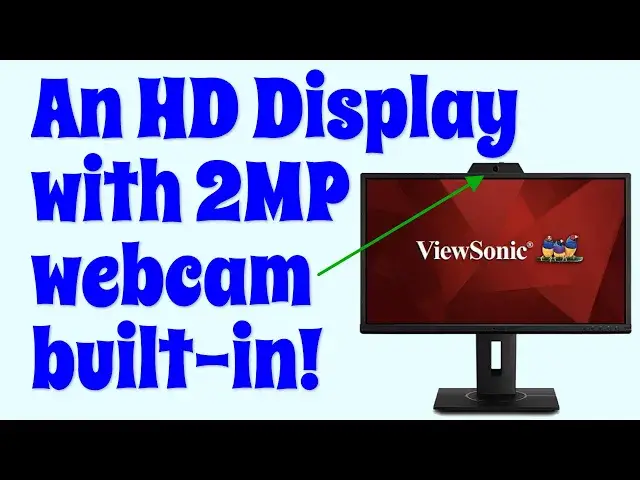
The ViewSonic VG2440V HD display monitor is pretty cool because it includes a built-in webcam, but there's a lot more behind the screen too. Experienced display owners will appreciate the five-button on-screen menu system and three different connection ports: DisplayPort, HDMI and VGA. It can even serve as a USB hub for other gear too. Tech expert Dave Taylor runs through its features, including a Zoom video capture demo. Definitely one to check out (but probably not if you're a hardcore gamer, as explained).
Check it on Amazon: https://amzn.to/3zTqh9c
More about ViewSonic: https://www.ViewSonic.com/
Check out Dave's Q&A Web site: https://www.AskDaveTaylor.com/
#viewsonic #webcam #monitor
Show More Show Less View Video Transcript
0:00
It's an HD monitor with a built-in webcam. Let's check it out
0:11
Dave Taylor here and I'm checking out this. This is the ViewSonic VG2440V HD monitor with built-in
0:19
webcam and it's pretty cool. It's a 23.8 diagonal screen running at 1920 by 1080 which is a full HD
0:28
resolution and it is 250 candela per square meter in terms of brightness, 1000 to 1 contrast ratio
0:38
a relatively slow response time of 5 milliseconds and 60 hertz refresh rate
0:45
and 178 degree viewing angle so you can turn this a pretty long way in different directions
0:52
and it's still a very viewable screen which is pretty nice. Now there are a bunch of different
0:59
connections on the back including HDMI, DisplayPort and VGA and if you want to use the webcam you have
1:07
to separately hook it up as a USB device. All of these cables come with it and then it also has a
1:16
USB 3.2 hub. Once you get USB from your computer onto the display there's other USB plugs you can
1:23
use for other devices as you're so inspired. It has an audio jack and it includes the audio cable
1:31
so really everything you need comes out of the box ready to go and I just want to say just for a
1:36
moment it has a fantastic out-of-box experience. This seems really weird to say with a display
1:43
monitor but it's really really neat the way they put through the engineering and it's like
1:47
putting together a piece of lego where you open it up and you just have the stand and then the stand
1:54
clicks into the screen and then you lift the whole thing out. It's very neat and this is a
2:00
really flexible stand so you can raise it, you can lower it way down, it has a significant rotation
2:09
freedom. There's a lot of that you can like here and the webcam itself has an open close shutter
2:16
but that same control actually gives you five degrees of angular freedom to get it to be just
2:23
so. Speaking of which let's go ahead and what I'm going to do is you can already see the display
2:30
and I'm going to switch hang on I need to see what I'm doing for a moment I'm going to switch to here
2:36
and this computer the monitor already has the speakers and everything built in
2:42
so if we do just a minute or two of this movie
2:51
that's the audio coming out of the monitor so it's not the loudest it's not fantastic it's
2:59
not like having suddenly a sound bar built in or anything but it is entirely functional
3:05
and certainly perfectly good if you want to use this for things like having a conference. In fact
3:13
let me switch around now I'm using a macbook pro so for the cables I'm using hdmi to hdmi and I
3:21
have to use an adapter because it's usb c and then I'm using their usb the sort of weird double box
3:28
connection to usb 3.0 which then I'm connecting with an adapter to my computer so if I was to use
3:37
this long term with this computer I would probably buy some upgraded cables that have usb c on one
3:43
end just for simplicity but honestly it's not a big deal these adapters aren't that big a deal
3:49
so that's how I have everything set up what I want to do is I'm going to switch to actually having
3:55
my webcam and I'm going to do it all in zoom so I'm going to start by showing you what's on
4:01
my computer's view and then we'll switch to this one's view so hang on a second one of the things
4:07
you can do in zoom is you can switch between cameras and audio sources depending on what
4:12
you're doing so you can do that in settings so I'm going to go into settings and we'll start
4:18
with video so this is the video from the external monitor versus if I switch over here
4:26
this is the video from my built-in webcam on my mac so it obviously gives you two
4:34
very different perspectives and there's a tiny tiny light that turns on to show me that this
4:40
is active and that five degrees I can move it up and down you can see here get it just right
4:48
and now I have this and I can do the same with audio so I can choose between the audio on my mac
4:56
and the audio from the actual usb device now I do find the usb device isn't necessarily super loud
5:06
but all of this is easily managed it's also worth noting that there are five control buttons on the
5:12
lower right that make managing the menus and settings super easy here's a close-up so you
5:17
can see the buttons but let me show you the menu system you click on menu and then it's super easy
5:26
and in fact it shows you the functions of the buttons while you're in this context so if I want
5:32
to go to something else or input select or something all of these are easily managed this is
5:40
such a win and definitely something to know about this monitor so the webcam is a two megapixel
5:45
camera and as you saw it looks really good particularly if you have an older pc that has a
5:51
crummy webcam or no webcam this is an easy way to upgrade and it's built in and integrated and when
5:57
you don't want to use it just move the slider over and you've got that covered literally covered
6:04
so there's really a lot to like here and it's at a pretty reasonable price point again I want to
6:10
emphasize that it's an hd monitor and it's pretty big so if you're going to sit really close to it
6:16
and look at really detailed like black text on white then you might find using that display
6:21
port adapter is going to work better for you I found hdmi works entirely reasonably though not
6:28
perfectly it's certainly great to use it if you want to use it like a tv or something if you want
6:33
to just watch an hbo movie while you're working or drop a conference onto here that you're doing
6:39
via something like google hangout then this works out absolutely perfectly and then when you look
6:44
at what people are saying and showing then you're looking at the correct camera so that works out
6:49
pretty well and then you could be doing something else at the same time because let's be honest some
6:53
of those meetings are pretty boring anyway so the only thing left to talk about is the price
6:58
and before I get to the price I'm gonna ask if you could subscribe to my channel a click or a
7:02
tap on that red subscribe button on the lower right and boom you're subscribed really appreciate
7:08
so excellent this is the Viewsonic VG2440V HD monitor with built-in webcam and it is 271.41
7:20
at amazon.com and I poke around on the internet I think you could probably find it a little bit
7:25
less expensive than that but that is our reference price here this is a great monitor I love its
7:31
flexibility I really love the fact that it's so easy to adjust the angle the height the pitch
7:38
all of that it's super adjustable which is really great that's all I got I'm going to
7:43
go back to ready player one so I'll catch you in my next video
8:01
so
#Computer Peripherals
#Consumer Electronics
#Virtual Reality Devices