Up next in 10



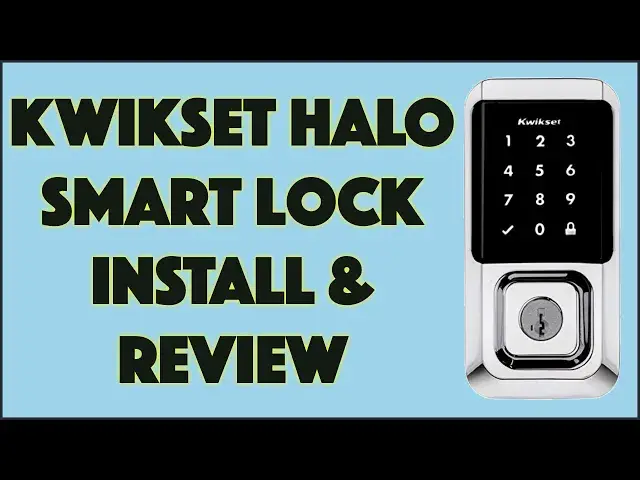
Everyone in the family can have their own code, you can remote unlock the door, and you can even lock it by saying "Alexa, lock front door"! Tech expert and homeowner Dave Taylor installs, programs, and demonstrates the slick KWIKSET HALO Touchscreen Wi-Fi Enabled Smart Lock and finds it a great addition to his home. There are a few quirks to know, but it's a remarkably powerful and flexible solution with no hub needed and no subscription fees!
Here's the Kwikset install video I mention: https://www.youtube.com/watch?v=O_LdEljmVcc
Want one for yourself? Check it out at https://amzn.to/3L69SUl
Then check out Dave's Q&A Web site at: https://www.AskDaveTaylor.com/
#kwikset #smartlock #smarthome #deadbolt #security #halo #askdavetaylor
Show More Show Less View Video Transcript
0:00
Up your smart home game with a smart lock
0:02
Let's check this out. Dave Taylor here, and I'm going to be installing this
0:14
This is the Quick Set Halo touchscreen, Wi-Fi-enabled Synartlock, and it's really nice
0:20
This is what the unit actually looks like, and you can see there's a big touchscreen on the top
0:25
You touch it with your palm, it will light up, punch in your code. you can have 250 different codes
0:32
Punch in your code. It communicates via Wi-Fi. It notifies your phone
0:37
You have all this control over it as part of a smart home, but most importantly, it unlocks your door
0:43
The whole thing has gone dead because you forgot to replace the battery. Well, you should have replaced the battery
0:48
but it's not a crisis because there's also a keyhole. And Quixet has something called Smart Key
0:55
which lets you re-key this if you want. so that you can actually have it use the same key you have in one of the other doors in your house
1:03
like your back door or your garage door. Great feature. Now, I want to tell you a little bit about it, and then what we're going to do is we're going to switch over
1:12
and I'm going to show you the install process, and then I'll show you how to do the programming
1:17
so I can put in a couple of codes, because obviously that's like one of the key features for this
1:22
and then finally I'll give you some closing thoughts, and we'll do a quick demo of actually locking and unlocking it
1:27
So now, this, one of the things I really like about this is there's no hub needed
1:34
I have had multiple smart deadbolts on my house in the past, and they've all required some sort of a hub
1:41
whether it's something like the Samsung smart things, or I have a Yale lock right now that has its own little tiny hub that it uses
1:51
And if I don't have that hub plugged in, then the lock works, but I have to have my phone within like 10
1:57
feed of it to get any of the smart notifications. Not very helpful. So not needing a hub and having it
2:04
just work while Wi-Fi is fantastic. If your internet goes down, it's still going to work. Nothing's
2:10
going to go bad. It's not going to die or fail. All that's going to happen is you won't get
2:15
notifications. So if your Wi-Fi is a bit spotty, every so often it might not give you a
2:21
notification, but the lock itself will still work 100% the same. This also means because
2:27
it uses Wi-Fi, there's no subscription. I have had a lot of smart home devices that require
2:35
a subscription. A lot of the cameras do that. And I really, really can't stand that. If I've spent
2:41
$100, $200, $300, $300 on a product, I don't expect to then be nickel and dined for
2:47
$4.99 a month, so you can access that video via the cloud or something. It's like, just give me
2:53
the price and then give me the service. So this does not have a subscription
2:57
another big win. 250 codes you can punch in here, or actually more likely
3:03
use the app on your smartphone, Android, or iPhone. You can use either
3:08
250 codes, and you can specify them to have a time range. So if you have a house cleaner
3:13
you can set it up where they can only unlock the door between maybe 9 and 3 in the afternoon
3:19
So if they swing by at 11 p.m. with some friends to have a party
3:23
because you're out of town, the key won't work, or the code won't work, I should say
3:27
Really great. You can also do a date range. So this is a good, good for like an Airbnb sort of thing where you can set up in advance that you're going to have guests from the 14th to the 17th. No problem. You can download it and, you know, use the app, have it automatically download it on to the deadbolt. And then on those days, their code will work. And then as soon as they leave, boom, it's gone. And that's something you don't have to deal with. You don't have to remember on the day they leave to go ahead and turn the code off. Really handy
3:57
All of this is done as I showing here via the Quickset app which we will definitely be looking at more closely as I continue the install Remote lock remote unlock notifications on your phone
4:11
You have a history of every time it's been locked or unlocked. If you give each of your children a different code, you can then see who shows up when
4:19
That's handy. Like I said, there's a smart key system. I don't exactly know how it works, but I imagine you take this plate off and you have access to actually
4:28
put in a different key than the one that's included and then specify this is now the one that
4:34
should actually unlock it if I'm in an emergency situation and I can't use the touch screen
4:39
Super helpful. You can also, to avoid having like the, if you do like 1-1-1, which would be a horrible
4:47
code. But if you did that, over time, what would happen is that there would be like a big fingerprint blur
4:53
there. So one of the things Quixet does that's really smart is you can enter any random
4:58
sequence as long as your last digits are a valid pin then that will actually
5:05
unlock the door so if you really wanted to use one one one one you could get
5:10
into the practice of doing like two four six eight one one one and then all of
5:16
those would then have fingerprints on them right now I have to guess most people
5:20
don't really have to worry about some person who watched too much CSI
5:24
going there with fingerprint powder and like seeing where the fingerprints are, but I guess if you're worried about security, that's something to do. Now, I should say these
5:33
locks are also B HMI and Anzi certified to grade AAA, which is great. They are also Alexa and Google's
5:42
home certified, and they work with those. So with Alexa, once it's all set up, I can say Alexa
5:49
unlock front door, and it won't unlock the door, but it will then wait for me to say a pin
5:55
sequence if I really want to do that. Now, I'm much more likely to want to lock the door via a voice
6:02
control. So that's something that's very convenient. Some people are going to say, I don't ever want
6:08
this hooked up to Alexa, which I understand. Other people might say, well, one of the benefits
6:13
of hooking it up to Alexa is I can use Alexa schedules so I can then do things like, say
6:19
every night at midnight, lock the door. So if someone comes in and they forget to lock the door
6:24
the deadbolt will automatically at midnight lock, which is really nice. I do the same thing with my garage door
6:31
It is every night at 10 p.m., my garage door closes, whether it's closed or not, it sends the closed signal
6:37
Really helpful. So, this is powered by four AA batteries. I think they should last around a year, and that's pretty much it
6:45
The dimensions you can see here, it is 4.2 inches by 9.7 inches. And of course, I'm talking about the thickness, but that's really
6:54
the hole thickness and we'll see that once I do the install. In fact, speaking of the install
7:02
let's get to it. The first step is going to be to remove your old dead bolt and lock assembly. You're
7:08
going to end up with a bunch of holes and yes, it looks like my door could do with some painting
7:13
but we're not going to do that right now. We're just going to keep moving forward. The next step
7:18
is to pull out most of the pieces. Now it turns out that the way Quickset did it is that the
7:24
steps are denoted in boxes, but I like to spread everything out and see what I'm going to do
7:30
The only box I left, and you could see it as a number five on it, is the one with the batteries
7:34
The first actual step is to go ahead and install the latch
7:39
And what you want to do is you want to slide it in from the side and make sure that the
7:45
turning assembly in the latch is centered in that hole. There's a way to adjust it to get it to fit perfectly
7:52
And then you go ahead and screw down the latch with two screws easy enough
7:58
You do want to do that with the bolt fully extended as I can showing here Next up is the exterior assembly which includes a part that goes through the center You want to line it up to the center of the latch so that it goes in correctly And then there a wire that you want to make sure goes underneath the latch assembly
8:21
The next step is to install the mounting plate. And this is done with two long screws. You can see one on either side there in the center
8:28
and again make sure that wire is going through the proper spot so you have no problems later
8:35
And now from the outside, use your key to try locking and unlocking the door
8:39
I did that and it worked just fine, which was a huge relief
8:44
The next step is to install the interior assembly, and this is where you're going to connect the two parts of the cable
8:52
Notice the tiny arrows, line them up, and it goes in perfectly smoothly
8:56
and it's super easy to work with. Then you want to install the interior assembly and that's held in place with two little screws that connect to the mounting plate
9:06
Make sure you use the lower holes as I'm doing here. Ready to power it up
9:11
Well, that's why we're going to put in the battery pack. Once you do so, it actually locks and unlocks a couple of times and it beeps and there's an LED that flashes
9:21
Lots of things happen for a couple of seconds. And then look on the front plate and it will show you whether it's succeeded or failed
9:28
For me, it succeeded. Again, thank goodness. I've gone ahead and put the interior cover on, and there are three tiny screws that go into the interior cover, one on each side and one from the bottom
9:40
They are a little tricky to put in, but I found that I could do it with a very small screwdriver and a very large amount of patience
9:48
Finally, with it all set up and installed, here's what the inside looks like
9:53
Very nice, and I'm really noticing my door jam has seen better days
9:57
From the outside, the touch screen lights up. Everything looks great. I'm done
10:02
Now it's time to actually work with the software app. So, let's go to that step
10:08
Mission accomplished. Now, I don't mind admitting, I get a little stressed installing something that complex
10:14
but Quixet made it really easy. The first thing I did is I looked at the instruction manual
10:19
and I read through it in advance. So I had some sense of the steps involved
10:24
And then they have a really good animated video on YouTube. I'll put a link in the description here, but it's absolutely a great thing to watch
10:34
as you do the install. And what I did was I would watch a little segment and then pause it and then
10:40
do that step. And then when I was done, I would watch the next segment, pause it, do that step
10:47
So it really made things really easy. This is definitely a user installable, but expect it's going
10:53
to take you probably about an hour or so. Having done all of that, it's
10:57
It's done, it's installed. And I then paired it with the app, which was easy to do
11:02
I'm not going to share that with you because, quite frankly, I don't want you to know my codes
11:07
and my account password and all of the recovery questions and all of my cell phone numbers
11:12
and all of that stuff. So a pretty typical install process. And once it's all installed, I'm on Wi-Fi as is the lock, I should say
11:23
And so now I have access. So now let's bring up my phone and you can see here that my lock is unlocked
11:34
Now I'm about 12 feet away from the lock. I'm going to lock it and I just do that by tapping on the app
11:41
And it's kind of noisy. I have to admit it's one of the noisier ones I've experienced
11:48
but that's all that's involved for locking it. Now I can go into settings and there are some different settings I can
11:55
can use to tweak the experience. One that I really like is secure screen
12:00
We'll see that in a moment when I go outside and demo it for you. But that what I was talking about earlier where you can punch in random numbers The way it actually works is it actually shows you a couple of numbers And once you tapped those numbers then you can enter your code
12:16
So it actually works really well. And if someone wants to look from an angle to try to see what buttons you're constantly
12:23
pushing, those are part of the sequence. So it really defeats that really neatly
12:28
So we don't want to do that. We want to go back here. And I'm going to go ahead and add a person
12:33
Now you can see, I have some people already added. but we're going to go and add a test person
12:38
I'm going to give them a name. We'll call them tester. And then I'm going to give them this incredibly secure password of one, two, three, four, five
12:48
But then we're going to give them a schedule. Now, I just want this tester to work on certain days of the week
12:55
So we're going to do just weekdays. So we're going to turn off Saturday and Sunday
12:59
And we're going to go, let's see, back. And now, see, it's a little tricky to first
13:05
figure out this app. What you need to do is you need to submit if you make a change. Now you can see that
13:10
And then the start time we'll do from noon till 6 p.m. So let's go 6 p.m. So from noon to 6 p.m
13:21
And I will submit that. And then I will submit this. And that's as easy as it is. And I'm remote
13:29
I could be doing this from 500 miles away. And now I have a new code on my smart deadbolt
13:35
that is 1, 2, 3, 4, 5. Not the best code in the world
13:40
but when I'm done with it, I can go back here and I can delete it, which is good
13:44
but I actually want to test it out. So, let's go outside
13:48
and I'll actually show you how it works. The final test is to actually be outside and use it
13:54
So, to wake up the touchscreen, I find that just using the side of your hand works great
13:59
and it's unlocked, so let's lock it. And now that I'm sitting at a touch screen
14:04
And now that I'm sitting a couple inches away, you can hear it's kind of loud, but that's okay
14:09
So now we have the door locked, and I can confirm that
14:13
I cannot get in. So I'm going to use the side of my hand again, and it gives me two digits
14:19
Now, this is part of its security system to make sure you don't end up with the same, like, one or three or four spaces with lots and lots of fingerprints
14:28
So when I wake it up, I'm going to have to actually enter those two digits
14:34
Then I can enter the code and what do we do? One, two, three, four, five. And that's it
14:43
It's unlocked. Super easy. Now, there's really a lot to like about this
14:48
And obviously, having this key right here, front and center means if you want to have some
14:53
people use the touchscreen but you want someone else to just use the key because they're
14:57
old school, totally doable. Now, all this left to talk about at this point is the price
15:02
But before we get to the price, I'm going to ask. if you could subscribe to my channel, click or tap on that red subscribe button, and we're connected
15:10
Really appreciate that. This is the Quixet Halo touchscreen Wi-Fi-enabled smart lock
15:17
and it's 18995, currently discounted down to 17723 at Amazon.com. It's a great upgrade
15:26
It's a smart lock. You can lock it and unlock it remotely. You can set codes with a variety of parameters
15:33
You can even hook it up to your Alexa or Google Home System
15:37
So really a lot of flexibility, definitely a great upgrade for most houses
15:43
So that's all I got. I'm going to go ahead and lock my door and make sure no one comes in
15:49
And I'll hope to catch you in my next video
#Home Improvement
#Home Safety & Security
#Home Automation
#Locks & Locksmiths
#Home Alarm & Security Systems