Up next in 10



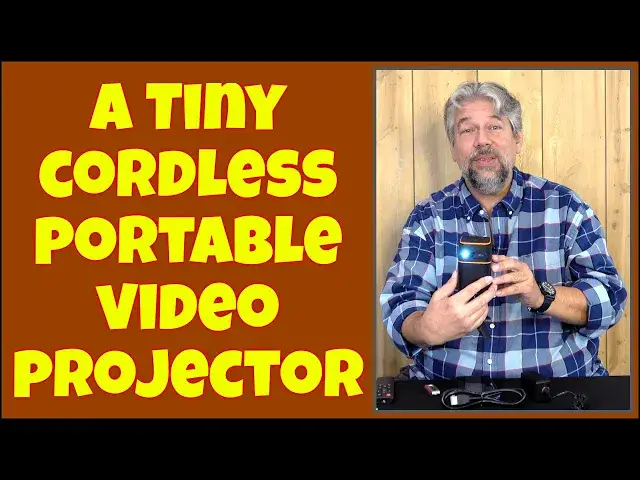
Imagine a video projector with a bright image that has its own battery and built-in speaker and is smaller than a can of soda! That's the FATORK Wi-Fi Smart Portable Movie Projector, and tech expert Dave Taylor checked it out. He found that there are some really good features and some quirks and limitations related to wireless usage with iPhones and Android devices that you'll definitely want to know about before you make a purchase decision with the FATORK Smart Portable Video Projector.
Check it out at: https://amzn.to/3OojbQj
Then visit Dave's Q&A Web site at: https://www.AskDaveTaylor.com/
#fatork #videoprojector #movieprojector #miracast #airplay #askdavetaylor
Show More Show Less View Video Transcript
0:00
A video projector this small? Let's check it out
0:10
Dave Taylor here and I'm checking out this. This is the Fetork Wi-Fi smart portable movie projector
0:17
and it's a pretty sweet little device. As you can see, it's really small
0:22
In fact, it's 4.1 inches tall by 2.8 inches on either dimension
0:27
and it weighs 14 ounces. So basically, this is like a can of soda
0:34
but entirely more functional and useful. So its native resolution is 480P
0:39
but it can accept a 1080P HD signal, and it has a DLP laser system
0:46
so it gives you actually much better image quality than you would expect from 480P
0:51
So it's really as if it's a 720 or something, but again, if you know all the specs
0:57
it is different to say native resolution versus what it can accept
1:02
It's also at a price range where you're not going to find a native 1080P
1:06
So those are your tradeoffs there. It has 150 lumens, so it's bright enough to work in a dark space
1:13
but not so great in a bright well-lit space. So I'm going to do a quick demo here in this relatively well-lit space
1:21
and then we're going to tromp down into the basement, and it's really dark down there
1:25
and then I'll give you a second demo and you'll see in the dark it does a much better job
1:30
Now, it does have its own built-in battery. It's a 7,000 mill-amp hour battery
1:35
You charge it with the included charging cable, but once it's charged, you got two and a half hours
1:41
which is plenty enough time for a standard movie or a great photo show
1:46
If you really just want to share all your photos from your vacation with your friends
1:51
you could use this and project them all big onto a wall
1:55
fun actually cool way to do it it also does automatic keystone correction which
2:00
is really useful so on projectors unless you have it perfectly square then you're
2:05
going to typically be pointing it upward and then your image is wider at the
2:10
bottom than the top which looks really weird this can automatically correct
2:14
itself so that it goes back to being a rectangular image very very helpful now it
2:20
also works with Wi-Fi so you can do 2.4 or 5 gigahertz Wi-Fi
2:25
networks, but it's not an Android TV, it doesn't have built-in Netflix, it doesn't have built-in
2:31
Disney Plus or anything like that. It is a projection system. You give it media and it can actually display that media
2:40
So the Wi-Fi is so that you can use things like a smartphone and you can use it wirelessly
2:47
So it supports iPhone and Android and DLNA devices, wired or wireless
2:54
it has a ton of connectivity options because you can also drop in a USB drive and then just
3:01
play the media directly off of that. Or what I really like is HdMI. It has an H.D.M.I
3:08
It has an H.D.M.I. Port. And so what I find works best by far is to just plug in a device
3:16
and push out the H.D.M. to this and let this do the projection. So at that sense, it's sort of like
3:23
have an external monitor really works great. Again, I'll show you that in the demo
3:28
Built-in speakers, there's also a 3.5 millimeter audio jack. In fact, go ahead and give you a tour
3:35
of the device. So on the top, you can see that there are four directional controls and an
3:41
okay or select in the middle. The three lines are for menu, and then the other one, the arrow
3:47
is to go back. The front is the actual laser projection system
3:53
The left side is the 3.5 millimeter AUX jack and the power button
3:58
The back features that USBA or 2 plug and DC for power and for the HTML input And then on the right hand side very important is the focus control
4:13
And it's a little tricky to use, but once you get it in focus
4:17
it stays in focus pretty darn well. And worth mentioning on the bottom
4:21
is a quarter inch thread, so you can use it with tripods
4:26
In fact, you could mount it upside down on your ceiling, go into settings
4:30
tell it it's upside down, and it'll rotate the, picture and you'll work great. But it also includes this cute little tripod. So that's actually
4:39
what I'm going to use for our demo here. I'm going to put it on this. And so it includes this
4:48
little tripod. It also includes a remote control. So if you don't want to deal with the buttons
4:56
on the top, then you don't have to. That works totally fine. You just use the remote control instead
5:01
So, remote control, HDMI to HTML, 5 volt power control, very nice little manuals and instructions to get you started
5:12
I supplied my own USB drive, and I supplied, obviously, my own smartphone and everything
5:18
So let's see. Let me plug in this USB. Then I'm going to turn this on
5:27
and we're just going to go ahead and let it project onto, onto the wall and you'll see it is, let me push it down here just a little bit
5:38
It is a big bright signal and this is a pretty well-lit room
5:43
And now if you look here, watch that will turn blue. So it's scanning the USB drive to see what's going on
5:52
And now it's turned blue. So now I can select from the different media
5:58
So I can go to movie and then on my USB, I have a movie, another one of my reviews
6:08
So let's let it actually load. Pretty cool, right? And obviously, I'm projecting it onto a brown wall
6:19
It's going to look a whole lot better on a flat white surface. But you can see, that's the idea
6:25
And then if I want to listen to some music, I also have some music on here
6:28
We'll just pick one. And this is also a good demo of the speaker
6:34
It actually sounds really good. So we'll go back. And then I can pick photos
6:44
Whoops, no, that was wrong. Needless to say, I do find the remote slightly tricky to use
6:57
It has a bit of a bounce to it sometimes. So you might find that you're fiddling around a little bit, but I can choose photos and then
7:08
I can just use this to go to the next photo and to step through my photo slideshow
7:14
And obviously if these were from my vacation, I would have a little story about each one
7:19
and that would be cool. So that's all of that. Let's go back to home
7:23
And then on the left side, you can see we have setup and H.D
7:29
and screencast. So I'm going to go down to screencast and just do one more quick little demo and then we'll
7:35
get into a dark space and you'll see much better how this works
7:39
But screencast is actually about different ways you can connect wirelessly. So what I have here is I have iOS with cable, iOS wirelessly, mirrorcast which basically
7:56
lets you work with an Android device, Windows. lets you work with a Windows device if it supports wireless
8:03
and DLNA is actually more of a sort of entertainment and AV system system
8:09
So it really has wide support. So what I going to do is I going to go and let see we need to go over here and then I need to choose it And then on my phone when I go to screen mirroring I now have the rotocast
8:26
I guess that's what the official name of it is, but I have a rotocast device. And if I choose that, then once it establishes its handshake, then hopefully never know what's going to happen with the demo
8:39
but come on there we go so now you can see that I'm looking at my phone and it's
8:51
also reminding me I probably need to fine tune that focus just a bit so let's
8:56
see where is that focus control it's over here there we go so that's a bit better
9:02
and now with my phone mirroring wirelessly I can do things like look at my
9:07
photos so here's some wallpapers we can just look at real quickly not super
9:14
exciting but again I wanted to give you the demo to show you all the features
9:19
this thing has now I will tell you it's a little fussy on file types it's a
9:24
little fussy on wireless so you might have to do it two or three times to get
9:28
it to work just so but once you do this is super easy to work with now let's go
9:34
in the basement and let me show you another demo I've set the whole thing up in my basement
9:39
So the actual video projector is on a stool, and it's just projecting onto the wall
9:45
As you can see, it is a big, crisp image. This is about the size of a 60-inch television right now
9:53
and I'm using the remote to be able to step between content and inputs
9:59
Now, you can see on the top that the battery is fully charged
10:03
so I should get about two and a half hours out of this, and it's on my Wi-Fi
10:07
network and I can try using screencast which lets you use wireless connections to
10:15
your Android or iPhone or to some mirrorcast systems and you can also use
10:23
HTML which is a wired connection which is exactly what I'm going to do in a
10:27
moment and you can also go to set up and I'm controlling all this with the
10:33
remote control and you can see there's a lot of different settings
10:37
and you can do things like say, well, let's check picture mode
10:44
And it's a little hard to see in the video, but it gives you the ability to adjust
10:48
contrast and brightness and color. And you can choose between different settings
10:56
All right. So let's go ahead and leave this in normal mode
11:02
That looks good. I'm going to back up. And then we can go to brightness and there's two different
11:07
brightness settings. Whoops. Let's go back to brightness. And you can see highlight. And then if I go
11:16
to normal, it's not quite as bright. If I choose that, it goes a little bit dimmer. My guess is that
11:25
probably does give you slightly better battery life, but I'd rather have it run out of battery
11:29
slightly faster and have it look better. So with all that, let's go back to the home with the home
11:36
button and now I'm going to choose hdmi and it's going to negotiate with my macbook and in a moment
11:44
it will actually get the signal from the macbook and now you're seeing this is the
11:50
Netflix homepage on my mac projected onto the wall and i can sure enough scroll and look and see what's
11:59
there and i can say the gray man hmm that sounds interesting but let's see what else
12:06
Let's pick, oops, sorry, working sideways, so it's a little tricky. So we can pick something like Resident Evil, and I can just go into it
12:19
And if you listen the audio is coming out of the video projector And you thinking well why is all those bars on top and everything and that just because I haven pressed that
12:31
So now we are ready and we have a movie and it's playing and it looks terrific
12:38
Now I don't have the right to play this movie so unfortunately you'll get to go to Netflix to watch it
12:43
But as you can see it's really easy to work with and on your Mac or PC you can
12:50
and easily set this up as a second screen, or you can plug in anything that pushes out
12:56
an HDMI signal like a Blu-ray player could work with this projector
13:00
So really pretty impressive how it works, and the screen picture is very crisp
13:06
This is on a non-white wall. This is a beige wall. On a white wall, it would look even crisper and even brighter
13:14
So let me jump back on camera. That's really everything I wanted to show you
13:18
about the projection system. It's pretty cool. It's a little quirky and a little fussy
13:24
in terms of file formats if you're gonna use a USB drive or you're gonna plug something in
13:30
But honestly, it works wirelessly. I've tried it with Android and have tried it with my iPhone
13:36
and it worked pretty well. But really the sweet spot for this
13:40
is to plug in an HDMI cable and just let it be a projector
13:45
without worrying about all the other complex functionality that it would need
13:49
And it just works really well. It has a nice built-in speaker
13:53
I appreciate that two and a half hours of battery life. And when you go to the home screen
13:58
it even shows you how much battery life it has left. So I've been doing this demo
14:03
and I'm telling you, I did plenty of prep before I got started here
14:07
And it still has plenty of battery life left for me to go watch Jurassic Park or something
14:12
So really a lot to like here. Again, here's a close-up so you can see what the remote control looks like
14:18
and it just duplicates all of the functionality on the top. Plus, it gives you things like power and mute
14:25
There's no mute button I can find on here. So, you know, lots of useful functionality
14:31
You do need to supply your own AAA batteries. It did not include those
14:36
Not a really big deal unless you're like in a hotel and you open it up from the box and you're like
14:41
ah, we can't use the remote. So know that in advance. Video supported
14:46
The formats include MPG, AVI, MP4, RMVB, and WMV. For audio, you're going to be using your basics, probably MP3
14:56
That's what I had for this demo. Already given you dimensions. So all we need to talk about is the price
15:02
But before we get to the price, I'm going to ask if you could subscribe to my channel
15:06
Click or tap on that red subscribe button, then turn on notifications, and we're connected. Fantastic
15:13
Thank you very much. Now, this, you sort of pointed towards you a little bit, so you can see what's going to be
15:18
going on. This is the Fatorque Wi-Fi smart portable movie projector and its
15:25
base list price is $599 but it's down to $329 and when I looked on Amazon it was down
15:34
even further to $208.24. So for 200 bucks this is a pretty fun device and I think
15:42
my daughter is heading off to college and this is going to be a great addition to her dorm room
15:48
You can imagine at night, everyone clustering around and just watching a movie on the wall
15:53
Pretty cool. And then when she's done, it's small enough. She can just go ahead and put it in a drawer and not even worry about it and it's not taken up any space
16:01
So lots of fun use cases. You can use it camping. You can use it in hotel rooms
16:06
You can use it in your office. So it's all I got. I hope to catch you in my next video
#Online Video
#TV & Video Equipment
#Media Streaming Devices
#Virtual Reality Devices