Up next in 10



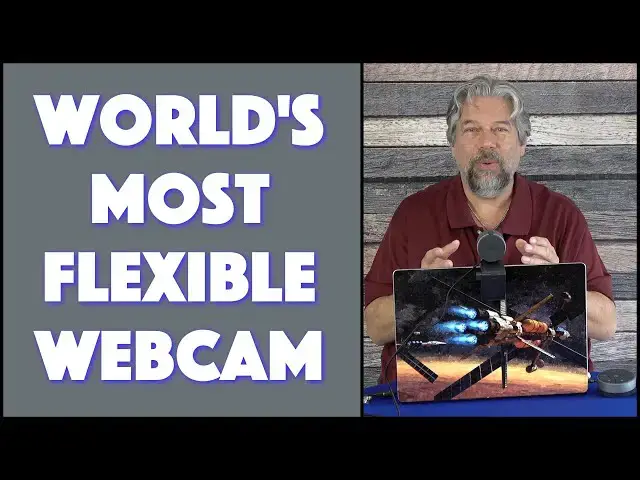
A webcam just sits on top of your display and streams video, right? Not if you're using the remarkably capable and flexible BenQ IdeaCam S1 Pro. As tech expert Dave Taylor demonstrates, the IdeaCam offers an easy desktop view, macro zoom features, and even a wireless remote control that lets you zoom and manage the video feed with the push of a button or spin of a dial. You can also pick up the camera and point it at specific items and control lots more with the BenQ Enspire app, as demonstrated.
Check it out at Amazon: https://amzn.to/3qhy946
Visit Dave's Q&A Web site at: https://www.AskDaveTaylor.com/
#benq #ideacam #webcam #hdwebcam #benqs1 #s1pro #askdavetaylor
Show More Show Less View Video Transcript
0:00
This is probably the world's most flexible webcam
0:02
Let's check it out. Dave Taylor here, and I'm checking out this
0:13
This is the BenQ IdeaCam S1 Pro Flexible HD webcam. And it's pretty darn cool, actually
0:23
They really sort of said, what else could we add to a webcam
0:28
and added all of those features. Obviously, you can take it off and use it handheld
0:34
and it does have a mount you can use on a laptop
0:38
You can use it on a display monitor. You can really put it wherever you want
0:43
It even has the ability to connect to a tripod, so you can use it that way
0:47
When you want to use it not handheld, you just line it up and you're ready to roll
0:52
but it also has some more amazing features, and I'm going to demonstrate all of this
0:57
One of which, one of my favorites, is that it has a macro lens
1:02
So now I have a 15X macro, so I can really zoom in on details on things
1:09
Obviously, for a teacher, this is fantastic. Not enough. It also has a remote control that can do things like zoom in and out by simply spinning on it
1:21
Just absolute game changers. My favorite feature, though, is that when you have it like this and then tilt it forward
1:31
it'll automatically reverse the image and show what's on your desktop. On a laptop, you get to see the keys
1:38
but you can put things on top of it, and you can really see and understand all of the details
1:44
and all of the nuances. And then when you're ready, just go back here
1:48
and it's smart enough to again reverse the image. So there's a lot going on here
1:53
Now, let me give you all the fancy names for things. So it has a portrait mode and the portrait mode has a button on the top
2:01
And that turns on its little ring light, which can be very helpful. I'm going to turn this back off
2:06
And then it has workspace or desk view, which is what happens when you tilt it down 90 degrees
2:13
And then it has that handheld mode. It has the 15X macro attachment
2:19
The BenQ calls this the remote control puck. And you can see here, it has a
2:26
number of different buttons. To me, the most important and useful features is that you can spin it to zoom in and out, that you can push to get a freeze frame, and you can also use it for things like adjusting focus if you need to switch to manual focus because you're working with something that has a lot of depth and it's focusing on the wrong thing. Super easy to switch from autofocus, the default, to manual focus and back and forth. Now, the webcam itself is built around a Sony 8,000
2:56
megapixel C-MOS. So it's not quite 4K, but it's pretty darn close. It's 3264 by 2448 pixels
3:05
and that's a pretty dense and high-quality image. Again, give me a second to run through a couple more
3:11
specs, and then we're going to switch to some demos and be able to see what's going on here
3:15
So noise-canceling microphone. It includes an app called EnSpire. You can get the Mac version. You can get the Windows version
3:23
and there's also a version that runs within Chrome or Edge if you want to just have it in your browser
3:29
I'm going to demo the Mac version. In fact, it's time for the demo
3:33
So let me switch things around. Hang on just a second. Hi again
3:38
Now I'm actually using my screen recorder so you can see the Inspire app
3:44
But what you're seeing in the main part is actually the image from the BenQ camera
3:50
So let's start by turning on that fill light. It not going to make a lot of difference because I already pretty well illuminated but while that on let me actually take it off of its little post and show you Here my keyboard Not super exciting We can get into some weird effects but let me show you instead
4:12
Let's look at that remote control. So you can see here all the stuff, and it takes a second or two to focus on it
4:19
but that's okay. So we have that, and if I move back
4:23
I obviously can get into some weird effects here, and you can see my camera and my notes and all sorts
4:28
notes and all sorts of stuff so let's get it back on the stand and I'm gonna turn off
4:35
that light let's turn it off there and now the next thing I'm gonna do is I'm gonna
4:40
tilt it forward so now we're getting into that desktop mode and you can see it's
4:46
switched so now you can see this is just literally sitting on my keys I'm just
4:52
trying to put it right there in the middle and it's actually really pretty darn
4:56
nice and I can use it to zoom but no I can't not yet because it needs you to use this little dongle so I'm going to have to
5:05
plug the dongle in and unfortunately I only have USBc on my computer and this thing only works
5:12
with USB or I should say the units actually only have USBA in other words that is USBA and I need this which is
5:25
USBC. So what I'm going to need to do is use an adapter. So when I put that in the adapter
5:32
here's what we get. I'm going to plug it in. And now through the magic of technology, I can zoom
5:39
in. Let's move this down just a bit. So I can zoom in and you can really see that little remote
5:48
control puck. So it makes zooming in and out incredibly easy. And
5:54
And let me go ahead and tilt back up here, and it'll flip around again
5:59
And I can now take the remote. And if you want to see me a little closer, then I am actually zooming in
6:07
Let's zoom in all the way. I apologize. You're going to see my nose really close
6:12
And I'm going to zoom back out. Now, you'll notice all of these functions are duplicated in various spots in the app
6:21
It's really hard to figure out of point everything. and then there
6:26
So there's a lot you can do. And honestly, the Macintosh version of the app
6:31
isn't quite as featureful as the Windows version is, but that's coming soon
6:39
But I can still get to things like whiteness and balance, and I can say, let's turn off that auto white balance
6:46
and see what happens. Again, I'm at such a bright screen here
6:50
and I have so much illumination that it's working pretty not that hard
6:54
So look at all the different resolutions. If I want to go to 800 by 600, it still looks pretty darn good, but if you're having it
7:03
where someone has it like on a full screen on their display or something or on a TV, then obviously
7:11
higher resolution is going to look a whole lot better. Let's see if we can get to here
7:16
And then let's get all the way to the top resolution. And it also might be the case that you dial down the resolution
7:24
simply because you have lower bandwidth or you have someone, it's like you're a teacher and someone's accessing this remotely
7:33
So it might be something where lower resolution makes it a lot easier for them to see what's going on
7:37
So that's image settings and you can also go to source settings and you can see that I can switch
7:44
If I want to, I can just switch to my regular FaceTime camera and then you'll say
7:50
oh, that's interesting. What's that little black part on the top? And the answer is that is the base of the BenQ IdeaCam holder
8:00
So switch back to the BenQ camera and things look much better So I interrupt this video to show you a sample of the highest resolution So you can also hear the microphone as recorded from the BenQ Idea cam
8:16
So this gives you a sense of the clean, crisp video and the really nice audio
8:22
Now, back to the demo. You can mute if I need to
8:26
And there's just a lot going on here. But I want to show you one more thing
8:30
Let's do that macro. So I'm going to put that on. And now everything's super blurry because it's not intended to be used this way
8:37
But I just happened to be reviewing a game. And the game includes this card, and the card has very small images
8:48
But I can use this tool to show you exactly what these images look like nice and big
8:57
And you can imagine that if we were connected via Zoom or something
9:04
this is absolutely a game changer. It's so much better. If I take the macro part off, now it looks like this
9:11
and you can actually see the full card. So it's pretty small
9:16
I mean, it's smaller than my track pad. And let's see if I do it this way
9:20
It's a little tricky when your handhold. But it's a pretty small card with pretty small
9:27
details and so I can move in closer, but that's kind of challenging the handheld. So being
9:33
able to pop on that macro and then drop it all the way down makes it pretty cool actually. It's
9:40
really a game changer. As I said, this is a 15X zoom. So now, let me again put it back on the
9:48
stand. I have to say, I think Ben Q has done something really remarkable here. I think they've
9:55
taken a fairly tired category where everyone has a webcam and every webcam has a ring
10:01
light and they've said what else can we do with it and it's really cool the puck is
10:07
really an interesting idea with it zooming in and zooming out makes it super easy to
10:14
work with as a teacher it makes it so that you can really focus on what you want to
10:19
share as opposed to what you're trying to do now let me switch back to my regular
10:24
camera so I'm I want to show you a little bit more. I hope you were pretty blown away by that demo
10:29
I have to say the more I use this, the more I think that there's no reason to ever use
10:33
a different webcam. This is so cool. There's so much about it that's really helpful
10:39
Not in every situation. In fact, many times, it might just be sitting on top of your display like this, but when you
10:44
need to pick it up or when you want to show something or if you want to show a detail, and it
10:50
also has a cover, so if you want to just put that on, it's a magnetic cover
10:54
Let me just show you that from the side. It's a magnetic cover, so it makes sure you have a little extra privacy there
11:01
Obviously, that doesn't turn off the microphone. If you really want privacy, unplug it
11:05
But if it's connected to your desktop computer, then it might not be so easy to get to the plug
11:11
It is a hardwired connection here. You cannot unplug it from this unit
11:16
But I suppose you could also just literally take it off and just stick in a box or something
11:21
But so much to like. even this little attachment here that goes on to a display or a monitor has a sort of
11:29
tighteninger on the edge so you can adjust it to be just perfect for your display monitor or
11:35
whatever and get it just the right angle and then you just tighten this little thing on this
11:40
side you can see it right here and then it's going to stay there at exactly the right pitch
11:45
everything is really well done there's really i have no negatives about this with one exception
11:51
But let's actually see, let's, let's, uh, let me show you all the pieces one more time
11:58
So you understand that you're getting a lot of stuff here. So you get the webcam with its very good quality braided connection
12:05
It is USBA on the end If like me you have USBC only you will need to bring your own adapters And I say plural adapters because you need one for the camera
12:19
And then you'll need a second one. Let me get this unplugged
12:26
Then you'll need a second one for the dongle that works with the remote control
12:32
Without this plugged into your computer, this ain't going to be worth a hila beans
12:37
So if you really like the remote control puck, and it's pretty darn cool, if you really like that, you're going to have to figure out how to plug that in two
12:46
So if you have a MacBook Air and you only have like one or two USB ports in the first place, then you're going to have to think about probably getting a splitter or an adapter to be able to get this and be able to charge it as needed
12:58
Not really a big deal. So we have the camera. we have the mount unit for your display, super easy to work with
13:08
We have the camera cover. We have the dongle and the remote for remote control usage, if you want to do that
13:16
And that 15X macro. So everything's really cool. My only criticism, and you can already guess what it's going to be, is that I wish it was USBC
13:26
Or I wish they included USBC adapters. Somehow there should be some way for me to
13:31
not have to supply two of my own adapters. Now, these are super inexpensive to buy if you need to
13:39
but it does feel a little bit of a drag that out of the box I can't just plug it in and go
13:44
So it is something I need to anticipate. Oh, and this has two AAA batteries that go into the back
13:51
and the company supplies you with those batteries as part of the package, so that at least is included
13:57
And there's space here for you to, if you need to, store the dongle. Let's see, so it goes, it just pushes straight in and so now I have the dongle included here
14:09
which makes it just a smidge more portable and easy to work with
14:13
That's really everything. So we do need to talk about the price, but before we get to the price, I'm going to ask
14:19
go ahead and click on that subscribe button and turn on notifications if you're so inspired
14:24
And if you found this helpful and interesting, go ahead and give me a thumbs up or a like
14:29
Really, really appreciate when you do that. Cool. This whole setup is the BenQ IdeaCam S1 Pro flexible HD webcam, and it is $209 at Amazon.com
14:43
That sounds like a lot for a webcam, but I'm telling you, this is the most flexible webcam in the world right now
14:51
And if you need more features and more capabilities and your webcam is delivering, this is a no-brainer add-on
14:58
It is actually really fun to have all of these options. And even if you're just chatting with your friends and you want to like show
15:05
oh, here's my new watch or something. It's really fun to be able to take this off and to be able to put on the macro and everything
15:12
If you are watching this and you think, you know, I could get by without that remote control thing
15:18
then you can get the idea cam plus, which drops $22 off the price
15:24
and it gives you everything except the remote at $187. Personally, I would get everything including the remote because if you're ever zooming or anything
15:34
it's so much easier to do that than to be fiddling with software or going into apps or something
15:40
Their apps are apps pretty slick, but it's still another thing that distract you and you have to go and work with
15:46
So that's everything I got. I'm going to get back to that game I'm reviewing
15:50
So I'll have to get you in my next video
#Camera & Photo Equipment
#Virtual Reality Devices
#Teleconferencing