Up next in 10



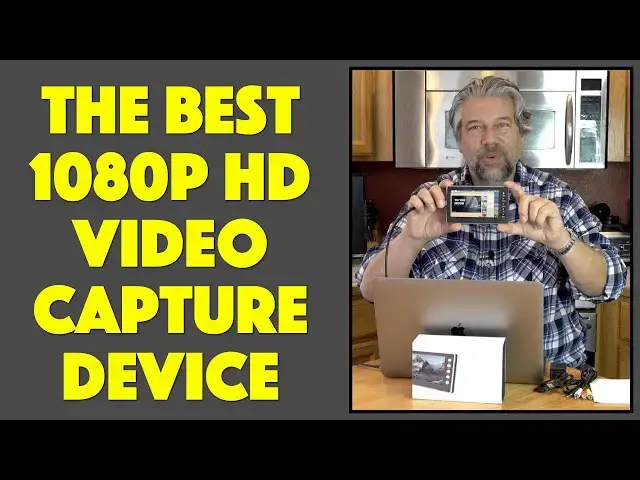
It might be the output from your new Xbox One X, PS5, Switch or just content from an old an old VHS player, DV camcorder or content you can view on your computer, but if it can be viewed through HDMI or Component Video then the DigitNow HD Video Capture Box can record it in 1080p 60fps HD format. Tech expert Dave Taylor of https://www.AskDaveTaylor.com/ runs the DigitNow HD Video Capture device, model V102, through its paces, demonstrating how to use it and showing off a segment recorded directly off his MacBook from here on YouTube. It's pretty slick!
Check it out on Amazon at https://amzn.to/2Lbdafg
Show More Show Less View Video Transcript
0:00
This isn't a tiny monitor, it's an HD video capture device. Let's check it out
0:12
Dave Taylor here and I'm checking out this. This little device is actually really cool
0:17
This is the Digitnow HD video capture box and it looks like a little tiny screen, and it is
0:24
but it's also a video capture and recording device. And basically anything you can push
0:30
out to HDMI, this can record and record really cleanly. So that means you can use this with
0:37
video games, you can use this with old VHS tapes, you can use this with your computer
0:42
So for example, I watch a lot of videos and sometimes I want to save a copy of it
0:47
That's not always available, but if I can push it out to the HDMI, I can save it with this
0:54
Now you want to know, how does it work? Well, I'm going to give you a full demo
0:58
but before we get there, I just want to say it comes with lots of stuff. So it comes with an
1:02
HDMI cable, which you'll definitely need. It comes with a USB charging. It does USB-C charging
1:10
and it comes with a little charger and has a pretty decent little battery. And it also has
1:15
an RCA to 3.5 millimeter adapter. If you have an old component out on your VHS recorder
1:23
for example, or if you have a DVD player or something, sometimes the older ones just don't
1:28
have HDMI. This would give you that option because it can also handle this as input
1:34
if you have it set up properly. Also comes with actually a pretty solid little instruction
1:39
booklet, because this is a fairly complicated device. And you can see in these closeups
1:44
on the left, you have AV in and out, which is 3.5 millimeters, and you have HDMI in and out
1:52
So you can use this just as a screen unto itself. And you can see here, maybe you can see
1:59
that I have a video on YouTube in a web browser that I've captured on this device
2:06
similar to what you see on the monitor behind me. We'll actually capture that NASA video
2:11
and then I'll play it back so you'll be able to see. And then on the top, you have the USB-C
2:18
you have USB 3, and here's one cool thing, on that USB 3, you can plug in a flash drive
2:25
and it can actually record directly to the flash drive. That's pretty handy. And then you have
2:31
volume up and down, you have power. And then on the right hand side, it has space for an SD card
2:38
and it includes this SD card. And this is interesting, I've never seen an SD card that
2:42
had no label on it. But this is a 64 gig card. So you just put it in the side and click, you're
2:49
ready to go. And then on the front, you can see there's a variety of buttons. Also in this closeup
2:55
from the top, you have settings, you can switch between record and playback mode, you have then
3:02
the three controls for settings that you're working with, and various other things. So for
3:07
example, the OK button turns on and off recording when it's actually has a signal coming in. And
3:14
then the next button lets you turn on and off the display information. All right. All of that's
3:20
really interesting. Let's actually try it out, right? That's what's really fun. All right
3:25
but wait, I suppose I should go through some specs. So at its best resolution, it can record
3:30
1080p at 60 frames per second, high res, USB 2.0, USB-C, HDMI in and out, 3.5 millimeter
3:39
audio in and out, which is what we've already looked at. This is a five inch OLED screen
3:44
it's actually a really clean, crisp screen. And it has a built in 1800 milliamp hour battery
3:50
which gives you one hour of recording if it's fully charged, or two hours of playback if it's
3:55
fully charged. Now, you're probably not going to use this as a playback device, because you're
4:00
probably going to use it as a recording device. Really nice. Like I said, it includes that SD
4:05
card, you need to have it formatted in FAT32 format, which is a Windows file system format
4:11
And it needs to be at least a class 10 or higher, because it needs to be able to take a lot of data
4:17
really fast. So don't skimp and get a really cheap SD card because a little, a few more dollars to
4:24
get a better SD card is going to make a world of difference in how this thing works. All right
4:29
Now let's try it out. So I have my MacBook Pro here, and it only has USB-C out. So I have to
4:38
use a USB-C to HDMI adapter. That's how I have this second monitor hooked up. So what I'm going
4:45
to do is I'm going to actually put this display in line. First, I'm going to put it in line as
4:51
the only device. And then I'm going to plug the monitor into the HDMI out. So let's see what
4:57
happens. First off, obviously the screen behind me will turn off. Let me not lose that cable
5:04
And now on the HDMI that they include, I'm just going to plug it into HDMI in
5:12
And then it should, I might have to switch modes. And what's happening here? Oh, there we go
5:21
All right. So now hopefully you can see it shows that into the moon, right? So it's that same
5:28
YouTube page that I was looking at. And now I can see it just on this device. And you want to double
5:35
check your sound output is also pushing to this device if you have any issues with it recording
5:40
audio. And so I can record this very easily by just pushing okay. And now on the top, it's recording
5:49
but I don't want to show you that. I want to actually show you all of that going on
5:53
on the monitor. So now let's hook up the second piece. So now I'm going to get that HDMI cable
5:59
And now all I have to do is plug it in as the output. And let's see if I can do this without
6:06
pulling off all my other wires. All right. So this then becomes a sort of device in the middle of the
6:15
chain. And now I've hooked everything up and that screen should automatically turn on. So now
6:22
you can see on the top here, it's showing me the status information from the DigitNow device. So
6:30
if I push next, then that status goes away. But let's bring it back by pushing next again
6:36
And I'm going to start recording by pushing the record button, which is okay. And now you can see
6:45
so now it's giving me a running record number. So with that in mind, and I do have to sort of
6:50
keep turning around because it's a second screen, I'm going to go ahead and we're going to back up
6:57
and I'm going to start this. And then while it's going, and remember, I'm recording right now
7:04
And in fact, I can turn off that status. Now let's just go ahead and jump to full screen
7:10
because this is the second screen. And now I'm recording all of this directly off of YouTube
7:17
without any hassle with downloads or anything. And it's writing directly to the SD card on this
7:23
device, even as I'm able to watch it here. Or of course I could do the same thing in line with the
7:29
television. So having done this and having recorded a few seconds, let's bring this back up
7:36
and you'll see it's 54 seconds of video. Let's stop the recording. And what I'm going to do now
7:44
is we'll actually go back here and stop this. And now what I want to do is I want to play it back
7:53
So one of the things you have to do is you can't have video out and have this screen active. So
7:59
that's something to know, right? So this is now blank. It just becomes like a remote control
8:05
But if I unplug the wire that goes to the monitor, then this turns on again. And now
8:12
I can switch to playback mode. And if I go to playback mode, I can then play the video. But
8:18
I don't want to do that. What I want to do is I want to cut to the saved video so you can see
8:24
the quality. So let's do that. So
8:53
pretty slick, isn't it? I mean, it's really once you get the hang of it, the interface experience
8:58
is a little clumsy. You have to sort of figure out what does what. But once you get the hang of it
9:03
this is a remarkably useful device. And honestly, for me, at least there are a lot of times I'm
9:09
watching something and I'd like to record my own copy to save for later. And you know, you can
9:15
certainly do that to circumvent things like digital rights management. So if you do a pay-per-view
9:20
you could record that pay-per-view and then watch it again later without paying for it
9:25
You know, use your discretion. Don't violate the law. Don't defraud companies or anything like
9:31
that. But if you want your own archival copies of things, this is a really remarkable little device
9:37
And it has a 64 gig card. You can put up to 128 gig card. And one of the other things I really
9:43
like about this is there's a timer function built in with all the settings. And one of the things
9:49
you can do on that timer is you can say record for 60 minutes and stop. And so I have a good
9:55
friend who watches a lot of training videos as part of her online educational system
10:00
And they're not anything she can save or download. But with this device, she could actually capture
10:07
a two-hour lecture and demo and then just save it onto her SD card and do whatever she wants and go
10:13
back and watch it again to study it. Because she's paying for the right to get to that video. So she
10:19
should be able to consume it however she wants. Be that as it may, however you feel about that
10:24
this is a really helpful device. If you have old camcorders and you have tapes in them, like little
10:31
tiny digital videotapes or something, or you have a VHS recorder or something, and you really want
10:37
to get digital versions of all that content, this is the package that will not only let you do it
10:43
but it's actually pretty easy to use. Again, once you figure it out. There are a lot of capture
10:48
devices that actually end up being kind of a nightmare to use. And so this one's a little more
10:54
expensive. But I feel like having this nice crisp screen really lets you know what the heck's going
11:00
on. And it's a really nice little monitor. So really, really nice setup. I'm a big fan, actually
11:06
And I will definitely be using this as I go through with some of the stuff I do for Continuing Ed
11:11
and some of the content I view. So great. All of that aside, or all of that in addition, let's talk
11:18
about the price. But before we get to the price, I'm going to ask if you could subscribe to my
11:23
channel. It's that little red button on the lower right. So a click or a tap and kaboom, you're
11:28
subscribed. And I sure appreciate that. Great. This device is the Digitnow HD Video Capture Box
11:36
and it is $199.99 at Amazon.com. And if you think that's expensive, go and price out how much it
11:44
costs to convert even one of your old VHS tapes or DV tapes. You'd be shocked at how expensive
11:51
those services are. And this gives you infinite capability. Anything you can push out on HDMI
11:58
anything you can push out through component video, you can record and then access either directly
12:04
from the USB-C to your computer, or you can just pop out that SD card and put it in an SD card
12:11
reader. Do whatever you want. It's really nice. You can also obviously HDMI out to a television
12:19
and use this to play back on your TV whatever you've recorded. This is a pretty slick device
12:25
It's also a really nice feel, has a nice solid feel with brushed aluminum. Probably my biggest
12:32
complaint or criticism about this is the speakers are on the back and there's no stand. So naturally
12:38
you're going to do that and now you can't hear the audio. So that's a little engineering piece
12:43
that I think they made a mistake on. They could solve that by having a little bend out stand so
12:48
you could do something like this, which would at least have the speakers not be covered by the
12:52
surface you're putting the device on. Be that as it may, definitely worth checking out. That's all I
12:57
got. I'll hope to catch you in my next video
#Consumer Electronics
#Game Systems & Consoles
#TV & Video Equipment
#Software
#Computer & Video Games
#Science
#Media Streaming Devices
#Virtual Reality Devices