Up next in 10


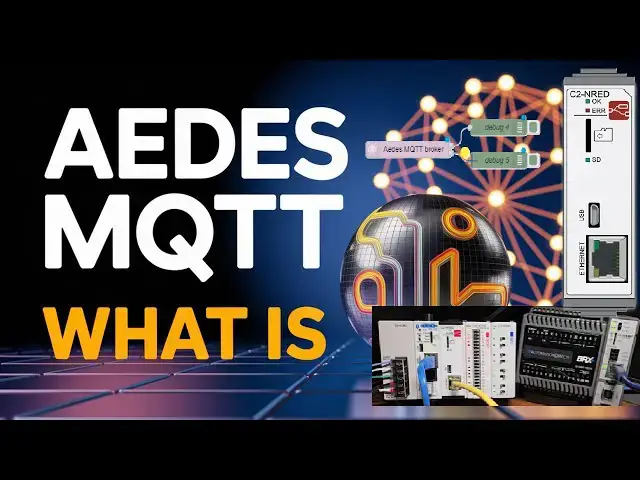
CLICK PLC C2-NRED Aedes MQTT: Revolutionizing Automation Communication
In the rapidly evolving world of industrial automation, efficient communication between devices is crucial for the success of any operation. Enter the CLICK PLC C2-NRED with its innovative Aedes MQTT Broker node. This Node-RED node revolutionizes how we perceive automation networking. You can now install an MQTT Broker in the industrial environment without using a server on your network. This will speed up your MQTT communication.
We will install the Node-RED Aedes MQTT broker on our Click PLUS PLC C2-NRED module. The clients will subscribe and publish to this broker. Node-RED nodes, MQTT In and Out, will be used in the C2-NRED. We will also use the BRX Do-More PLC and the Click PLUS MQTT communications to create three connections. Let's get started.
For more information, please visit our website. This includes all of the links mentioned in this video. https://accautomation.ca/click-plc-aedes-mqtt-what-is-the-big-deal/
00:00 Click PLC & AEDES MQTT: What is the Big Deal?
01:18 What is MQTT?
02:01 Integration of Aedes with CLICK PLC C2-NRED
05:21 MQTT IN / OUT in Node-RED (Client)
09:44 BRX Do-More MQTT
13:19 Click PLUS PLC MQTT
Previously, we looked at the following using C2-NRED Node-RED:
CLICK PLUS C2-NRED: Easy Install for PLC Module!
https://accautomation.ca/click-plus-c2-nred-easy-install-for-plc-module/
https://youtu.be/ZFgcVwCYCRk
Unleash Innovation: Node-RED Flow in Click PLC
https://accautomation.ca/unleash-innovation-node-red-flow-in-click-plc/
Show More Show Less View Video Transcript
0:01
click PLC C2 and red 80s
0:04
MQTT revolutionizing automation
0:07
communication in a rapidly evolving
0:10
world of industrial automation efficient
0:12
communications between devices is
0:14
critical for the success of any
0:16
operation enter the Click PLC C2N red
0:19
with innovated 80s MQTT broker node this
0:23
Node Red node revolutionizes how we
0:26
perceive automation networking you can
0:28
now install an MQTT broker in an
0:30
industrial environment without using a
0:32
server on your network this will speed
0:34
up your MQTT
0:36
communication we will install the Node
0:38
Red 80s MQTT broker on our Click Plus
0:42
PLC C2N red
0:44
module the clients will subscribe and
0:47
publish to this broker node Red nodes
0:50
MQTT in andout will be used in the C2n
0:54
we will also use the bricks do more PLC
0:56
and the click plus MQTT communications
0:59
to create three connections let's get
1:02
started detailed information contained
1:04
in this video can be found at
1:06
acccca.ca a link has been put in the
1:08
description below if you have not
1:10
watched the other videos yet there'll be
1:12
links in the description below that will
1:13
start you at video one there'll be links
1:15
to the rest of the videos in the series
1:16
as
1:19
well what is MQTT
1:23
mqtt or message queuing telemetry
1:25
transport is a lightweight messaging
1:27
protocol for low bandwidth high legacy
1:30
networks mqtt is a widely used in IoT or
1:34
internet of things systems where it
1:36
facilitates communication between
1:38
different devices and applications
1:39
ensuring reliable data transfer and
1:42
real-time
1:43
monitoring the 80s MQTT broker can
1:46
handle a considerable number of clients
1:48
while specific numbers may vary based on
1:50
hardware and configuration AES has been
1:53
designed to be highly scalable and can
1:55
support tens of thousands even
1:57
potentially hundreds of thousands of
1:58
concurrent
2:01
connections integration of 80s with
2:03
Click Plus PLC C2N
2:07
red previously we installed the 80s node
2:10
on our C2N red module the C2N red mounts
2:14
in a PLC slot of the Click Plus click
2:18
MQTT can be implemented easily for
2:20
real-time data transfer between
2:22
different devices in our
2:24
network open up our previous flow this
2:27
can be done by selecting the PLC menu
2:30
option on the click programming software
2:32
select Ethernet and then choose
2:34
[Music]
2:36
connect double click on the tab flow one
2:40
we will name this click IO we previously
2:43
covered how the Node Red flow interacts
2:46
with the Click Plus PLC inputs and
2:49
outputs click the plus icon on the top
2:52
right side of the workspace a new flow
2:55
tab will be displayed double click on
2:57
this tab and name it 80s
3:00
MQTT separating different flow tabs will
3:02
enable you to organize your work and
3:04
document the process effectively select
3:07
done on the edit flow window popup
3:13
click and drag 80s broker node onto the
3:15
workspace also click and drag two debug
3:18
nodes on the two outputs for the 80s
3:21
broker
3:22
[Music]
3:26
node double click on the 80s broker node
3:29
to view the default parameters our port
3:32
number is the default 1883 for MQTT
3:36
communication select done
3:39
we must enable the port using the click
3:41
PLC programming software to allow
3:43
traffic in and out of the
3:45
[Music]
3:49
port select C2 and red under the main
3:52
menu setup slot zero
3:56
setting the C2N red module configuration
3:59
window will be displayed under the port
4:02
management area select port management
4:04
setup
4:06
the port management setup C2N red window
4:09
will be displayed select
4:11
add we can now add the port required for
4:14
MQTT broker under the add allowed port
4:16
window choose the following
4:19
protocol TCP port number
4:23
1883 and we can add a comment such as
4:27
MQTT select okay
4:32
we can now see our added port in the
4:34
port management setup window select okay
4:37
on the C2 NRED module configuration
4:39
window select okay returning to the main
4:42
page of the Click programming software
4:44
save and write your program to the Click
4:46
Plus
4:47
PLC our 80s broker is now set up on our
4:50
C2 and Red module think of the broker as
4:53
a filing cabinet this is a storage
4:56
device for information
4:58
if information is placed in the cabin
5:00
the clients who want it will
5:01
automatically receive it when it changes
5:03
in MQTT this is referred to as
5:05
subscribing and
5:21
publishing MQTT in out in Node Red
5:26
client we will publish the eight point
5:29
outputs of address 101 of our Click Plus
5:32
PLC
5:38
click and drag an inject click read
5:40
function and MQTT output node onto our
5:45
workspace we'll also add debug nodes
5:48
between the click read and the function
5:51
and between the function and the MQTT
5:54
out
5:57
nodes double click on the click read
5:59
node select the memory type as output
6:02
point Y the address will be 101 and the
6:05
size will be eight select done
6:30
double click on the function node we
6:32
will change the onssage code to the
6:36
following message.payload equals
6:40
message.payload.data return
6:44
message this separates the status of the
6:47
read information in the click PLC to
6:49
just the data select done
6:54
double click on the MQTT out
7:12
node our server will be set up for the
7:14
AD server we just configured the topic
7:17
we choose is similar to our filing
7:19
cabinet example in our case we'll make
7:21
it click backslash
7:24
outputs when setting up your network
7:26
consider future expansion and how this
7:28
information will be utilized the unified
7:31
name space can be used for your
7:33
organization qos or quality of service
7:37
responds to increasing levels of
7:38
reliability for message delivery we will
7:41
set ours for two this ensures that the
7:43
messages are delivered exactly once
7:45
without duplication
7:47
we will also set the retain to true to
7:50
ensure that our values are remembered
7:52
select
7:57
[Music]
8:00
done click and drag an MQTT in and a
8:03
debug mode onto our
8:07
workspace connect them together and
8:10
double click on the MQTT in the
8:12
node
8:14
our server will be populated with our8s
8:17
broker address we will subscribe to the
8:19
single topic click backslash outputs
8:22
ensure the topic matches to one
8:25
specified in the MQTT output node we
8:28
will set our QoS to two and use the auto
8:32
detect for our output select
8:35
done select deploy to write our flow
8:38
program into the C2N module select the
8:41
inject mode to test our flow
8:44
you will see our output array from our
8:46
click read going to the MQTT out node
8:50
publish the MQTT broker will then send
8:53
the information out to our MQTT in node
8:55
that we are subscribing
9:12
you will also notice that the 80s MQTT
9:14
sends out a heartbeat allowing us to
9:16
know that it is still
9:19
active mqtt communication employs a
9:22
report by exception approach resulting
9:24
in a quick communication method due to
9:26
its low network
9:28
traffic if you are enjoying this video
9:31
please hit the like button below keeping
9:33
up with all the latest automation
9:34
innovations can be difficult so hit the
9:36
subscribe button remember to click the
9:38
bell beside your subscription to
9:39
actually receive those notifications
9:45
bricks do more
9:49
mqtt now let's set up our MQTT client in
9:52
our bricks do more PLC we are currently
9:55
online with just an end statement in our
9:57
LAD logic diagram ensure that we are in
9:59
edit mode in our do more designer
10:02
software insert a rung before the end
10:05
statement in the instruction toolbox
10:07
select MQTT sub under the standard
10:10
[Music]
10:16
protocols the MQTT sub window will be
10:21
displayed double click to create a
10:25
device the edit MQTT client settings
10:28
windows will be displayed name the
10:31
device
10:43
click_80s select use IP address and
10:45
enter the address for our C2 NRED module
10:48
on our Click Plus PLC the protocol will
10:51
be MQTT at server port 1883 we will
10:55
leave the session keep alive at its
10:57
default of 30 seconds and set the
10:58
quality of service to QoS1 this is the
11:02
highest we can
11:04
set our session type will be clean
11:07
select
11:10
okay we will now return to our MQTT sub
11:13
window and the at
11:15
MQTT_80s device is now set select the
11:19
insert button to subscribe to our topic
11:22
[Music]
11:27
a new topic window will be displayed
11:29
enter the topic value of the click
11:32
backslash outputs and the payload of SS1
11:36
the value transmitted via MQTT
11:39
communication will be in the ASI format
11:41
select okay
11:53
we will now see the topic and payload
11:55
location back on our MQTT sub
11:58
instruction
11:59
window set the on success on error and
12:02
select the extended error information
12:05
the corresponding bits will be C01 C02
12:08
and word D0 select
12:12
okay accept and save the program to our
12:15
computer give it a name that you will
12:17
remember select write PLC to transfer
12:20
the program to the bricks do more
12:31
PLC we can monitor the MQTT topic by the
12:34
data view in our DORP designer
12:36
programming software this can be
12:38
selected under the main menu debug data
12:40
view new
12:56
enter the payload parameter of SS1 to
12:59
monitor the data if changes are observed
13:01
the broker will automatically send the
13:03
updated
13:04
information as mentioned earlier MQTT is
13:07
designed to use minimal bandwidth
13:09
enabling efficient communication without
13:11
overloading the network resources this
13:13
is particularly beneficial in settings
13:15
with constrained communication
13:20
infrastructures click plus PLC
13:25
MQTT now let's add an MQTT client in our
13:28
Click Plus PLC return to the Click
13:31
programming software select MQTT client
13:34
from the main menu
13:36
setup the MQTT setup will be displayed
13:41
this is port one of our click PLC
13:45
CPU select enable MQTT and use
13:49
subscriber this will enable the tabs to
13:51
implement the protocol independently of
13:52
the PLC scan cycle
13:55
automatically under the connect to MQTT
13:58
server or broker configuration enter the
14:01
following IP address this is the address
14:04
of the C2N module Ethernet port
14:08
protocol
14:11
MQTT tcp port number is
14:15
1883 keep alive time 30 seconds which is
14:18
the
14:19
default connected C10 this will be on
14:22
when we are connected to the MQTT broker
14:25
the last will and testament will be set
14:28
as a
14:31
default select the subscriber setup tab
14:34
we will set the enable as SC1 this is
14:37
the click PLC always on the enable when
14:40
and auto reconnect will be set to on the
14:43
quality of service will be set to
14:45
QoS1 we will put the error to C11 and
14:48
the error code to
14:50
DS1 set the broker topic to click
14:54
backslash outputs the length will be 13
14:57
and the start payload address will be
14:59
text one select
15:01
okay
15:03
our MQTT client is now set save and
15:07
write the project to the Click Plus
15:28
PLC using the data view on the home menu
15:32
you can monitor the status of our
15:33
connection errors error information and
15:36
payload from our MQTT
15:46
client the 80s node red node in the
15:49
click PLC C2N red integrates the MQTT
15:53
protocol this enables efficient and
15:56
effective communication under the
15:57
operational framework 80s focuses on
16:00
providing secure and reliable messaging
16:02
making an ideal choice for automated
16:04
systems that require real-time data
16:06
acquisition and control as industries
16:09
move towards more connected automated
16:11
environments the Click Plus PLC C2N red
16:14
with 80s MQTT stands out as a
16:17
transformative
16:19
solution to see the installation of our
16:21
80s MQTT broker node on our Click Plus
16:24
C2 and Red module click here click here
16:27
to learn more about our bricks do more
16:29
PLC and all the protocols available
#Industrial Materials & Equipment
#Industrial Materials & Equipment
#Manufacturing
#Computers & Electronics
#Enterprise Technology
#Software
#Factory Automation
#Home Automation
#Intelligent Personal Assistants
#Teleconferencing