live_tv
Livestream Starting Soon
00
Hours
:
00
Minutes
:
00
Seconds
Up next in 10

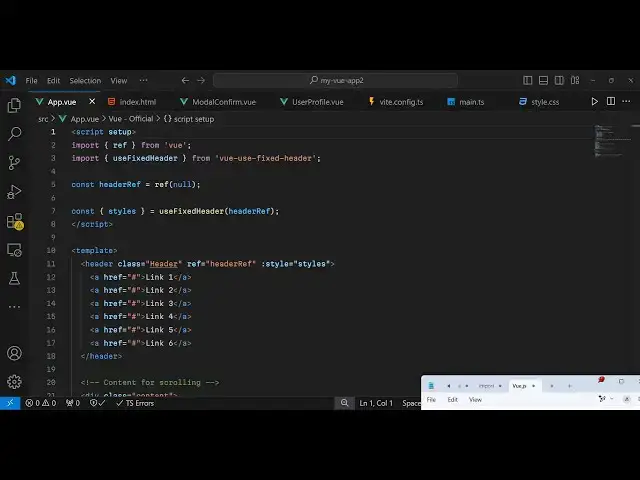
Vue.js 3 vue-use-fixed-header Example to Make Sticky Fixed Header on Scroll in Browser Using TS
Jan 9, 2025

Get the full source code of application here:
https://gist.github.com/gauti123456/8c98e9d5766a5881331a980387679e99
Show More Show Less View Video Transcript
0:00
uh hello guys welcome to this video so
0:02
in this video I will show you a view J 3
0:05
dependency which allows you to make
0:08
sticky
0:09
headers inside your website so there is
0:11
a specific module right here and you can
0:14
see I have a lot of content on this web
0:16
page and the header as I scroll up you
0:20
will see the SC uh the header right here
0:22
will be sticky it will
0:26
stay as I'm scrolling upwards it is
0:29
actually staying the navigation bar that
0:31
the menu that you can see the header
0:34
position you can have anything right
0:36
here it can be a menu it can be anything
0:39
it can be a simple header or so as I'm
0:42
scrolling up you will see it is now
0:44
staying up so there is the sticky header
0:47
dependency or a package which is there
0:49
inside vuejs 3 that I will show you in
0:51
this
0:52
video so the name of the package
0:57
is it's specifically designed for View
1:00
JS applications so as you can see I'm
1:02
scrolling up this is actually staying
1:04
it's a sticky
1:07
header and if you go to npmjs.com and
1:11
just search for this package
1:16
uh the name of the package is view use
1:21
fixed
1:25
header so if you just search for this uh
1:28
the module will come and the command is
1:30
really simple you need to install this
1:32
by executing this command I've already
1:35
installed it so it's fairly new package
1:36
139 weekly
1:38
downloads and now to get started just
1:41
create a simple vuejs project and we are
1:45
editing our app. view file which is the
1:48
basic view component and right here in
1:51
order to initialize this we basically
1:55
import the actual plug-in first of all
1:58
we import the reference from
2:04
view then we import the
2:06
package so use fixed header and this
2:11
will be coming from this package which
2:12
is view use fixed
2:16
header so using this import statement
2:19
you import this package
2:22
and then I will just initialize a simple
2:26
reference
2:27
variable I will use this reference and
2:31
set it to null and it also have the
2:34
Styles here which will be coming from
2:36
this use fix
2:39
header so we are initializing this
2:42
simply first of all we importing it then
2:44
we are instantiating a new reference of
2:47
it passing this header reference this is
2:49
all
2:50
your script code types script code now
2:55
we actually have our template
2:58
tag so inside the template you can
3:02
basically make your
3:04
header and this header will take a class
3:08
of if you want to customize this you can
3:11
give it a class so that we can Target in
3:13
CSS and we can attach the same reference
3:16
that we given if you see header refer we
3:18
are attaching the same reference right
3:20
here so header reference and then we
3:26
give the style attribute so you can
3:28
actually attach a CSS object which
3:30
contains the styles for this header so
3:33
using this attribute which is uncore
3:36
style so inside this you can
3:39
Define your header it can contain
3:42
anything it can be text image or a menu
3:45
so I will be having a simple menu which
3:48
will be shown in this header you have
3:51
various links you can have anything in
3:54
this
3:56
header so if you refresh your browser
3:59
you will see
4:00
these links will
4:02
appear this is actually your
4:05
header and we will just style it simply
4:09
uh using the style tag I will just I
4:12
have given this class here header so I
4:14
will just customize
4:17
this by writing some CSS code here so I
4:20
will just paste it so I have given all
4:23
the source code in the description of
4:25
this video so you can check out
4:35
so if I just paste the Styles here and
4:38
now if you see refresh the you will see
4:40
the header will look something like this
4:42
it will have a nice little orange
4:45
background so now we just need to paste
4:48
some dummy content so that we can
4:51
scroll in the web
4:55
page so just after this header just
4:58
outside this we will have the actual
5:00
basic content for the website so we just
5:02
give it a class to it of
5:10
content so you'll just have a simple
5:18
paragraph So we are looping through uh
5:21
so it will repeat for 15 50 more times
5:25
so just providing us with dummy
5:28
content so so now we need to initialize
5:31
this because if you see as we are
5:33
scrolling up this header that you see
5:37
this fixed header it is staying as I'm
5:39
scrolling down if you
5:41
see it is sticking to this default
5:44
position
5:46
and and if the user Scrolls upwards or
5:49
downwards they are still seeing the
5:51
navigation menu all the time so this is
5:53
actually the package which is actually
5:55
doing its job it is making sure that the
5:58
header States at at one location all the
6:01
time irrespective of whether the user is
6:04
scrolling the page or not
6:06
so in this way you can initialize this
6:10
uh very simply
6:14
so if I remove this line let's
6:17
suppose if I remove this script
6:21
code now you will notice the difference
6:24
right here
6:38
so this is actually the
6:40
module which allows you to
6:47
fix or just make a simple navigation
6:50
menu which is
6:52
sticky and as you scroll up you will see
6:55
the navigation will show automatically
6:58
so as you scroll down it will be hidden
7:01
but as you scroll up it will now be
7:03
shown so you can use this package to
7:05
actually make this sticky navigation or
7:09
header inside vuejs 3 so I have given
7:13
all the source code in the description
7:15
of this video so also check out my
7:18
website as well freem mediat tools.com
7:20
uh which contains thousands of tools
7:23
regarding audio video and image and I
7:26
will be seeing you guys in the next
7:27
video