Up next in 10

Vue.js 3 v-dropdown-menu Example to Build Dropdown Menu With Items & Header Footer in TypeScript
Jan 9, 2025

Get the full source code of application here:
https://gist.github.com/gauti123456/e42780205c54e05ac23d1292c574bfcc
Show More Show Less View Video Transcript
0:00
uh hello guys welcome to this video so
0:02
in this video I will show you how to
0:04
design or how to build a drop-down
0:07
navigation overlay menu so when you
0:10
click the button you will see this drop-
0:12
down navigation menu will appear having
0:14
a series of menu items and a drop- down
0:17
header and a footer as well you will see
0:20
and in in between you define your items
0:23
it can be anything it can be menu
0:26
items so there's a package inside view
0:30
js3 which is specifically designed for
0:32
view3 and if you want to integrate this
0:35
drop- down menu inside your application
0:37
or website you can use this package
0:40
so it's very minimalistic package if you
0:43
just search for npmjs.com just search
0:47
for this module which
0:50
is
0:54
view the name of the module is v-
0:58
dropdown menu so
1:00
just write this view V dropdown
1:08
menu so you will see it works with the
1:11
latest version which is V3 uh the
1:14
command is simple you install this and
1:16
it's almost having a, weekly downloads
1:20
and they offer a nice little
1:22
documentation as well so this is their
1:25
documentation
1:27
website and get started you will see see
1:30
the instructions how to get started so
1:33
install this by executing this command
1:36
I've already installed it so now to
1:38
register
1:40
it for view3 application you can
1:43
globally register this
1:45
module so you just need to create go to
1:48
that main.ts file so we are developing
1:51
it in typescript
1:53
so so here you need
1:58
to I will show you step by step
2:00
instruction so first of all you import
2:02
this
2:06
module on their website they have given
2:09
this so first of all you import this
2:11
module and the CSS file as well and then
2:14
you pass it so simply what we will do we
2:17
will import this import drop-down menu
2:22
and it will be coming from this V
2:24
dropdown
2:25
menu and second instruction is it you
2:29
need to also import the CSS file as well
2:32
so v- dropdown menu /
2:36
CSS so you'll see 207 kiloby and 1.47
2:40
kiloby the size of this CX CSS file and
2:44
then we need to Simply pass it as a
2:46
middle Weare which is drop- down
2:48
menu so that's all that we need to do in
2:51
this file to configure this module now
2:54
you can close it and just go to app.
2:57
view and I will show you from scratch so
3:02
right here we put your template tag
3:04
right here here we Define our HTML so
3:08
you have a div tag you define this class
3:11
Here
3:12
app and here we Define The Heading which
3:16
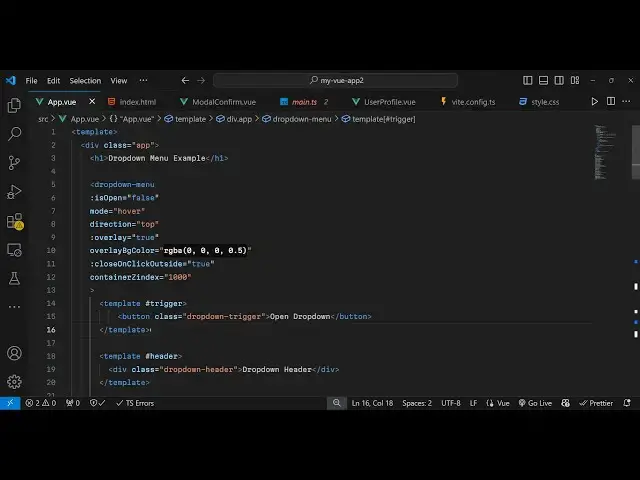
says drop-down menu
3:20
example so after this you define the
3:22
drop down menu by having
3:26
this opening and closing tag which is a
3:29
drop down menu this is your custom
3:32
component and here it takes some options
3:34
so here you need to pass some
3:37
options colon is open it's a Boolean
3:41
parameter by default I will show it
3:44
hidden so once the user interacts with
3:46
it then we will only show this menu so
3:49
the second option is take is the
3:52
mode so when the user clicks on the
3:55
button then only we need to show so mode
3:57
is
3:58
click and it also takes the direction as
4:00
well so if you want the direction top
4:04
right bottom left so I will say right in
4:07
the right direction and
4:10
overlay it will be seen as an overlay so
4:13
you can put this to
4:15
true then you can even have a background
4:19
color attached to the menu so you will
4:23
have this background
4:24
color overl and close on click outside
4:29
so if the user clicks outside the menu
4:32
if they want to close it you can say
4:34
true and then container Z index so it
4:39
will be set to th000 so these all
4:43
options it takes and now inside this you
4:46
can Define your menu
4:50
items so we Define our template whatever
4:54
menu that we need to Define right here
4:57
so we can define an ID here which is a
5:00
trigger hash symbol
5:05
trigger and then we will be having this
5:08
button inside this which will trigger
5:10
this menu so we'll be attaching this
5:12
class here which will be drop down
5:16
trigger so we will simply be saying open
5:19
drop down so we have this button right
5:25
here then we simply after this
5:31
we'll have the second template which
5:33
will be for the header so this will be
5:35
the drop- down
5:37
header and then we will be defining the
5:40
body
5:41
similarly in another template so we put
5:45
this body so this is the body of the
5:46
menu so you can have anything right here
5:51
I am just putting Demi items and
5:54
lastly in similar fashion you define the
5:57
footer as well so here you will put your
5:59
company name or website name as well so
6:01
this is your footer
6:03
section this is actually the full drop
6:06
down menu consist so this is the parent
6:09
tag and it actually takes the button
6:11
which will trigger then we have the
6:13
header footer and the
6:15
body and now we will write actually the
6:17
typescript
6:19
code so using the script
6:23
tag so first of all we import the module
6:26
so we say import dropdown menu and it
6:29
will be coming from this package which
6:31
is v- dropdown
6:33
menu so we just here diff import that
6:39
and that's all that we need to do and
6:41
you will see this button appearing as
6:43
you click the button you will see the
6:45
drop down menu will show but as you can
6:47
see the default styling is not enough
6:51
you do need to add your own custom
6:53
styles to customize the look and feel so
6:57
just put style tag right here
7:00
and just paste the
7:03
CSS
7:05
Styles so just to change the color of
7:08
that drop down menu so I have pasted the
7:11
CSS I've given the all the source code
7:13
in the description of this video so now
7:15
what happens you will see this a button
7:17
appearing in the center so when you
7:19
click it the drop down menu will open
7:22
this is your header these are the list
7:24
of items right here clickable hyperlink
7:29
and this is your
7:31
footer you can customize the drop- down
7:34
color if you change it to any other
7:36
color so you will see the color will
7:39
change and same goes with the background
7:42
color as well so if you want to
7:43
customize just change it to any other
7:46
color this is the
7:49
header background color
7:59
this is your button background color you
8:02
can all customize this once you have the
8:03
CSS code you will easily customize this
8:07
all the color combination
8:09
so it's a very simple drop- down menu it
8:13
will you can change the direction as
8:16
well so having all these
8:18
attributes let's suppose I change to top
8:21
so now what happens if you click
8:24
it it will open it as a
8:31
and I think it also takes hover instead
8:34
of
8:35
Click so once you hover onto this now it
8:38
will show this menu we are not clicking
8:43
it we are just hovering on the button so
8:45
you can even have this functionality as
8:48
well so all these options are supported
8:52
if you want click hover then you can
8:54
even change direction as well top you
8:57
can change the background color as well
8:58
so
9:00
all these customization is supported so
9:02
uh all the source code is given in the
9:04
description so thank you very much for
9:07
watching this video and do check out my
9:09
website as well free mediat tools.com uh
9:13
which contains thousands of tools
9:15
regarding audio video and MH and I will
9:18
be seeing you guys in the next video