live_tv
Livestream Starting Soon
00
Hours
:
00
Minutes
:
00
Seconds
Up next in 10

Stop Coding Alone! Let Cody AI Assistant By Sourcegraph Help You Code Smarter in VS Code!
Jan 9, 2025

Stop Coding Alone! Let Cody AI Assistant By Sourcegraph Help You Code Smarter in VS Code!
Show More Show Less View Video Transcript
0:00
uh hello guys welcome to this video so
0:02
in this video I will once again show you
0:05
a AI
0:06
assistant uh inside vs code which is
0:09
called as Codi Codi is new in the market
0:13
this is actually their uh official
0:15
website source.com it is developed by
0:18
this company and it is similar to open
0:21
AI chat GPD but specifically it is for
0:25
coding for developers and do it do have
0:28
a paid plan as well but the nice thing
0:31
about this uh AI assistant is that you
0:33
can try it for free so for a limited
0:36
number of times so this is a free plan
0:38
here and here you can put unlimited auto
0:42
complete but there is a limitation that
0:44
only 200 chat messages will be there but
0:48
they do have a Pro Plan which is $9 per
0:50
month so now to get started right here
0:54
there is this extension which is you
0:56
need to go to the extensions tab just
0:58
search for this extension which is cod c
1:01
o Dy and if you search it inside this
1:05
extensions tab this is actually the
1:08
extension Source craft is made by this
1:11
simply install this after installing it
1:14
you will get this notification Cod right
1:17
here you need to click it and uh now to
1:19
get started you can either sign in with
1:21
GitHub gitlab or Google I will simply
1:24
sign in with my Google account so in
1:28
order to get started in vs code you do
1:30
need to create account I will simply say
1:32
continue with Google and with side
1:36
inside your Google account simply click
1:37
on continue Grant the
1:39
permission so after you do
1:42
this you need to authorize Cod inside vs
1:46
code so I will simply click the
1:48
authorize button and then you can open
1:50
your vs code
1:52
[Music]
1:54
so so it is actually downloading the Cod
1:58
AI in the background and now you will
2:00
actually see these three options edit
2:02
code document code explain code so you
2:05
can see you can perform all these
2:07
options and uh you can actually edit a
2:12
code existing code or you can select any
2:16
s any code and simply select this if you
2:19
want to understand any project you can
2:22
select this
2:23
option so let me first of all show you
2:27
the addit code so it can be run on a
2:31
particular file or selection to modify
2:33
the code so if you select this option
2:36
you do need to please open a file before
2:38
running this command so let's suppose if
2:41
I have a
2:45
file uh we have this file right here so
2:52
we click on edit but so what it it has a
2:55
pre pre-made models inside Coda
2:58
assistant so you need to select which
3:01
model that you want to select so I will
3:04
simply select this model which is latest
3:07
model clae
3:11
3.5 it also have these models giny by
3:15
Google clawed by this one so the latest
3:19
model 3.5 you will need to select
3:23
that and you can even select full file
3:27
or nearest code block or selection so
3:30
you need to
3:31
select basically whatever
3:38
thing you can even select the full file
3:41
as well so cursor position you will
3:49
select or you can document code explain
3:52
code as
3:58
well so basically what it does it
4:02
actually read this file which is we have
4:05
a simple function add function which
4:07
takes two arguments A and B it returns
4:10
basically you see a plus b so we
4:13
basically you can see it generated this
4:16
response to us this code creates a
4:18
simple addition function that adds two
4:19
numbers together that breaks down the
4:21
code defines a function name add that
4:23
takes two inputs parameters called A and
4:25
B so you can see it has uh generated
4:29
this short little description and
4:30
summary about the code what the code is
4:33
doing and also it has added these nice
4:35
little comments you'll see that the
4:39
parameter it takes two parameters a b
4:43
which is both numbers and it Returns the
4:45
addition of these two input numbers so
4:48
you can actually
4:50
uh uh just uh use this Cod AI assistant
4:55
on individual files and it will actually
4:58
add these uh comments and it will show
5:00
you actually what the thing is doing and
5:04
you can even basically let's suppose I
5:07
want
5:08
to write a simple function in Python so
5:10
I will simply say Python program to
5:14
merge CSV file to merge two CSV files so
5:22
I will ask this question and you will
5:24
actually see it will return me this
5:26
Python program which will add merged to
5:31
CSV files together it gives you multiple
5:34
programs and based upon which program
5:37
that you want to use the second program
5:39
uses the CSV module and this mod this
5:43
uses this pandas module so it gives you
5:46
multiple answers based upon which answer
5:48
you want to use you can use it and uh
5:52
you can basically copy this answer
5:54
simply click the copy to clipboard and
5:56
then you can make your program paste it
6:00
you'll see that in this easy way guys
6:03
you can use this Cod a
6:05
assistant really
6:09
easy you can even basically select this
6:12
code let's suppose if you want to select
6:14
this
6:16
code there are some keyboard shortcuts
6:19
that you can say alt K to edit this
6:23
code and ALT
6:26
L to basically ask some questions based
6:30
upon
6:32
this alt L this is the shortcut and
6:37
basically you will select this the code
6:40
will be selected and based upon this
6:42
code you will see the line number will
6:44
be highlighted which is 3 to 13 and uh
6:47
let's
6:48
suppose using this code you want to ask
6:51
some question so what I will do I will
6:54
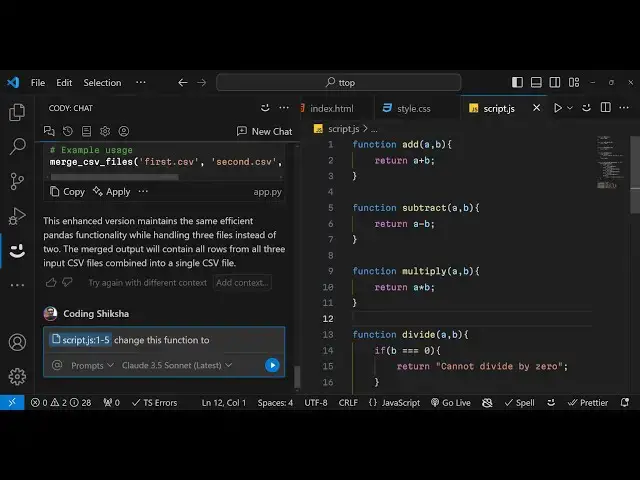
say please change this function to merge
7:00
three CSP files so
7:04
change the arguments to
7:08
receive three files three CSV files and
7:12
merge it so what it will do it will
7:14
change this function to receive three
7:17
arguments instead of two and now you see
7:20
it has modified this function to receive
7:22
three
7:23
arguments and this output path so you
7:27
will actually see you can copy the code
7:32
code let me paste this modified code so
7:35
you will see what this does it has
7:37
created another
7:47
function you will see it has created
7:50
this uh this time it is taking three
7:56
arguments instead of two
8:01
you will
8:02
see this function has taken two
8:05
arguments but now we modified this code
8:08
using Cod AI assistant now it is taking
8:10
three arguments to actually merge it so
8:14
in this easy way these are some
8:15
shortcuts that you can use just control
8:18
just select the code alt K is to edit
8:22
this code you can select these options
8:26
pre-made options if you want to document
8:28
this code so Coda assistant it will add
8:32
these comments in Python
8:36
basically so in this way if you want to
8:39
accept or reject you can reject it like
8:44
this this is a shortcut alt
8:47
K and
8:52
then you can enter edit TT uh
8:56
instructions let's suppose I want to
9:00
change this code to merge Json
9:04
files so now it is cod a assistant will
9:07
change this code instead of merging CSV
9:11
files it
9:13
will merge Json file so if you want to
9:16
accept it now you'll see your code has
9:19
been changed instead of CSV we are
9:22
merging Json file you can see the power
9:25
of cod AI assistant guys it is saving
9:27
you a lot of time and uh free version I
9:32
already told you it only supports this
9:34
is a restriction right here 200 chat
9:36
messages so you do need to upgrade to a
9:39
Pro Plan if you want to use
9:41
it uh for unlimited number of chat
9:44
messages
9:46
and so the pricing is very simple guys
9:49
$9 so I think it is not overpricing at
9:52
all it's good but do you can also use it
9:56
for free as well if you only want the
9:59
auto complete so autoc complete as well
10:02
if you write the code let's suppose you
10:04
are writing the
10:07
code so autoc complete is free totally
10:10
free so you define a function and you
10:14
can see automatically as you write the
10:16
code Auto completions will come you can
10:20
see you can press the tab keyboard to
10:22
accept the auto auto complete so you can
10:26
see now if you want to call this so as
10:30
I'm writing this the autocomplete is
10:32
coming so Auto for autoc complete uh the
10:35
money is not required autocomplete is
10:37
totally free but if you do want to uh
10:40
chat interact with the code if you want
10:42
to select this code and
10:45
uh this is a shortcut alt L and then you
10:51
can select this and say change this
10:55
function
10:57
to if if you don't want to do this this
11:00
is a you can even press the alt K
11:03
keyword to
11:06
basically here you can just edit in a
11:08
short format change this function just
11:12
make a complete
11:17
calculator with the
11:20
addition
11:22
subtraction
11:24
multiplication and
11:27
division so now Cod is working right
11:31
here so it will add these four functions
11:34
subtract multiply divide
11:37
calculator and it will call these four
11:39
functions you can accept this you will
11:42
now see so in a matter of seconds guys
11:44
you can generate a lot of code quality
11:46
software using this Cod AI assistant so
11:50
thank you very much for watching this
11:51
video I showed you in this video how to
11:53
get started with Cod AI assistant and uh
11:57
thank you very much for watching this
11:59
video video please hit that like button
12:00
and do check out my website guys free
12:03
mediat tools.com
12:04
so here this is my website which
12:08
contains uh thousands of free tools
12:10
regarding audio video and image so I add
12:13
these tools daily on this website to do
12:15
check out this website as well and I
12:18
will be seeing you guys in the next
12:19
video
#Programming
#Software
#Development Tools
#Intelligent Personal Assistants
#Open Source