0:00
hello guys soft Tony here and in today's
0:03
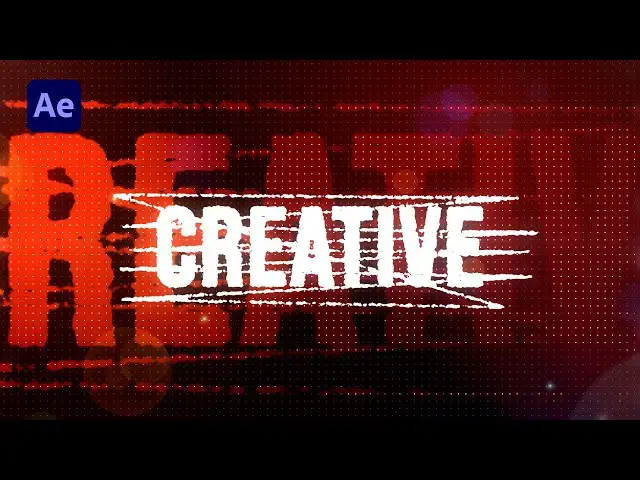
tutorial we will be creating cool text
0:05
animation step by step heing after
0:07
effects without using any third party
0:09
plugins this text animation is designed
0:12
to elevate the quality of your videos to
0:13
the highest level so make sure to stay
0:16
with this tutorial until the very end
0:18
before we begin please subscribe to my
0:20
channel hit the like button and turn on
0:22
the notification Bell so you don't miss
0:24
any of my upcoming video clips so let's
0:27
get started with the creation
0:41
all right we're here in After Effects
0:42
and first like always let's create a new
0:44
composition this is going to be final
0:46
comp hit on this little icon or controll
0:48
or command plus n let's rename this one
0:50
to final width and height 9020 by
0:54
1080 okay and duration let's go to
0:57
around 10 seconds but of course you can
0:59
type here your own numbers hit okay and
1:02
now let's create background go right
1:03
click find here new solid layer and this
1:05
is going to be background hit okay go
1:09
here in the effects and preset as our
1:11
next step and let's find here ramp
1:13
effect and if you can't find the effects
1:14
and preset just go window and you will
1:16
find effects and presets here find ramp
1:19
effect and drag and drop onto our
1:20
background okay and for the first start
1:23
of the ramp go upper left corner end of
1:25
the ramp lower right corner and for the
1:27
first color let's type here
1:31
1400 0 to get this type of red color hit
1:35
okay and for the end color let's go pure
1:38
black color hit okay and now let's also
1:40
create another solid layer go right
1:42
click find your new solid layer again
1:45
okay this is going to be Ball action
1:48
also 90/20 x 1080 hit okay and then find
1:52
here Ball action effect Dragon drop onto
1:55
the solid layer and here for the grid
1:57
spacing and ball size let's type 10 and
2:01
let's also add fill effect okay above
2:04
the bll action effect and let's change
2:07
color to pure white color hit okay and
2:10
also let's hit t for opacity for the
2:13
ball action solid layer and let's go to
2:15
around 20% and now we have this cool
2:18
looking background here in our final
2:21
scene okay our next step is to create
2:23
another composition hit here or hit
2:25
control+ n again this is going to be
2:28
text composition for the WID let's type
2:30
1,000 for the height instead of this
2:33
number type 300 and then hit okay now
2:36
hit control+ t or go click on this
2:39
horizontal type tool I will type my own
2:41
text creative okay just swap fill and
2:45
stroke here and align it to the center
2:48
okay if you can find align and paragraph
2:50
option just go window and you will also
2:52
find align and paragraph here okay for
2:55
the next step let's import our text
2:58
composition here in the final come okay
3:01
and now let's draw a mask on top of this
3:03
new composition hit G on your keyboard
3:05
or hit on this little pen icon select
3:08
this new composition and now let's draw
3:11
a mask like this you can of course draw
3:14
your own mask but I'm only showing you
3:16
the way okay this is looking cool and
3:20
when you're finished just hit here to
3:22
close the mask pad if you're not
3:24
satisfied with the mask you can hit
3:26
those points and readjust and this is
3:29
looking cool to me okay for the next
3:33
step let's add here stroke effect hit on
3:35
this text new composition again go here
3:37
in effects and preset find stroke effect
3:40
drag and drop onto the new composition
3:42
and here let's also make a few further
3:44
adjustments for the brush size instead
3:46
of two let's type four and for the paint
3:49
style instead of this on original image
3:51
find here on transparent now let's also
3:55
animate this end property go here at
3:57
zero frames set up the first key frame
3:59
for end type here zero then go to around
4:03
4 seconds and let's type here 100 okay
4:07
now hit here again on this text
4:09
composition double m to show all of the
4:11
Mask property go here again at zero
4:14
frames set up the first key frame for
4:16
mask expansion let's type minus 90 okay
4:20
then go to around 4 seconds and let's
4:22
type here one okay now it's time to
4:26
duplicate this text composition hit
4:28
control+ d s select this bottom one
4:31
delete the stroke effect go here in
4:34
effects and pres it again and find F
4:36
effect drag and drop onto the second
4:38
text composition you can of course here
4:40
change color if you want for better
4:42
recognition I will do random color okay
4:45
and for the field color I will change
4:47
here to pure white color okay now hit
4:51
also control+ D or this third text
4:54
composition let's change color hit M for
4:57
mask property for this third one and for
5:00
the mask expansion let's type here
5:03
instead of minus 90 just 90 and for the
5:06
second key frame let's type here minus
5:09
one also let's change this add option to
5:12
subtract and here in the finals now when
5:15
we hit zero we have the animation like
5:18
this and this is looking awesome now
5:20
it's time to easy ease everything select
5:23
all the composition hit U on your
5:25
keyboard to show all of the key frames
5:28
now grab them and then hit F9 on your
5:31
keyboard okay to Easy E them go to graph
5:34
editor and if you can see C like this
5:37
just go right click and you will find
5:39
edit speed graph here okay now select
5:42
second key frames and draw a curve like
5:45
this first key frames and draw a curve
5:48
like this and now when we hit zero in
5:51
the finals we have a cool animation of
5:54
our creative text in every moment you
5:56
can reposition key frames but this is
5:59
pretty much all up to you okay now it's
6:02
time to precompose those text layers
6:04
select them again and then go right
6:07
click to prompose I will just rename
6:09
this one to Text Plus
6:12
elements and then hit okay also one
6:15
thing we have forgotten to do is to add
6:17
rough and edes effect select everything
6:20
here again and then go in the facts and
6:21
pres it find raen edes effect and just
6:26
apply it on all our compositions and now
6:29
now this is looking something like this
6:31
and you can also play around here with
6:33
the options of this rough edges effect
6:35
but I will leave it and this is looking
6:38
awesome to me here in the finals now we
6:41
have seene like this and for the next
6:43
step let's duplicate this text plus
6:45
elements twice hit contrl plus d once
6:48
and again okay let's change color for
6:50
those two Text Plus elements maybe to
6:52
Orange change blending mode maybe to
6:55
Overlay hit s for scaling and maybe to
7:00
300 and now when we hit zero in our
7:02
finals our scene is looking awesome and
7:06
our creative text is looking really cool
7:09
also what we can do is to go here again
7:11
in text plus elements and for the first
7:14
text composition hit t for opacity then
7:17
go to around maybe 4 seconds set up the
7:20
first key frame for opacity all the way
7:23
to the 5 seconds and then lower this
7:25
down to around 0% and now when we hit
7:28
zero in the finals we have this cool
7:31
text animation of our creative text
7:35
awesome for the final step let's add a
7:38
few adjustment layers go right click to
7:40
create first adjustment layer this is
7:42
going to be lens flare okay go in FA and
7:45
PR it find lens player effect dragging
7:48
drop onto the adjustment layer and
7:51
basically here you can play around here
7:53
with the options for the flare Center go
7:55
somewhere around here maybe and you can
7:57
also blend this with original maybe to
8:00
around 40% set up the first key frame
8:02
also here at zero frames and then go to
8:04
maybe six or 7 seconds or maybe five
8:08
according to you and for the flare
8:10
Center let's move it all the way to this
8:13
side and now when we hit zero we have
8:15
also cool players here maybe this is a
8:18
little bit strong maybe to go around 70%
8:21
or so you can duplicate this lens fler
8:24
effect okay and now this is looking
8:27
awesome you can change also L Type maybe
8:30
to this second option or third just play
8:33
around with everything until you're
8:34
satisfied with your own final results
8:38
Also let's add another adjustment layer
8:40
go right click to find another
8:42
adjustment layer this is going to be
8:44
light sweep Okay go again here in the
8:47
effects and pres it find light sweep
8:50
effect drag and drop onto this
8:52
adjustment layer and here for the edge
8:54
intensity and Edge thickness let's type
8:57
zero for the width let's go to maybe be
8:59
around 100 okay you can also play around
9:03
here with sweep intensity pretty much up
9:06
to you for the direction you can go
9:09
maybe around 90% And you can also play
9:12
around with the Y parameter also hit t
9:15
for opacity and this is looking really
9:19
really awesome maybe for opacity let's
9:21
go to around 30% hit zero again and now
9:26
we have this cool looking roughen
9:29
creative text here in the final scene
9:33
you can add also more light effects like
9:35
light race also you can add curves but I
9:39
will leave it to you just to play around
9:41
with all of the options all right guys
9:44
that was everything for today's tutorial
9:46
as you can see this was cool technique
9:48
to create this awesome text like always
9:50
I hope you learned something new if you
9:52
haven't subscribed to my Channel please
9:54
hit that subscribe button and also hit
9:56
the like button if you found this video
9:58
helpful all the links are in description
10:01
you can also leave me a comment Down
10:03
Below in the comment section take a look
10:05
at my channel for ever more great
10:06
tutorials like this one and until next
10:10
time stay creative and