live_tv
Livestream Starting Soon
00
Hours
:
00
Minutes
:
00
Seconds
Up next in 10

Python 3 Microsoft Edge TTS Engine to Export Text to Speech as an MP3 Audio File
Jan 9, 2025

Official Website:
https://freemediatools.com
Show More Show Less View Video Transcript
0:00
uh hello guys welcome to this video so
0:02
in this video we will look again at a
0:04
different TTS engine this time it we
0:07
will be using the
0:08
Microsoft Edge TTS engine text to
0:11
speeech engine and uh it is also a very
0:15
good aut alternative to Google text to
0:17
speech and uh this is actually the
0:21
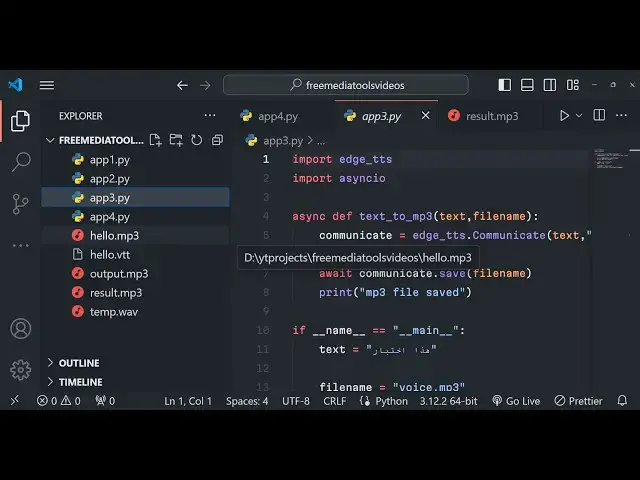
application python script we will be
0:22
building and we have given draw text
0:24
right here in English language hello
0:26
this is an sample text to convert to
0:28
speech and we will be creating a output.
0:30
MP3 file so if I execute this python
0:34
script here you will see on the left
0:36
hand side this is the python script and
0:39
if I just write here python app 3. py
0:43
just notice on the left hand side a file
0:45
will be created which will actually use
0:47
the Microsoft text to speech engine and
0:50
it will convert the text into MP3 file
0:52
you will see output. MP3 file is
0:54
generated if I try to play this file
0:57
hello this is a sample text to convert
0:59
to spe you can see the how the quality
1:03
of the voice is so Cris Crips and as
1:06
compared to different Google text to
1:07
speech engine the voice quality is very
1:10
good in Microsoft text to speech engine
1:13
so it is actually using this module guys
1:16
which is
1:17
edgecore TTS and if you don't know about
1:20
it just go to
1:24
pypi and just for search for this which
1:27
is edgecore TTS this is actually a
1:31
Microsoft
1:33
Edge it's a p python module that allows
1:36
you to use Microsoft Edge online text to
1:38
speech service so if you just search for
1:41
Microsoft Edge online text to speeech
1:44
Service uh it say ai ai to speech voice
1:49
reader it is actually using this in the
1:52
background and the famous thing is that
1:55
you don't need to actually provide any
1:57
API key you can use it unlimited number
2:00
of time this is actual module you can
2:02
even install it right here inside your
2:06
command line you should have python
2:08
installed we are using the latest
2:10
version of python at recording of this
2:11
video which is 3.1
2:13
2.2 after that you just need to type
2:16
this command Edge Ed
2:19
g- G TTS this is actual command guys
2:24
simply install that and uh you can even
2:26
run this library from the command line
2:28
as well so Edge
2:30
TTS this is actual
2:33
command and here you need to
2:37
provide you can even provide subtitles
2:39
as well so this is actually command
2:42
which is
2:43
there if you want
2:47
to this is the command htts and here we
2:50
provide the text hello world and it will
2:52
actually write the media which is hello.
2:54
MP3 and you can even write the subtitles
2:57
as well hello. V VT if you if you just
3:00
execute this command you will basically
3:02
see two files will be created hello. MP3
3:05
and hello. VT which is subtitle file you
3:09
will see
3:10
that I hello world so you can see that
3:15
you can even run this on the command
3:17
line as well or you can programmatically
3:19
use it in a python application as well
3:21
so we will be looking at a simple python
3:23
script how we can do that so I will show
3:27
you step by step so first of all we need
3:29
to import this library at the very top
3:32
edgecore TTS and then we will import
3:35
another module which is a buil-in module
3:38
I think async
3:40
iio if you just search for this module
3:42
let me also tell you what this module
3:45
does this module is actually
3:49
the a built-in module of python which
3:52
requires if you want to use async code
3:54
inside your python application then it
3:57
uses asyn code
4:00
with the help of this module we can
4:02
Define asynchronous code inside our
4:04
python application so we will Define the
4:07
name main function in Python
4:11
application so inside the main function
4:13
we will actually provide the text right
4:15
here you will say I will provide my name
4:18
is and I am 27 in C and I'm from India
4:24
you can provide as much text that you
4:26
want guys it doesn't have any sort of
4:28
restriction
4:31
you can provide pun punctuations full
4:33
stop all that stuff and it will speak uh
4:37
very good so after that you need to
4:39
provide the output file name let me just
4:41
give it as voice.
4:43
MP3 and then we will basically use this
4:46
module ASN Kyo do
4:49
run and then we will run this function
4:51
which is text to MP3 we will Define this
4:53
function which will be a Asing function
4:56
we will provide the text and the file
4:58
name so now this will be a simple async
5:01
function we can't Define like this we
5:03
will get an
5:11
error so this function needs to be
5:15
async just add this keyword
5:18
async so there is the async function
5:21
right here and now we need to Simply
5:23
initialize our Microsoft Edge TTS engine
5:27
so this contains a communicate method
5:30
and here we need to basically provide
5:33
the text and the language it also
5:35
supports different languages English
5:37
language or any native language that you
5:40
won't need to provide we are using
5:42
English us and then this area neural so
5:47
if you want to go to the documentation
5:48
of this Microsoft htts engine you can
5:50
read more language codes which are
5:52
available or you can use chat GPT for
5:54
doing that and then we can use await
5:57
keyword right here to actually save this
6:00
file as a output result or sorry voice.
6:05
MP3 and after that you can actually
6:08
write a simple message on the screen
6:09
that your MP3 file
6:14
saved this is all that we need to do
6:17
guys if I actually say python app 3. py
6:21
you will see voice. MP3 will be saved
6:24
and if I play this my name is gam Sharma
6:27
and I am 27y old and I am from IND you
6:30
can see I think it's the best voice that
6:32
I heard in a TTS engine it is Al also
6:36
better than Google text to speeech
6:38
engine as well it sounds like little bit
6:40
Robo robotic but this voice is sounding
6:44
a very good voice such as a very similar
6:46
to human so I think Microsoft s TTS
6:50
engine is best in terms of the voice
6:52
quality and uh you can basically see and
6:56
uh if you want to play with this you can
7:00
use a tool called as chat GPT because
7:03
don't need to do don't need to read
7:06
documentation instead you just ask a
7:08
question that
7:10
provide uh change the
7:15
language to Hindi and
7:20
Arabic just do that and it will tell you
7:23
the example for your respective language
7:26
so you it it will tell you exactly what
7:28
you need to
7:30
uh you will be see various language
7:34
quotes are available so for Hindi it is
7:37
hi it is spoken in India so basically
7:41
you need to say hi which stands for
7:43
Hindi and I in stands for India and suar
7:47
neural these are different languages
7:49
neural networks are used right here in
7:52
as Microsoft as TTS engine you will see
7:55
these are neural networks voices that
7:57
are coming right here and here we need
8:00
to provide the text in
8:02
a Hindi language so you do need to paste
8:06
Hindi language text just use Google
8:09
Translate to actually convert your text
8:10
to A respective language so if you just
8:14
save this
8:16
file so if you
8:19
see so you can see that guys it is
8:22
speaking on different languages this is
8:25
for Arabic
8:27
language these are voices from female
8:29
voices you can even have voice from male
8:33
as well
8:45
so this is for I think yeah
9:03
so as you can see Arabic text is written
9:06
and we can change the
9:08
language the voice
9:15
here so you can basically use chat GPT
9:18
guys to actually play with this you can
9:21
it will give you any example that you
9:25
have so you can see that so it's a very
9:27
good uh text to speech engine guys
9:30
Microsoft Edge TTS engine it is actually
9:33
using neural network you just type here
9:36
Microsoft Edge text to TTS
9:40
engine so you can
9:45
basically this module comes right here
9:48
you will see that so we are actually
9:49
using it and it supports multiple
9:52
languages guys you will see you can also
9:55
look the list of voices that it has
9:58
there is a command right right here ed-
10:01
TTS and then you can list out all the
10:04
voices there is an option d-list Dash
10:09
voices and it will exactly tell you how
10:11
many voices are there in this TTS engine
10:14
you will see you can scroll down you can
10:17
see all these languages all these voices
10:19
are there you'll see that for different
10:22
languages for different countries these
10:23
are the languages which are there so you
10:25
can test out each and every voice you
10:28
can see that this is for Africans this
10:30
is each country code each country there
10:33
are female and male voices you will see
10:35
that
10:36
so you can test out each you can
10:38
actually make a tool as well online
10:41
which actually provides text to speech
10:43
for
10:44
users and it's a very good Library guys
10:47
that I wanted to show you thank you very
10:49
much for watching this video if you are
10:52
liking this content please hit that like
10:54
button subscribe the channel as well
10:56
share this video with your friends and I
10:57
will be seeing you in the next video you
#Programming
#Software
#Voice & Video Chat
#Intelligent Personal Assistants
#Other