Up next in 10


Get the full source code of application here:
https://codingshiksha.com/vue/build-a-vue-js-3-side-panel-menu-with-header-and-footer-in-browser-using-vue3-side-panel-in-ts/
Show More Show Less View Video Transcript
0:00
uh hello guys welcome to this video so
0:03
in this video I will show you how to
0:05
integrate a side panel menu inside your
0:09
vs3 application something like this and
0:12
it will also contain a fixed header
0:15
scrolled body fixed footer as well so it
0:18
contain header footer as well alongside
0:20
of the body so you can toggle this side
0:22
uh menu like like this so there is a
0:25
package for this so you can customize it
0:29
by adding some content and CSS but I'm
0:31
just showing you the actual plugin which
0:33
add this side menu so it's a very handy
0:37
package and if you go to npmjs.com you
0:41
just need to search for this package
0:43
which is called as
0:46
view3 side panel this is actually the
0:51
package which adds the side
0:55
panel menu so command is simple it's
0:59
almost got one thand weekly downloads so
1:01
they to offer their own official
1:04
website so where they offer all these
1:08
customizations live demo so you can
1:11
change this position if you want it in
1:13
the left position then it will come in
1:15
the left position if you want to put it
1:17
in the top here or in the bottom so all
1:21
the four locations are
1:22
supported and you can also have some
1:25
nice little transition as well
1:27
so this nice transition animation which
1:31
will also occur you can even control how
1:34
much time the animation should happen so
1:36
if I say 1 second 1,000 millisecond so
1:39
it appears for you can see that so if
1:43
you want the fixed footer so there will
1:46
be a fixed footer so you can try out
1:49
this live demo they give you this
1:51
complete example code as soon as you do
1:53
the customization
1:56
so I have also given the link in the
1:59
description of this video can check go
2:01
to the website and get the source code
2:03
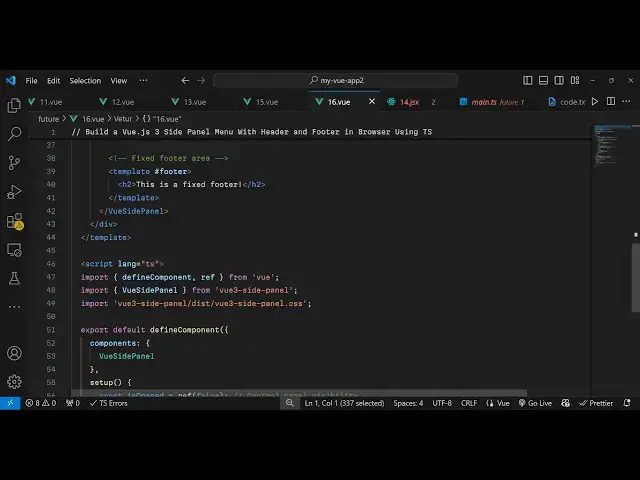
so now to get started inside your view3
2:06
application just go to your app. view
2:09
file and uh just to integrate this I
2:12
will show you very simple
2:14
example so write your template where you
2:16
will write your HTML code and then your
2:19
types script code will be in the script
2:21
section so just need to explicitly
2:24
mention the language here typescript so
2:27
here we use the import statement and we
2:31
define import the necessary
2:34
packages then we import this third party
2:37
package which is view side
2:43
panel and which will be coming from
2:45
view3 side panel and for this we do need
2:48
to import a CSS file as
2:52
well like
2:57
this and after that we just just need to
3:00
export this
3:03
component you need to register it inside
3:05
your components so we simply say view
3:08
side panel that's all this is all the
3:10
configuration code that we need to do
3:12
and then inside your setup function we
3:14
need to declare variables so for this
3:17
application we be just be having this
3:19
Boolean parameter which we will toggle
3:22
as soon as you click the button by
3:24
default it is false so you'll be
3:27
toggling it to true to show the
3:29
visibility of the panel menu so we'll be
3:33
returning this so that we can directly
3:35
use it in the template so now inside
3:39
your template we need
3:43
to bind a simple Button as soon as you
3:46
click that button you will show this
3:49
menu so you will find this button right
3:52
here we simply show
3:56
side panel menu
3:59
so you bind this on click listener to
4:01
the button so when you click this button
4:04
we will make this value of is open to be
4:07
the opposite of is opened so if the
4:10
value is true then it will make it false
4:12
if the value is false then it will make
4:14
it true just talk link
4:17
this so if you refresh your application
4:20
you will see this
4:21
button but now to show the menu you need
4:24
to bind after that this component view
4:26
side panel you initialize this plugin
4:30
and it actually takes some
4:32
options first of all the V
4:37
model is actually your is
4:41
opened and then the lock
4:48
scroll if you want to hide the close
4:51
button then you can put this option as
4:53
well so then inside this you define your
4:56
content whatever content that you have
4:58
to have in inside your menu so for this
5:01
I'm just pasting some basic
5:05
content so here we Define our header
5:09
this contains an H2 heading and a span
5:11
tag and this is actually a close button
5:14
so whenever you close it we make this
5:16
value to false then inside the body we
5:19
show this simple content and then in the
5:22
inside the footer so if you refresh you
5:25
click that and now you will see the side
5:27
panel menu
5:32
so this is actually a very simple
5:34
example but you can go to their
5:36
documentation they offer a nice little
5:38
documentation with all the options so
5:41
thank you very much for watching this
5:42
video and also check out my website as
5:46
well free mediat tools.com uh which
5:48
contains thousands of tools regarding
5:51
audio video and image and I will be
5:53
seeing you guys in the next video