Up next in 10


Get the full source code of application here:
https://gist.github.com/gauti123456/de70a8f96d311edffb72eff08c103af2
Show More Show Less View Video Transcript
0:00
uh hello guys welcome to this video so
0:02
in this video we will look at how to
0:03
convert your images into scalable vector
0:06
graphics format we'll build out a image
0:08
to SVG converter inside browser using
0:11
canvas API and bootstrap in react CHS so
0:15
this is the actual interface right here
0:17
we where we allow the user to Simply
0:18
select their PNG or JPG file so let me
0:22
select the JPG file you will see that
0:24
original image preview and then this
0:26
image has been converted to SVG so you
0:29
will see see on the right hand side this
0:31
is SVG image we have a download button
0:33
if I click this button our image will
0:35
get downloaded if I open this image in
0:37
the browser you will see this is
0:39
actually a SVG image and it has been
0:41
converted this jpg image to SVG so we'll
0:46
try to actually build this converter in
0:48
browser using the canvas API so all the
0:51
source code will be given in the
0:52
description and you need to install this
0:55
package react bootstrap for building
0:58
this interface so just install these two
1:01
packages npmi bootstrap and uh react
1:05
bootstrap so these two packages are
1:08
required so npmi bootstrap react
1:10
bootstrap so just install these two
1:12
packages I've already done that so I
1:15
will start my development server
1:18
so first of all guys what we need to do
1:21
we need to I will instantiate a new
1:25
functional component and if I refresh it
1:29
will hot Auto reload so now inside this
1:33
we need to first of all declare some
1:35
State variables which will be
1:37
responsible for building this
1:38
application first of all is the actual
1:41
input image file we need to keep track
1:44
image file set image file and the
1:47
initial value will be using the UST
1:49
State hook it will be
1:50
null and then the output SVG file so it
1:54
we simply say SVG content set SVG
1:58
content and again using the U state
2:01
which will be
2:03
nothing these two State variables we
2:05
declared input image and output s fi so
2:09
after you do this in the jsx we will
2:12
simply
2:16
have the
2:18
bootstrap we have the container class we
2:20
will import this at the top and we will
2:24
have H1 heading we'll simply say image
2:26
to
2:27
SVG converter
2:30
give it a bootstrap class name margin
2:33
top five and after this we will have the
2:38
form and inside the form we will
2:41
actually have form
2:45
group and we will basically give it an
2:47
ID to it control ID which will be form
2:52
file give it a class name which will
2:56
be margin bottom three and here you'll
3:00
be having a form label and the form
3:03
control so let me paste it so this
3:07
actually allows the user to Simply
3:09
select their image files so we have this
3:12
if you
3:14
see we have only accepting the PNG and
3:18
JPG files and we will execute this
3:21
function on change handle file upload so
3:23
when the file is changed we need to
3:25
Define this function right here so we
3:27
simply say
3:30
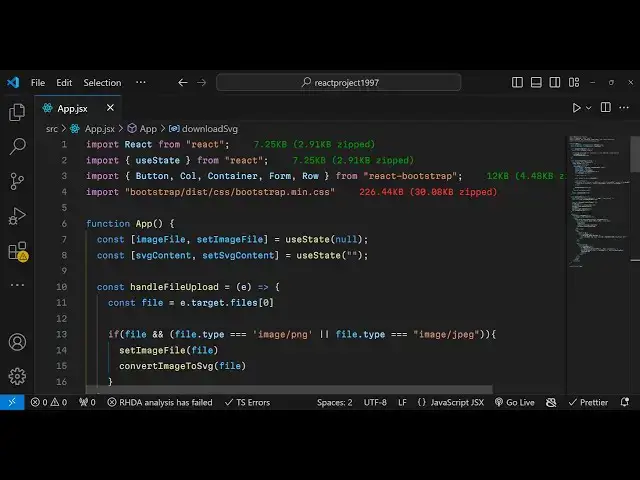
handle file upload e parameter will be
3:34
passed automatically event parameter so
3:37
when the file is selected what we need
3:39
to do first of all we need to read the
3:41
file so for reading the file we'll
3:43
simply say e. target. files you'll get
3:47
access to the file and store it in this
3:50
variable file and you'll be using first
3:54
of all if condition if the file is valid
3:57
and if the type of the file
4:00
is either PNG or jpg or
4:06
condition in either of these cases we
4:09
can process the
4:12
image so first of all we set the image
4:14
file using the hook function file and
4:17
then
4:18
we'll actually have a function which
4:20
will convert this image to SVG and pass
4:24
the file as an argument so now we need
4:27
to Define this function which will be
4:30
convert
4:31
image to SVG we will pass the file here
4:35
as an input file so inside this function
4:38
guys first of all we need to read the
4:40
file using the file reader API which is
4:42
available inside the browser and uh it
4:47
has a function on load so e parameter
4:50
will be passed so it basically be
4:52
instantiating the image Constructor and
4:55
it has a onload
4:58
function so when the image is loaded we
5:01
will draw this image on the canvas so
5:03
for drawing the canvas we need to create
5:05
a dynamic element using the create
5:07
element function we will simply say
5:10
canvas and we will actually initialize
5:12
the width and height of the canvas to
5:14
whatever is the width and height of the
5:16
image so canvas width canvas height is
5:19
equal to image width image height and
5:22
then we will actually get the context
5:24
variable from the canvas using the get
5:28
context method 2D context and will draw
5:30
this image using the draw image function
5:32
at x coordinate 0 y coordinate 0 so
5:36
after drawing this image we need to
5:38
convert this into the base 64 code so
5:41
get base 64 code for doing this we will
5:44
actually get this uh base 64 URL using
5:48
this function two data URL so this will
5:52
actually draw this image on the canvas
5:53
and get the base 64 code and now we can
5:56
actually convert this code to SVG by
5:59
simp Simply Having this uh
6:04
string this is very simple uh done using
6:08
you convert this data URL replace it
6:10
inside this SVG Tab and if you see here
6:14
using the same withd same height right
6:17
here after we get this now we can simply
6:20
set this SVG
6:22
content to the actual SVG string like
6:27
this and lastly we need to initialize
6:30
the source here image source is equal to
6:33
e. target.
6:36
result that's all
6:39
and also after you do this we also need
6:43
to inside this function it is there
6:45
inside convert image to SVG we need to
6:48
read this file as read as data URL file
6:52
that's all this is the overall function
6:55
which is responsible for converting your
6:57
image to SVG and now we need to actually
7:01
show the output SVG file so once you
7:05
convert this image to SVG we need to
7:08
show this SVG on the browser so now for
7:12
showing it if you see just scroll down
7:15
and after
7:18
the right here when the form is
7:24
ending we also need to show the live
7:27
preview of the image so once you select
7:30
your input
7:32
image for showing the live preview of
7:35
the image right here
7:37
after this form group we can have
7:41
a row
7:47
tab
7:54
column so if the image file is selected
7:56
in that case we need to
8:00
show the image live preview
8:06
so give it a class name margin bottom
8:10
three we will simply show the live
8:12
preview so original image preview and
8:17
for showing this image image tag we will
8:20
have the source parameter and we will
8:23
simply say URL do create object URL and
8:27
whatever is the image file
8:31
and we'll giving a bootstrap class of
8:34
image
8:36
fluid so if you now select your image
8:39
file you will
8:43
actually I think uh row we do need to
8:47
import the row as well uh we haven't
8:50
imported that so just import it
8:55
automatically so also guys we do need to
8:58
import the CSS file for bootstrap base
9:01
CSS so we need to import bootstrap disc
9:05
CSS bootstrap main. CSS file at the
9:11
top so now this is styled by bootstrap
9:14
if you select you will see the original
9:16
image preview now we need to show the
9:18
output SVG file as well side by side so
9:22
for showing that also after
9:26
that after that column right here we
9:28
will iiz another
9:32
column and this time on the right hand
9:34
side we will simply write as jsx if the
9:39
SVG content is there in that case only
9:42
show the SVG content inside this div
9:48
so margin bottom three and inside this
9:52
we will have the SVG preview
10:00
so you will have the div and inside this
10:04
div we will actually show
10:08
the SVG and after that we will also be
10:13
having a download button so
10:15
just like
10:21
this so we actually Define a function
10:24
here download SVG once you click the
10:26
download button so now we need to Simply
10:28
Define this uh function which is
10:31
download
10:35
SVG so basically what happens right here
10:38
guys if you select your image
10:41
uh I think some kind of error is there
10:44
button is not defined we need
10:47
to also import the button so
11:02
so now you will see the SVG is showing
11:05
and if I click the download button
11:07
nothing happens we need to just Define
11:09
this download button so what basically
11:13
inside this we convert this into blog
11:15
and download this as an attachment so I
11:17
will paste the code all the source code
11:19
will be given in the description so what
11:21
we are doing right here we are simply
11:23
converting into a blob passing the SVG
11:26
content and creating a object here
11:29
inside blob and creating then anchor
11:31
element and then putting the file name
11:34
appending it clicking it very simple
11:36
code right here for downloading it so if
11:39
I just now refresh select my image
11:44
file and if you see on the right hand
11:46
side SVG file click on download and you
11:49
will see this has been converted to SVG
11:52
file so in this way guys you can convert
11:54
your images to SVG very simply inside
11:57
react shars using the canvas API and
12:00
please hit that like button subscribe
12:02
the channel and also check out my
12:04
website as well free mediat tools.com
12:06
which contains thousands of free tools
12:08
regarding audio video and image and I
12:11
will be seeing you guys in the next
12:14
video
#Design
#Photographic & Digital Arts
#Programming