Up next in 10

Build a React.js Image Carousel Gallery and Slideshow Using react-image-gallery Library in JSX
Jan 9, 2025

Get the full source code of application here:
https://gist.github.com/gauti123456/af2348b36280bf064bed834c12e56cd6
Show More Show Less View Video Transcript
0:01
uh Hello friends welcome to this video
0:03
so in this video I will show you how to
0:05
make this nice little Carousel or slid
0:08
show from a series of images inside
0:11
react CHS so there is a specific Library
0:13
available where you can make these
0:16
Gallery like structures if you have a
0:18
series of images you can show it and
0:21
loop it through and this is actually a
0:23
slideshow which is happening
0:24
automatically each image is appearing
0:27
for a certain period of time you can
0:29
even select images right here as well so
0:32
this is a slideshow you can you can
0:35
build this awesome looking Carousel or
0:37
image gallery so there is a package
0:40
inside react chairs so uh which you can
0:42
use which is image react image gallery
0:46
this is actually the name of the package
0:48
and if I show you the actual package you
0:52
need to visit npmjs.com and just search
0:55
for this package react image gallery
1:00
so this is essentially the package that
1:03
we are using here this is actually the
1:05
command and just install this I've
1:07
already installed it it's almost having
1:10
175,000 weekly downloads it is having a
1:13
great documentation I will show you a
1:15
very simple example so first of all what
1:18
we need to do we need to actually create
1:21
a very basic functional
1:25
component and then we will simply import
1:28
this module
1:34
so now to import this module it becomes
1:36
really
1:41
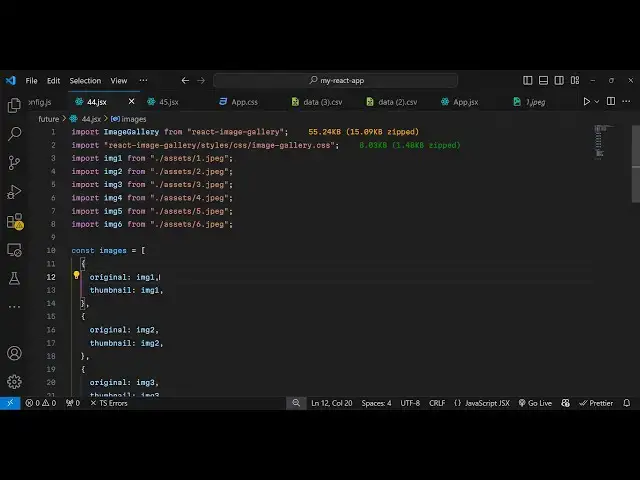
easy so right here at the very top we
1:44
will import this module so with the
1:46
import
1:47
statement so we will simply say
1:51
import image
1:53
gallery and this will be coming from
1:57
react image gallery
2:00
this is actually the package here if you
2:02
see we are importing this image calorie
2:05
and it is almost 55 kilobytes package
2:09
and it also offers its own CSS file as
2:11
well for the styling of the carousel so
2:15
we do also need to import the CSS file
2:17
so REM react image gallery it contains
2:21
the Styles folder CSS and then image
2:26
gallery CSS this is the CSS CSS file
2:30
that we are also importing 8 kiloby of
2:32
CSS file which is there for this plugin
2:35
and now we need a series of
2:38
images and now for the images my images
2:41
are stored in my assets directory this
2:43
is a very uh basic react CH project and
2:46
it contains the assets folder so you
2:48
need to paste which whichever images
2:50
that you want to use for the slideshow I
2:52
already pasted the six images so you
2:55
will see jpg images so I will use these
2:57
six images and now to import these
3:00
images in my react CH project what I
3:03
will do I will One By One Import these
3:06
images so I will add these six import
3:09
lines so import image one you can call
3:12
this anything here you need to specify
3:15
the path which is in the assets folder
3:17
then we have this similarly you'll be
3:21
importing the second image which will be
3:24
coming
3:27
from so in the similar way we will
3:30
import the second image as
3:35
well so I will just paste
3:40
it so we are actually importing all
3:44
these
3:45
images I will just change the
3:55
name so in this way you can import all
3:57
the images
4:01
so after importing all these images we
4:03
can actually create a simple array of
4:08
images so this array will actually hold
4:12
an object containing the original image
4:16
which will be the image one and also for
4:18
the
4:19
thumbnail for this first image so there
4:24
you need to provide the thumbnail as
4:25
well which will be image one so both the
4:28
same images we'll be using for for the
4:29
original and thumbnail and same thing
4:32
you need to do this for each every
4:34
object this is one
4:36
image and here you provide it and same
4:39
you will provide it for all the six
4:42
images and you will change the name here
4:45
image
4:48
two so this is essentially one image in
4:51
the slideshow so we are repeating it for
4:53
six times so we will have six images in
4:56
the slideshow so depending upon how many
5:00
images are there you need to repeat this
5:02
process for each object you need to
5:04
specify each image so now we have these
5:07
array here now we can actually create a
5:09
slideshow so there is this component
5:12
that we are importing which is image
5:13
gallery we can directly use it in the
5:16
jsx so right here we can embed this
5:20
image
5:22
gallery and it take some options so
5:25
first of all you need to provide
5:27
whatever items it takes
5:30
so I will provide the images as it is so
5:33
if you refresh now you will see by
5:36
default it will look something like this
5:39
you will see the thumbnails at the
5:40
bottom position and then we have these
5:42
controls out there you can navigate to
5:45
the next image in the
5:46
gallery you can even have a full screen
5:49
as well you can see it's now in full
5:51
screen you can individually select any
5:54
thumbnail in this image so now we if you
5:57
want to op optimize this change some
6:01
options First Option you can change the
6:03
thumbnail position by default it is
6:06
bottom you can change to top as well so
6:08
now the thumbnails will show at the top
6:10
you will see
6:12
that now if you also want a these bullet
6:16
points right to appear right here you
6:19
can specify show bullets so there is an
6:22
option it's a Boolean parameter you can
6:24
put this to true so now if you also see
6:28
these bullets will also appear
6:30
so it will specify which images we are
6:34
there and now if you want to auto
6:37
play there is
6:39
a you can put to True here so now what
6:42
happens if you refresh the it will
6:45
automatically
6:47
play so if you refresh
6:50
now so it will auto automatically play
6:54
you don't need to do anything so
6:57
automatically the slideshow will go on
7:00
so this is the normal case you have seen
7:02
on websites automatically the slideshow
7:05
happens in the gallery from a series of
7:07
images this is actually the option next
7:10
option we can even control how many
7:13
seconds each image appears so there is a
7:15
slide interval option so 1,000 me 1,000
7:21
millisecond so this means that only for
7:23
1 second the image appears so now what
7:26
happens if you see after 1 second the
7:29
the image goes away so you can control
7:31
the duration as well using this property
7:34
which is SL
7:35
duration let me put it to 3 second 3,000
7:39
millisecond so now after 3 seconds each
7:42
image will go away and the next image
7:44
will come so all these options are
7:49
supported and
7:51
uh in this way and one more option you
7:54
can specify is the slide duration so how
7:58
many how many second it takes to for the
8:01
transition to take
8:04
place so you can even control the
8:06
duration of the transition from one
8:09
image to another how much time it took
8:11
to move to one image to another so in
8:14
this way so this is actually the full
8:18
gallery slideshow you can create in
8:20
react CH specific application using this
8:22
module it's very popular react image
8:24
galery I've shown you the complete
8:27
example thank you very much for watching
8:29
in this video and do check out my
8:31
website as well free mediat tools.com
8:34
which contains thousands of tools
8:37
regarding audio video and image and I
8:39
will be seeing you in the next video
#Programming
#Clip Art & Animated GIFs