Up next in 10

Angular Monaco Syntax Highlighter Example to Build Material VSCode Coding IDE in Browser Using TS
Feb 5, 2025

Get the full source code of application here:
https://codingshiksha.com/angular/angular-monaco-syntax-highlighter-example-to-build-material-vscode-coding-ide-in-browser-using-ts/
Hi Join the official discord server to resolve doubts here:
https://discord.gg/cRnjhk6nzW
Visit my Online Free Media Tool Website
https://freemediatools.com/
Buy Premium Scripts and Apps Here:
https://procodestore.com/
Show More Show Less View Video Transcript
0:00
uh hello guys welcome to this video so
0:02
in this video I will show you uh a
0:06
example inside angular to actually
0:09
syntax highlighting your code in
0:11
different languages so we have this nice
0:13
little drop down you can select from
0:15
this language JavaScript HTML CSS then
0:18
we display this code little editor we
0:21
are using the Monaco syntax highlighter
0:23
library inside our angular application
0:25
so you can paste your JavaScript code
0:27
right here so as soon as you paste it
0:30
you will see the syntax highlighting
0:33
appearing and you can even paste an HTML
0:36
code you will see that the syntax
0:38
highlighting will be there so from this
0:41
drop down you can select right here so
0:43
we are essentially using this
0:46
package uh which is Monaco syntax
0:50
highlighter if you don't know about
0:51
Monaco syntax highlighter just search on
0:54
Google and it is developed by Microsoft
0:58
it's an open source syntax highlighter
1:01
with intelligence features syntax
1:04
highlighting so there is a specific
1:06
package available for angular so if you
1:08
just search for uh this here ngx Monaco
1:14
editor so if you just go to npmjs.com
1:20
atate
1:22
material ngx
1:35
so I think it is called as ngx Monaco
1:41
editor yeah so this is actually the
1:43
package guys so we using this package
1:47
and it's almost got 9,000 weekly
1:50
downloads and uh I have written a step
1:54
byep blog post on my website holding all
1:57
this example code this is actually the
1:59
package we are using at theate material-
2:02
ngx monacco editor and also we are using
2:05
this monacco editor package as well so
2:08
now to get started we need to go to this
2:11
file app. module. typescript file and we
2:14
need to configure this module so for
2:16
configuring it we need to add these
2:18
import statements so we imported this
2:21
module coming from this package and then
2:24
we go to the Imports array and we added
2:27
this module and also in the providers
2:29
array we add this so I've written all
2:32
these instructions in my blog post you
2:34
can follow this after you do this you
2:36
come to your app. component. HTML so for
2:41
doing this I will start from scratch so
2:43
first of all you need to enable all
2:46
these options one by one so first of all
2:50
I will declare some options such as you
2:54
will provide a user code you will
2:57
declare this variable user code which
2:59
will say contains some example code then
3:02
we put this language here initial
3:04
language will be JavaScript these two
3:07
variables and then we will have a
3:10
dropdown where we will show these
3:13
languages so available languages the
3:16
user may have choices so they will have
3:18
three choices JavaScript HTML CSS you
3:21
can even add more languages as well and
3:25
then we will have one more variable for
3:28
the theme you can choose the theme of
3:30
the code syntax highlighter so the
3:33
current theme will be
3:36
VST and these are all the options now we
3:39
come to the app. component. HTML so we
3:42
actually use this directive which is ngx
3:46
Monaco editor opening and the closing
3:49
tag so now we actually provide these
3:52
options so as you write here you will
3:54
see the syntax highlighted will be ready
3:58
but we need to uh basically put the
4:00
highlighting here for putting this
4:02
highlighting we need to pass a class
4:05
name or we need to pass the
4:11
actual uh the init function which will
4:15
be responsible for initializing all
4:17
these options so I will pass this call
4:22
back function to initialize it so
4:25
there's the init attribute we need to
4:27
Define this function here editor and
4:30
it and also we need to pass the options
4:34
which we declare inside editor
4:37
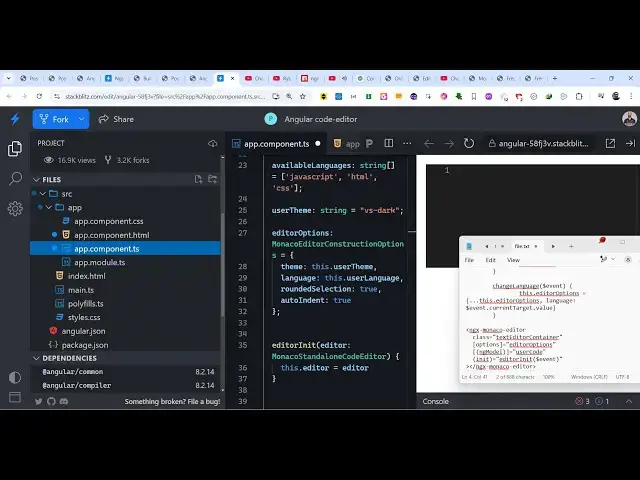
options so now here inside your
4:41
typescript code we just need to Define
4:44
these
4:45
options so we basically make an object
4:49
right here and we pass the theme we pass
4:52
the language and auto indentation
4:54
rounded selection so we basically make
4:57
an object editor options which is the
4:59
type Monaco editor construction option
5:02
so these all things these things we
5:04
imported at the very top which is coming
5:06
from this package you can see that all
5:09
these three things are coming so we
5:11
declar this options editor options pass
5:14
the theme
5:16
language and now you can write here the
5:19
suggestions will
5:22
come so in this way you can write your
5:27
code this syntax fight
5:31
so this is the thing guys so if you want
5:34
to show the drop down as
5:37
well so here we can initialize the
5:40
editor we can pass this function which
5:43
is editor in
5:45
it so for this we do need to declare a
5:48
variable I think
6:03
so after this you can declare a drop-
6:06
down as well so coming to
6:11
your so in this easy way guys you can
6:14
integrate the monacco editor inside your
6:17
angular application I have given all the
6:19
source code of this example in my blog
6:21
post you can follow the step-by-step
6:22
instruction and also copy paste all the
6:24
source code so it it's a working example
6:28
so in this you can easily integrate the
6:30
Monaco code editor inside your angular
6:33
application so thank you very much guys
6:35
for watching this video and also check
6:37
out my website as well free mediat
6:39
tools.com uh which contains thousands of
6:43
tools regarding audio video and image
6:45
and I will be seeing you guys in the
6:47
next video