Up next in 10

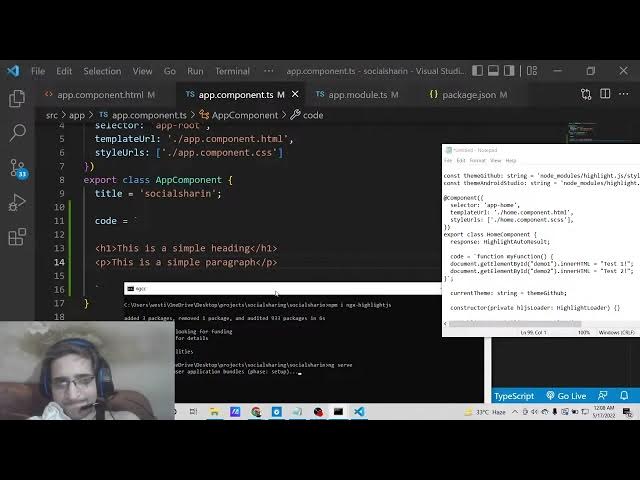
Angular 13 ngx-highlightjs Example to Highlight Source Code in Various Themes & Auto Detect in TS
Dec 22, 2025

Buy the full source code of application here:
https://buy.stripe.com/cN28zQfbH1SodDW6KU
Show More Show Less View Video Transcript
0:06
Uh hello friends. Today in this tutorial
0:07
I'll be showing you that how to
0:09
highlight source code inside your
0:11
angular application. So we will be using
0:14
this uh plug-in which is ngx highlight
0:17
js. So basically it's a syntax
0:20
highlighter and it will be able to
0:22
highlight any sort of source code that
0:25
you have inside your application. So
0:27
let's suppose you want to highlight some
0:29
kind of uh programming code and uh with
0:34
various themes. So you can do this with
0:36
this plug-in which is ngx highlight JS.
0:39
So there are various themes which are
0:41
available. Dark theme, light theme, all
0:44
these themes are available for every
0:46
programming language. It will auto
0:48
detect and accordingly it will add these
0:51
line numbers also and also this will
0:54
highlight the code. So basically uh if
0:57
you just search for this library which
0:59
is available for free which is
1:01
open-source library. So if you just
1:04
search for ngx highlight js. So
1:07
basically this is the
1:10
official documentation about this
1:12
plug-in. So it's a angular specific
1:16
library and uh if you check the live
1:19
demo you will see this is the live demo
1:22
of this. It has various themes attached
1:25
to it. Android Studio trackia you will
1:28
see that.
1:31
So basically it will highlight your code
1:34
in these themes.
1:36
So you can change these themes
1:38
accordingly.
1:42
So I will be showing you step by step
1:44
how to integrate it inside your angular
1:46
application.
1:48
So all the source code will be there
1:50
inside video description. So if you want
1:53
to follow along with this video, you can
1:56
just go to the video description link
1:58
and uh I have given all the source code
2:01
here.
2:03
So you will see all the step-by-step
2:06
instruction is given how to do this.
2:10
So this is the ngx highlight JS library.
2:14
So now to do this you need to create a
2:18
angular project with the help of ng new
2:21
command. I have already done that. So
2:24
you will see this is my angular project
2:26
which is running. So it's a brand new
2:28
project.
2:30
I haven't added anything to it. So you
2:33
will see that. Let me delete all this
2:35
stuff. So this is currently empty. So
2:38
now the very first thing you need to do
2:40
is that you need to add this library. So
2:43
you need to go to app.module.ts
2:45
file and you need to add this library
2:48
inside this file.
2:50
So for doing this it is very simple.
2:54
You need to import all the modules. So
2:57
you need to import it from ngx highlight
3:02
js. So the very first thing you need to
3:05
go to the command prompt and install
3:07
this module which is npmi ngx
3:11
highlight js.
3:14
So just install this module and it will
3:16
take hardly 5 to 10 seconds to install
3:20
this module. So now it is successfully
3:22
installed. So now we can install this u
3:25
import this from ngx highlight js. So
3:29
here we need to import three things.
3:31
First is the highlight module.
3:35
The second thing is highlight options.
3:38
The third thing is highlight
3:42
options.
3:43
Again this needs to be highlight
3:46
options.
3:48
So these are the three things we have
3:50
imported. Highlight module, highlight
3:52
options and highlight options. So after
3:55
importing all these things now we need
3:57
to add this inside the imports array.
4:02
So you need to import this highlight
4:05
module
4:10
inside your
4:12
providers
4:14
you need to put a com uh inside the
4:17
providers array here you need to have
4:20
this object
4:22
provide
4:26
highlight options put a comma then you
4:30
have this use value
4:36
highlight options.
4:40
Close this.
4:42
So inside this guys, you need to put
4:44
line numbers whether you want to use
4:47
line numbers.
4:49
I will be telling it to true. If you
4:52
want to show line numbers in inside
4:54
syntax highlighter, you will put for uh
4:57
true here. If not then you need to put
5:00
false. Then you need to put core library
5:03
loader.
5:05
So you need to here you need to import
5:08
the core library which is the actual
5:11
library. So you need to import
5:14
highlight js.
5:20
So highlight
5:23
dot js / lib/core.
5:31
So just eliminate this. So that's it.
5:34
Put a comma. And the second core library
5:37
which is required is line numbers
5:40
loader.
5:42
So this is available inside
5:45
this address which is highlight js.
5:52
So if you see uh in the drop-down we see
5:55
some things coming here which is
5:57
highlight
6:00
js dash line numbers
6:04
dot js. So, put a comma
6:15
uh highlight
6:25
highlight JS
6:31
dot JS
6:34
theme path
6:36
This is also need to be. So this is
6:39
present inside.
6:45
So all these things guys we are uh I am
6:47
writing these things here. So you can
6:50
copy paste the things. It is also
6:51
available at the plug-in documentation.
6:58
So you will see this these things are
7:00
also available inside this. So I can
7:03
simply copy this and don't waste your
7:06
time. So simply I can copy this things
7:10
like this.
7:14
So basically it's an optional
7:17
whether it is saying if you want the
7:19
line numbers.
7:23
So if you don't want the line numbers
7:25
you can simply delete this. So like
7:28
this.
7:35
So two people are watching the stream
7:37
guys. So we are building a syntax
7:39
highlighter inside Angular. So please
7:43
hit the like button, subscribe the
7:44
channel as well. So after this things
7:48
guys uh we need to go to your app dot
7:53
component HTML file.
7:58
So you need to add this. So inside your
8:01
code tag you need to highlight whichever
8:04
code you want to highlight.
8:07
Simply have this inside
8:13
code variable. Now you need to go to
8:15
app.component.ts
8:17
file. So here you need to define the
8:20
code whichever code you need to
8:22
highlight. So we can use back tick
8:26
symbol.
8:27
So here we can write any sort of code.
8:30
This is HTML code. You will see that.
8:43
So basically just now if I see here
8:46
inside my
8:50
if I need to run this so we will simply
8:52
say ngsurf.
8:55
So if I start this angular application
8:58
you will see this
9:01
it will highlight this code.
9:08
So for this guys, you need to import
9:11
some things at the very top.
9:16
So simply import these things right here
9:20
at this top of this file.
9:27
And inside the constructor, whenever
9:29
this is loaded, you need to copy paste
9:33
it like this.
9:40
So it has started this. So let me see if
9:44
it is working.
9:52
So you can see that it uh
10:02
it hasn't loaded this. So you need to
10:06
add the languages code also.
10:14
So just go to app.component html file
10:17
and add this attribute which is
10:20
languages. So
10:23
which is typescript. So if you just
10:26
reload this application
10:31
you will see now it is highlighting this
10:33
code.
10:34
So if you want the same functionality,
10:36
you can go to the video description link
10:40
for this module.
10:46
If I just paste it,
10:54
paste this code here like this inside
10:56
this
11:05
Paste it here.
11:42
So now you can see that guys
11:47
I don't know why it is not highlighting
11:50
locally but you can test it inside stack
11:52
blitz website
11:57
they have hosted this uh module online
12:01
so you and check the package.json file.
12:04
Whichever modules are missing, you can
12:06
update them.
12:09
But uh simply copy all the dependencies
12:13
which is there.
12:23
So you can see these are the
12:24
dependencies which are there.
12:27
Uh let me copy this and update my
12:30
package.json file.
12:34
It's to synchronize it
12:37
to me.
12:43
And now if I execute
12:46
npmi.
12:51
So if I start now this application
12:54
hopefully it should work.
13:02
So for highlighting the
13:06
line numbers we also have this. So
13:11
so we can copy paste this line. So which
13:14
was missing
13:16
earlier. So we can go to right here
13:19
paste this line.
13:22
Still is it is missing.
13:38
So this is the application guys. You can
13:40
go to stacks.com. This is the project.
13:43
You can clone this project project
13:46
and uh you can highlight the source code
13:49
inside Angular.