0:02
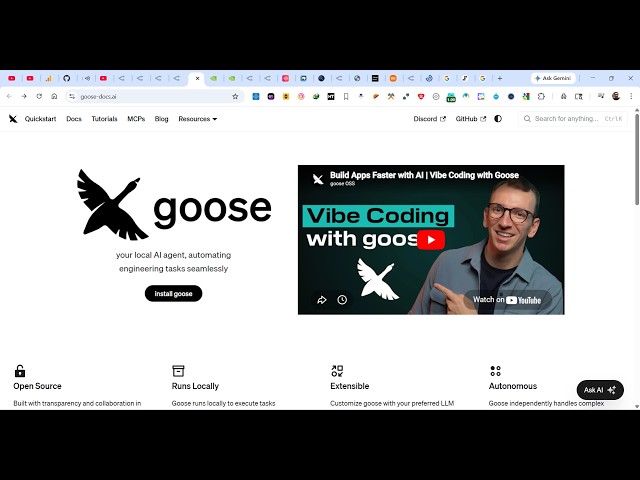
Uh hello guys. In this live stream, I
0:04
will show you an open source
0:07
coding CLI [snorts] agent, which is
0:09
called as Goose, g o o
0:13
So, if you simply write Goose AI, the
0:15
very first link which comes directly on
0:17
Google, it's an open source coding AI
0:20
agent, which allows you to build out
0:23
your coding application.
0:33
it's also available on GitHub as well,
0:39
So, it's an open source extensible
0:43
Once get installed in CLI, it gives you
0:45
code suggestions. It builds out complete
0:47
full stack applications.
0:50
So, now to install this, you can even
0:53
install this the desktop app, or you can
0:55
install the CLI version.
0:57
So, the desktop app, you can install
0:59
this directly for Mac operating system,
1:08
So, for Windows, you will see install
1:11
for the Windows, you click the button.
1:14
And it's round about 223 megabytes.
1:21
Or it's also available as a CLI version
1:25
both the scenarios you can do.
1:27
Install this EXE file, just run the
1:31
install this desktop software.
1:33
Or you can also install the CLI version.
1:37
This is a command which is given, CLI
1:39
command, query command.
1:41
So, you simply go to the terminal, paste
1:49
using this command, the CLI version will
2:13
So, after it get installed, you can
2:15
actually configure it by executing this
2:18
command, goose.configure.
2:20
First of all, authenticate, and then add
2:23
the appropriate AI model.
2:33
So, you can set the open AI API key
2:35
using environment variable, like this.
2:42
So, you can see that it's a downloading
3:03
So, you can use any AI provider, let's
3:05
suppose Anthropic, Gemini.
3:09
All the AI providers are supported.
3:11
After setting the API key, you can
3:22
You will set to You will answer this
3:24
these question, configure providers.
3:28
actually choose any provider. If you're
3:30
using Anthropic, you set the API key
3:33
like this. Which model provider you use,
3:36
Anthropic, and paste your API key.
3:38
After that, you set your model, whatever
3:41
model you want to use.
3:45
simply run the command. Just provide
3:48
your prompt, whatever application, using
3:52
And then it builds out a complete
3:58
For specifically Windows, you need to
4:00
install that EXE file, because this
4:02
command is not working right here.
4:04
So, you install that EXE file, just
4:07
install their desktop software.
4:10
If you are on Windows, so
4:23
you can install their desktop
4:27
Just provide the API key, ChatGPT, any
4:30
subscription API key.
4:33
And you can easily get started.
4:37
definitely check this out. It's
4:39
completely open source.
4:42
You can read their documentation as