Up next in 10

This Github Copilot AI VSCode CLI Agent is INSANE Builds & Deploy Full Stack Apps From Prompt
Apr 7, 2026

Watch My Visual Studio Code IDE Setup Video For Fonts,Themes & Extensions
https://youtu.be/Bon8Pm1gbX8
Hi Join the official discord server to resolve doubts here:
https://discord.gg/cRnjhk6nzW
Visit my Online Free Media Tool Website
https://freemediatools.com/
Buy Premium Scripts and Apps Here:
https://procodestore.com/
Show More Show Less View Video Transcript
0:01
Uh, hello guys, in this live stream I
0:04
will talk about a very important
0:06
extension for
0:08
programmers and developers. It's called
0:10
as GitHub Copilot.
0:13
So, if you simply search on Google
0:15
GitHub Copilot,
0:17
the very first result which comes, it's
0:18
developed by GitHub, and it actually
0:21
acts like a AI programmer directly
0:24
inside your VS Code. So,
0:28
this is actually the screenshot. So, if
0:30
you install VS Code, it directly comes
0:32
within
0:33
the VS Code. It can even be installed as
0:35
a CLI tool as well.
0:37
If you directly want to use this inside
0:40
your CLI, you can directly install this.
0:42
So, either you can inside Windows, you
0:45
can install it through winget,
0:48
or you can even install it through npm
0:51
as well. This is a command. Simply copy
0:53
this command, go to your terminal,
0:56
and just paste this command.
0:59
npm install {dash} g {at} {the} rate
1:02
GitHub {slash} Copilot. So, if you enter
1:05
this command, it will directly install
1:07
GitHub Copilot CLI directly inside your
1:10
machine. And then you can build
1:12
anything, full-stack coding applications
1:15
from a prompt. You can debug your code,
1:18
fix your mistakes through the use of
1:21
this AI.
1:22
This is the first way by which you can
1:24
install the CLI.
1:26
Uh, now you can directly use it as a VS
1:29
Code extension as well. So, go to
1:31
extensions, and directly type here
1:33
GitHub
1:37
Copilot.
1:39
So, if you simply search for this
1:40
extension, uh, this extension will come,
1:43
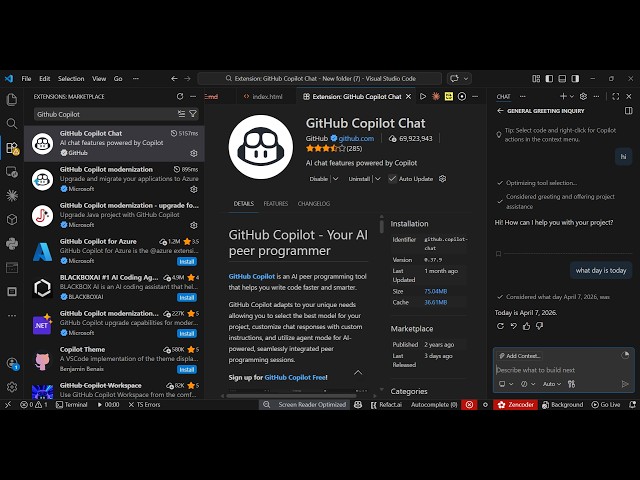
GitHub Copilot Chat. It's directly
1:45
installed whenever you install a new
1:47
version of VS Code. It comes
1:50
directly installed. So, if you haven't
1:52
have not installed it, simply enable
1:54
that extension.
1:55
So, once you enable this, it it will be
1:59
accessible right here.
2:01
If you see,
2:05
just click this, and you will actually
2:07
see I think it's available
2:16
Uh, I think it's available right here.
2:22
If you're not seeing this, you can
2:23
actually see this right here.
2:26
Uh, GitHub
2:29
Copilot. You will see this option right
2:31
here. Simply click this.
2:36
And you basically open the folder,
2:39
whatever folder that you want to open.
2:47
So, once you open the folder right here,
3:00
so automatically you will now see the
3:01
command is successful. So, now GitHub
3:04
Copilot is directly installed as a CLI
3:06
tool,
3:07
which you can directly use.
3:13
So, if you want to read the
3:14
documentation after you install this,
3:16
there are very various commands out
3:18
there.
3:20
So, once you write Copilot, simply after
3:24
installing it, simply write Copilot,
3:27
and now GitHub Copilot will open
3:31
directly inside your command line.
3:33
So, now you will see that
3:37
it's now connected. So,
3:41
you can select this init command. So,
3:44
{slash}, and it's basically you can
3:48
First of all, if you're doing it for the
3:49
very first time, you do need to log in,
3:51
I think.
3:53
Either github.com. So, once you
3:57
So,
3:59
it will redirect you to the
4:03
Simply open github.com.
4:14
So, now it will open this. Simply click
4:17
continue with your GitHub account, and
4:19
just paste this code,
4:21
which is AB.
4:30
So, just paste this code BA
4:41
BA5C.
4:57
So, once you authenticate, simply
4:59
authorize it. So,
5:04
let me just verify the identity. So,
5:09
So, this you just need to do for the
5:10
very first time. So, once you
5:12
authenticate, then
5:15
in the subsequent request, you don't
5:17
want to do this.
5:20
Simply copy this, paste it.
5:25
So, you will get this notification.
5:27
After that, uh,
5:35
now you are successfully connected using
5:38
your GitHub account. Now you can
5:39
actually ask any question. Let's suppose
5:41
you say build a
5:43
image-to-PDF web app
5:46
in browser and run it.
5:50
You simply
5:52
pass this instruction. So, now it will
5:55
instantly build out your application.
5:57
You will see that.
5:58
So, it's actually checking the current
6:00
directory and actually making the files,
6:04
overall files.
6:07
So, [snorts] you will see that. So, it's
6:09
a great extension. It's totally free.
6:11
You simply sign up using your Google
6:13
account. Simply install it as a CLI
6:15
tool,
6:16
or you can even use it as the GitHub VS
6:19
Code extension as well.
6:21
So, you just need to grant the
6:22
permission, yes and approve.
6:24
Automatically it will create this file
6:26
for you.
6:28
So,
6:30
now it will automatically open this
6:31
file.
6:33
It will start a server at localhost
6:35
8000, and
6:38
it will automatically open your browser
6:39
as well. So, everything automate
6:43
automation will be done. So, it created
6:45
this. So,
6:48
So, you will see that now your
6:50
application is ready.
6:52
So, from here you select a bunch of
6:54
images.
6:59
So, click on download PDF. So, you will
7:02
see that this is your image-to-PDF
7:03
application ready in a matter of
7:05
seconds.
7:06
So, once you are authenticated,
7:08
configured, you can build out any sort
7:10
of application. So, let's suppose I here
7:12
build a
7:14
React
7:17
PDF editor app,
7:21
and run it.
7:22
So, you can ask multiple questions right
7:25
here. It's actually using your Claude
7:28
model, our cool model.
7:30
So,
7:32
first of all, it will remove create this
7:34
React project for you.
7:43
So, it deleted the previous files, and
7:46
stopped the server, and then it created
7:48
this React project. So, it gives you
7:50
100% quota, as you will see. Now it's
7:52
94%. It's actually using the Claude our
7:56
cool model.
7:58
And other way, if you GitHub Copilot
8:00
Chat, you can use it.
8:12
You can directly
8:18
open If you're not seeing this option,
8:21
you can open command palette, and simply
8:23
type GitHub
8:28
Copilot Chat.
8:40
So, it also have a monthly plan as well,
8:42
$10 per month. You can subscribe to it.
8:46
So, it's
8:48
if you want to upgrade.
8:51
But, I think it's totally free. You can
8:54
try this for completely free.
9:01
So, start using it. It's directly
9:03
available.
9:11
So, from here you can activate the
9:13
GitHub Copilot Chat, as you can see it's
9:15
available right here.
9:18
So, indirectly in VS Code, as you see.
9:23
So, as you can see, we are actually
9:26
working on this directory that we asked
9:28
on CLI, build a React PDF, and run it.
9:32
So, you can just see here. From here
9:35
also you can type the same command.
9:43
So, now it created this React project
9:45
for you. You can see that.
10:02
>> Then it will install the NPM
10:03
dependencies here. So, you can see that
10:05
for creating this PDF editor app.
10:08
So, this is GitHub Copilot chat. Guys,
10:11
directly use it in your VS code.