Up next in 10

React.js Google Maps API Example to Embed Full Screen Google Maps in Website Using TypeScript
Dec 10, 2025

Buy the full source code of application here:
https://procodestore.com/index.php/product/react-js-google-maps-api-example-to-embed-full-screen-google-maps-in-website-using-typescript/
Show More Show Less View Video Transcript
0:00
Uh hello friends, today in this tutorial
0:02
I'll be showing you that how to embed
0:04
the Google map inside your ReactJS
0:06
application. So you can see this is a
0:08
full screen Google map here and you can
0:11
navigate around it. Just see also zoom
0:14
in also with the default controls if you
0:16
want to zoom in on a particular
0:18
location. So this is using a ReactJS
0:21
application and we are using a NodeJS
0:23
dependency to interact with Google Cloud
0:26
Maps API to just show this Google map on
0:31
your website. So this is a full screen
0:32
map here. You can navigate to any
0:35
country in the world here with precise
0:37
location. You can zoom in. You can also
0:40
zoom out as well. And there is also a
0:42
full screen also mode here. If you click
0:44
it, toggle it full screen. This will be
0:45
a full screen map here. So basically you
0:49
can be going into any
0:53
just also clicking it also will go in
0:55
like this. You can also switch to
0:57
satellite mode as well. You can see this
0:59
will be converted to satellite.
1:03
So a very good map is there. So if you
1:07
want to see this inside your website
1:10
also I will be guiding you step by step
1:12
on how to implement this map Google maps
1:16
and display it inside your ReactJS
1:18
application. So I have given the link in
1:21
the video description. If you want it go
1:23
to the video description link here. This
1:24
is my blog post link here. Let me just
1:27
show you. This is a blog post. I have
1:30
given the link in the video description.
1:33
So just go to it. This is a blog post
1:36
link.
1:37
All the source code is also given here.
1:39
So let me just start by starting this
1:43
video. So this is a dependency guys
1:45
which is at the rate react- Google-maps/
1:49
API. So first of all I will stop this
1:52
server
1:53
and I will start from scratch. So I will
1:58
cd from this directory.
2:03
I will make a new directory which is uh
2:05
Google maps project. I will go to its
2:08
directory Google maps project
2:13
and in order to download or create a new
2:17
project in react we will use create
2:18
react app npx create react app and then
2:23
followed by the name of the project
2:24
which is Google maps. So now it will
2:27
hardly take
2:31
at most 40 seconds and uh it will create
2:33
your react app here. So it is just
2:36
creating it. So let me just
2:39
just wait here. So I will not
2:43
I will not pause the video. You should
2:45
be watching the complete video to get
2:47
the idea of how to implement this inside
2:49
your ReactJS application. So this
2:52
totally depends upon your internet
2:53
speed. So this is a great app here. You
2:56
can just navigate to any country in the
2:59
world here.
3:01
So for this I have already told you we
3:03
are using Google cloud map API.
3:06
So you should be having a valid Google
3:10
cloud account here. So Google cloud
3:12
console just Google it and the very
3:14
first result which comes in just create
3:17
account and for this you need to link
3:19
your credit card information and also
3:21
debit card inside billing section you
3:24
need to add this information after
3:27
adding it so you will see I have
3:28
multiple build accounts after that you
3:31
need to go to the API section go to
3:33
library and you need to enable the API
3:36
which is Google maps just search it and
3:40
this is the API they need to enable
3:42
which is
3:45
maps JavaScript API. So this is the API.
3:48
So just enable it. I have already
3:49
enabled it. Go to manage and then you
3:53
need to get get your API key. So go to
3:55
credentials and
3:58
you will see your API key. You can also
4:00
create a brand new API key also by
4:02
selecting this. We can simply copy our
4:05
API key. So this will be different for
4:06
you. So don't use my API key. And uh now
4:11
let me just see if the project is
4:12
completed. So now it is see it is
4:16
successfully completed. So we need to cd
4:18
into this project directory and then we
4:21
can open inside visual studio code
4:24
accelerator. So this is a brand new
4:26
ReactJS application. You will see
4:29
uh this is source here. If I run this
4:32
you will see npm start.
4:36
So it will start it at my local host
4:41
5,000 I think 3,000. So this is a brand
4:44
new ReactJS app here.
4:49
You can see this is our app. It is
4:51
currently at localhost 3000. So now what
4:55
we want we need to stop this app and we
4:57
need to install this dependency which is
5:00
at the rate react
5:05
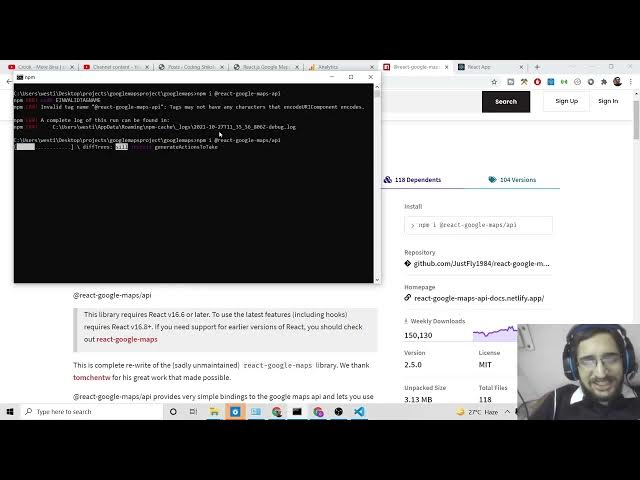
dash Google-maps
5:07
API. So hardly it will take 5 to 10
5:11
seconds.
5:13
So it is saying let me just see
5:18
let me copy this and paste it.
5:25
So it will hardly take 5 to 10 seconds.
5:28
So after installation you need to just
5:32
copy paste the code. Here you will see
5:34
it is done that. Now we can start the
5:38
application once again. npm start. So
5:41
now if you see here guys this is the app
5:43
do.js file here if you see
5:50
so this is app.js JS we simply need to
5:52
go to my video description link I have
5:54
given the full source code here simply
5:57
this is the simplest of example here
5:59
simply copy all this code here like this
6:05
and simply you need to paste it that's
6:07
it so now inside this section Google
6:10
maps API key you need to copy paste your
6:12
own API key let me paste it
6:21
So at the end of the video I will delete
6:23
this API key. So don't use my API key.
6:26
Just create your own API key and use it.
6:28
So now you will see it will once again
6:30
refresh it. If I enter it now you will
6:33
see it will display the map here. You
6:36
will see.
6:44
So you will see now this is a map here.
6:48
You can also zoom in here. These are
6:50
default controls out there. You can also
6:53
get images as well of different kind of
6:55
countries as well. So
7:01
so in this simple way you can just
7:11
you can just see this is a map here.
7:18
And the most interesting thing you can
7:20
also resize just give it a custom width
7:22
and height. So let me if I wanted to I
7:25
can change the width to 500 and also the
7:28
height to 500. So now you will see the
7:31
height width will be changing. So now it
7:34
will only be there of this size. So you
7:37
can provide the custom width and height
7:39
depending upon how you want to style it.
7:43
in ReactJS. So you will see the next
7:46
property is that uh you can also provide
7:50
zoom level as well. So currently this is
7:52
10. You can change this to let's suppose
7:55
30. So once again if you do this
8:00
so the zoom level will be changed here.
8:02
You will see now it is currently more
8:04
zoomed out there.
8:16
And also you can provide the center
8:18
position as well by providing latitude
8:20
and longitude. So you can change these
8:22
latitude and longitude of a different
8:25
country to center it. So if I just
8:28
search for latitude India latitude and
8:32
longitude so it will provide me with
8:35
these coordinates. So I can just copy
8:37
this
8:45
and uh the longitude it's this one. So I
8:48
can just paste it.
8:54
So now once I load the load the Google
8:57
map you will see it will center it
8:59
around India. So you will see similarly
9:02
I can change this for any country of
9:03
your choice. can change this to New
9:06
Zealand
9:20
and latitude.
9:46
So let me just refresh it.
9:54
So you can see it is rounded here only.
9:58
New Zealand. You can see.
10:03
So in this way guys, you can just uh
10:05
build your own uh Google map inside
10:08
embedded inside your ReactJS
10:09
application. The link will be there
10:11
inside video description to get all the
10:13
source code. I will be seeing you in the
10:15
next video.
#Jobs & Education