Up next in 10

How to Delete All JUNK & Temporary Files Using Disk Cleanup Utility in Windows 11
Jul 7, 2025

Get the full source code of application here:
Show More Show Less View Video Transcript
0:00
Uh hello guys, welcome to this video. So
0:02
in this video, I'll show you how to
0:03
delete all junk files and temporary
0:06
files inside Windows 11. So you can
0:09
basically go to the start menu. Just
0:12
type here run and simply
0:14
type here
0:18
clean manager. And as soon as you do
0:20
this, disk cleanup will calculate how
0:25
much space you can save by deleting
0:28
these uh junk files and temporary files.
0:34
So you can even go to the screen.
0:38
This is the first way by which you do
0:40
this. Just write on the run menu clean
0:43
manager C L E A N Mgr
0:49
or you can even go to this menu by
0:55
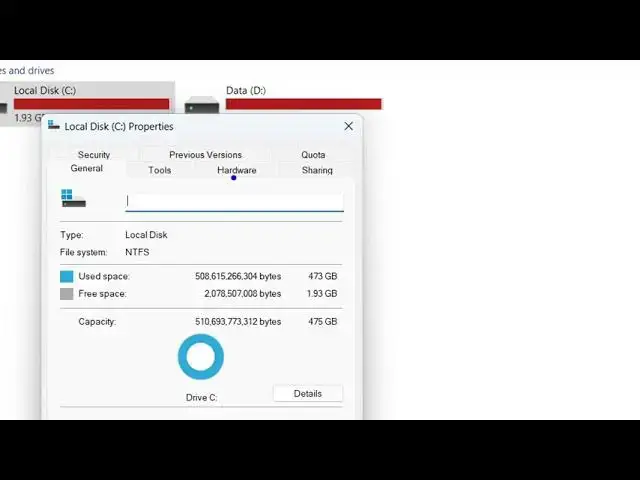
inside your C drive just right click it
0:57
and go to properties and right here you
0:59
will find out this
1:03
inside the
1:06
detail section right here
1:10
You will see how many free spaces
1:12
available
1:16
and this will check for you. So you can
1:19
click the check but button as well.
1:26
So now to delete the files here you
1:31
go into this
1:33
and it will exactly tell you how much
1:35
space you can gain here. So it is in my
1:37
case 224 mega megabytes here. So you can
1:42
also select here temporary files as
1:43
well.
1:45
So if you also want to recycle bin
1:47
delete the files which are present in
1:49
recycle bin you can even tick mark this
1:52
option as well. So how much space you
1:54
can get you will see about 2 GB.
1:59
So once you are happy with it you click
2:01
on okay button. So it will delete
2:03
everything which are present.
2:07
and it will tell you that are you sure
2:09
you want to permanently delete these
2:11
files. So simply click delete and now
2:14
the disk cleanup process will start and
2:17
it will delete th those junk and
2:19
temporary files and you will see now the
2:22
files have been successfully deleted. So
2:24
in this easy way inside your Windows 11,
2:27
you go to the run menu. Simply type this
2:29
command C L
2:32
E A N Mgr and you can select the drive
2:36
here. If you want to do the disk cleanup
2:40
in the D drive, simply select your drive
2:43
here. Then it will tell you how much
2:44
space you can save
2:48
like this. So this is the thing. Uh so
2:50
thank you very much for watching this
2:51
video and also check out my website
2:53
freemediatools.com
2:55
uh which contains thousands of tools.
#Computers & Electronics