0:00
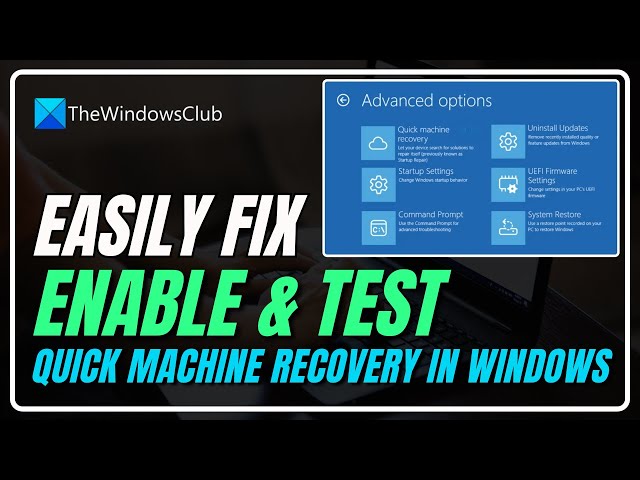
Do you want to enable and test quick
0:01
machine recovery in Windows 11? Then you
0:04
are at the right place as here is how to
0:06
do so. Let's get started.
0:13
This is the Windows Club. Microsoft
0:15
offers an easy method to recover Windows
0:17
devices when encountering fatal issues
0:19
that prevent them from booting up. Quick
0:22
machine recovery. It searches the cloud
0:24
server for resolutions and resolves
0:26
booting failures on your device. In this
0:28
video, we are going to talk more about
0:30
it and see how you can enable and test
0:32
quick machine recovery in Windows 11.
0:38
Enable and configure machine recovery in
0:40
Windows 11. To enable quick recovery,
0:43
you need to follow these steps. Open
0:45
settings by win plus I. Now you need to
0:48
click on the system tab on the left
0:49
section of the screen. Now scroll down
0:51
and go to the recovery section. You will
0:54
then see the quick mission recovery
0:55
under the recovery options section. Now
0:58
enable the toggle for quick machine
1:00
recovery. If you want to continue
1:02
searching for the solution, enable
1:04
continue searching if a solution isn't
1:06
found. Set a time limit for the look for
1:08
the solutions every option. Also set the
1:11
time for restart every. Now every time
1:14
you boot into WinR, you will see an
1:17
option that says quick recovery machine.
1:19
You can select it to initiate the
1:21
recovery process. You can also disable
1:23
the quick machine recovery by just
1:25
turning off the corresponding toggle.
1:28
Test quick recovery machine in Windows
1:30
11. Quick machine recovery features a
1:32
test mode that allows you to verify your
1:34
settings and the auto remediation
1:36
process in a safe simulated environment.
1:40
You should back up of your system image
1:42
and a system restore point to revert to
1:44
in the unlikely event that it is needed.
1:47
You can even use the Windows backup
1:49
utility to do the same. To get started
1:52
with the test mode of recovery machine,
1:54
open command prompt as an administrator.
1:56
To do that, type cmd in the Windows
1:58
search and then choose to run command
1:59
prompt as an administrator. Then run
2:02
this command in the elevated command
2:05
Now set Windows boot to Winry. So the
2:08
next time your computer boots up, it
2:10
will go to Windows recovery.
2:18
You then have to reboot your computer to
2:20
start the test mode. However, in case
2:22
your computer goes to Windows recovery
2:24
upon booting instead of the test mode,
2:26
you will have to select continue to boot
2:28
Windows normally. If your PC boots
2:31
normally, run the following commands to
2:32
enable and disable reagent.exe one by
2:35
one. Once you restart the agent, follow
2:38
the steps shown previously to boot into
2:40
test mode. To confirm if the quick mesh
2:42
recovery has been applied, go to
2:44
settings, then select Windows update,
2:46
then update history. You should be able
2:48
to see the remediation under quality
2:50
updates. So that's it. Subscribe to the
2:53
Windows Club for all your tech solutions
2:55
related to Windows. Thanks for watching.