0:00
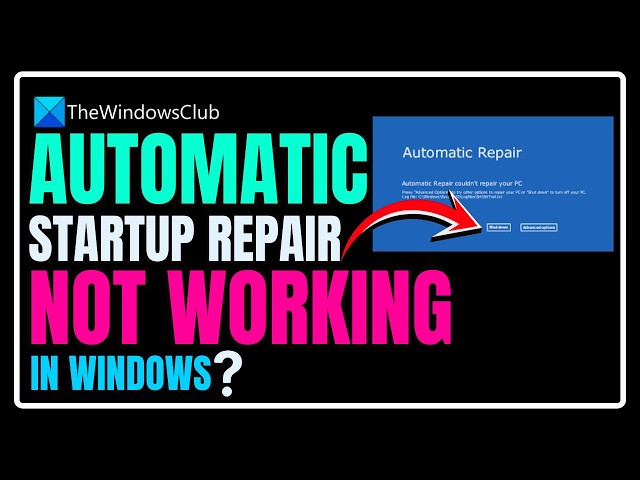
Is Automatic Startup Repair not working in Windows 11?
0:03
Then you are at the right place as here is how to fix the issue.
0:06
Let’s get started. This is The Windows Club.
0:12
The Automatic Repair Tool is one of the features that you use when
0:15
your Windows computer does not boot. Some Windows users have faced an issue where
0:19
their Windows Automatic Startup Repair is not working. In this video, we are going to suggest
0:23
methods to fix the issue. Let's get started!
0:33
You need to rebuild the Boot Configuration Data file and repair the Master Boot Record file.
0:37
To do this, you have to boot into the Advanced Startup
0:40
Options screen and then select Command Prompt.
0:42
Following that, your system will ask for the password. After entering it,
0:45
you will find the Command Prompt right on your screen. Enter these commands one by one-
0:49
bootrec.exe /rebuildbcd bootrec.exe /fixmbr
0:49
bootrec.exe /fixboot These commands will fix Boot
0:51
Sector problems. After running these commands, check whether you can start normally or not.
1:02
If DISM doesn’t fix the issue, while in the Advanced Options,
1:04
run this command in Command Prompt.
1:06
chkdsk /r c: Check if it fixes the issue.
1:16
The problem may be due to a wrongful Registry alteration. Therefore, restoring it can fix
1:21
the issue in most cases. So, use this command in
1:23
Command Prompt to fix the issue. copy c:\windows\system32\config\RegBack\*
1:25
c:\windows\system32\config Type All and hit Enter to confirm your actions.
1:35
You can run the DISM tool offline when Automatic Startup Repair fails to work.
1:39
You will need to go to Advanced Options then Command Prompt and
1:42
use this command to fix the error. Dism.exe /Online /Cleanup-Image /RestoreHealth
1:43
/Source:C:\RepairSource\Windows In the command above, substitute
1:45
the C:\RepairSource\Windows part with the actual location of the repair source.
1:50
Finally, check if it fixes the issue.
1:58
If nothing works, you can always use Reset this PC – as this will fix the
2:02
issue without removing any of your data files.
2:12
You can use Windows Installation Media to repair your computer.
2:16
To do that download Windows ISO. Create a Bootable USB or DVD drive.
2:19
Then boot from the media and choose “Repair your computer.”
2:22
Under Advanced troubleshooting, choose Startup Repair. For more details follow this guide.
2:26
Boot from the media and choose “Repair your computer.” You can follow this guide for details.
2:31
So, that's it. Subscribe to The Windows Club for all
2:33
your tech solutions related to Windows. Thanks for watching.