Up next in 10

Angular 13 Google Maps Javascript API Example to Embed Maps With Marker in Browser Using Typescript
Dec 10, 2025

Buy the full source code of application here:
https://procodestore.com/index.php/product/angular-13-google-maps-javascript-api-example-to-embed-maps-with-marker-in-browser-using-typescript/
Show More Show Less View Video Transcript
0:00
Uh hello friends today in this tutorial
0:02
I'll be showing you that how to load
0:04
Google map inside your angular 13
0:06
application with a red marker also. So
0:10
you'll see this is the red marker. You
0:12
will provide the latitude and longitude
0:14
based upon that position it will place
0:16
the marker on the map. So you can place
0:18
the marker on any location in the world.
0:20
You just need to know the latitude and
0:22
longitude.
0:24
So this is the angular 13 application.
0:26
We are loading the Google map using the
0:28
Google map JavaScript API. So I will be
0:31
showing you step by step in this video
0:32
how to do this inside angular 13
0:35
application.
0:36
And if you want to download all the
0:38
source code, I have written a complete
0:40
blog post in my video description on my
0:43
website codingsure.com. So just go to
0:45
the video description link to follow the
0:47
all the instructions and download all
0:50
the source code. So let's get started
0:52
guys. So let me delete all this source
0:54
code and start from scratch.
0:57
This is a brand new Angular project. Let
1:00
me delete all this.
1:03
Let me also delete this
1:07
all the code. So now you can see this is
1:09
a brand new project here. I have created
1:12
here. Nothing is there. So if I reload
1:14
this application
1:17
localhost 4200 nothing is there. So now
1:20
first of all guys what you need to do is
1:22
that we need to install some
1:24
dependencies. So I will stop the
1:26
angularjs angular application. So you
1:28
need to install npmi
1:31
and then you need to install this
1:34
package which is if you go to the video
1:36
description link I have given that this
1:38
command here. So if you just go to it
1:42
this is a command npm at the rate google
1:44
map/js api loader. So this is a library
1:49
for the Google map JavaScript APIs for
1:52
Angular. So just install this by using
1:55
this command. So it will hardly take 5
1:57
to 10 seconds. So I have already
2:00
installed it.
2:03
So now let me start this Angular
2:06
application once again. So after doing
2:08
this go to app.component HTML file guys.
2:11
So here you need to declare a div and
2:15
you need to give it a class of full
2:18
and uh you need to give it a id of map.
2:21
That's it. This is the only HTML that is
2:24
required here. Now go to app.component
2:26
dot CSS. We will target the full class
2:29
and here we will give a full width which
2:32
is 100 view height and also height is
2:36
also equal to 100 view height. That's
2:39
it.
2:41
And now this is complete. Now you need
2:43
to go to app.component.ts file. This is
2:45
the main file where we will write all
2:47
the code here. So here first of all what
2:50
you need to do is that we will give it a
2:52
title to our component. This will be
2:55
google- mapaps. And after that guys we
2:59
will declare a variable private variable
3:02
of uh type
3:06
google do maps dot map.
3:12
So just declare it.
3:15
After doing this guys we need to
3:17
implement the on ng on it. So you need
3:20
to implement
3:22
the on in it.
3:25
So we will write our interface which is
3:28
on init. So it will create this ng
3:31
oninit function. So whenever your
3:33
component loads for the very first time
3:35
this method will execute automatically.
3:38
So here we need to write node load the
3:41
map Google map
3:44
on the browser. So here first of all we
3:47
will declare a loader variable and we
3:49
will initialize it to new loader and
3:54
this will automatically gets imported
3:56
from this library at the rate Google
3:58
map/js API loader. So just write this at
4:00
the very top and here uh in inside this
4:05
this expect some options guys. So the
4:07
first option will be the API key. So
4:10
here you need to copy paste the API key.
4:13
So for this you need to be having a
4:15
Google Cloud Console account. So just go
4:17
to Google and just type here Google
4:19
Cloud Console and uh just sign up on
4:22
this platform if you haven't already.
4:25
Enable the Google Map JavaScript API. Go
4:28
to APIs overview and uh
4:32
you just need to link your credit card
4:34
information and just click enable API
4:36
services and here you need to search for
4:38
this API Google Maps JavaScript API.
4:42
So you will find this API map
4:45
JavaScript. So enable it. I have already
4:47
enabled it. So after that you need to go
4:50
to your dashboard. You need to create a
4:52
API key. Brand new API key.
4:56
So I will get my own API key. So don't
5:01
copy my API key. I will delete the API
5:03
key once this video is over. So let me
5:06
copy this and paste it my API key. So
5:10
this is the only thing that it takes.
5:12
After providing this API key, we can use
5:15
the load method
5:18
load method that it has and then it
5:21
returns a promise. We can handle this
5:23
using dot then
5:27
inside this this returns the promise. So
5:30
the information is you can console log
5:33
just uh loaded map loaded map that's it.
5:39
So now at this moment of time if I just
5:41
check here hopefully if I refresh
5:46
let me see
5:48
you can see it is printed out loaded map
5:51
but we have we are not seeing the map.
5:53
So for seeing the map you need to write
5:55
some instruction here. We need to first
5:57
of all give the location.
6:01
The location is coming from latitude and
6:03
longitude. So every location inside the
6:06
world has its own latitude and
6:08
longitude. You can also search on
6:10
Google.
6:12
So con location. So here we will provide
6:14
the latitude and longitude inside this
6:17
object. So this contains two properties.
6:19
Lat stands for latitude. So put a comma
6:24
and longitude. LNG for longitude. So
6:28
here we can search for any position. So
6:31
we search for Australian latitude
6:34
and longitude. So just write on Google
6:36
and Google will provide you. So we'll
6:39
just copy it
6:45
and longitude of Australia is this.
6:49
So based upon your region you can just
6:51
type it on Google and Google will
6:53
provide you automatically the latitude
6:55
and longitude. After that guys providing
6:58
this we can just uh
7:03
uh declare our map place that marker. So
7:05
we can just this dot map is equal to new
7:10
Google dot maps dot map and inside this
7:15
we will pass the id that we given inside
7:18
the HTML which is map. So if you check
7:21
here app dot component we have given
7:23
this id map.
7:26
So just provide this id and in the
7:29
second parameter we have this callback
7:31
function
7:33
a set of curly brackets. So inside this
7:35
we will provide the center to be the
7:38
location that we specify. Put a comma
7:40
and we will provide the zoom level to
7:43
six. You can provide any zoom level of
7:45
your choice. And uh lastly guys
7:49
let me see if just load this map here.
7:52
Let me just
7:54
after this let me see if anything
7:58
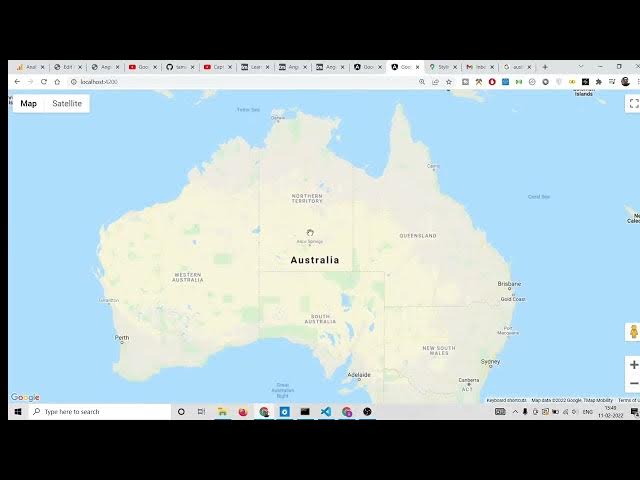
happens here. So you will see now you
8:00
will see now it is showing us the Google
8:03
map. You will see that the Google map is
8:06
showing.
8:08
If you just load it,
8:11
it is showing this location which is
8:13
Australia which is there. This is the
8:15
location. You will see this is the
8:18
location. Now we need to place the red
8:20
marker on this. So to place that red
8:23
marker, it is very easy.
8:25
We will declare
8:28
another
8:30
variable which is marker.
8:34
And here we will say new google.maps dot
8:38
marker
8:40
and this takes some options. So here it
8:44
will pass for the position. So position
8:46
is equal to the location that we specify
8:49
australia latitude longitude and it will
8:51
ask for the map. So this will be this
8:54
dot map. That's it. So now if you reload
8:57
this this will place that marker here.
8:59
You will see it is not correct because
9:02
Australia is here. It is placing this
9:04
marker here. So let me have uh you can
9:09
see it is saying Australia is both a
9:11
country and a continent. So it is giving
9:13
me the latitude. Let me take for India
9:16
latitude longitude.
9:19
So Australia is the case it is also a
9:22
continent. So it is confused by that. So
9:26
we can change this to this.
9:33
latitude paste it.
9:37
So now if you refresh it, it will place
9:39
that marker on India location. You will
9:41
see this is India. So based upon that
9:44
you can target any country. So let's
9:47
suppose we have
9:51
New Zealand longitude latitude. So
10:10
now if you refresh it you will see the
10:12
latitude longitude is placed right here.
10:18
So it is again a situation of it's a
10:21
continent it is not a country.
10:23
So you can target any country in the map
10:27
and the nice thing is let me target now
10:30
Denmark. So if I write here Denmark you
10:33
can target any small country as well.
10:54
So now if you refresh it you will see
10:57
the marker is placed. So you can also
11:00
style this map also guys. If you want to
11:02
change the color of this map you can uh
11:05
provide additional property here inside
11:08
this map. Just put a comma after zoom
11:11
and there is a styles property and uh we
11:14
can provide a styles of our own. So we
11:16
can create a file here at in this root
11:19
directory which is which will be called
11:21
as uh
11:23
map styles.ts.
11:25
This will be a typescript file.
11:29
So it is saying it is already existing.
11:31
So you can see we have already created
11:33
this. So you can delete this. So just
11:37
create a map styles.ts file. And now I
11:40
will tell you a website which lets you
11:42
create these styles which is
11:49
uh map style.withgoogle.com.
11:53
This is a website. Go to this website
11:55
mapstyle.withgoogle.com.
11:57
So here you can style your map. You can
12:01
just see you can just change the
12:06
theme of the map here like this.
12:12
You can also have the dark theme like
12:14
the night theme, all that stuff.
12:18
And after that, you can also change the
12:19
color as well of the map like this.
12:32
After that you can just click on finish
12:34
and you can just copy paste this JSON
12:36
which comes it click copy and here you
12:39
can paste it.
12:43
Before that you can just uh export it.
12:46
So export con
12:49
styles
12:53
and paste it.
12:57
So here what we can do is that
13:00
we can import these styles which we
13:02
defined here. So we can just say import
13:07
from
13:10
map styles.
13:12
So here we have declared it styles.
13:16
So now if you refresh it your map will
13:18
be changed here. So it will change to
13:20
this yellow map here like this. So in
13:25
this way you can change the color and
13:27
the theme of the map as well. So in this
13:30
tutorial guys, we have seen how to load
13:32
Google maps inside Angular 13
13:33
application using Google Maps JavaScript
13:36
API. So if you want to download all the
13:38
source code, just go to the video
13:40
description link and download all the
13:41
source code. Please hit the like button,
13:43
subscribe the channel and I will be
13:45
seeing you in the next