Up next in 10



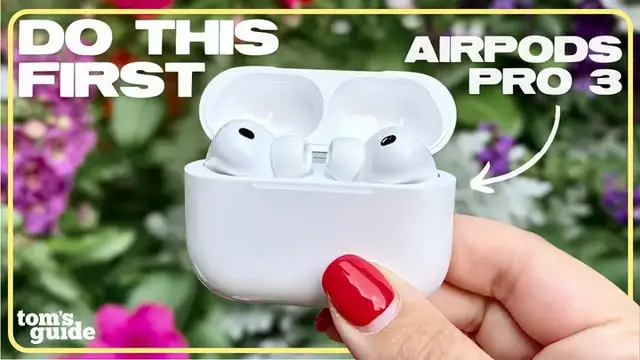
In this video, Kate shows you how to use Apple AirPods Pro 3, from setup and pairing to exploring all the new AirPods Pro 3 features Apple added. Whether you’re unboxing for the first time or upgrading from AirPods Pro 2, this is your ultimate guide to these wireless earbuds. And yes, while many of these are relevant to new AirPods Pro 3 users for what they should do first, most if not all of these features also work with AirPods Pro 2 and AirPods 4. For example, Kate goes over how to reset your AirPods, use AirPods as hearing aids, enable head gestures, and more.
Show More Show Less View Video Transcript
0:00
Hey guys, welcome back to Setup Essentials, the series here on our channel dedicated to making
0:04
the most of your tech. Today, we've got the Apple AirPods Pro 3, the AirPods Pro 3rd generation from
0:10
Apple, and they have some really noteworthy upgrades over the AirPods Pro 2. I'll be going
0:16
over what those are, how to set these wireless earbuds up, my favorite features, and hidden
0:20
AirPods Pro 3 tips you might not know about. I also have them linked down below in case you're
0:26
interested in picking up a pair. But without further ado, let's get into it. So I've already
0:32
got my pair of AirPods Pro 3 open and unboxed. I actually posted the unboxing over on our social
0:38
so check that out. But basically what you're going to get inside are the AirPods Pro 3
0:42
already inside your case, the selection of ear tips, and that's it. No charger, unfortunately
0:50
No, you did not miss anything. It's just not there. Apple's H2 chip should initiate pairing
0:55
with your nearby device. For most people, this would be an iPhone or iPad
0:59
and you'll want to make sure you're running iOS 26 and iPadOS 26, respectively
1:03
in order to properly set up all of the AirPods Pro 3 features
1:09
If your AirPods Pro 3 don't automatically pair, or if you want to pair them to a different device
1:14
you can manually trigger Bluetooth pairing. There's no Bluetooth pairing button on the back anymore
1:20
like with AirPods Pro 2, but instead you're going to double tap
1:23
on the front of the AirPods Pro 3 case, beneath where you'd find the status light
1:28
This pairing method was introduced with AirPods 4, but I'm sure a lot of y'all are gonna be seeing it
1:32
for the first time. This is also how you can pair your AirPods to a non-Apple device, even an Android phone, even
1:39
Though keep in mind, you are limited to the amount of features you can use and settings you can change
1:43
if you're not using it with an iPhone or iPad or Mac. After you've set up your AirPods Pro 3
1:49
you'll probably wanna change the eartips. You get five total options now
1:53
Medium comes installed by default and large small extra small and the new AirPods Pro 3 extra extra small ear tips are all in the box To swap them out just give them a good tug I promise you won break them
2:06
Now, if you have other AirPods Pro and know your size, you can just go ahead and make the swap, click it in
2:12
But I do still recommend using the ear tip fit test to confirm you have a good seal
2:18
There's actually a section in your AirPods Pro settings that shows you how to make the change
2:22
and now you can even buy replacement ear tips right through the settings if you need. But you're actually going to want to go to this test acoustic
2:29
seal section, tap through, you'll hear a little chime play, and if you see green good seal on both
2:35
you're good. If it says you don't have a good seal, you'll be prompted to try a different ear tip size
2:40
check the fit, and run it all over again. What I would do next is set up personalized spatial audio
2:46
for a 360 sound experience tailored to your ear shape. There's a spatial audio section in settings
2:52
select personalized spatial audio, take your AirPods out of your ears, and then follow the
2:56
prompts to do an ear scan. I know it sounds kind of weird, but it's really not all that different
3:01
from setting up Face ID. Pretty simple, and there's even a little demo that lets you hear
3:05
how spatial audio works. I also will put a link in the description that explains more about spatial
3:10
audio in case you're curious. It's definitely one of the best things about owning a pair of AirPods
3:16
Still in the settings here, we're going to spend a lot of time here today. We're going to review
3:20
are touch control settings. I personally leave it as it is by default. That's press to hold to
3:25
switch between A and C and transparency listening, but you can also set one of the buds to trigger
3:30
Siri. Then you can change the call controls to either work by pressing once or twice. Otherwise
3:36
for music playback, swipe up and down to control volume, short press to pause or play, short press
3:41
twice to skip the track, and short press three times to restart whatever it is you're listening
3:46
to. Now did you know you can actually control your AirPods Pro 3 with head gestures? You
3:51
need to enable two things here in settings First announce calls and second head gestures And there are two different head gestures basically You can accept a call or reply to a message by nodding your head up and down when you hear an alert coming in or you can shake your head side to side
4:07
to dismiss the same kind of notifications. Honestly, I find this feature really convenient
4:13
but let me know what you think. Another really amazing feature with AirPods Pro 3
4:17
is that they're FDA-cleared over-the-counter hearing aids. In your AirPods settings, select Hearing Assistance
4:23
to first take a hearing test to determine the degree and nature of your hearing loss
4:28
Then you can set up hearing aid, and when enabled, you can make adjustments right in your phone's control center
4:34
Here is also where you can enable hearing protection, which basically makes sure nothing playing, no media
4:40
is above an unhealthy threshold. Protect your hearing people. I love this feature
4:45
I also love conversation awareness on AirPods Pro 3. This feature detects when you start talking and in response
4:52
automatically lowers your media volume while enhancing nearby voices. Then your AirPods will
4:57
resume to normal settings when the conversation ends or when it's not picking up a conversation
5:02
taking place anymore. Enable it easily in the audio section here in your AirPods settings
5:08
Live translation on AirPods Pro 3. Well, in case you didn't know, this also works with AirPods Pro
5:14
2 and AirPods 4 with ANC, so as long as you're paired to an iPhone with iOS 26 and Apple
5:19
intelligence. Basically, this feature lets you have a conversation with someone who is speaking
5:24
one of the supported languages. To start live translation, the gesture is simultaneously pressing
5:30
both AirPods stems, but you can also ask Siri to start live translation. There's a chime letting
5:36
you know you're ready to go, and from there you can have a conversation using your iPhone to follow
5:40
a transcript and respond, unless the other person also has compatible AirPods in which you can
5:46
simply carry out the chat face to face. I could see this being helpful for travel
5:50
and Apple has already promised support for more languages coming, but I'm curious to know if this feature stands out to you
5:56
Another new feature in the AirPods Pro 3 is the heart rate monitor The heart rate monitor in AirPods Pro 3 can either sync with a third activity app or more interestingly in my opinion be the heart rate
6:08
monitor to track workouts directly in the fitness app in iOS 26. Did you know you can use your
6:15
AirPods Pro to control your iPhone camera? Super cool. Scroll down to camera control, then tap
6:20
camera remote. Then choose your preferred gesture. Press one, soar, press and hold
6:24
Now wearing at least one paired AirPod, open the camera app on your phone, select either photo or video mode, then get yourself in frame however you want
6:34
When you're ready to capture, use your chosen AirPods gesture to capture a photo or start recording video remotely
6:39
That simple. Let me know if you try this out. A question I get from people all the time is how to check your AirPods battery life
6:46
This applies to all AirPods. There's actually a super convenient way to check
6:51
What you're going to do is create a battery widget and then add it to your iPhone home screen
6:56
Long press a blank area on the display, tap the plus icon on the top left
7:00
select batteries from the widget menu. Now, you can always know the battery status of not just the buds, but also the charging case
7:08
Finally, if maybe you're realizing you can't find or access all the features I've discussed
7:12
or better yet, Apple actually has a pretty solid track record of continuing to add new features
7:17
to AirPods Pro, you can check if you're running the latest firmware
7:21
firmware updates happen automatically so long as your paired device is on running the latest
7:26
respective Apple software and your air pods are in the case and within Bluetooth range you can
7:32
check the firmware status down at the bottom of settings and if you are having an issue with the
7:36
install you might want to try the reset process so hopefully this video either answered a question
7:42
you had about your air pods or maybe even taught you something new if that is the case consider
7:47
that subscribe button and letting me know what you want to see in the next episode of Setup
7:51
Essentials here on the channel. Thanks for watching y'all. I'll catch you next time
#Computers & Electronics