Up next in 10



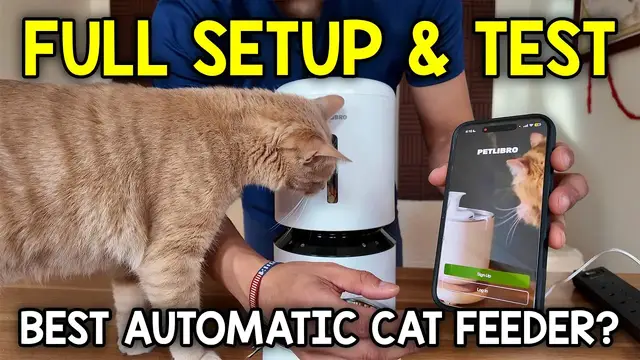
In this video, I go over the Petlibro Automatic Cat Feeder, set it up, and go over app control.
Check it out here https://amzn.to/4wI4y15
Want FREE Shipping With Amazon Prime? Get a 30-DAY FREE TRIAL by signing up here http://www.amazon.com/tryprimefree?tag=thechrisreview-20
DISCLAIMER: This video and description contains affiliate links, which means that if you click on one of the product links, I'll receive a small commission. This helps support the channel and allows us to continue to make videos like this. Thank you for the support!
Show More Show Less View Video Transcript
0:00
I just got this pet feeder, so let's check it out
0:02
So here's the smart feeder itself. On the backside, there's going to be this QR code
0:06
which I guess is to download the app, followed by a USB-C plug to actually power this up
0:11
Now up top, we have this cap, and there's going to be all the rest of the stuff in here
0:17
So we're going to have the instructions, and there's some other stuff in here, but it's kind of hard to get to it
0:21
So actually on the sides, there's going to be these two clips. So when I pull it outward and then push the whole body up
0:27
just like this. This actually comes off and I can take the cardboard it comes with and then we're
0:34
going to have the dish, the bowl to place the dish in and also the power adapter. Here's a quick look
0:38
at all the pieces again and one more thing that I didn't notice is going to be this top part
0:42
You can actually remove this if we turn it counterclockwise and pull this right out so if
0:47
this ever gets like really dirty or you just get some food stuck in there you can take it off
0:52
And then this places back inside like so and then turn it clockwise and it locks in place. Now this
0:57
is the lid to the feeder and on the back side there's going to be this desiccant bag holder that when you take it off we actually have a desiccant bag that comes in it so I'll just take
1:05
it out of the package and then place it back in here and then lock it back up. Time to put this
1:09
back together. All right so we have the base right here and then the top part making sure that this
1:13
window is facing towards me or opposite me and then push this down and it locks into place and
1:23
now here's where the food can go but before putting food in here let's actually attach the
1:26
food bowl and this attaches from the bottom just like so the food bowl can go right in there and
1:33
by the way if you don't want to use the plug you can also use batteries and they're going to be the giant d batteries all right now it's time to put the dry food in so this will just go right in
1:41
here and that's all i have currently and you can also see the level of it currently it's like right
1:48
around over here now this can be capped put on top and then turned clockwise and it locks in place
1:55
and now it's time to plug this in and actually go through the app all right so plug this in
2:00
and it said ready for wi-fi connection so i also downloaded the app and then here's what i see
2:09
so let me just go through everything here and it looks like tiger already knows there's food in
2:14
here so he wants a little bit let me just sign up all right and now it's making me go through
2:19
this account. So I'll put my pet's name, tiger, gender male, date of birth, he's four, orange cat
2:28
Next tiger weighs about 11 pounds I pretty sure he just right Drinks too little or moderately active All right I just skip that thing And now I want to add a device So let me add it and let see what it finds So allow And there it finds the Granary
2:46
smart feeder. And then let me just put the Wi-Fi password. All right, and then give it a moment to
2:50
actually fully connect. All right, and there. So upgrade your device now. All right, so I won't do
2:58
that so I'll just skip this for now I'll skip this and yep this is the one I have the white one
3:03
and I could link my pets so I'll put tiger all right I'll set that up now actually no this
3:11
involves a plan so I'll ignore that and I'll put set up later and now let me add a schedule
3:16
all right so I want him to be fed this is going to be for his lunchtime so I'll put it for 12 p.m
3:21
and then the feeding amount so I don't really remember how much exactly this is so I'm just
3:26
going to put about three-fourths of a cup. I want that to repeat every day. I'll label this as lunch
3:35
Meal call two times. All right, and there. And I guess I can also add a meal call for him
3:42
And here you could hear what the meal call is, and I'm going to add it to him. So I'm just going
3:47
to record his own thing. So Tiger speaks English and Spanish, and I'm actually going to record this
3:52
in Spanish for him, for food. ¿Quieres comer? And that means, do you want to eat
4:04
And so I'll save that. And I guess that'll be the meal call that'll apply. Actually, I'll press apply
4:10
There, so this one's going to apply now. That's going to be meal call. And let's go to feed now
4:15
So I have it for three-fourths of a cup. And he already ate lunch many hours ago
4:20
so I'm going to make sure he doesn't eat this part. but let's see what happens when I press this. So let's go to that three-fourths of a cup
4:25
to see exactly how much that is. Oh, I can just press the plus button
4:36
And the meal time, or the meal call applied right there, twice. And then
4:46
there you can see, it looks like it's trying to spin around. All right, nothing's coming out yet
4:52
Oh, excuse me. All right, so this looks like way too little
4:58
so let me, maybe that's because this wasn't spun fully. So let me just put all this food back
5:09
And let try that one more time So I go to feed now I go to that three of a cup Confirm
5:40
all right and this time yeah that looks probably along the lines of what it should be and
6:01
but this looks like two little food so i'm actually going to up the food and instead of three-fourths let me experiment with uh sorry not three-fourths three-twelves
6:14
let me experiment with um four-twelves or um or one-third of a cup
6:18
Do you want to eat? Do you want to eat? all right and there it is i still think this is too little for him so i'm gonna output
7:13
one more time and I think that should be good so let me actually yeah before that let me put this
7:19
back and now go back to schedule and I'm going to change that to instead of 3 12s let's go to 5 12s
7:38
of a cup and that should be how much he should be eating and let me save that and there now
7:44
from 12 p that how much he get every single day and it also is going to log all these things too so right here it logged that heat three times but this was manual feeding as you see and then as the days pass i can see if if it worked when it
8:01
worked and everything or if i just want to manually feed them one time i could just you know press
8:05
that feed now and give the amount but yeah that's about it for the app um one more thing too is it
8:09
tells me the status of this desiccant bag it comes with so it says 14 days left and for best results
8:15
replace the desk every 14 days failure to do so may cause moisture in pet food which reduces
8:20
freshness and taste moisture which breeds bacteria and mold hazardous to your pet's health and then
8:25
you can reset that once it's actually uh replaced but i'll go back for now and now let's check out
8:31
the settings so here it tells me the smart feeder user manual measurements the dispensing mode which
8:38
which is a single tray. Well, I guess you can do a dual tray too for a different model
8:43
Child lock. All right, so when enabled, the buttons will disable to prevent pets from accidental operations
8:49
I will put this on child lock, just in case. Let's see
8:54
Notification settings. So yeah, I'll do it all day. Schedule feeding. Remind me before feeding the schedule starts
9:02
I can set a reminder, but no, that's fine. I could leave it there. I will keep this notification on
9:06
which is when food levels drop below 10%. and then battery levels too although this wouldn't really matter since there's no battery in this this
9:12
is always going to be connected or if power supply has been changed desk and bag replaced
9:17
anything with my network error yeah everything seems to be fine and also uh food outlet jammed
9:23
so if the food is jammed there all right yeah that looks about it device sound i'll leave it
9:29
to all day volume i'll up it a little bit more actually sound settings changed sound settings
9:36
changed and here it says device device sharing so i could share this to i guess another user
9:43
it's fully updated wi-fi settings yeah everything's fine with my wi-fi and yeah that's basically it with the app and the perfect place the place is going to be right over
9:52
here and this is actually right next to uh tiger's cat tree so this time this way he'll be like right
10:00
next to his food when it's actually food time and look he's actually really excited because uh again
10:05
just installed this but it's very past his lunch time he already ate lunch over four hours ago so
10:10
this is not going to go off until tomorrow but yeah overall i'm pretty happy with this it's very
10:15
easy to use very easy to set up and also i like that i can actually use my phone for this so if
10:21
some reason i want to feed them a little bit early or i want to change the feeding schedule i could
10:25
just use that with my phone but yeah that's a quick look at the pet lero automatic feeder
Computers & Electronics