Up next in 10



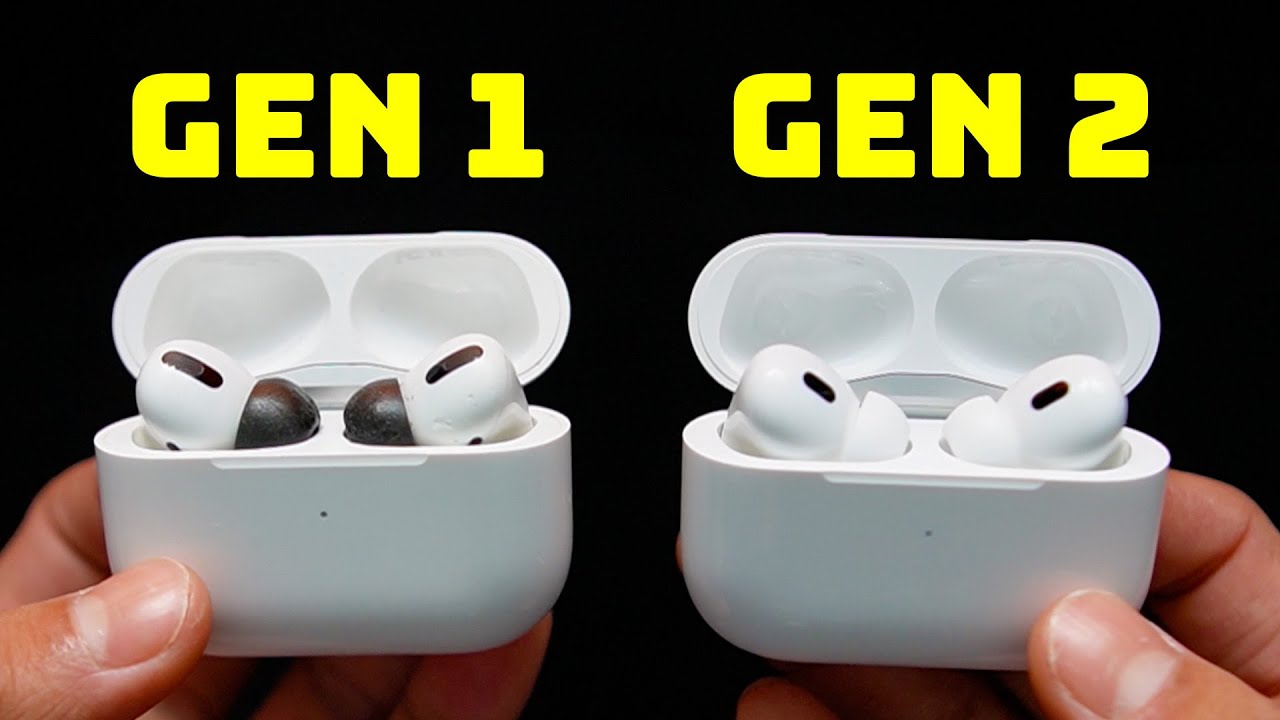
In this video, I unbox and setup the AirPods Pro Gen 2 and do a quick comparison to my old Gen 1 AirPods. Check it out here https://geni.us/LFBw DISCLAIMER: This video and description contains affiliate links, which means that if you click on one of the product links, I’ll receive a small commission. This helps support the channel and allows us to continue to make videos like this. Thank you for the support!
Show More Show Less View Video Transcript
0:00
So I had the AirPods Pro first generation for a few years now and the reason I got these is because
0:05
of the noise cancellation and the in-ear design. I just prefer these tips but it's time for an
0:10
upgrade so I got the second generation. And here's a quick look at the back side so I want to do a
0:17
quick unboxing and just do a quick comparison and let you know my thoughts of them
0:22
all right so unboxing experience basically the same thing designed by apple in california
0:29
we got some instructions in here and i don't think the apple stickers are here anymore right
0:36
yeah no apple stickers anymore and the airpods themselves oh yeah but beforehand let's see
0:43
at the bottom all right so here we're going to have our additional
0:48
eartips so there's going to be size extra small small and large and the ones in here are just
0:55
going to be the medium sized and then finally the last thing is going to be the usbc to usbc
1:01
charging cable and this of course is going to be braided now i'm not going to open this because i
1:05
have plenty of these laying around so just put that up to the side let's get back to the airpods
1:11
themselves. So from a long distance, yeah, these look basically identical. If I take a look at the
1:21
side, same thing, although the white does look a little bit different and that might be because
1:26
I mean, this is newer, so this is a glossier. This also looks a lot more whiter, at least in person
1:32
than this one. This one kind of gives more of a cream color. This one's more bright. here's the back side oh yeah that button is dirty and this one's nice and clean and the change here
1:43
is going to be this loop so now you can actually attach some sort of loop some strap on it if you
1:48
want to put it on your wrist or on a keychain just makes it easier you don't need an actual
1:52
third case and the bottom side here the other difference it going to be usbc instead of that lightning connector and it looks to be some ports here at the bottom or some grills So besides the changes in the airpods case we also going to have a few
2:07
differences in the airpods themselves. So starting with the grill at the bottom this has actually
2:13
changed to the top and it also appears to be a little bit bigger and this one on the side has
2:19
appeared to shrunk. And as always connecting these are pretty easy just opening them right up
2:23
and then nearby iphone should receive this and then unlock to connect
2:29
now they're connecting and there they're officially connected and here it says media and call control
2:40
press once on either airpod uh okay uh just just the volume personalized volume okay so this is
2:50
going to be what's going to be different about these airpods so turn on personalized volume
2:54
when you start speaking airpods will lower media volume reduce background noise and enhance
2:59
voices in front of you so lower media volume when i start speaking
3:04
and there so these are ready they placed in my ear test test test continue
3:14
oh not now All right, so let's see if this works. Yeah, so as I'm talking, oh, that's pretty cool
3:26
Right as I'm talking right now, it turned on transparency mode, so now I can actually hear
3:31
myself talk, and it also lowered the volume of the music, so if I was talking to somebody
3:36
then I would be able to hear them actually even more clear again because of the transparency mode
3:41
All right, so it took a few seconds, but it finally went back to regular volume
3:45
and once again, right now, I'm in transparency mode again just because I'm talking
3:49
so it does take a few seconds for it to go back to normal now let me go to my
3:54
AirPods themselves so it's an adaptive and as I start talking it moves on to
3:59
transparency mode so we can actually see this happen in real time and after a few seconds it move to noise cancellation when i stop talking it just like that so let see other stuff we can check out here so we can change
4:17
the name of the airpods themselves we can change the noise control uh press and hold airpods to
4:23
see what happens so if i press and hold it uh transparency and noise cancellation it'll cycle
4:29
between those two and that's but that's uh with either right or left and call controls press once
4:36
to answer press once to mute and unmute and then press twice to end call personalized volume adjust
4:41
the volume and media response to your environment yep i'll leave that on conversation awareness lower
4:46
media volume and reduce background noise when you start speaking to other people loud sound reduction
4:50
reduces loud sounds you are exposed to automatic ear detection okay yeah this is just whenever i
4:59
take my airpods off uh it'll stop the music it knows my uh my uh my airpods aren't my ear when i
5:05
put them back in it'll know they're in the ear and they'll start the music again a spatial audio
5:09
personalized spatial audio so i can actually adjust this and let's see what it does
5:14
personalized spatial audio you can use your iphone camera to personalize spatial audio
5:20
to the shape of your ears take airpods out of ears to continue all right i'll take them out
5:26
Alright, they're out. Position the phone in front of you so that your face is in the camera frame
5:32
Move your head left and right. Alright, so let me start that
5:36
all right move your head to the left and then to the right left right okay so the capture is complete So personalized spatial audio you have completed your personalized spatial audio setup Sweet Next Alright see in here how it works Okay so now I can place my airpods back in my ears Alright so spatial audio experience
6:17
immersive three-dimensional sound that follows the movement of your iPhone for supported audio and videos. You can turn on spatial audio and control center. Just
6:24
touch and hold the volume slider then tap spatial audio. All right, so I'm not an audio buff, so I'm not going to be able to describe that perfectly
6:35
But what I can tell is as I move my phone to the front or to the back, there's just different
6:41
volumes. So I guess you can say if my phone's in the front, it sounds like the audio is coming from
6:46
the front. If my phone's in the back, it sounds like I can hear it more from the back side
6:51
And also switching between the spatial audio and the stereo audio, it just amplifies everything a
6:58
little bit more. So kind of, you know, as the image suggests, I guess coming from all directions
7:04
Now, would I have this on? Probably not. I'll just probably keep it the stereo audio just as is
7:09
Back to the other settings, we have microphones, set to automatic, enable charging case sounds
7:14
optimize battery charging, find my network accessibility, and then some other information
7:20
here and when my warranty expires. And now ear tip fit test. So test the fit of your ear tip. So
7:27
let me continue. All right, place AirPods in both ears so that they're comfortable and secure. Then
7:31
press play to test fit for best results. Complete ear fit test in a quiet environment. All right
7:43
Well, all right. I mean, that was pretty quick. I just played some tunes, and I guess everything seems fine. Good seal. So I'll click done. And either way
7:52
if it wasn't a good seal, I still have other options since, again, there's extra small
7:57
small and large. Currently the mediums are on and medium seems to be an appropriate size for me so
8:04
I'll keep them as is. So yeah that's a quick look at the AirPods Pro second generation
#Computers & Electronics