
How to use a layer mask to replace one background with another in photoshop 2022
Aug 31, 2024

In this video we will learn how to use a layer mask to replace one background with another in photoshop 2022 - www.easy-tutorials.com
What you learned: To use a layer mask to hide a background
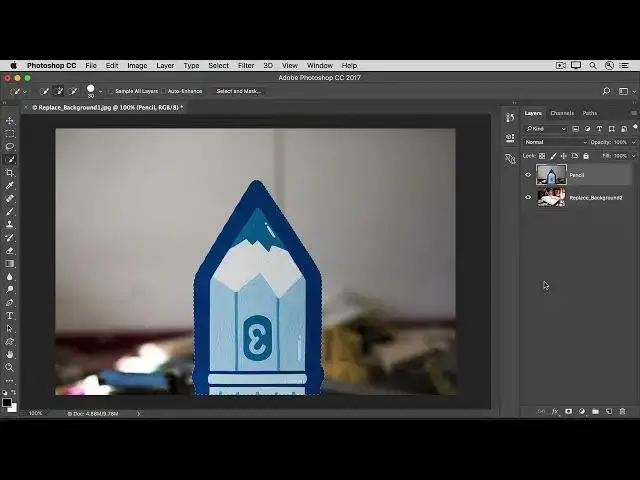
Start with two layers. The original image should be on the top layer and a replacement background image should be the bottom layer.
In the Layers panel, make sure the top layer (original image) is selected.
In the Tools panel, select the Quick Selection tool and use it to select all the areas in the original image you want to keep in the final output — everything except the background of the original image.
At the bottom of the Layers panel, click the Add layer mask icon. This adds a layer mask thumbnail linked to the top layer. The layer mask is hiding everything except what you selected. The hidden areas on your top layer allow you to see down through the layer stack to the replacement background on your bottom layer.
Show More Show Less