Up next in 10



https://a.webull.com/8ksaoiDnnHrFKov1rn
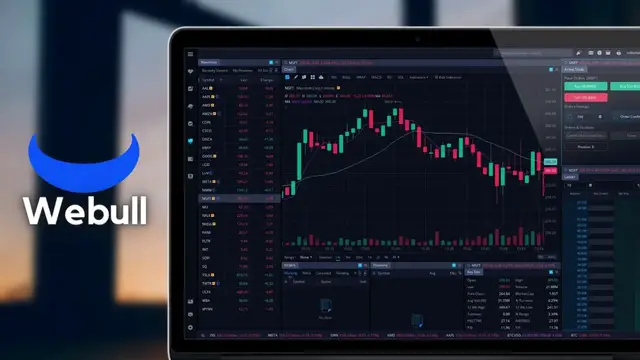
Today we’ll be doing a full tutorial of the Webull desktop platform for absolute beginners.
Webull doesn't have all the features or tools like more advanced platforms out there, however it is incredibly customizable and user friendly. Webull can be an excellent option if you're interested in trading stock, options or crypto.
Timestamps
0:00 Intro
0:35 General Navigation
3:10 Change Color Scheme
3:50 Stocks Page
5:44 How to Buy & Sell Stock
13:30 Charting
14:29 Adding Moving Average
17:21 Option Chain Explained
20:30 How to Trade Options
22:57 Create Custom Layout
24:56 Create a Watchlist
27:13 Outro
Show More Show Less View Video Transcript
0:00
Welcome everyone, today we'll be doing a full tutorial of the Weeble desktop platform for absolute beginners
0:06
I've actually done one of these in the past, but it's actually been a while so I thought it was time for a bit of an update
0:11
They have made a few different changes to the platform, which is always nice to see
0:15
but after coming back to it, I was reminded just how customizable it really is
0:20
It doesn't have all the bells and whistles or tools or features like a platform like Thinkorswim
0:25
but it is fairly user-friendly. Now there's definitely a lot to cover in this video
0:29
so be sure to check out those timestamps down below if there was something specific you guys were hoping to learn
0:35
Now jumping right into it, you guys will first notice all of your navigational tabs are located on the left-hand side of your screen
0:42
Some of these tabs are going to be incredibly obvious, like the watchlist tab
0:46
We'll come here a bit later on to make a few watchlists for ourselves of some of the companies that we actually want to keep track of
0:52
but that's really all it is, a watchlist of stocks that we want to keep track of
0:56
We'll then have the stock page right below that. This is going to be one of the places that you guys are going to come to look at a chart
1:03
place a trade, and a little bit later on, you guys will see that this entire page is actually customizable
1:09
But after that, we do have the markets tab. And at a glance, this tab will give you a quick idea of how the overall market is performing today
1:16
or a certain sector like the finance sector or healthcare sector. So for example, looking at the top up here, we can see the S&P 500 is pretty much flat today
1:26
it's down 2.4 points, which is only a 0.06% move. Right below that, we can see the Dow Jones and the
1:32
NASDAQ also pretty much flat, but the NASDAQ is down about a half a percent today. We then have
1:38
the Screener, which is actually used to find stocks that you might actually want to trade
1:43
Now, it's not nearly as advanced as other platforms out there, but it is fairly easy to use. So we'll
1:47
touch on that in a later video later down the line. You guys don't need to know this one right now
1:52
We next have the customized layout, which you guys will probably notice looks a whole lot like the stocks page, which right now it does
2:00
However, here we can actually create multiple different layouts and views and then toggle between them right up here at the top
2:06
So in my case, you can actually see here that I have the normal layout, but I could actually flip it over to the options traders layout if I wanted to
2:14
Now, a little bit later on, we'll go through how you guys can create your own layouts for yourself
2:18
But for right now, let's go ahead and take a look at the next tab down here, which is the accounts tab
2:23
Here you guys will be able to get a quick idea of what's going on in your account right now
2:28
So here we can see all of our open positions, our working orders, our current account balance, and our available buying power in the account
2:35
Now finally, the very last of those main navigational tabs is right here, and it's where you guys are going to come to pay per trade
2:41
So basically a place to practice without having to put any real money on the line
2:45
The buttons here will work exactly the same, so everything we talk about later in this video
2:50
you guys can practice right here and get some actual experience with it. Really, the only big downside with paper trading in Webull is the fact that you guys will not be
2:58
able to paper trade options, only stock. But like I said, those are the main navigational tabs within
3:04
Webull, and really the only other place you guys might come is the settings menu down here in the
3:09
lower left-hand corner. Here you could actually come to change some of the appearance settings
3:13
like adjusting the font size if you wanted to make it bigger, or you could also change the
3:18
overall appearance of the platform. So change it from the bluish background to the white background
3:23
or to the dark black background. For me, I actually prefer the default color scheme
3:29
so I'm going to go ahead and flip it back to that. Then I'm going to come up here to the X button in
3:33
the upper left to actually save these settings. Now the area that you guys will likely spend the
3:38
vast majority of your time within this platform is either going to be on the stocks tab or the
3:43
customize tab, both of which could actually be customized despite the name, but let's go ahead
3:47
and stick with the stocks page for right now. Looking here, you guys will actually notice a
3:52
bunch of the preloaded tools that you may or may not want to keep. To delete something, you simply
3:57
need to come over here to the three little lines in the upper right-hand corner of the thing you
4:02
want to delete. So in my case, let's say I wanted to get rid of the key statistics right here
4:07
I'm going to simply come up here to the three little lines in the upper right-hand corner and then select remove key statistics
4:13
To add a new tool or widget, we can actually click on those same three little lines
4:17
next to any one of these windows. So let's come up here to the chart window
4:21
We could then come down here to where it says add a widget. And for this one, we're gonna come down
4:25
and select all widgets. That'll then open up this all widgets menu
4:29
where we can actually start to look through all of these tools that are available and actually find some things
4:34
that we might actually find useful. You'll see here that there are actually a lot of different tools that you guys could use
4:40
and customize and put them where you want them. But in my case, I'm just going to come up here to
4:44
the trade page. And for this one, I'm going to go ahead and click on order entry tool and hit
4:49
add widget down here. You can then see that brand new widget actually pops up right here and I could
4:54
actually put it wherever I want it. And in order to do that, I simply need to click and hold down
4:58
on it and then drag it. And for this one, I'm going to hover it over this down arrow on the chart
5:04
And when I let go, I'm basically saying I want this order entry tool right below my chart. So
5:09
letting go here. You can see it does exactly that. I now have the order entry tool right below my
5:15
chart. I could also move it if I wanted to simply by clicking and holding down on it. And then let's
5:19
say we wanted to put it on the same little line here with my chart. So I'm going to go ahead and
5:24
put it up here and let go. So now you can see it up here as the top line item along with this charts
5:30
tab, but I could also put it right back if I wanted to just by dragging it down and dropping
5:35
it right below the chart. But as you guys can see, there's actually some pretty cool customization
5:39
options within this platform, and it's probably my favorite thing within Webull. Now, probably the
5:44
most important thing that you guys want to know about is actually how to place a trade inside of
5:49
here. And to be honest, you guys actually have a bunch of different options. There's tools inside
5:53
of here like the Active Trader or the Price Ladder that's going to be excellent for you day traders
5:58
out there. But since this is for beginners, let me go over a couple of the ways that I think you
6:02
guys will actually be placing your trades when you're first getting started. Now, the first method
6:07
and probably the simplest to understand is by simply using the order entry tool that we just
6:11
added right below our chart. So looking down here in the lower left hand corner, you'll actually see
6:16
an option down there to select a new order. And if we go ahead and select that, it'll actually
6:21
create an order ticket on the stock that we're currently looking at. So in this case, you can
6:25
see it's an order to buy shares of SoFi and you can quickly tell it's a buy order since it is a
6:31
green line and it also says buy right here. So hopefully pretty obvious. Once we actually have
6:36
the order ticket pulled up, we can then specify how many shares we wanted to buy in that quantity
6:40
box. Or if you wanted to place an order for a certain dollar amount, we could actually hit that
6:45
little icon on the right hand side and flip it to a dollar sign We could then type in here that we only wanted to buy let say worth of SoFi stock So type in 20 here And you do actually have the ability to buy fractional shares at Webull So all you have to do is buy at least
7:01
$5 worth of stock. But in my case, I actually want to buy a certain share quantity. So let me go ahead
7:06
and flip that back over to shares here. And for right now, I'm just going to buy one share of SoFi
7:12
stock. After entering the quantity, we can then specify the order type that we actually wanted to
7:17
use. So in this case, I'm currently specifying a limit order only, but if I were to click on that
7:22
we could actually see all of the other order types available within Webull. For right now
7:27
I'm just going to focus on the top three here, the first being a limit order, which simply means we
7:32
are specifying a price. For example, with SoFi currently trading at $6.50, I could actually come
7:38
over here and adjust the price down to, let's say, $5. So I'm now essentially saying I only want to
7:44
buy this one share of SoFi if SoFi drops down to $5 or lower. So that would be an example of a limit
7:50
order. If I instead wanted that order to fill immediately and I was willing to buy it at
7:54
whatever the current price was, I could actually come over here to the order type and flip it over
7:59
to a market order. So I'm no longer specifying a price, I just want to buy those shares immediately
8:05
Now the last one we're going to talk about is the stop order. So let's come over here and flip it
8:09
over to a stop order. This one you'll generally use as a way to exit your position and hopefully
8:14
protect yourself from taking on excessive losses. So let's say I already had one share of SoFi and
8:19
I actually wanted to get out of this thing if it ever dropped down to let's say $6.20. So in that
8:25
example I would need to flip this over from a buy ticket to a sell ticket and then coming over here
8:31
to the stop activation price I would actually adjust that to $6.20. Now in my case I don't
8:37
to actually have a position on SoFi already. So I'll come over here and flip this back over to a
8:42
buy ticket. And for this one, I actually want to use a limit order, but let's actually specify the
8:46
price as five bucks. So again, I'm essentially saying I only want to buy this one share of SoFi
8:51
if it ever drops down to $5 or lower. I could then specify how long I actually wanted this order
8:57
good for. And as of right now, it's a day order only, meaning it's only going to be good for today
9:02
And if at 4 p.m. this order still hasn't filled, it's just going to go ahead and cancel itself
9:06
If I wanted to, I could also flip that over to a GTC order or good until canceled, which just means this order is going to go out there every single day from 930 a.m. to 4 p.m. Eastern time until it actually fills
9:19
Now, finally, I could also make this order good for the extended session by coming over here to where it says no and flipping that over to yes
9:26
So now this order is going to work for the pre-market and post-market as well. And for Webull, those hours are actually from 4 a.m. Eastern to 8 p.m. Eastern time
9:34
Now if everything looks right and I'm happy with the order ticket, I'll simply come down here to the lower right hand corner and select place order
9:41
I'll then simply confirm everything looks right in this confirmation screen and if it does, I'll come up here and select buy
9:48
Once we hit that, we can actually see the order ticket to buy that share at $5
9:51
right here on my chart as this little green order ticket. I could also see it by coming over here to the right in the order screen
9:58
and this is my order ticket to buy that share as well. Later down the line, if I needed to modify that order ticket or edit it in some way
10:05
I could actually just right click on it right here and then select modify. I could also come over here to the chart and actually just click and hold down where I want
10:14
that order ticket and just kind of put it where I want to replace the price to. So in this case, you can see if I were to let go right now, it's going to be moving the price
10:21
down to $4.83. As soon as I let go, you can see an order confirmation comes up just to confirm
10:27
that I did in fact want to move it down to 483, and in my case I do, so I'm going to go ahead and
10:33
select buy here. We could also cancel it just by coming over here and hitting the x button on the
10:38
right hand side of the order ticket, and then confirming that yes we do want to cancel the
10:42
order. You guys can also create advanced orders in that exact same window, so that would be an
10:47
order that triggers another order. For example, let's say I wanted to buy that share of SoFi at
10:51
five, and then if that ever happened I wanted to try and sell it for 10, or get stopped out if it
10:56
ever dropped down to four. So to do that, we'll come back down to the same little section as before
11:01
and we'll select new order. We'll then go ahead and fill out the opening trade just like before
11:06
to only buy one share of SoFi if it ever drops down to five bucks. And I'm also going to make
11:11
it a good until canceled order. What I'll next do is come over here to the left hand side of the
11:16
order ticket and select where it says single. We can then see a few different order types that we
11:20
could actually use. But for this one, I just want to select first trigger stop. We can then see our
11:26
two following tickets that'll go out behind it, one to sell for a profit and then one to stop us
11:31
out. So if I remember right, I wanted to actually set my stop to four bucks. Let me go ahead and
11:36
delete out that and just have four in there. I'm then going to come down to the take profit order
11:40
and we'll flip that over to 10, I believe is what I said. And now if I'm actually happy with that
11:46
and I come down here to place the order, double check everything looks right in this order
11:50
confirmation. And if it does, I'm just going to go ahead and hit buy. And now just like before
11:55
we can actually see that opening order ticket right here on our chart, as well as our stop at
12:00
four bucks and our limit order at ten bucks. Now, I know I went through that pretty quick
12:05
but I will make a completely separate video going much more in depth on these advance orders for
12:09
those of you out there who might want to learn more about it. Now, I'll also quickly note that
12:13
for those of you guys out there who want to place these trades even more quickly, you guys also have
12:18
the ability to just right click on the chart and then specify where you want to buy it at
12:22
So now that I got those order tickets canceled out of here, let's say I wanted to buy the shares of SoFi if it ever dropped down to, let's say, $4.92
12:30
If I were to actually right-click on the chart right here, I could actually specify I want to create a brand new order at $4.91
12:37
So now if I were to click on that, you'll actually see the order ticket down here to buy 100 shares at $4.91
12:43
You can also use the trade tool over here on the far right-hand side, and you'll just need to fill it out just like normal
12:49
So right here, just specify what you're trying to do, either buy or sell
12:53
Specify the order type you want to use, the quantity of shares, the price, and the time and force
12:58
Again, just like before. And then looking right below that, you guys can also specify that you want it to be an advanced order
13:05
So basically have a stop loss order or a take profit order go out right behind the opening trade
13:10
Again, you guys have a lot of different options when it comes to placing trades within this platform
13:15
and we only went over two of them in today's video. Now, hopefully that helps and you guys are a little bit more confident with how to place
13:21
trades inside of here. But while we're actually on this page, let's go ahead and take a closer look at this chart
13:26
for just a minute. And let me explain how you guys can customize this just a little bit
13:30
Taking a look at the chart, you guys will first notice that you have the stock symbol
13:34
in the upper left hand corner, as well as the time frame for this chart
13:38
So right now it's telling us that we are looking at a SoFi chart and it is a daily chart, meaning
13:42
each one of these green and red candles represents an entire day of trading In order for us to change that time interval we simply come down here to the very bottom of the chart and then select the time period we want to go to So clicking on one minute means each one of these green and red candles represents one minute The five minute candles are five minute
14:00
candles, 30 minutes, and so on. So you day traders out there might be using the one minute and five
14:05
minute charts quite a bit, but for those of us longer term traders, we're going to be looking at
14:10
the daily chart. Now if you're not a big fan of the candlestick charts, you could actually come up
14:14
here to the very top of the page and select this little line style icon. Looking to the right we
14:20
could then actually flip it over to a different style of chart whether we wanted it to be a line
14:24
chart, an area chart, a hollow candle chart, and a few others just the right of that. And then if
14:30
you guys wanted to add indicators to this chart you could come over here to the far left hand side
14:35
and select the indicators menu. We could then add one of the default indicators over here on the
14:40
right hand side or come over here and hit the edit indicators button to make our own. So for me I
14:46
actually like to use the moving average lines to gauge the overall trend in the stock. So I'm going
14:50
to come over here and select the moving average indicator. I'm then going to come over here to the
14:54
right and specify the lengths. So for this one I'm actually going to use the 50 period moving average
14:59
as well as the 200. I'm going to type in both of those right here. Once that's done I'm simply going
15:05
to come up here and select the style icon and now I can actually specify the color of those
15:10
lines. You can see at the moment I've got the 50 period moving average as a purple line and the 200
15:15
as a kind of orangish line but I'm going to go ahead and change those starting with the 50 period
15:20
moving average. I'm going to make this one more of a tealish color so we'll go ahead and select
15:24
that. That looks good to me. I'm then going to come up here and we'll make the 200 moving average
15:29
more of a goldish line. So again coming down here I'm going to go ahead and move this over and that
15:35
looks pretty good to me. I'm then going to make sure that both of these are checkmarked because
15:40
I want both of them to display on my chart whenever I click on it. So now that I'm happy
15:44
with that, I'm simply going to come down here and select done. Now when I actually come up here to
15:48
my indicator line and actually select the moving average indicator, you can now see both the 50
15:54
period moving average and the 200 period moving average gets added to my chart. Another cool
15:59
feature that you guys might use from time to time is the grids button right up here at the very top
16:03
We'll go ahead and select that. This is where you can come to actually adjust how many charts you
16:07
want to see in this same window. So if I were to come over here and select the two chart grid
16:13
you'll now see a brand new chart is added to the right. If I were to come up here and select the
16:17
four grid layout, I now have four charts down here below. I could also come up here and actually sync
16:22
it to the symbol. So that means all of the same stock tickers appear in all of these little windows
16:27
And then if I wanted to customize each individual one, I would simply click on the one I want to
16:31
edit. So in this case, let's say I did want SoFi in each one of these windows, but I wanted a
16:36
different time period in each. So for this top one, I'll go ahead and select it and then come down
16:40
here and make it a, let's say one minute chart. I'm going to come up here to the top right one
16:46
and I'll make this one a five minute chart, this one a 30 minute, and then this one a daily
16:52
I could also add specific indicators to each one if I wanted to or specific drawings, but this is
16:57
another cool tool that you guys might use from time to time. Now, lastly, I'll also mention
17:02
and first let's go back to one chart that if you guys want to zoom in on the chart or zoom out
17:07
you'll simply use the little scroll wheel in the center of your mouse. You can also click and hold
17:12
down and drag either left or right to go back in time or forward in time on the chart, but it's
17:17
pretty much the same as any other platform out there. It should be pretty intuitive to you
17:22
Now for those of you options traders out there, the default stock layout page for Weebill will
17:26
actually include a option screen located right up here at the very top and if we select that
17:31
we can then see the option chain open up right below. Now if you guys didn't have this little
17:36
options window you could of course just come over here to the three little lines, go to add a widget
17:41
and select all widgets, then just come over here to the quotes page and come down and select options
17:47
We could then add this widget to our screen if we wanted to and actually put it wherever made the
17:52
most sense but for right now we'll just go ahead and delete that and we'll focus on this option
17:57
chain for right now. Now taking a closer look at the option chain itself for just a second
18:01
you guys will first notice a few filters right up here at the top of the screen
18:05
and this is how you guys can adjust the number of strikes that are being displayed, or if you just want to see one side of the chain itself
18:12
So just the call side, just the put side, or both. Looking right below that, you guys will also notice all of the options expirations
18:19
listed over here on the left-hand side of the page, and then the number of days until expiration right down the center
18:25
So for example, we can actually take a look at the 19 August option chain that I have open right now
18:30
and you can actually see right here in the center that that is 25 days from today
18:34
Since I already have that option chain opened up, we can actually see all of the strikes for the 19 August expiration listed right down the center
18:42
So starting here, you can see the $4 strike all the way down to the $8.5 strike
18:47
And then if we wanted to change that, maybe we wanted to see more or less of the available strikes
18:51
we would simply come up here to where it says 10 and then adjust it to, let's say, 20
18:56
So now we can see we just added a bunch of other strikes to our list
19:00
we can now see it goes all the way down to 1. And then if we scroll down, all the way up to 11
19:05
Looking to the left of the available strikes column, we can actually see all of the call options
19:09
And then over here on the right-hand side, we can actually see all of the available put options
19:14
You'll also notice that the in-the-money options are separated from the out-of-the-money options
19:18
with this little black divider here with the actual current price of the stock
19:22
And you can also see that the in-the-money options are highlighted with more of like a blue background
19:26
whereas the out-of-the-money options have a much darker background. Coming up here to the top, you guys can also see the columns of information
19:33
And as of right now, it's displaying the current mid price, the percent change for the day
19:37
the last traded price, and the current bid and asking price for that particular option
19:42
In order for us to edit that information being displayed here, we simply need to come over to any one of these columns and simply right-click on it
19:49
We're then going to come down here and select edit. That'll then show us a list of all the columns we currently have visible over here on the right-hand side
19:57
as well as all the ones we could add over here on the left hand side. Now in my case I actually do want to get rid of a few of these
20:03
So let me come over here and uncheck mid, percent change, and last here
20:08
And now what I want to add is going to be a few of the Greeks. So I'm going to add delta and theta
20:13
I'm also going to come down here and add implied volatility as well. And now that I'm happy with that I'm just going to come down here and hit done
20:20
So now looking up here on the option chain we can see that those changes did take effect
20:25
and now we can see the implied volatility, the theta and delta for each individual option contract
20:30
But now that you know what it is we're actually looking at here on the option chain and how to
20:34
customize it a bit, let's next go through the process of actually placing a trade. It's actually
20:39
a pretty simple process and you simply want to click on the asking price when you want to buy and the bid price when you want to sell So for example let say I actually bullish on SoFi right now and I think it going up Well in that case let say I was looking at buying a call option and let say I
20:54
wanted to get one slightly in the money. Taking a look here at the current price, we can see SoFi
20:59
is currently trading for $6.50. And in this case, let's say I was looking at the $6 call, about 50
21:05
cents in the money right now. I can currently see that this option is going for 83 cents by 85 cents
21:10
And since I want to buy this option in this case, I'm simply going to come over here to the current asking price and click on that number
21:17
So right here we're clicking on $0.85. And as soon as I do that, you'll actually see a little green ticket appears over here on the left-hand side
21:24
And looking down at the very bottom in our order entry window, we'll actually see an order ticket just like before
21:30
So right here it's saying I'm just doing a single option trade on SoFi
21:34
It's on the $6 strike. It's on the 19 August expiration. And it is a call option
21:39
I could then specify how many contracts it is that I actually wanted to buy, specify the order type I wanted to use, and the price I wanted to buy it for
21:47
Once I'm happy with it, I would simply come down here and select place order, and then confirm the order if I actually wanted to place it
21:54
So you'll see, it's pretty much identical to how we'll place trades on stock, it just might take a little bit of getting used to
22:00
Now on the flip side, if I were instead bearish on this stock, and I thought it was going down, we could instead look at buying a put option
22:06
So let me go ahead and delete this order ticket first, And let's say I was also looking at a slightly in the money put option
22:12
And in this case, that would be the $6.50 put. Looking to the right, we can see it's currently going for $0.56 by $0.57
22:19
And since I want to buy this option, I'm going to go ahead and click on the asking price of $0.57
22:24
We can again see that little green ticket appears over here on the right saying we're intending to buy this option
22:30
And then down here below, we can again see the order ticket. Now, besides single leg options, you guys do have the ability to trade spreads in here as well
22:38
but since this video is meant for absolute beginners, I'm not going to be touching on it
22:41
in today's video. But if you guys were wanting to learn more, be sure to check out some of my other
22:46
videos on the subject, and I'm sure they can help. Now, finally, I did mention that I would show you
22:50
guys how to create a custom layout for yourselves within Webull. So let's actually come over here to
22:55
the Customize page. And now in order to start fresh, we'll actually come up here to the top bar
23:00
and look over here on the far right hand side and select this plus sign to create a brand new layout
23:06
We'll then see a few layouts that Weebill actually makes for us that we could use
23:10
or we could just come up here and select a blank layout to start fresh
23:14
We can then come over here to the widgets menu over here on the right hand side
23:17
and start adding some of the tools that we actually wanted to see. So in this case, I'm going to first add a chart widget
23:23
and let me go ahead and size it a little bit better, make it a little bit bigger. Next up, I'm going to actually add a pricing ladder
23:29
So that should be under the trade page. And then looking over here on the right, I can see the price ladder
23:35
and I'm actually going to put it just the right of the chart. I'm also going to come over here and
23:39
add an order entry tool because I like to have that right below my chart if I want to place a
23:44
more methodical trade, be a little bit more specific with it. And I also want to be able
23:49
to see all of my open orders and open positions. So let me come over here and add the orders widget
23:54
put it over here right below the pricing ladder. And I'm also going to add the positions tab
24:01
just the right of that one and fit it in here. Now finally the very last one I'm going to add
24:07
is actually going to be a watch list so let me come up here to general. I'm going to come over
24:11
here and select a watch list and let's get rid of that widgets window and we'll put it in this last
24:16
little blank space right here. But there we go you can see I just created a brand new layout and if I
24:25
wanted to name this I could actually come up here to the current name blank layout and actually
24:29
right click on that. I'm then going to rename the tab and for this one I'll just go ahead and name
24:34
it I don't know charts 2.0 or something. Then I'll just go ahead and hit enter and now it's up here
24:40
at the top and I could actually flip between my other customized windows if I wanted to. So again
24:46
this is probably my favorite feature on Weeble is the fact that I could really put things wherever I
24:51
want it and use whatever tools that I find useful. It is incredibly customizable. Now the last thing
24:56
I did want to mention is how we could actually customize this watch list over here and maybe
25:00
make one of our own. And in order to do that, we would simply come over here to the three little
25:05
lines in the upper right hand corner of the watch list. Go ahead and click on that. We're then going
25:08
to come over here to the pop-up window and select edit watch list. That'll then show us a list of
25:14
all the watch lists we already have in Webull. So over here on the left, you got Hong Kong
25:18
US, and then a few of the ones that I've made. And this is also where we could come and actually
25:23
add symbols if we wanted to. So right here, I'm on the options watch list. I could come down here
25:27
and hit add symbol. I could then add, let's say Apple to this list and go ahead and click on it
25:32
up here at the very top, or I could actually select ones that I no longer want in this list
25:37
and then hit remove symbol to get rid of them. In order to create a brand new watch list and start
25:42
fresh, I'll just come over here and hit add a new watch list. Then go ahead and give it a name. I'm
25:47
just going to name this one new watch list and hit okay. Now we can come over here and click on it
25:53
and actually start adding some of the symbols that we wanted to see. So you just come down here, add a
25:59
symbol, type in the symbol you want to add, and then click on it in the list. Once you're happy
26:03
with the new watch list, we'll simply come down here and hit done. And then up here at the top
26:08
we can actually toggle to it if we wanted to. And there it is, the new watch list. Now I also want
26:13
to make sure that I link all of these windows together to make it so if I change one of them
26:17
they all change to match. So for example, if I were to actually come over here to my chart page
26:22
right now, you can look up here in the upper left and see I'm currently looking at SPY
26:26
You can also see over here on the active trader ladder, I also have SPY in here. But right now
26:31
if I were to change one of these, like let's say I change this one to Meta, you can now see that
26:35
this little pricing ladder actually changes to Meta down here below, but my chart is still looking
26:40
it spy. So in order for me to fix that, to link all of these tabs together, I'm simply going to
26:44
come over here and click on this little grouping button and I'm going to make them all the same
26:49
color. So in this case, I'm all going to make them blue too. So we'll do that to each one of these
26:53
tabs right here. Just go through each and every one of them. And there we go. So now if I were to
27:04
change one of these screens, they will all change to match. For example, if I were to come up here
27:08
and select Apple in my watch list, you'll actually see that all of these little windows
27:12
change to Apple. But I think that should have given you guys a better understanding of how this platform can be used
27:17
in a few of the different ways that you guys can customize it to your particular trading style
27:22
If there was anything I missed or anything that you guys would like me to delve deeper into
27:26
please let me know down below. I really do hope this helps. I do know it was a lot
27:30
but honestly, Webull is a fairly user-friendly platform compared to a lot of the others that I've used
27:35
but it'll still take some time to get used to it. That's it for now. Have a great rest of your week everyone and I'll catch you on the next video
#Business & Industrial
#Finance
#Jobs & Education
#Brokerages & Day Trading