Up next in 10



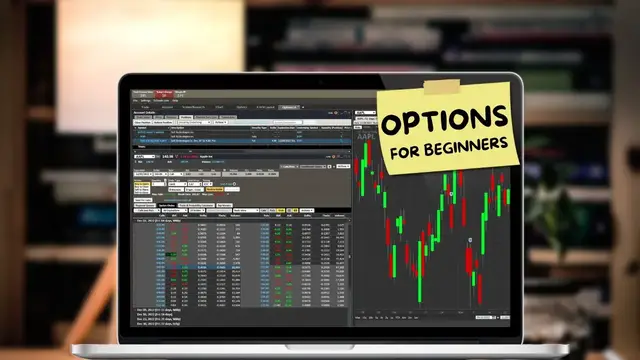
Today we’ll be diving into the Schwab StreetSmart Edge trading platform to learn the basics of what options are and how to trade.
Options are an amazing tool and can be used in so many different ways. Now, unfortunately, Schwab has made the process to trade them a bit more complicated than it needs to be. They’ve essentially decided to do things differently than everyone else, which means it’ll take a bit of time to learn their layout if you’re moving from a different platform.
Show More Show Less View Video Transcript
0:00
Options are an amazing tool and can be used in so many different ways
0:04
Now unfortunately, Schwab has made the process to trade them a bit more complicated than it really needs to be
0:10
and they've essentially decided to do things differently than everyone else, which means it will take a little bit of time to learn their layout if you are moving over from a different platform
0:20
So today we're going to be diving into the Schwab Street Smart Edge trading platform
0:24
to learn all the basics of what options are and how to trade them within here
0:28
I'm definitely going to be making a few more in-depth videos on options trading within Schwab
0:33
since it is quite a bit different than the other platforms I'm used to using
0:37
So be sure to be on the lookout for those future videos if you did want to learn more
0:41
But starting out at the very beginning, what even are options? Options are simply a contract giving you the right to buy or sell a stock at a set price for a set amount of time
0:52
There are going to be call options which give us the right to buy the stock at a set price
0:56
and also put options which give us the right to sell the stock at a set price
1:01
Now those contracts can actually be traded just like stock and are going to be constantly changing in value just like stock
1:08
So despite the fact that the contract gives you the right to buy or sell the stock
1:12
for a set amount of time, generally you're never going to actually exercise that contract
1:17
meaning you don't ever really want to buy or sell the stock. And instead of buying and selling the stock
1:23
you're going to buy or sell the contract itself and that's how we're going to profit on the trade
1:27
Now you also need to keep in mind that each option contract represents 100 shares of stock
1:32
So when you see an option trading for $2, it's really going to cost you $200 to buy it
1:37
If you see a contract trading for $5, that's really $500. And those option contracts are also going to be affected by things like time
1:46
volatility, or even interest rates changing. So that means eventually you could learn to trade them to not only bet on the stock price changing
1:53
but you could also try and trade things like time decay or volatility changing
1:58
But now that we've covered the absolute basics of what options are, in order to actually trade them within the Schwab trading platform
2:05
you're generally going to be doing so from the option chain, which can technically be added to any of their trading screens
2:11
Now the specific tool itself is actually right here on my default trade screen
2:16
and it's actually called the All-in-One Trade Tool. So right here within the tool, you would simply come down here below
2:22
where the button marked option chain is at. And when you click on that
2:26
you'll actually be able to see the option chain down below for the specific stock that we're looking at here
2:31
Now, for those of you watching who do not have this all-in-one trade tool on your screen
2:35
it's actually incredibly easy to add. So to do that, you would simply come up here
2:40
to the upper right-hand corner and find the button marked Launch Tools. Then within that little dropdown menu
2:46
you can actually see all the different gadgets that you could add to your screen. And right here is the one marked
2:51
the all-in-one trade tool, which if I click on that, we can now see a brand new button has been
2:57
added over here on the left-hand side. And I could actually drag that and drop it wherever I wanted to
3:03
And then if I came down here and selected option chain, I now have two separate option chains
3:08
right here on my screen. To get rid of that, we'll just come up here to the upper right-hand corner
3:12
and hit the little X button. Now you could just use the default layout that you've got right here
3:18
the very first time you log into Schwab, this is exactly what it should look like. However, I would
3:23
really recommend you make a screen specifically made for options. So that way you have all the
3:28
tools and gadgets set up the exact way you like it when you're trading options. So coming up here
3:33
to my top toolbar, you can actually see all of the layouts that I've already made. And in this
3:37
case, I've actually made two separate ones for options. So I've got the options layout and I've
3:42
got the options 2.0 layout. So if we were to come over here and open up the one marked options 2.0
3:49
you can now see I've got a brand new screen down here below with a bunch of different gadgets
3:54
At the top here, I've got my account detail section, which is going to show me all of my
3:58
open and working orders, as well as all of my open positions. Then down below that, I've got
4:03
a nice big option chain for whatever stock I'm currently looking at. And then over here on the
4:07
right, I've got a chart. But like I said, you can set up this screen however you want with whatever
4:12
tools you want. This is just the layout I'll be using for today. Coming back over here to the
4:17
left-hand side, if we were to first begin with the option chain itself, coming up here to the
4:22
very top, you'll first begin to see what stock it is that we're actually trading here. So in this
4:27
case, we're currently looking at SoFi. Looks like SoFi last traded for $4.46, and the stock is up
4:34
just over a penny today. Right below that, we'll be able to see our order ticket, which is where
4:40
we're going to be able to set how many contracts we wanted to buy, the price we wanted to pay
4:45
and how long we wanted that order good for. But I'm going to be saving that for a little bit later
4:50
in this video. I wanted to first go over how to actually read and customize the option chain
4:54
right down here below. Looking here at the chain itself, you'll see there is a lot to look at
5:00
But the very first thing you'll need to do is decide what expiration it is that you wanted to
5:04
trade. Basically, how long do you want this option to be active for? So looking right here on the
5:09
left hand side, we're going to be able to see all of the options expirations available for SoFi
5:14
And here you can see it begins at December 2nd and it actually goes all the way out to January 17th
5:20
of 2025. Now, the only reason that I'm currently seeing all of the available expirations for SoFi
5:26
is because right up here at the top of my option chain, my little tab here is marked all expirations
5:33
However, if I were to click on that, I could actually specify I only wanted to see expirations within the next 30 days, the next 60 days, or I could actually specify a specific expiration right here
5:46
Now, in my case, I actually prefer to see all of the available expirations for this particular stock
5:51
So I'm going to come back up here and just select all expirations. Coming back down below to the option chain, if we were to look to the right of those expiration
5:59
dates, we're also going to be able to see how far out in time that expiration is
6:03
So right here in parentheses, where I'm looking at December 2nd, it looks like that's four days
6:09
from now. December 9th is 11 days from now. December 16th is eight days from now. And I
6:14
think you get the idea. But if you're new to options, if you're looking at this, you have
6:18
got a ton of different choices in terms of what expiration to choose. And unfortunately
6:23
I can't tell you exactly which option expiration to choose or how far out in time you should
6:28
typically go since that is really going to depend on you and your strategy However I will mention that if you decide to pick an option expiration that is close to expiration so like right here December 2nd is only four days from now you can probably expect to see a lot of volatility in those contracts
6:46
So those options that expire within the week, and especially those that expire in the same day, can swing pretty wildly
6:52
which can be great if it's in your favor, but not so fine if it goes against you
6:56
Now, if you instead went further out in time, so if we were to come down here and we went out 53 days
7:02
instead of just doing four days out, we are going to be spending a lot more money
7:06
for those contracts. But we're also going to see far less volatile swings
7:10
due to the stock price changing, and we're going to be far less affected
7:13
by things like time decay. But again, there isn't a one size fits all
7:17
for what expiration is best. It is really going to depend on you and also what strategy are you doing right now
7:23
But since we do need to move forward with this example, let's just say for example's sake
7:28
that I typically like to trade options that expire about, let's say, 30 days out
7:33
So in this case, it looks like December 30th is about as close as I'm gonna get
7:37
It's about 32 days out. And now in order for us to take a closer look
7:41
at that expiration, we are simply going to click on it. That'll then open up the option chain
7:46
right down here below. And down here in the center of the screen
7:49
we can see a few of the available strikes for this expiration. So beginning here at the $3.50 strike
7:56
and going out to the $5 strike. Just remember that the strike is simply the price that you're getting the right to buy or sell the stock for up until December 30th
8:05
So if we were to buy a $5 call, that's granting us the right to buy 100 shares of SoFi for $5 for the next month
8:13
If we instead bought the $5 put, that grants us the right to sell 100 shares of SoFi at $5 for the next month
8:20
We'll dig into how to actually trade them a little bit later in this video
8:24
First off, I want to show you how to expand how many strikes you're seeing. So maybe you wanted to see further out of the money or just see the other available strikes that are available on SoFi
8:34
And in order to do that, we are going to come back up here to the toolbar where it currently says four strikes
8:40
And as soon as I click on that, I'll actually have a little toggle down here below where I can either expand or contract the number of strikes that I'm currently seeing
8:49
So if we wanted to double it and we're currently seeing four, let's come over here to the right and adjust it up to eight
8:55
and if I were to let go, coming back down to the option chain, we'll now see we have
8:59
eight available strikes right down the center here, beginning now at $2.50 and going all the
9:06
way out to the $6 strike. Now looking to the left of those available strikes, we're going to be able
9:11
to see all the call options. To the right, we're going to see all the put options. You may also
9:16
notice that the in-the-money options versus the out-of-the-money options are separated by different
9:21
colors. So the in the money options right now have a light gray background, whereas the out of the
9:27
money options have more of a dark background. Now within all those boxes, there are a lot of numbers
9:32
jumping around here. But if we were to come up to the top, we'll actually see the column headers
9:36
right here telling us exactly what those numbers actually mean. So right here, we can see the
9:41
current bid and asking price for that option, which is essentially just what that option is
9:46
trading for right now. Then to the right we can see the current delta, the current theta, and the
9:51
percent out of the money probability. You can of course adjust those columns to whatever information
9:56
that it is that you wanted to see and you could change those a couple different ways. But for
10:02
right now we're going to do that by coming up here to the actions menu over here on the right hand
10:07
side. Then by coming down here below where it says columns and settings. That'll then open up a little
10:12
pop up where we can see all the columns that we could add over here on the left hand side. And of
10:18
course, add them. We simply have to check market. So in my case, let's say I wanted to add the volume
10:23
column and I actually want to come over here and get rid of out of the money probability. So I'm
10:28
scrolling down and I'm going to uncheck out of the money percent probability. Now, if I'm happy with
10:33
that, I'll just come down here below and hit OK. And now coming back up here to the option chain
10:38
I can now see how many contracts have actually been traded on each of these strikes today
10:44
Now the last thing I'll mention before we actually dive into how to trade these things
10:48
is the overall layout of my option chain right now. So at the moment you can see I've currently
10:53
got the calls as well as the puts visible and that's because right up here at the top I've got
10:58
the both buttons selected. Now if you only wanted to see the calls you could come over here and
11:03
select calls. If you only wanted to see the puts you could come over here and select puts
11:08
However, in my case, I am just personally used to seeing both at the exact same time
11:13
so I'm going to come over here and hit both. There's actually a lot of other customizations that you can do to this thing
11:18
and I am going to save that for a more in-depth video later on. But now that you have a rough idea on what it is you're looking at here
11:26
and how to customize it a bit, placing the trades themselves is actually pretty straightforward
11:31
We would simply come down here below to the option chain itself, find the strike that we wanted to buy or sell
11:36
and then simply click anywhere on the line for that strike. So going through an example so you can actually see what it is I'm talking about
11:44
Let's say we were bullish. We think SoFi stock is going up. Well, one strategy that could make sense is simply buying a long call option
11:52
So looking down here at the call options, and remember the calls are going to be over here on the left-hand side
11:58
Let's say I wanted to get one a bit out of the money, and we can see the current strike price over here on the far left-hand side
12:04
And remember, it's going out from $2.50 out to $6. So if we were looking to get a call option a little bit out of the money
12:12
we can see here that the $4.50 call is the very first option that's going to be out of the money
12:17
And as of right now, because SoFi is trading for $4.46, this option is four pennies out of the money
12:24
We can also see over here on the right-hand side, it's currently trading for $0.10 by $0.11
12:29
We can see the current delta is roughly $0.47. and remember whenever I want to trade this particular option
12:36
I can actually click anywhere on this line right here, any of these informational columns
12:41
So let's say we did. We actually wanted to buy this $4.50 call and remember the current asking price is $0.11
12:46
so that option is going to cost us roughly $11 right now
12:50
and in order for us to build out the order ticket on it, we are just going to click on this line anywhere
12:55
It probably wasn't incredibly obvious but if we were to come back up here to the top to our order ticket
13:00
we actually have the order ticket built out to actually buy that call option
13:05
So looking here from left to right, it looks like we're trading the December 2nd, 2022 option
13:11
And actually we wanted to trade about 30 days out So let come down here and let me adjust that slightly Let adjust that out to December 30th let say And now coming back down here below to the call but now for December 30th
13:25
So this one's going to have roughly a month of time rather than just four days
13:29
And now we can see this one's trading for roughly $0.36. So you'll see as soon as I click on that one, the date actually changes right up here on the top as well
13:39
We could have also just adjusted the date by clicking on the little expiration here
13:43
but I like to keep it simple by going down to the expiration and selecting the exact option I wanted to trade
13:49
To the right of that, we'll also be able to see it specifying the 450 strike
13:53
It is a call option. And to the right of that, we could see even more information about that option as well
13:59
But coming down right below that, we'll also see the order ticket where we can then specify exactly what we're trying to do
14:06
So are we currently buying or selling? How many contracts did we want to buy or sell
14:11
What order type did we want to use? And what price were we willing to pay? So beginning with the very first box over here on the left-hand side, the action box
14:19
we're first going to specify what it is we're doing. So are we buying this call option or are we trying to sell it
14:25
So in this case, since we're buying, I'm going to select buy to open. I can then specify exactly how many contracts I wanted to buy
14:32
So in this case, I'm actually going to leave it set to one. Coming to the right, we could also set the exact order type and price that we wanted to use
14:40
So in my case, since we are currently using a limit order, that means I only wanted to purchase this option at a set price or better
14:46
And in this case, I'm saying at 36 cents or better. However, if we were to click on that order type here, so if I click on the word limit
14:53
we are going to see a bunch of other options down here below. So things like a walk limit, a market order, stop, stop limit, and trailing stop order
15:03
Now going through those one at a time, if we were to come back up here to walk limit
15:07
this is not a common order type among brokers, but it essentially allows you to place the order
15:12
at a set price that you'd like to get it, but then if it doesn't fill right away
15:15
it doesn't end up filling, it'll then automatically start adjusting up the price
15:20
until it does end up filling. So if I were to click on that, down here below, we can set our starting price
15:26
So let's say I wanted to try and actually buy this thing for 30 cents
15:30
I'm gonna adjust this down to 30, but the ending price is actually what I'm willing to pay. So over here on the right
15:36
I'm saying I am willing to go all the way up to $0.37 if I have to. But again, it's going to start
15:41
at $0.30. And then what it's going to do is adjust up the price by one penny every two seconds
15:47
And we can, of course, adjust those as well. So I could come over here and say, I don't want it to
15:52
go from $0.30 to $0.31. I want it to go from $0.30 to, let's say, $0.32, then to $0.34, then to $0.36
16:00
cents. So it's now adjusting by two penny increments. We could also come over here to the
16:05
right and say how long we want that order to sit before the adjustment is made. So currently it's
16:10
two seconds, but I could make that whatever amount of time I want it to sit there for
16:14
Besides that, if we were to come back over here and select walk limit again, we can also see a
16:19
market order and a market order would essentially be used if you wanted your order to fill
16:23
immediately and you'll take whatever the current price is. Just get me that contract. Right below
16:29
that, we're also going to see a few different types of stops like stop, stop limit, and trailing stop
16:34
all of which are generally going to be used to get you out of the position and use as a form of
16:39
protection, not usually to get you into a new trade. Instead, you're using these stop orders
16:44
to get you out if it ever goes down to a certain amount, down to a certain price, and you want to
16:49
get yourself out before you lose any more money. So as an example, if we were to actually buy this
16:53
contract for let's say 30 cents, I could then say, get me out if it ever drops down to 20 cents
16:59
because I didn't want to lose more than $10 on this trade. That'll be the general use case for
17:04
a stop order. And you can look into that more if you wanted to, but for now to keep things simple
17:10
we're going to go ahead and stick with a limit order for right now. And honestly, you're probably
17:14
all going to be using a limit order for the most part anyways. And now over here on the right hand
17:19
side, I can actually specify what I'm willing to pay for this contract. So in this example, let's
17:25
say I only want to buy this call option if I could get it for, let's say, 25 cents or better. So I'm
17:30
going to adjust that over to 25 cents. And now finally, the very last thing I can do is come over
17:35
here to the right hand side and adjust the time and force, basically how long I want this order
17:41
good for. At the moment, with a day order currently selected, it's saying this order is only going to
17:45
work from 9 30 a.m to 4 p.m eastern time and if it doesn't fill by 4 p.m just go ahead and cancel
17:51
the order. However if we click on that we're actually going to see a few other order types
17:55
like GTC, fill or kill, or immediate or cancel. The GTC order or good till cancel order simply
18:02
means I want this order to go out every single day until it fills or until I come in here and
18:07
manually cancel it myself. The other two below that I honestly doubt you will ever use but that's
18:13
going to include fill or kill or immediate or cancel. The fill or kill simply meaning that you
18:18
want this order to fill immediately and in its entirety, so you want to buy all the contracts
18:23
and you want it to fill immediately, and if it doesn't, you just want to cancel the order
18:27
immediately. The other one here, the last one, immediate or cancel or IOC, is essentially
18:33
identical to the other one, identical to fill or kill, but it will accept a partial fill
18:38
But honestly, I will be shocked if any of you watching this ever use something other than a
18:42
day order or a GTC order. So for right now, we're going to stick to a day order only
18:48
Once that's done and before we actually submit it, if we were to look down here below
18:52
we can actually see the max profit or max gain potential on this trade. We can see the break
18:58
even stock price. So where we need the stock to go by expiration just to get our money back
19:03
And we can see the max loss on this trade. So how much could I lose if things go completely wrong
19:08
In this case, I am completely happy with all the risk on the trade
19:11
And now in order to submit it, we are simply going to come up here and hit review order
19:16
Then down below within the confirmation box, we can then confirm everything looks right
19:21
So right here, it just confirms we're buying one of the SoFi December 30th, 450 calls for 25 cents
19:28
And now in order to place the order, we are simply going to come down here and hit place order
19:32
Once the order is actually working, we can now see it by coming right up here at the top
19:38
because I've got the account details page right here. And right here it shows that that is an
19:43
open order. So I haven't actually bought it yet, but it is working. So right here I'm trying to
19:48
buy to open 1 at 25 cents So since it is still working I haven bought it yet we still have the ability to cancel it or edit it if need be So to do that we would simply come here to the order ticket itself and
20:01
simply right click on it. Then coming over here to the right hand side, we could either change the
20:06
order, which is just edit the order in some way, or we could come down here and hit cancel order to
20:11
just outright cancel the order, which in this case is exactly what I want to do. After clicking on
20:17
that, I just need to confirm that I do in fact want to cancel it. So we'll just hit cancel order
20:21
one more time. And now looking here in the order status window, it now says that that order has
20:26
been canceled. But as you can see, placing the trade itself was not too tricky. We simply had
20:31
to come down below to the option chain and then click on the option that we wanted to buy or sell
20:36
So going through that one more time, let's now say we change our mind. We're now bearish on the
20:41
stock. We think it's going down in value. Since that's the case, we now want to look at buying a
20:46
put option. So now we're going to come over here to the right hand side of the option chain. And
20:51
now these are all of the available put options. So looking here on the right, let's say we wanted
20:55
to get one slightly out of the money, which in this case, $4 is more than slightly out of the
21:01
money. That's about 48 cents below the current price. But here we can see it's currently trading
21:06
for 15 cents by 17 cents. So again, in order to actually place that trade, we first have to click
21:12
anywhere on this line here, which as soon as I do actually builds out the order ticket right up here
21:16
at the top. So now it's saying we're trading the exact same expiration, December 30th. I'm doing
21:22
the $4 strike now. It is a put option. And now down here below, we can specify what it is we
21:28
wanted to do. So in this case, I've already got the buy to open selected. To the right of that
21:33
I'm buying one contract. I actually want to leave it set to a limit order. And right now I'm saying
21:38
I want to buy this contract for 15 cents or better. Now, since all that looks good
21:43
and if we were to come down here below, we can see the max profit potential on this trade would
21:47
be 385, and that would only happen if this stock goes bankrupt, it goes to $0 even. But we can also
21:54
see our break even on the trade. So if I actually hold this all the way to December 30th, I need
21:59
the stock to go down to 385 to get my $15 back, which over here on the right also tells me that
22:05
if it doesn't go down, if it doesn't even go down below four, in the worst case scenario, I'm going
22:10
to lose $15 on this trade, which in this case I am totally fine with. So now in order to place it
22:16
I'm just going to come up here and hit review order. We'll then get another little confirmation
22:21
screen just to confirm everything looks right, which it does. So I'm going to come down here
22:26
and hit place order. Once placed in order to keep track of it, we could come back up here to the top
22:32
to our account details section. And again, right here, it shows that that is still a working order
22:38
I haven't bought it yet. Now, since I do actually want to buy it, I'm going to go ahead and right
22:43
click on this order ticket and then come over here to the right and hit change order. Within
22:48
this new little pop-up window, I can actually adjust things like the quantity of contracts I
22:52
wanted to buy or the order type I wanted to use. But in this case, all I want to do is adjust up
22:58
the price a little bit so I actually get filled. And in this case, if we look over here at the
23:02
current asking price of this option, it's currently trading for $0.17, which means if I want to
23:08
guarantee that I get filled, I could come up here and just adjust this up to $0.17. And now when I
23:14
come down here and hit review order, I will get filled on this trade. And you'll see I still have
23:19
to confirm it, so we'll just come down here below and hit place order. And now coming back up here
23:24
to the order status screen, we can actually see that the order has been filled. So I actually
23:28
bought it and if I look over here on the right, it says I actually filled at 16 cents. So I filled
23:34
about a penny better than what I was trying to get for it. I could also keep track of it within
23:38
the account details window by coming up here and flipping this over to positions. And now down here
23:44
below, I can see all of my current positions on this particular stock or this particular option
23:50
contract. So right here we can see the SoFi 1230 or December 30th $4 put. We can see over here on
23:58
the right I currently have one contract and now later down the line if I ever wanted to sell this
24:03
contract if the time came and I wanted to get out of it I could actually just come right here and
24:08
simply right click on this line. Then within the little pop-up window over here on the right hand
24:13
side when I was ready to sell it and remember I can sell this thing anytime I want to between now
24:18
and December 30th. Just because the option expires on December 30th does not mean I have to hold it
24:24
till then. So if I did want to sell it, I thought it was time to get out of this contract. I'm just
24:28
going to come over here and hit close so-fi $4 put. That'll then bring up a little close position
24:34
pop-up window where I can then specify how many I wanted to sell, the order type I wanted to use
24:39
and how long I wanted it good for. Now in this case, let's say I did not want to sell it right
24:44
away. I didn't want to sell it at 16 cents just to get out of it. I only wanted to sell it if it
24:49
went up in value. So in that case, we're going to come over here and flip this over from a market
24:54
order to a limit order. And since I bought it for 16 cents, if I wanted to double my money on this
25:00
trade, if I wanted to make a hundred percent profit, I could actually come over here and specify I only
25:06
want to sell it if it goes up to 32 cents a contract. Since that's pretty unlikely to happen
25:11
a day, even though it could, I'm going to come over here and flip this over from a day order
25:16
to a GTC order. So now I'm saying I want to sell this contract if it ever hits 32 cents
25:22
whether that happens today, in a week from now, in a month from now, if it ever happens
25:26
go ahead and sell my contract. Now that I'm happy with that and I actually want to place it
25:31
I'm going to come down here below and hit review order, then just confirm in this order confirmation
25:36
box that it looks correct. And since it does, I'm going to come down here and hit place order
25:41
But again, that is the absolute basics of how you're going to trade options within the Schwab Street Smart Edge platform
25:49
All we did is cover the absolute basics of how to buy a call, buy a put, and how to customize this option chain just a little bit
25:56
There are a ton of other strategies out there, whether it be a vertical spread, an iron condor
26:01
and you can use these options to do a bunch of different things, whether that be generate income, hedge your risk, or just bet on direction
26:09
Hopefully after all that, you at least feel a little bit more comfortable with how to trade options within here
26:14
I know it can seem a little bit confusing, but with just a little bit of practice, you will get the hang of it
26:20
Like I said, be on the lookout for more videos on trading options within Schwab
26:24
But in the meantime, you might find this next video helpful as well
26:28
So go ahead and check it out. That's it for today. Have a great rest of your week and I'll catch you all on the next one
#Finance
#Financial Planning & Management
#Investing
#Stocks & Bonds