Up next in 10



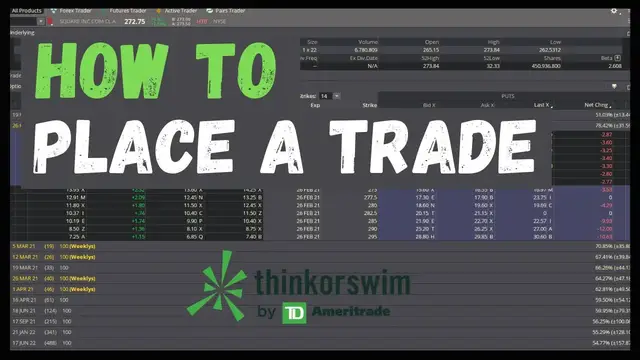
Trading in ThinkorSwim can be a bit confusing when you're first getting started. In this video you'll learn how to buy stock, sell stock and close out of your open positions.
ThinkorSwim is one of the best trading platforms currently available. It allows traders to buy and sell stock, options, futures, and forex. ThinkorSwim is also incredibly customizable with nearly every tool and feature being editable in someway.
Show More Show Less View Video Transcript
0:00
Hey guys, welcome back to the channel. In today's video, we're going to cover how to buy and sell
0:03
stock within the Thinkorswim platform, and we're also going to cover how to close out of positions
0:07
we're already holding. Now, there are quite a few different ways to create an order in Thinkorswim
0:12
Now, today we're just going to cover a couple of those, and the first one we're going to cover is on the Trade tab and on the All Products page. Now, the first thing I want to make sure you have
0:20
up here is the stock we're looking at, in this case Facebook, and we're going to see at the very
0:24
top all of the underlying stock info, so what Facebook last traded at, what it was up or down
0:29
for the day, the bid ask, and the volume open high and low for the stock. And if we wanted to see a
0:35
little bit more information on Facebook in this case, all we'd have to do is click on this little
0:39
carrot icon or arrow. And from there we can see its PE ratio, its dividend, if it had one
0:45
and then the 52 week high and 52 week low for the company. Now, if we wanted to buy the stock
0:50
all we have to do is click on the asking price, which in this case was $270.30
0:54
From there, it automatically brings up an order ticket down here below to buy 50 shares of Facebook with a limit price of $270.30
1:04
Now, we can edit this order ticket to show whatever information we want to see. So in this case, if we only wanted to buy 25 shares, we just double-click on 50 here, type in 25, and we're good to go
1:15
Now, if we wanted to change the limit price we're buying the stock at, maybe we only wanted to buy it if it went down to 250
1:20
We'd go ahead and type that in there, 250. and we're happy with the limit price maybe we wanted this order good until canceled though
1:26
so we'll go ahead and change that now all we have to do next is hit confirm and send bring up a
1:32
little order confirmation box from here we just make sure everything looks correct we're going to
1:36
buy 25 shares at 250 we're happy with that so we'll go ahead and hit send now as soon as we hit
1:42
send the order will be visible on the monitor page and then under the working order section
1:46
we can see that order to buy 25 shares let say we wanted to cancel it all we have to do is right on the order ticket go ahead and go to cancel order and we good to go Now let go back over to the trade tab From this page you can also create a sell ticket and all you have to do is click on the bid price
2:02
$2.70.25. Just like before it brings up that order ticket to sell and you would just change
2:07
those parameters the exact same way. This is also how you're going to short the stock assuming you
2:11
don't have any shares already. There's nothing special you have to do when shorting. You just
2:15
put in the order ticket exactly the same way. You say, I want to sell 50 shares with a limit price
2:20
or with a market price. Hit confirm and send and you're good to go. So just remember every time you
2:24
see an asking price on the platform, everywhere you see a bid price, when you click on those numbers
2:28
it will create an order ticket to buy or sell. And that goes for the watch list on the left-hand
2:32
side of the page as well. So over here, we can see we want to buy some shares at Apple. We've
2:36
got it highlighted right now. We'll go ahead and click on the asking price, $135.47. And it creates
2:42
that order ticket to buy 50 shares at Apple just like it did before on Facebook. Now if you ever
2:47
forget which one I'm supposed to click on, the bid, the ask, who knows, all you have to do is right
2:52
click on those values and it'll give you the option right there. I either want to buy or I want to sell
2:57
Those will do the exact same things. All it will do is credit the order ticket down below
3:01
and then you would just edit the quantity of shares or the trade price if you want to
3:05
Now I don't know if you noticed but the default quantity in here right now for me is 50 shares
3:10
and it's using a limit price. Now, let's say you wanted to edit that
3:13
Maybe you only buy usually in 10 share increments and you typically use a market order
3:17
when you want to buy or sell. Now, the way to edit that is by going up here to the setup icon, top right-hand corner
3:23
go to application settings, then come over to order defaults and make sure you're on the stock order entry tool
3:29
We'll come over here to default order type because I think we said we wanted to use a market order
3:33
and we normally buy in 10 share increments. So we'll go ahead and throw in 10 right there
3:37
and then this little one right here is every time we hit the plus or minus button next to the quantity
3:42
how many shares does it change it by so we going to leave one in there we go ahead and hit apply settings and now from now on whenever we click on the asking price or the bid price we see that it only shows up in 10 share increments and it always a market order now by default now we can
3:57
always change that if we want to but it'll always show up as a default now one other way to place
4:02
trades on thinkorswim is using the charts tab and from here all you have to do is right click on the
4:07
chart to place the trade now keep in mind where you're right clicking so if you see on the right
4:12
hand side right now my mouse is at 113 dollars and 50 cents so if i right click right there and i go
4:18
down here to buy it's automatically going to go to the order confirmation box and right now it's
4:22
saying we're going to buy 10 shares of apple with a market price because that's our default but if
4:28
we were to change our default back to a limit price so we'll go back to order defaults go to
4:33
market change it to limit now if we put our mouse up there and go to let's see 120 51 and we right
4:39
click, go to buy, we can see it now puts in that limit price right where we clicked. So we're buying
4:44
10 shares of Apple at a limit price of $120.52. If we wanted to edit that for any reason, maybe we
4:50
wanted to change the number of shares we're buying or the price that we're paying, all we'd have to
4:54
do is come here to the edit button and it brings us right back to the order ticket. Now from the
4:59
charts page you can also use the tabs on the right hand side, the trade buttons, the big buttons
5:04
even the active trader ladder if you're planning on being a day trader or maybe even scalping
5:09
We will cover all of these tabs later on in future videos but for right now I just want
5:14
you to know they exist and you can place trades from there. Now next we're going to move on to
5:19
how to close out your open positions. Now the way that you're going to do that is going to the
5:23
monitor page and from there we can see all of the stock we hold in this account. We can see that in
5:28
this case we've got 100 shares of American Airlines. Let's say we wanted to close out of
5:32
that position all we'd have to do is right-click on American Airlines go to
5:36
create a closing order in this case we gonna sell a hundred shares with a limit price and just like before it brings us to the order ticket And again we could change the number of shares we wanted to sell We could change the price we were selling at and how long we wanted the order good for
5:51
Now, in our case, we don't actually want to submit this, so we'll go ahead and hit delete. But let's say we actually wanted to put a stop on one of these positions
5:58
In the case of Square, we want to put a stop if it goes down to $200
6:02
We just want to automatically sell the shares because we don't want to give up any of our profits. Now to do that, all we have to do is right-click on Square, go to Create a Closing Order
6:10
and in this case, we're going to say with a stop. Now we can see here it's saying automatically we're going to sell all 10 shares
6:17
and our stop activation price is at $272. And again, we said we only wanted to sell those shares if we went down to $200
6:23
so we're going to go ahead and highlight that, type in $200 here, and we're going to change this order good until canceled
6:29
We'll go ahead and hit Confirm and Send. Always make sure in this order confirmation box it shows up right
6:34
So we're going to sell 10 shares with a stop at 200. Good until canceled
6:39
We'll go ahead and hit send. And I always like to go back over to the monitor page
6:43
to make sure it's in there correctly. So here we've got an order to sell 10 shares a square
6:47
with a $200 activation price. Now, I think we'll go ahead and end the video there
6:52
I just wanted to cover the basics of buying and selling stock in this video, but I'll definitely be covering some more advanced methods
6:58
here in the near future, like the active trader ladder and the Hockeys. But hopefully this helps some of you out there
7:03
and if it did, please like the video and subscribe to the channel. I'm going to be building up a
7:06
catalog of these toss videos before diving into my personal portfolio and investing style
7:11
But if you'd like to stay in the loop, please subscribe to the channel. Otherwise, I hope to see you all in the next video
#Finance
#Investing
#Investing
#Stocks & Bonds
#Stocks & Bonds
#Brokerages & Day Trading