Up next in 10



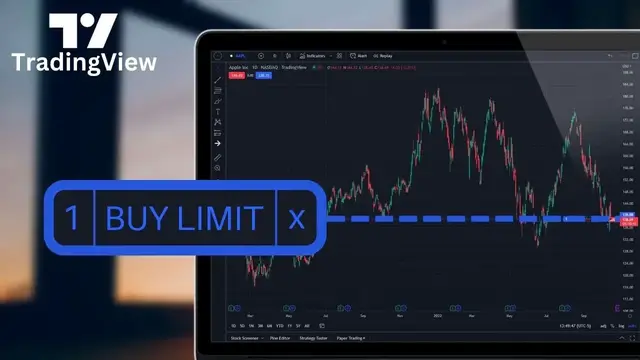
Today we'll learn how to buy and sell stock in TradingView. This will include buying, shorting, and closing open positions.
We’ll be learning how to buy and sell stock within the TradingView platform. There are actually several ways to do that, but you’ll first need to head down to the very bottom of the trading view screen and link to your broker through the trading panel.
Keep in mind TradingView isn’t the broker, it’s simply the charting platform, so we’ll need to connect to our broker first before we’ll be able to place any trades.
Show More Show Less View Video Transcript
0:00
Today, we'll be diving into the TradingView platform to learn how to buy and sell stock within here
0:05
There are actually going to be several different ways to do that, and we are going to go over each and every one
0:10
But before we can actually place a trade, we are going to first have to come down here to the very bottom of our screen and open up the trading panel
0:17
We can actually come here to link our TradingView account to our current broker
0:21
And the reason we have to do that is because TradingView isn't actually a broker
0:25
It's simply a charting platform. So we're going to have to connect to our broker first before we can actually place any trades
0:31
within here. And like I said, there are quite a few in this list. We got TradeStation
0:36
we got a paper trading account, and over here on the far right, we got Interactive Brokers
0:40
For right now, I'm going to come back over here to the far left and go ahead and connect to a
0:44
paper trading account because I don't want to risk any real money just to get some practice
0:49
with this thing. So now that we're connected to a paper trading account, all of this is going to
0:53
be done in a simulated environment. So I'm not using any real money, but I am trading the real
0:58
stock market. But now that we've got our account linked up, there are a couple different methods
1:02
that I want to go over on how to buy or sell stock within here. The very first method is by coming up
1:08
here to the chart itself and simply right clicking wherever you want to place a buy or sell order
1:13
So in this case, if I were to put my mouse right below American Airlines, and if I were to look on
1:18
the far right, we can see my mouse is currently at $13.59. If I were to right click here, then come
1:25
down here below where it currently says trade in the menu, over on the right hand side, I can
1:30
actually see the ability for me to place a buy order or a sell order at $13.59. If we were to exit
1:37
out of that, a very similar menu appears if we were to come over here to the far right hand side
1:42
of the chart and click on this little plus icon. You'll see a very similar menu as before pops up
1:48
and right here it says, do you want to buy one share of American Airlines at $13.64
1:52
or did you want to place a stop at $13.64? Now, besides using the chart itself
1:57
the second method is through the use of a DOM or depth of market
2:01
In order for us to access that and open it up, we are simply going to come over here to the far right-hand side panel
2:07
and click on this little DOM icon. You'll see as soon as I clicked on that
2:12
a little menu appeared over here on the left, and this is called a pricing ladder. And using this, we can actually place trades right here as well
2:19
But besides being able to place trades from here, it actually shows a lot of other info
2:24
and I actually discussed that in a separate video, so check out that one to learn more about the DOM
2:29
Now the third and final method is going to be through the use of the order panel
2:33
which also happens to be over here on the far right-hand side. And to open it up, we're simply going to click on the order panel icon
2:40
Here within that order panel window, we can now specify exactly what we want to do
2:45
How many shares do we want to buy? What order type do we want to use? And then what price are
2:50
we willing to pay So starting at the top and working our way down right at the top here we can specify if we wanted to short the stock or if we wanted to buy additional shares In our case today let just go ahead and say we wanted to buy the stock
3:03
So I'm gonna go ahead and click on buy here. Below that, we can then specify exactly the order type
3:08
that we wanna use, whether that be a market order, a limit order, or a stop order
3:13
If you're not super familiar with the differences between the three, if we were to start with the market order
3:18
this is simply gonna be used to get you in or out of your position immediately
3:22
You're essentially saying, I'll take whatever the current price is. I just want those shares
3:27
The limit order, on the other hand, this is gonna be used if you have a very specific price in mind
3:32
You only wanna buy or sell the stock at that price or better. Now, the final of the three being the stop order
3:38
that is generally gonna be used to get you out of your position, not into a new position
3:43
So basically, if you were already in the stock, you had five shares of, let's say, Google
3:47
and you said, man, if Google were to drop below 80, get me out because I don't want to lose any more money, that would be an example of a time you would
3:55
use a stop order. They can technically be used to enter into a brand new position as well, but most
4:00
of you watching are never going to use it that way. You're generally going to use it to exit the trade
4:05
not to enter a new one. So for today, we're going to go ahead and stick with a limit order because
4:09
that's the one you guys are probably going to use most often. And now coming down here below, we can
4:14
actually specify the price at which we want to buy these shares of American Airlines. So let's say I
4:20
only wanted to buy American Airlines if it were to drop below, let's say, $1,350. Go ahead and type
4:26
in $1,350 right here. Right below that, we can then specify exactly how many shares we wanted to buy
4:33
So in this case, I wanted to buy, let's say, five shares of AAL. Now, those are going to be the main
4:39
things that you're going to use on a daily basis to place these trades, essentially specifying what
4:44
you want to do. Do you want to buy or sell? How many shares do you want to buy? And then what price
4:48
are you willing to pay. However, you also have the ability to attach a bracket order to this
4:53
opening trade. That's what this is right here below where it currently says take profit, stop
4:58
loss. That would be essentially used if you had a specific profit target or stop loss in mind
5:04
before you even place the trade. So for example, let's say if we ever actually bought these shares
5:09
of American Airlines at $13.50, we then wanted to try and sell them for $15 or get stopped out if
5:15
ever dropped down to 13. So we could do that just by checkmarking both of these. Then I'm going to
5:20
come over here and specify the price. So right here, the profit-taking price is going to be 15
5:26
The stop-loss price is going to be 13. You can even see in the box below each of those
5:31
it's actually telling us exactly what our profit would be if the profit-taking order filled
5:36
So in this case, if those five shares of American Airlines actually went up to 15 bucks a share
5:41
I would be closing this out for a $7.50 profit. However, if American Airlines instead went down in value
5:48
and I got stopped out at 13 I would be exiting my position for a loss But these bracket orders can be incredibly useful and automate your trading a bit so you don necessarily have to watch the stock
6:00
the entire day. Now besides all that, the only other thing I would ever have to change is down
6:05
here towards the bottom where it currently says time and force. Right here we can specify how long
6:11
we want this order good for, whether we want it good for a day, a week, a month, or good till a
6:16
certain date. Now in my case I'm just going to leave it good for the week and now that I'm happy
6:21
with that when I'm ready to place this trade I am just going to come down here below and click buy
6:27
five shares of American Airlines at $13.50. We can now see that the orders have been placed and I can
6:33
actually see that by coming over here to the chart on the left hand side. So right here is my opening
6:39
trade to buy those five shares of American Airlines if it ever goes down to $13.50. Besides that one I
6:45
actually have two other orders on this chart as well. It's just we can't really see it. So to zoom
6:50
out a little bit, I'm going to come down here and flip this over to a yearly chart instead of a daily
6:55
chart. And now coming over here to the right, we can also see the profit taking order to sell it if
7:00
it ever goes up to 15 and the stop loss to get us out if it ever drops down to 13. If at some point
7:06
you ever wanted to modify those orders in some way, maybe you wanted to adjust the price, we could do
7:11
that a couple different ways, but the simplest is by coming up here to the chart itself and simply
7:16
clicking on the order that you want to adjust and then just holding down and dragging it to the new
7:21
price. So in this case, you can see I dragged my profit taking order up to $17.66 and it actually
7:27
even tells me exactly how much I would be selling those shares for. So right in the center, it says
7:32
that if I were to actually sell these shares at now $17.68, I would be doing so for a $20.90 profit
7:39
If I was happy with that, I would just let go. And now over here on the right, I just need to confirm my actual trade
7:46
So right here, it says the only thing I'm adjusting is the take profit order
7:49
I'm adjusting it up to 1768. And now to lock that in, I'm just going to come down here and hit modify order
7:56
Besides seeing it on the chart itself, we could actually see those working orders by coming down here to the trading panel
8:02
in the lower left and opening up the orders window. Down here below is that working order
8:08
and right here it says we're trying to buy those five shares of AAL. And over here on the right is
8:13
our take profit and stop loss order. I could also cancel those right from here or modify them by
8:19
simply right clicking. Then within the menu, either hitting cancel order to outright cancel them
8:24
or modify order to edit them in some way. In this case, let's just say I wanted to outright cancel
8:30
them. So I'm going to come down here and hit cancel order. I'm then just going to confirm that
8:34
I do in fact want to cancel this order by hitting yes. But that'll be one way that you can buy shares
8:39
right from this screen. The other way, and for this example, let's say we wanted to short the stock
8:45
We could come up here to the chart and let say I wanted to short the stock right at the current price In order for me to create that short I am simply gonna right anywhere on the chart then come down here below and select the trade button
8:58
I can then come over here to the right and select that I wanted to sell shares of American Airlines
9:02
In this case, I'm selling five shares. It'll then build out an order ticket
9:06
over here on the far right-hand side, and it's currently saying I wanna use a stop order
9:11
because the price that I have right here is actually below the current price
9:15
So the computer essentially knows that this is the type of order you would generally be using
9:19
if you're putting in a sell ticket below the current price. But in my case, I actually was just picking below the price so I know I was going to get filled
9:27
So I'm going to go ahead and flip this over to a limit order instead. I'm going to go ahead and leave it set to five shares for right now
9:33
And now in order to short this particular stock, I'm just going to come down here and hit sell five shares of AAL
9:40
Now that that's done, I can actually see my order right over here on the left
9:44
and actually it's telling me that the trade has filled. So right here it's telling me
9:48
I am now short five shares of AAL and unfortunately as of right now
9:53
I am currently down five cents on that position. I could also see that I have a current position
9:58
by coming down here to the trading panel on the lower left and then just opening up the positions page
10:04
Right here it tells me exactly what I have. I am short five shares of AAL
10:08
and I shorted it at 1380. Now one last thing I'll mention
10:12
is that we could place all these trades much more quickly if we were to remove the confirmation screen. So to do that, we're going
10:18
to come up here to the platform settings menu by coming up to the upper right hand corner and
10:23
clicking on this little gear icon. We'll then head over to the trading settings and specifically come
10:28
over to the right where it says instant orders placement and go ahead and check mark that
10:33
That essentially means that from now on, whenever I go to place a trade, I want it to go in
10:37
instantly. So bypassing that little order confirmation. In order to test that, let's go
10:42
ahead and exit out of this menu. Just come down here and hit OK. Using my current position as the
10:47
example, let's say I wanted to buy back this short position. If it ever went down to, let's just say
10:53
$12 even. Now that my mouse is right there at $12 on the chart, I'm just going to go ahead and
10:58
right click. I'm then going to come over here to the trade page. And now I'm just going to come
11:03
over to the right and select buy five shares of American Airlines with a $12 limit. You'll notice
11:09
that this time, if I were to click on it, the order goes in instantaneously. It doesn't populate
11:14
in the little order panel over here on the right. It just gets immediately placed. But hopefully
11:20
after all that, you feel at least a little bit more comfortable with the process on how to buy
11:24
and sell stock within TradingView. If you decide to open an account for yourself after this
11:29
consider using my link down below in the description, and you can try any of their
11:32
paid plans completely free for 30 days. I've also made a few other videos on TradingView
11:37
and especially this one covering how to use the order book to trade even more quickly
11:42
So I think you might find that one helpful next. Otherwise, have a great rest of your week and I hope to catch you all on the next one
#Business & Industrial
#Finance
#Finance
#Investing
#Stocks & Bonds
#Jobs & Education
#Brokerages & Day Trading
#Stock Photography