0:00
Look at this channel. It has over 1.2 million followers, and this is the kind of video they make
0:05
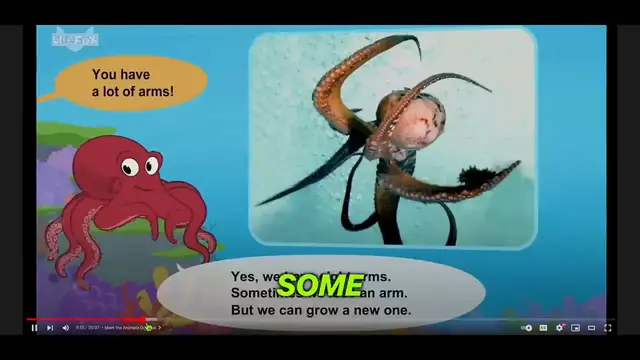
There's a talking character, a background, and some pictures. We can do something like this too
0:10
and even better. In today's video, I'll show you step-by-step how you can create similar
0:15
and high-quality videos that come close to achieving those results. Hello, adventurers
0:21
So, make sure to watch until the end so you won't miss any important steps
0:25
Just keep in mind that this is not a quick get-rich scam. it takes time to develop YouTube channels. However, if you persevere, you will achieve
0:32
the same results. You don't need to overthink it. You just need to start doing this. Let's get
0:38
started. First, start by getting connected to ChatGPT. This is a really useful tool that's
0:44
both powerful and free. Next, decide what your video is going to be about. Today we're discussing
0:50
sea animals. Let's ask ChatGPT to help us create a script for our video. Just wait a moment
0:56
Great! When the script is ready, simply copy and paste it into a document
1:00
With the script ready, let's move on to adding a high-quality voiceover. We'll be using 11 Labs for this part
1:07
Open up 11 Labs and paste the script we got from ChatGPT. Feel free to add punctuation marks to infuse emotion into the voice, like question marks or exclamation marks
1:16
Now, you can choose a suitable voice and adjust the settings. Logic will get you from A to B
1:26
natural sounding voice. Once you're satisfied with the settings, hit the generate button and
1:31
let Eleven Labs work its magic. After the voiceover is generated, take a moment to listen to the
1:36
result and make sure it's exactly what you're looking for. Hello adventurers! Welcome to another
1:42
exciting underwater adventure! If it's good to go, feel free to download the voiceover file
1:48
Repeat this process for the entire script to maintain consistent narration throughout the
1:51
video. Now, let's create an animated background. We'll be using Canva for this step. Open Canva
1:57
and begin by selecting a background that suits your video. For now, choose a background that
2:02
remains still and doesn't have any additional elements or animations. Next, let's take our
2:08
background to the next level using LeiaPix. If you want to bring your background to life
2:13
LeiaPix can help you achieve that effect. Simply open LeiaPix and upload the background you created
2:18
earlier in Canva. With this tool, you can make your background elements move. Play around with
2:23
the settings until you're satisfied with the animation. That's perfect. Now, let's address
2:29
the issue of video quality. Instead of downloading the video in the usual way, I recommend recording
2:35
your screen while the animation is playing. This way you can capture the animation in much better
2:39
quality. With your high-quality recording ready, it's time to return to Canva. Upload the recorded
2:45
video and begin adding all the other elements you want in your video
2:49
Here's where your creativity can shine. Add images, elements, animations, anything that enhances the educational experience for
2:57
our young viewers Don forget to include the voiceover we created earlier This ensures that each animal is introduced at the right time Once you satisfied with your composition it time to download the animated background video
3:10
Let's create a speaking character to make our video even more engaging. Our preferred tool for crafting animated characters is Adobe Express
3:19
Just type Free Animation Maker for YouTube into Google. Click on the link that says Make Animations for YouTube
3:25
There you'll find an array of captivating characters to choose from. For our video, I've selected the character, Hopscotch
3:34
Customize your character by enabling a green screen background and selecting a suitable size for YouTube videos
3:40
Now, import the voiceover audio clips we created earlier. And just like that, our character springs to life
3:47
Hello, adventurers! I'm happy with how it turned out. Once you're satisfied with the result, go ahead and download the animated character video
3:56
This will be a valuable asset for the upcoming steps. With our animated character and animated background ready
4:03
it's time to bring everything together and finalize our educational YouTube video
4:08
You can use any editing software you prefer, but today we'll be using CapCut
4:12
a user-friendly video editing software that enables seamless integration of all elements
4:17
Begin by importing all the generated files. The background video, the character video, and the voiceover
4:24
Arrange them on the timeline in the desired order for their appearance in the video
4:28
To prevent audio overlap mute the audio of one of the files This ensures that your voiceover and background music do not clash Now let employ the chroma key Apply this effect to the character video to remove
4:40
the green screen background, seamlessly integrating the character with the animated background
4:45
Resize and position the character on the screen as needed. Ensure it doesn't block any essential
4:50
visuals. Now you've completed creating your first AI animated video. Check this. Today, we're diving
4:57
deep into the ocean to explore three incredible sea creatures. Our first creature is the mighty
5:03
shark. Sharks are incredible predators that have ruled the oceans for millions of years
5:08
I like this video, and I think that kids will like it too. I also appreciate the fact that
5:13
our content holds value. We are crafting educational videos, not mere visual indulgence
5:18
Create a new YouTube channel, name it as you like, and upload the videos. Follow these steps
5:23
to create videos one by one to grow your educational kids channel. It is essential to
5:29
create high-quality videos because you and I wouldn't watch low-quality videos, and neither
5:34
would others. Use this guide and find more similar channels, as I shared at the beginning
5:39
to draw inspiration for your videos. You don't need to overthink it. You just need to do this
5:45
Be as creative as you wish. That will help your videos become even better
5:49
I'm here for your questions. Please like and subscribe if this was helpful
5:53
as this will help me provide more valuable ideas on how to make money by following simple steps
5:58
Thank you for watching, and until next time, take care. The Guru