0:00
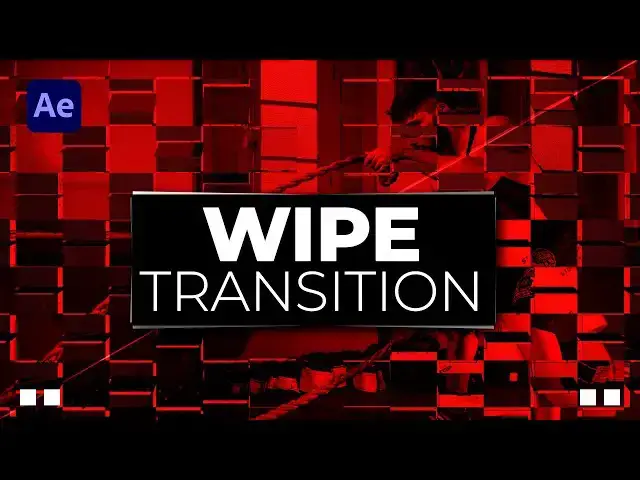
hello guys of Tony here and in this
0:03
after effects tutorial I'm gonna be
0:05
teaching you how to create this really
0:07
cool easy wipe transition this
0:09
transition is really customizable and
0:11
I'm using it all the time in my own
0:14
workflow so without any further Ado
0:16
let's jump straight into after effects
0:31
all right for hearing After Effects and
0:33
first like always let's create a new
0:34
composition Control Plus send or this
0:36
little icon here I will do full HD and
0:39
type here final of course you can type
0:41
whatever you want a five seconds long
0:43
full HD hit OK and now let's add our
0:47
media 01 and two of course you will
0:49
import your own media media your own
0:51
footage and scale it a bit if you need
0:53
because this is a larger footage than a
0:57
full HD something like this okay adjust
1:00
even more if you need and our next step
1:03
is to find here in effects and present
1:06
card wipe effect but before that if you
1:08
can't find the facts in prison just go
1:09
window and find it here okay now let's
1:12
type card wipe effect drag and drop onto
1:16
our media 01 and as you can see here are
1:20
a lot of options in our card wipe effect
1:22
for this particular tutorial we will go
1:25
maybe to around 2 seconds and 10 frames
1:27
set up our first keyframe for transition
1:29
completion type here 100 then go to zero
1:33
frames and type here zero and now in our
1:36
preview window when when we hit zero on
1:39
our keyboard we have an animation like
1:43
this if you don't want to see this
1:46
backflip animation to see background
1:48
image just a go here and back layer and
1:51
choose here to none and now in our
1:54
finals we have this basic animation of
1:57
our card pipe effect okay now let's
2:00
create gradient for our media one and
2:03
media two but before that I will just
2:05
scale down my media O2 hit s on your
2:08
keyboard move it up or down use arrows
2:11
on your keyboard if you need to change
2:13
the position of your footage okay now
2:16
we'll right click find here new find
2:18
here solid I will just rename it to
2:20
gradient hit OK and our next step just
2:24
move it above our media 01 and go here
2:27
in the facts and press it again and find
2:29
here checkerboard fact drag and drop
2:32
onto our gradient layer and as you can
2:34
see now we have this checkerboard
2:36
pattern for the width and height you can
2:38
play around but I will for this
2:39
particular tutorial do maybe 120 uh
2:43
color leave it to White and this is a
2:45
really important step for blending mode
2:47
change here to normal and now as you can
2:51
see we have this cool pattern of course
2:53
now we can turn off the visibility of
2:56
our gradient layer because we don't need
2:58
to see it it just needs to exist here in
3:01
our final scene in our final Camp okay
3:05
I'll just turn off the visibility for
3:07
now go again here in media 01 and for
3:10
the flip order find here gradient also
3:14
for the gradient layer find here our
3:16
gradient solid layer and really
3:18
important for the third option find here
3:21
effects and mask and now in our finals
3:24
we have this kind of Animation okay you
3:28
can in every moment play around with the
3:31
rows and columns and also what you can
3:34
do to hit again here on our gradient
3:36
layer go here in the effects and press
3:37
it fine fast box blur like so and for
3:42
the blue radius you can also play around
3:43
I will type 15 and go again here in our
3:46
media 01 for the rows I will type maybe
3:49
around 15 columns around
3:52
40 and now in our scene we have this
3:56
kind of Animation also what we have
3:59
forgotten to do is to hit you on hit you
4:02
on our media 01 that show all of our
4:05
keyframes grab them then hit F9 on your
4:08
keyboard go to graph editor and if you
4:11
can't find curves like this go right
4:13
click and just hit here at its paragraph
4:15
and now draw a curve like so
4:23
and now in our finals we have this
4:27
really cool white effect okay of course
4:31
in every moment you can go here in the
4:33
carb life effect and change the number
4:34
of rows and columns it's really really
4:37
up to you okay our next step is to
4:39
select Media One and gradient then go
4:41
right click and then select here
4:43
pre-compose I'll just type here media o1
4:47
plus elements and then hit OK our next
4:51
step is to select them again and then to
4:53
go edit and then duplicate or control
4:56
plus d for the second one hit as for
4:59
scaling I will do maybe around 102 and
5:02
our next effect that we're going to use
5:04
you can use here fill but I will use a
5:08
find edges effect okay and now in our
5:12
finals when we hit zero we have this
5:15
really really cool animation this is uh
5:18
this is with our find edges effect you
5:21
can see those cool lines in behind Okay
5:24
and when we turn off this is looking
5:28
like this you can also instead of find
5:30
edges find here fill I have already said
5:33
everything is up to and now in our
5:37
finals we have this really nice really
5:40
cool and modern byte animation
5:43
alright guys that was everything for
5:46
today's tutorial hope you learned
5:47
something new like always if you like
5:49
this video please hit that like button
5:51
also please consider to subscribe if you
5:53
haven't already also take a look on my
5:55
channel for more great tutorials and
5:58
until next time stay creative and bye