Up next in 10

This tutorial was contributed by creator Softoni! Subscribe to their channel: https://www.youtube.com/@softonimotion
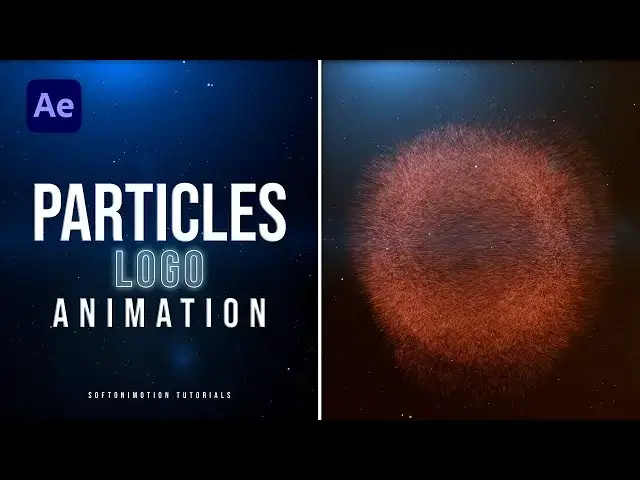
Here's more from the creator: 'Learn how to create a cool particle logo animation using Adobe After Effects without any plugins! In this in-depth step-by-step tutorial, I will show you professional techniques for creating dynamic 3D logo animation that will captivate your audience. Whether you're a beginner or an experienced motion graphics artist, this tutorial will provide you with valuable skills to enhance your logo animation projects. Don't forget to subscribe to my channel. :)'
View Softoni's store here: https://filtergrade.com/vendor/softoni/
View all After Effects Templates on FilterGrade: https://filtergrade.com/product-category/after-effects-templates/
- - - - - - - - - - - - - - - - - - - -
Follow FilterGrade!
Instagram - https://www.instagram.com/filtergrade/
TikTok - https://www.tiktok.com/@filtergrade_
Facebook - https://www.facebook.com/filtergrade
Twitter - https://twitter.com/filtergrade
Pinterest - https://www.pinterest.com/filtergrade/
Newsletter - https://filtergrade.com/filtergrade-newsletter/
- - - - - - - - - - - - - - - - - - - -
Check out all new digital products on the FilterGrade Marketplace: https://filtergrade.com/shop/
View educational resources: https://filtergrade.com/education/
View all Best Sellers on FilterGrade: https://filtergrade.com/product-category/best-sellers/
Subscribe so you can see future product demo videos first! #aftereffects #particles #tutorial
See what's new: https://filtergrade.com
See what's trending: https://filtergrade.com/trending/
Show More Show Less View Video Transcript
0:00
hello guys of Tony here and welcome to
0:03
my new video tutorial where we will
0:05
create a cool particles logo reveal step
0:08
by step we will design a modern logo
0:10
that's highly popular these days let's
0:12
make your logo shine and leave a lasting
0:15
impression on your audience get ready to
0:17
elevate your design with this awesome
0:19
particles logo reveal tutorial and also
0:23
don't forget to subscribe to my channel
0:24
and turn on the notification Bell so you
0:27
don't miss any of my future tutorials
0:29
let's jump into after effects and
0:31
unleash our creative potential
0:35
foreign
0:36
[Music]
0:46
After Effects and as you can see I
0:49
already have this final composition this
0:51
is full HD 1920x1080 30 frames per
0:54
second 5 Seconds long hit OK and if you
0:58
want to create it just hit on this
0:59
little icon alright as you can see also
1:02
I have this softonian logo that will be
1:05
imported later here in our final
1:07
composition for now let's create our
1:09
background go right click find here new
1:11
solid layer let's rename this tool
1:13
background hit OK Go here on the facts
1:16
and press it and if you can't find it
1:18
just go window and you will find it here
1:20
type here Ram effect like this drag and
1:24
drop onto our background layer and here
1:26
we will make a few adjustments for the
1:28
start of the ram go upper left corner
1:30
for the end of the ramp lower right
1:32
corner like so and let's change our
1:34
start color to maybe dark blue color
1:37
like this hit OK and for the end color
1:40
let's change to pure black color like so
1:43
to prevent this color bending let's add
1:46
our next effect we'll hear an effects
1:48
and preset and find noise hls drag and
1:51
drop onto our background layer and let's
1:54
change Hue lightness and saturation to
1:56
around two percent like this
1:58
okay and now let's close this effect
2:01
control for now hit Ctrl D on our
2:04
background layer or go edit and then
2:07
duplicate Also let's draw a mask for our
2:10
first background layer hit Q on your
2:11
keyboard or go here and find this
2:13
ellipse tool you can also use titles and
2:16
action save and draw a mask like this
2:18
okay go again here in mask or one for
2:21
the mask feather type here 500 hit again
2:24
on our background layer F3 and then
2:27
let's change our start color to maybe
2:29
bright gray color like this hit OK and
2:32
now let's import our logo here in our
2:35
final scene I already have mine of
2:37
course you will import your own just
2:38
drag and drop here in a final scene I
2:41
will hit s for scaling maybe to around
2:42
60 percent like this and now let's
2:45
create our light here in our scene also
2:47
go right click find here new solid let's
2:50
rename light
2:52
sweep like this hit Okay go again here
2:55
in the faction preset find here fill
2:57
effect drag and drop onto our light
2:59
strip effect like so change color to
3:01
black color hit OK go again here in
3:04
facts and preset to find here
3:06
light sweep drag and drop onto our layer
3:10
like so and for the third effect it's
3:13
going to be Triton effect like so really
3:17
important step is to change here our
3:19
blending mode from normal to screen or
3:21
add if you can't find blending mode just
3:23
hit hit toggle switches and notes go
3:25
here in blending mode Let's try screen
3:27
like so and let's also make a few
3:30
adjustments for our light sweep for the
3:33
edge intensity type here 0 also for the
3:35
edge thickness for the width let's try
3:37
100 sweep intensity to 10 and for the Y
3:41
position type here
3:43
540 like so and also type here for the
3:47
direction 90 degrees okay now let's
3:51
change our mid tones to maybe this type
3:54
of blue color here in our final scene
3:57
and you're satisfied just hit OK alright
4:01
our next step is to create our particles
4:03
here in our scene I will just close this
4:05
effects control for now go right click
4:07
find here new solid again let's rename
4:09
these two particles
4:12
hit OK go again here in the facts and
4:14
freezer to find here star burst effect
4:17
drag and drop onto our particle and Here
4:19
Also let's make a few adjustments for
4:21
the scatter you can play around I will
4:23
type 200 for the speed 0.2 of course you
4:27
can play around with all options but
4:29
those are looking good to me for the
4:31
grid spacing let's try 7 and for the
4:34
size let's try 25 and now when we hit
4:37
zero in our scene we have this cool
4:39
beginning of our logo reveal and our
4:43
next effect that we're going to import
4:44
is glow effect go again here type glow
4:47
drag and drop onto our particles layer
4:50
and for the glow threshold let's try
4:52
maybe 17 flow radius to around 30 and
4:55
blow intensity leave it to maybe one and
4:58
now when we hit zero we have this cool
5:01
scene of our logo okay now let's add our
5:05
first effect on our logo here in the
5:07
facts and preset and find CC scatterize
5:10
drag and drop onto our logo and now
5:13
let's animate go to around 2 seconds set
5:16
up our first keyframe for scatter also
5:18
write twist you can also animate this
5:21
left this is according to you go to zero
5:23
frame set a power a four scatter
5:25
parameter 700 and for the right twist
5:28
type here too now when we hit 0 we have
5:31
this basic animation and for this
5:33
composition size Also let's add another
5:36
effect this is going to be row bounce
5:39
drag and drop here above our scatter
5:41
rise and and expand it until our
5:44
animation is going up all the way beyond
5:47
our composition limits maybe to around
5:49
500 like so you can type also higher
5:52
number it depends on your logo size or
5:55
your composition now when we hit zero we
5:58
have this type of basic animation hit Q
6:01
on our keyboard to show all of our
6:03
keyframes grab them hit F9 go to graph
6:06
editor and then draw a curve like this
6:09
now hit zero this is looking really cool
6:12
to me okay our next effect that we're
6:15
going to use is transform effect find
6:17
here transform effect like so drag and
6:20
drop here above our scatter eyes for the
6:22
rotation type here 90 then duplicate
6:26
this effect go edit and then duplicate
6:28
like so move it below our scatterized
6:31
effect and type here minus 90. we have
6:35
done this because of our opposite side
6:37
animation and as you can see our
6:39
animation now is looking slightly
6:41
different look okay our next effect that
6:44
we're going to use here is bevel Alpha
6:46
effect go here interfaction preset find
6:48
here level Alpha drag and drop onto our
6:51
logo and basically here we can play
6:54
around with this shiny edges for the
6:57
light intensity type here 0.5 like so
7:00
for the light angle maybe to go 65 and
7:04
also let's change Edge thickness to
7:06
around 6. and now as you can see we have
7:10
these cool edges in our scene well here
7:13
fit up to 100 and when we hit zero our
7:16
logo is looking really cool and really
7:19
nice also one last effect that we're
7:22
going to use here is CC composite drag
7:25
and drop onto our soft Tony logo hit you
7:29
go here at maybe 15 or 10 frames set up
7:32
our first keyframe for opacity type here
7:35
zero then go to around 2 seconds and
7:39
type here 100 also uncheck this RGB only
7:43
and we're using this CC composite effect
7:45
to bring up our original and untouched
7:48
logo here in our final scene and now our
7:52
logo is looking really cool and really
7:54
nice one last step is to bring also our
7:57
bevel Alpha effect under our CC
8:00
composite effect just to see our shiny
8:03
edges okay our next step is to duplicate
8:06
this soft only logo hit control plus d
8:08
and for the lower one let's find here
8:10
fill effect type fill drag and drop here
8:13
under our grow bounce effect and let's
8:16
change color to maybe cyan blue color of
8:19
course it will change color to your own
8:20
color and when we hit 0 we also have
8:23
this blue particles here in our scene
8:25
but also let's expand our grow bounds to
8:29
maybe around 1000 pixels like this and
8:33
our scene now is looking really cool hit
8:36
zero and as you can see our finals is
8:40
looking great okay now let's create our
8:42
lens layer here and our finals go right
8:44
click find here again solid layer let's
8:47
rename this to lens
8:48
flare like so hit okay go here in facts
8:52
and preset to find here fill effect drag
8:54
and drop onto our lens flare move this
8:57
layer above all of our layers like so
9:00
change colors to maybe black color hit
9:02
OK then find here plants
9:06
flare we're doing this black color
9:08
because of our blending modes and if we
9:10
add adjustment layer and add blur later
9:13
everything will be blurred out we don't
9:15
need that we just need to blur out our
9:18
flare okay for the blending modes let's
9:20
find here add blending mode like so for
9:23
the lens type instead of this first
9:24
option change to 105 millimeters Prime
9:27
like here and our third effect is going
9:30
to be
9:31
Russian blur drag and drop here in our
9:34
scene let's try 50 to blur out our lens
9:37
flare okay go to around 0 frames and for
9:41
the flare Center well something like
9:44
this okay set up our first keyframe and
9:47
then go to around 5 seconds and move it
9:50
all the way to the right side we can
9:52
readjust this later
9:54
and this is looking really awesome also
9:57
next effect that we're going to use is
9:59
Trident effect drag and drop here in our
10:01
scene and basically you can play around
10:04
here with the colors you can leave this
10:06
color but for this particular tutorial I
10:09
will do maybe this kind of blue color
10:13
play around with the options until
10:15
you're satisfied with the result also if
10:17
you want to readjust keyframes hit U and
10:19
then hit j or k on your keyboard let's
10:22
type here minus 110 and also hit K on
10:27
your keyboard to show the second
10:29
keyframe and also type here minus 110
10:33
and now in our finals when we hit zero
10:36
we have this really cool and awesome
10:38
logo particle animation okay for our
10:42
final step let's import our camera here
10:45
in our single right click find here new
10:47
camera like so you can rename it here if
10:50
you want you can also change presets but
10:53
I will leave it to around 50 millimeters
10:54
hit OK then go right click find here
10:57
null object let's rename this to camera
11:01
Ctrl like so and you can use here option
11:05
parent and Link or USB clip to connect
11:08
our camera with our camera control
11:10
option and now in our finals let's
11:13
animate position hit P for position go
11:16
to around 1 second and 10 frames before
11:19
that hit here on toggle switches and
11:21
modes to turn on 3D option for
11:23
everything and also we can add a little
11:26
bit of motion blur make sure to turn it
11:28
on here and also turn it on here for our
11:32
layers okay hit P for position for our
11:35
camera control and also let's set up our
11:38
first keyframe then go to around 3
11:41
seconds and 10 frame and maybe go here
11:45
to around 250 according your needs like
11:48
so then grab all of our keyframes hit F9
11:51
go to graph editor I have forgotten to
11:54
tell you if you can find curve like this
11:56
just go right click and you will find it
11:58
here at its speed graph set up our
12:00
cursor like like so and draw a curve
12:04
like this here in our logo scene and
12:08
when we hit 0 we have this really cool
12:11
and really awesome animation of our logo
12:15
this is looking great
12:17
you can also add more effects here in
12:19
our scene like lens flares light sweeps
12:22
light rays light burst and so many more
12:25
I have shown a cool technique to create
12:27
this logo animation you can also add
12:30
curves everything is up to you to play
12:33
around with this cool logo animation
12:36
alright guys that was everything for
12:38
today's tutorial if you found this video
12:40
helpful please hit that like button also
12:42
if you haven't subscribed please
12:43
consider to subscribe and also turn on
12:46
the Bell icon so you can always get a
12:47
notification when I post a new clip take
12:50
a look on my portfolios all the links in
12:52
description write me a comment Down
12:54
Below in the comment section and until
12:56
next time stay creative and bye bye
13:00
together
13:01
[Music]
13:08
thank you
Arts & Entertainment