0:00
hello guys soft Tony here and in today's
0:02
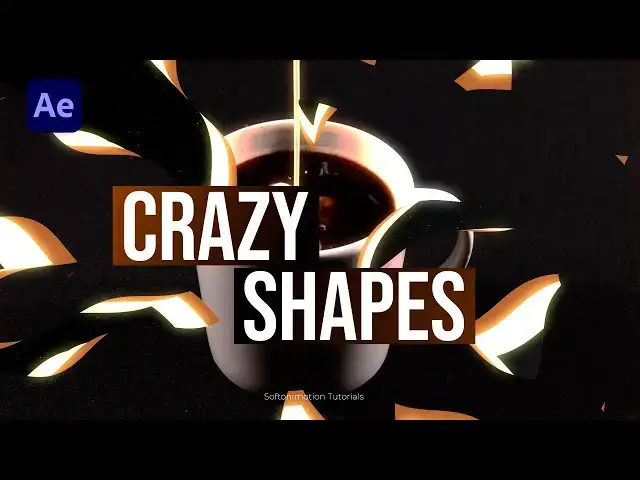
tutorial we will be creating shape
0:04
animations that you can use as a
0:06
transitions decorations and so much more
0:09
it's a simple tutorial that will make
0:11
your videos look better and more
0:12
appealing and before we begin make sure
0:15
to subscribe to my channel hit the like
0:16
button and turn on the notification Bell
0:19
so you don't miss any of my upcoming
0:21
video tutorials and without any further
0:23
Ado let's dive into after effects and
0:26
start creating this cool animation
0:40
all right we're here in After Effects
0:42
and first like always let's create a new
0:44
composition hit on this little icon or
0:45
control or command plus n on your
0:47
keyboard and this is going to be finally
0:49
usual and for the width and height Let's
0:51
Go full HD 9020 x 10 80 30 frames per
0:54
seconds and for the duration I will go
0:56
to around 10 seconds hit okay and now
0:58
let's create our back go right click to
1:01
create solid this is going to be
1:03
background solid layer 9020 x 1080 and
1:06
then hit okay now go here in the effects
1:08
and preset and if you can find it just
1:10
go window and you will find effects and
1:12
presets here now let's type ramp effect
1:14
drag and drop onto the background and
1:17
let's make further adjustments for the
1:18
start of the ramp go upper left corner
1:21
for the end of the ramp lower right
1:22
corner and for the second color let's go
1:25
to almost black color like this and then
1:28
hit okay now what we can do is to
1:29
duplicate duplicate this background hit
1:31
control+ D or go edit and then duplicate
1:34
let's rename this one to star burst okay
1:37
go in effects and pres it and find Star
1:40
first effect okay Dragon drop onto the
1:42
solid layer like this and now let's make
1:45
further adjustments for the start of the
1:47
ram let's go to maybe this type of color
1:50
also for the second one something like
1:52
this H okay and for the speed let's type
1:57
0.05 okay and for the size instead of
2:00
this 100 let's go to around 20 and now
2:03
this is looking cool and awesome all
2:06
right this is our first step and now
2:08
let's create our shape hit G or Find Pen
2:11
tool go here and find it okay make sure
2:13
to unselect everything and before that
2:16
let's go and find here titles and action
2:18
save and let's draw a line like this
2:20
first point will be somewhere around
2:22
here to go maybe to somewhere around
2:24
here make sure that our stroke is set to
2:27
450 and fill is set to none and and then
2:30
let's rename this one shape layer 01 to
2:32
met okay and then open up here this
2:35
little triangle open up this content
2:37
shape one and then find here stroke and
2:40
then also go here on taper and for the
2:42
end length instead of zero let's type
2:44
here 100 to get a shape like this okay
2:47
now go here on ADD find trim pad and
2:50
let's animate this school shape open up
2:53
like this go to 2 seconds set up the
2:55
first key frame for end 100% And then go
2:58
to 0 seconds and type here also zero
3:01
okay select both of the key frames hit
3:04
F9 go to graph editor and then draw a
3:07
curve like this hit zero and now as you
3:09
can see we have an animation like this
3:12
okay now let's close the stram pads and
3:15
also close the taper and find here wave
3:18
option and let's change here units from
3:20
pixels to cycles and for the amount
3:23
let's go to around 40% and now as you
3:25
can see we have this cool wavy shape now
3:28
let's animate face parameter go to zero
3:31
frames set up the first key frame then
3:33
go to around 10 seconds and let's type
3:35
here one now hit zero to see our preview
3:38
animation and this is looking awesome
3:41
what we're going to do next is to add
3:42
repeater find here repeater okay open up
3:46
this Little Triangle and for the copies
3:48
let's go to around eight open up
3:50
transform repeater one and for the
3:52
rotation let's go to around
3:55
45 now select this mat layer once again
3:59
okay hit G on your keyboard and as you
4:01
can see we can move this second point to
4:04
maybe somewhere around here something
4:07
like this play around here with the
4:09
options and now hit zero again and as
4:12
you can see our animation is looking
4:15
cool okay now let's import our coffee
4:18
video here inside our final composition
4:20
below the matte shaped layer okay and
4:22
let's find for this CFE video track mat
4:25
let's go l mat and we're getting
4:27
something like this now select this
4:30
coffee video and met and then go right
4:32
click to precompose this is going to be
4:34
media plus mat make sure to move all
4:38
attributes into the new composition and
4:40
then hit okay now what we can do is to
4:42
duplicate this media plus met hit
4:44
control+ D and for the lower one hit s
4:47
for scaling this is going to be
4:49
110 okay select this one go into fa and
4:52
preset find fill effect drag and drop
4:55
onto the lower one and for this fill
4:58
let's change color to the scene colors
5:00
to maybe something like this let's
5:03
duplicate this one once again hit
5:04
control+ D for this lower one instead of
5:07
110 now we're going to go to 120 select
5:11
it again and now let's also find another
5:14
color here let's just play around and
5:17
now when we hit zero we have this really
5:20
cool and creative animation in every
5:22
moment you can go here select this mat
5:25
option select G here or pen tool and
5:29
reposition this one to find the suitable
5:32
animation hit zero again and our
5:35
animation is looking cool now let's go
5:37
back here in the final composition hit
5:39
zero again and our animation is looking
5:42
nice we can duplicate this one as many
5:45
times as we want hit contrl plus d maybe
5:47
once again and for the bottom one let's
5:50
130 and change color to maybe this one
5:54
now hit zero again and this is looking
5:57
cool now what we can do is to go right
5:59
click to create new adjustment layer
6:01
okay move it above all of the other
6:03
layers go in effects and preset and find
6:06
glow effect draging drop and here let's
6:09
also play around with the glow option
6:11
for the glow threshold let's go to
6:13
around maybe 80 or 90 somewhere around
6:15
here glow radius maybe to go to around
6:18
five glow intensity let's maybe lower
6:22
down to 0.8 this is looking cool now
6:25
select everything right click precompose
6:28
this is going to be scene 01 hit okay
6:31
hit s for scaling let's go 103 to maybe
6:35
somewhere around here now we can see
6:37
this glow boundaries open up again this
6:40
scene 01 and you can also play even more
6:43
with the glow radius and everything else
6:46
until you're satisfied with the final
6:48
results go here in the final hit zero
6:51
again and as you can see our animation
6:54
is cool also for the final step you can
6:57
add more effects like Lans flare light
6:59
sweeps and so many more keep
7:02
experimenting until you're satisfied
7:04
with your own final results all right
7:06
guys that was everything for today's
7:08
tutorial I hope you enjoyed with this
7:10
one and if you haven't subscribed to my
7:12
channel hit that subscribe and like
7:14
button and turn on the notification Bell
7:16
so you never miss any of my upcoming
7:17
video tutorials take a look on my
7:20
channel for even more great tutorials
7:22
and until next time stay creative and