
Stop Dragging AutoCAD Dimensions One by One
Aug 16, 2026

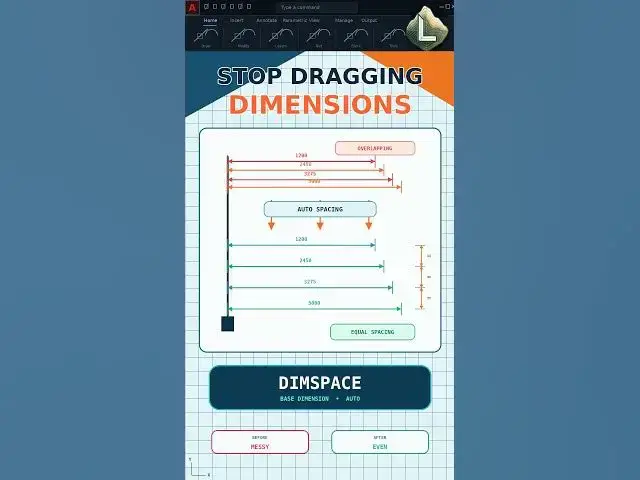
Still dragging overlapping AutoCAD dimensions one by one and trying to make the spacing look equal?
Stop estimating the gaps. DIMSPACE automatically arranges parallel dimensions using an equal spacing value or Auto spacing based on the dimension text height.
Command sequence:
DIMSPACE → Select Base Dimension → Select Remaining Dimensions → Enter → Auto ( Or Every Number You Need )
You can also enter a specific spacing distance when the drawing requires a fixed standard.
Important:
The selected dimensions must be parallel linear dimensions of the same type, or angular dimensions sharing a common vertex.
Use a spacing value of 0 if you want the selected dimension lines to align instead of being separated.
Subscribe to CAD LAND for practical AutoCAD shortcuts that remove unnecessary drafting work.
#AutoCAD #DIMSPACE #AutoCADDimensions #CADTips #CADLand
Show More Show Less