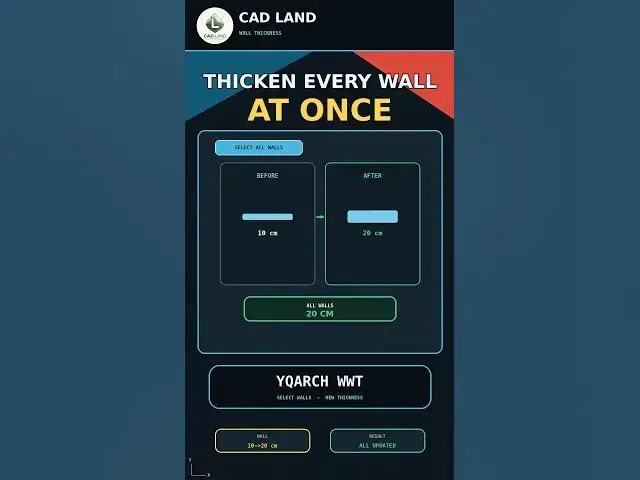

Change Every AutoCAD Wall Thickness at Once with YQArch WWT
Sep 2, 2026

Still changing wall thickness one wall at a time in AutoCAD?
The YQArch WWT (Change Wall Thickness) command updates the thickness of every selected wall in one step and keeps the intersections clean. In this video we change a 10 cm wall plan to 20 cm.
In this video, you'll learn:
• How to draw a simple wall plan (wall thickness 10 cm)
• How to change wall thickness manually with OFFSET and re-trim
• How to select all walls and let YQArch apply the new thickness at once
• How intersections stay clean after the change
Manual workflow:
Select Wall → OFFSET → Delete Old → Re-trim → Repeat for every wall
Faster workflow:
YQArch WWT → Select Walls → Enter New Thickness
This video uses AutoCAD 2021 with centimeters as the drawing unit.
YQArch is a plugin, not a native AutoCAD command. The interface and available options may vary depending on your installed version, language, selected style, and unit configuration. Always verify the final wall thickness and intersections before saving your project.
If this saved you time, subscribe for a new command every day.
LINKS
🛠️ The YQArch plugin (free) and the full CAD command PDF are both available to download on our site: https://cadland.pages.dev
Full tutorials: @CADlandSS
TikTok: @cad.land
Instagram: @cadland_tutorial
#YQArch #AutoCAD #CADTutorials #Architecture #Drafting #CADLand
Show More Show Less