0:00
Big new Vizio TV, but what's in the back
0:03
Let's spin it around and check it out. ♪♪��
0:12
Dave Taylor here, and this is the Vizio Quantum Pro 4K QLED HDR Smart TV
0:19
This is the 65-inch version. It also comes in a 75-inch version
0:24
And there's tons of information about it on the Vizio site and on various shopping sites
0:29
But what no one shows you are all the ports on the back
0:33
I'm going to do just that, and I'm going to explain what everyone does
0:37
But before we get there, let me just give you a couple of specs. So it's 4K at 120 Hz, Full HD at 240 Hz, 1000 nits of brightness with an anti-reflective film
0:49
That's a big deal, actually, because I know that on some of my older TVs
0:53
all I got was reflections, and I had to turn off all the lights facing the TV
0:59
so that that wouldn't overwhelm whatever was on the screen. So, big fan of anti-reflective film
1:05
Dolby Vision HDR, HDR10+, and HLG. IQ Ultra Plus processor, that's the CPU that powers all this, and faster is always better
1:16
Also has something really cool called a Pro Gaming Engine, which lets you actually have even less lag when you're using this with a gaming system
1:24
like a PS5 or something. It's actually going to look pretty sweet
1:27
Wi-Fi 6, Bluetooth, two 10-watt speakers, lots of cool stuff, right? You can get all that from the Vizio website
1:36
But, let's turn this thing around and let's see what's in the back
1:39
Okay, we're looking at the back of the television. So the first thing to notice is that there are wall mount connections
1:46
and that is a 400 mm by 300 mm wall mount. Then on this side is the power plug, you can see I'm plugged in
1:54
And all of the actual input ports are all on here. Before we get there, I want to point out that there's actually a hidden button
2:04
underneath where the power light is, and if you push it, you go to the next input source
2:10
If you push it and hold it for three seconds, you actually get power on or off
2:15
And if you push and hold it for 12 seconds, it will actually do a reset on that television
2:21
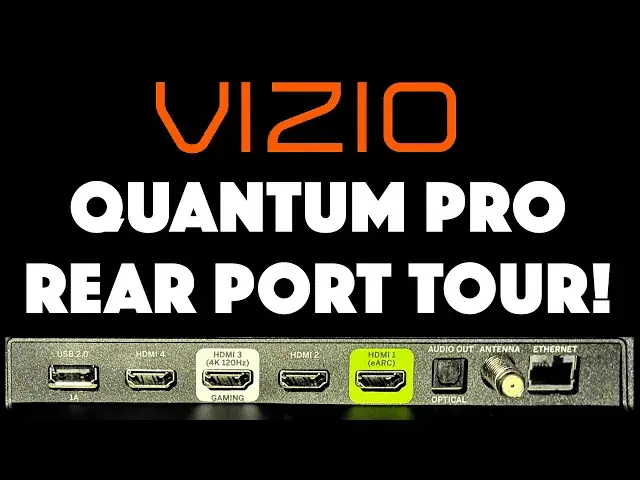
if you find that you're in some weird state. Now, let's get a little closer with the input ports and I'll walk you through what they have
2:28
You can see there are a lot of input and output ports. So let's go ahead and swing this 90 degrees around
2:35
so you can actually see a little more clearly what's happening. Let's start with this USB-A port
2:41
This is also known as USB 2, and it's a 1 amp out
2:45
And in the Vizio settings, you can actually set it to have power all the time, which is really helpful
2:51
You can plug in things like a fire stick here. Then we have one, two, three, four HDMI ports
2:58
This is the main one you're going to want to use for your video signal
3:02
If you have something like an Apple TV, this is going to be the way to hook it up
3:06
because this has eARC, and eARC is the audio return channel. So that helps the box and the TV work as a coherent pair
3:15
And then this one with the white around it is actually for your gaming system
3:20
This one is actually HDMI 3, and it is 4K at 120 hertz
3:26
and it is intended to be for your PS5 or similar. Then we go down here, and this is digital audio output, SPDIF
3:35
This is known commonly as the optical connection, and that's the way that you're going to want to be able to connect your soundbar
3:43
Then we have a coax. You can hook up an antenna. The TV has a built-in tuner, so hook up a modern antenna and give it a shot
3:52
Let it run through all the possible channels and see what it can find
3:56
You might be very surprised. And then finally, it does have Wi-Fi 6, but here's also an Ethernet connector
4:03
So if you really want the best possible Internet speed for your television
4:08
then this is the way to go. I hope that was really helpful
4:12
I'm going to remind you to subscribe to my channel. Just a click on that subscribe button
4:16
Hit that bell icon for notifications. And if this was of value, go ahead and give me a thumbs up
4:21
Really appreciate that. Cool. This is the Vizio Quantum Pro 4K QLED HDR Smart TV
4:28
I need to finish setting it up, so I'll hope to catch you in my next video
4:44
Vizio Quantum Pro 4K QLED HDR Smart TV