Up next in 10



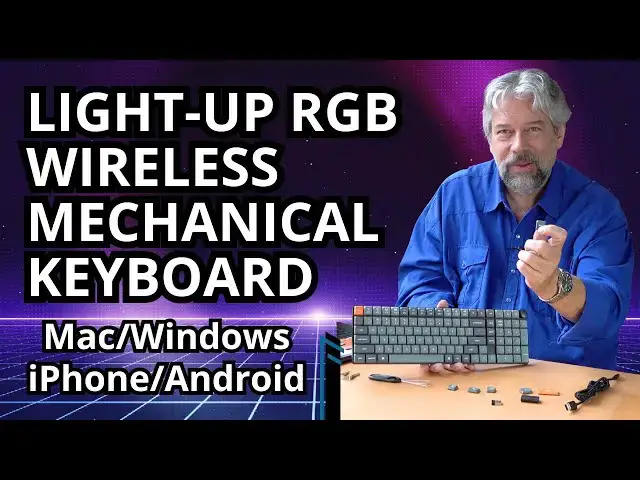
Tired of the mediocre keyboard with your laptop or the wired keyboard included with your PC setup? There are much better keyboards available, and one of the best is the Keychron K17 Max, a mechanical keyboard that works via Bluetooth, 2.8 GHz wireless, or USB-C cable. Keycaps are oil-resistant double-shot PBT and the low-profile mechanical switches are supplied by Gateron. Tech expert Dave Taylor explores all the features of the Keychron K17 Max, demonstrating both the impressive RGB lighting options and replacing a keycap so you can see just how easy it is to personalize.
Note: You don't need to remember to turn off the keyboard when you're done using it, it's smart enough to drop into sleep mode after a period of inactivity.
Check it out at: https://amzn.to/3XEMJR3
Visit Dave's Q&A Web site at: https://www.AskDaveTaylor.com/
0:00 Introduction
1:24 Technical Overview
2:20 RGB Lighting Demo
3:00 Keycaps and Key Switches
4:40 Typing Demo
5:23 Keycap Swap Demo
7:44 Bluetooth / 2.8 GHz Battery Life
10:00 Key Layout Closeup
10:55 Pricing and Final Thoughts
#keychron #keyboard #wireleskeyboard #bluetoothkeyboard #wiredkeyboard #gateron #qmk #askdavetaylor
Show More Show Less View Video Transcript
0:00
this mechanical keyboard works with Mac
0:02
windows and Linux and it's a delight to
0:05
type on let's check it
0:07
[Music]
0:13
out Dave Taylor here and I spend a lot
0:16
of time typing I know I could dictate
0:19
but when I dictate I find that I have to
0:21
go back and correct things anyway so why
0:24
not just type the problem is is I have
0:26
spent so much time typing on laptops
0:30
that that's what I'm used to and these
0:32
are not very good keyboards enter this
0:36
this is a really slick device this is
0:38
the Kyron k17 Max qmk Wireless
0:43
mechanical keyboard so right now it's
0:47
paired to my MacBook Pro because it has
0:50
three different operating modes it can
0:52
work wired it can work 2.4 GHz and it
0:57
has a little tiny dongle that you plug
0:59
into your PC for that and it can work
1:01
Bluetooth and it's Bluetooth 51 and
1:04
supports you pairing it with up to three
1:06
different devices now might be a little
1:09
hard to tell cuz it's well lit here but
1:11
you can see here that it also has an RGB
1:15
backlight system and there's a ton of
1:18
different ways and modes you can set up
1:21
but let me start with the basics so it's
1:24
a 104 key keyboard with a 96% layout and
1:29
it is extremely slim at its maximum it's
1:33
22 mm high and I have the feet out if I
1:37
take the feet and fold them in then you
1:40
can see it lays really quite flush with
1:44
my work surface I kind of like having
1:46
those feed out so I'm going to put them
1:48
back and then on this corner there are
1:52
two switches one of them lets you choose
1:55
between wired Wireless and 2.4 GHz and
1:59
and the other lets you choose between
2:02
Mac and windows the RGB lighting has 22
2:06
different styles you can do and you can
2:09
turn it off you can adjust the
2:10
brightness you can adjust the speed of
2:12
things happening so let's jump into a
2:15
really dark space and have a quick look
2:17
at just a couple of different lighting
2:19
modes I've put the keyboard by a mirror
2:21
so you can see Its Reflection and you
2:23
can get sort of a better view under the
2:25
key caps but it's function Q
2:31
lets you step through the different
2:34
modes there are 22 different
2:39
modes I can also turn it on and off with
2:42
function
2:45
Tab and then you can use other function
2:47
keys to adjust its speed and brightness
2:51
but I'm a big fan let's just go one more
2:54
down that
2:56
list there we
2:58
go pretty cool right probably more
3:02
important in the RGB are the key caps
3:05
and the key switches so the switch is
3:07
the thing that you actuate the key cap
3:10
is what's on top and you'll notice it
3:12
has some extra key caps so the default
3:15
key configuration I got was for a
3:17
Macintosh but I can pop those keys out
3:20
pop on the Windows keys that correspond
3:24
switch the keyboard layout and then
3:27
switch the keyboard functionality and
3:30
now it's a perfect windows keyboard but
3:32
the key caps themselves are double shot
3:34
PBT and they're oil resistant so they're
3:38
not going to get weird looking as you
3:39
use them over months or years more
3:42
importantly the switches themselves that
3:45
are underneath the key caps are
3:47
lowprofile Gaton mechanical switches and
3:51
there's three different styles of Gaton
3:53
switches there's red which require 50 GF
3:58
or GS of four
4:00
and so that's the easiest one to do the
4:03
red switch is 50 GF linear and it's
4:06
pretty quiet this is the brown switch so
4:11
it's 55 GF slightly more pressure
4:14
required to make it work it's tactile
4:17
and it's medium loudness and then the
4:19
company also makes blue mechanical
4:22
switches and those are 65 GF so they're
4:25
even more pressure required and they're
4:28
very clicky and loud so depending on
4:31
what you like pick the right color
4:33
switch so that you have the keyboard
4:35
experience you like so let's go here and
4:39
you watch here you'll
4:47
see so oops fix that typo fix it a
4:51
second time
4:53
and it's a little bit clicky but I
4:57
really like that and the feel of it is
4:59
really nice and I'm looking here and I'm
5:01
saying there's one more typo to fix
5:04
let's do that and then that there we go
5:09
okay so as you can see it's super
5:14
reactive it's super easy to work with
5:16
the keys are hot swappable so if you
5:19
want to switch you don't actually have
5:21
to use a soldering iron or anything and
5:23
the key caps are easy to switch so as
5:26
you can see this has an orange Escape
5:29
key but they include a gray Escape key
5:32
so let me give you a closeup as I switch
5:34
out key caps I suppose it's possible
5:37
that you wouldn't like the orange Escape
5:39
key but they include a gray Escape key
5:42
so you can switch it out and we're going
5:43
to do that in just a second but first I
5:45
want to show you how far it travels and
5:49
then I'll
5:51
type so you can get a little sense of
5:53
the Clickety part of it and it's a
5:56
little clicky but I actually enjoy that
5:59
but let's use the key cap removal tool
6:01
to remove the key so this is something
6:05
where you just put it on both sides and
6:07
as you can see it snaps to go underneath
6:10
and then with just a little bit of
6:12
force it pops off and fell on the floor
6:16
that's okay because we have the gray key
6:19
and then I just line it up on that brown
6:21
switch and notice that that brown is as
6:24
advertised a brown Gaton mechanical
6:28
switch so we're going to put the key cap
6:31
just lines up on that symbol on that
6:34
sort of Plus Part push it
6:36
down and we're good to go I rescued the
6:40
orange Escape key cap so no worries
6:42
about that and you can see it does look
6:44
a little different now that it has that
6:46
gray Escape key but if I really want
6:49
something orange and cheery I can
6:51
actually switch out the enter key this
6:54
is a bigger key and so on the back it
6:57
has three different switches that it's
6:59
going to connect to and I should say
7:02
that the polling rate for the keyboard
7:04
is 1,000 Hertz so it's super responsive
7:08
and of course it's going to have a
7:10
really high polling rate whether you're
7:12
using it Bluetooth or wired or via that
7:16
2.4 GHz with again the dongle and not
7:20
only does it include the keycap puller
7:23
but it also includes a switch puller now
7:25
I don't have any replacement switches so
7:28
I haven't been able to experiment with
7:29
that that but you can see here there's a
7:31
Windows key there's an ALT key there's
7:34
another ALT key so I can switch things
7:37
around if I'm using this with a PC and I
7:40
want to have a PC keyboard layout which
7:42
is totally reasonable now it's Bluetooth
7:46
and it's wireless so it's running on a
7:48
battery and here's the thing is this
7:50
battery will run 95 hours now to get
7:55
that 95 hours I'm going to have to turn
7:57
off that back lighting which I'm not
7:59
going to do so I'm going to get probably
8:00
close to about 55 or 60 hours but still
8:04
if you're a regular user then and you
8:07
remember to turn off this when you're
8:09
done then you are going to get weeks of
8:13
use out of the keyboard before you
8:14
realize H nothing's happening uh I
8:17
should probably charge it and they say I
8:18
think it's about 2 hours for a full
8:20
charge and if you're wondering about
8:22
this little knob on the
8:25
side you see that there it's the volume
8:28
control but everything is mappable every
8:32
single key can be remapped that's what
8:36
that qmk is qmk is quantum mechanical
8:40
keyboard and it's an open-source
8:42
firmware system and with it you can
8:45
remap every key you can assign macros to
8:49
any key you want on the top right with
8:52
maybe a shout out to squid game that
8:55
there's a circle and a triangle and a
8:57
square more likely it's probably to do
8:59
with video video gaming but you can
9:00
assign those anything you want you can
9:03
assign any key to anything you want you
9:05
can really mess things up but you don't
9:08
want to so the good news is that like if
9:10
you're using this with Linux you can
9:12
assign specific Linux functionality to
9:16
individual keys using that qmk firmware
9:19
so really really very straightforward to
9:22
use I I very much appreciate the
9:25
flexibility of this and of course the
9:28
you know actual experience of typing is
9:32
just so
9:34
nice and I like that clickey but mostly
9:37
I like that my fingers actually move up
9:40
and down just a little bit not a lot
9:42
just a couple of millimeters but enough
9:44
that I feel like I'm actually typing and
9:47
it makes me type faster so you know you
9:51
can see here maybe um it's not
9:56
necessarily When I'm Not Looking I'm not
9:58
necessarily typing every letter
10:01
correctly but the experience is really
10:03
nice now let me give you a couple of
10:05
close-ups so you can see the actual key
10:08
layout and this is the default Mac
10:10
layout so again you can switch out some
10:13
keys if you would prefer having it be
10:14
for
10:15
Windows and you saw the two switches on
10:19
the top left I've given you a
10:22
demonstration of the RGB lighting so let
10:26
me give you Dimensions it is 15.2 in by
10:29
4.7 in by at its shortest 04 of an inch
10:35
and at its tallest 6 of an inch
10:37
obviously without the feet the feet are
10:39
going to add just a little bit of height
10:41
but it is really nice and that 96%
10:45
layout means that it's a nice compact
10:47
design and super typable super
10:51
comfortable to type on so lots to like
10:54
here I am going to ask you to subscribe
10:57
to my channel click or tap on that's
10:59
subscribe button hit that Bell icon for
11:01
notifications as I post new content and
11:04
give me a thumbs up if you found this of
11:06
value excellent this let show you the
11:10
keyboard This is the Kyron k17 Max qmk
11:16
Wireless mechanical keyboard and it is
11:20
$114.99 at
11:22
amazon.com I have a link in the
11:24
description which is important because
11:26
you want to make sure that you get the
11:28
right key switch color to match the kind
11:32
of typing that you like remember there's
11:35
red and brown and blue and red is the
11:38
easiest to push and the quietest and
11:40
blue is the one that requires the most
11:42
force and is the most clicky so this is
11:46
brown so it's right there in the middle
11:48
I'm a big fan in case that's not obvious
11:51
I think I'm going to continue to use it
11:54
and I really like the RGB lighting it
11:57
doesn't work real well in a really
11:58
bright situation like this but I often
12:01
will use my computer in Darker spaces
12:03
too at which point it really pun
12:06
intended
12:08
shines that's all I got I'll hope to
12:10
catch you in my next video
12:18
[Music]
12:30
he
#Computer Peripherals
#Laptops & Notebooks
#Gadgets & Portable Electronics