Up next in 10



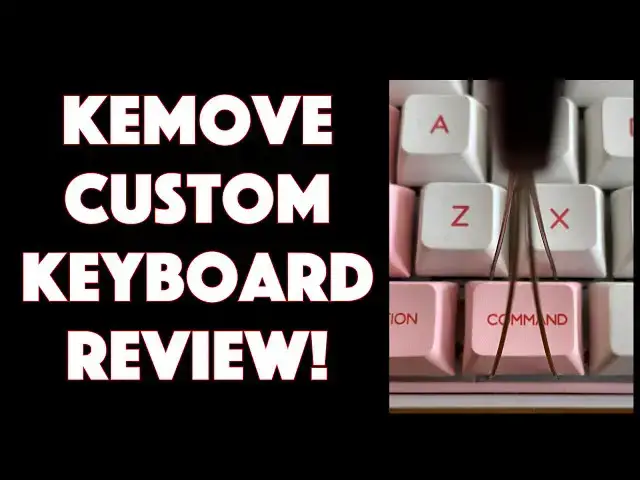
Imagine an old school mechanical keyboard with a great feel that you can use wirelessly on a Mac or Windows computer. Heck, you can even switch keys, replace the spacebar with a triple key shortcut setup and it has cool LED backlight effects too. That's the KEMOVE 64/66 Key Customizable Bluetooth Mechanical Keyboard and it's pretty interesting.
Tech expert Dave Taylor of https://www.AskDaveTaylor.com/ got his hands on a unit and tested it out with a Mac system and Apple iPad. With mixed results: without proper documentation getting everything to work is the result of a lot of guessing and experimentation. Still, it feels great and since it's still on Kickstarter, they've got time to polish the user experience.
Check it on Kickstarter: https://www.kickstarter.com/projects/1726921992/kemove-an-upgradable-64-to-66-key-mechanical-keyboard/
Show More Show Less View Video Transcript
0:00
A wireless mechanical keyboard? Let's check this out
0:04
Dave Taylor here and I'm looking at this. This is the Keymove 64 slash 64 key keyboard
0:18
It's pretty interesting. It is big, it is heavy, it is thick because it is a full mechanical keyboard
0:26
with serious actual play and when you push a key it actually goes down and clicks
0:32
So, really, really nice old school feel to this keyboard and it's Bluetooth
0:38
You can use it wired and it does include this very nice braided USB to USB-C cable
0:45
but you can also use it wirelessly as Bluetooth. But, the real fun with this is that you can change the keycaps
0:53
So, it comes with a limited number of different keycaps and I can take one off
0:58
It's as easy, let me just spin it around. It comes with a little tool, easy enough. You put this tool over the key, you gently lift
1:07
Gently lift, come on, it's going to come off. There we go. And here's our key. I could replace it with any one of the other ones
1:13
So, here's a Win key for the window button if you're using it with Windows
1:17
I'm using it with a Mac which is a bit problematic but we'll get back to that
1:22
Push the key back gently. Now, the other thing to notice is that they've taken the space bar and they've broken it into three keys
1:29
which is pretty cool because on the Windows side, there's a driver you can get that lets you reassign different keys
1:35
So, you could take this little stubby mini space bar and you can assign it something that you use frequently
1:41
Or, if you want to take a screwdriver, you can actually replace it with a single key space bar
1:49
So, you take all the key tops off. You unscrew it with a small screwdriver which you'll need to supply yourself
1:55
Replace it with this and boom, you've just customized your keyboard. Pretty cool
2:00
On the top, it has Windows and Mac as the two primary settings
2:04
And then there's an on-off switch and then there's USB-C for charging or for using it in a wired mode
2:10
Now, part of the fun of this is that it actually is a light-up keyboard with different light modes
2:15
So, I went into a pretty dark space and you can see, first off, I'm going to go ahead and turn it on and it will pair Bluetooth
2:22
And then I'm going to step through the different primary light modes
2:26
Now, there are other modes but on this particular prototype, I was unable to access them
2:32
So, you can go and check out their Kickstarter page to see some of the other examples
2:36
I also didn't get any instructions or documentation at all. So, it was a little bit of hunt and peck, as it were, to try to figure out how to get it to pair Bluetooth and stuff
2:47
Got it to work. Got the lighting to work. So, that's pretty fun. I'm going to turn it on
2:52
And I have to say, the feel of this keyboard is fantastic. This takes me right back to like the 70s when, you know, you had big keys on big keyboards which was helping you work with big computers
3:04
Has little feet if you want to change the angle. And I have this paired with my little Mac Mini, or, I'm sorry, iPad Mini
3:11
And, super easy. You can hear it's pretty clicky. There's actually different versions, I think, they're going to offer that have different levels of clickiness. Is that a word? Clickishness? Clickish? I don't know. Whatever it is
3:28
But, they're going to have different variations, but the click is okay. And again, you can hopefully even see here, I got that blue backlighting. It's very cool
3:37
Now, works with Bluetooth 5.1, and these are what's known as Gateron optical key switches, which are pretty high end
3:45
So, this is a pretty expensive setup. Also has a 3000 mAh battery
3:50
They haven't specified how long that will last, but I'm certainly expecting it to be at least weeks before or between charging
3:57
They have a 61 key version that's a little smaller and half the price, but this is the fun one
4:03
This is the 64 slash 66, depending on what space bar you use
4:07
And it comes in this sort of black and dark red color, which is pretty nice
4:11
Or this very cheery white and pink and green. How can you go wrong with this
4:16
The big difference, I think, is that this has the cursor control center, which is really nice
4:22
But that means that you are, again, trying to figure out, they're trying to do on board, on the keyboard itself, all of these controls
4:29
So, for me to switch light modes, I have to get into light mode selection
4:34
And then, I doubt you can see it, but as I hold function backslash, I step through the different color options
4:41
So, kind of interesting. Turns out that function Z gets you to pair Bluetooth
4:47
Function up makes the backlight brighter, or function down makes it dimmer
4:52
And if you really are like, I don't want the lights, I just want a really nice feeling keyboard, you can do that too with function backspace
4:58
So, that's it. The downsides are, number one, it was really hard to figure out all these key sequences
5:05
And I know there are still some I haven't figured out. You will hopefully not have that problem, because you will actually get a final version that will include an instruction book
5:14
Yay, instructions. The other thing is that right now, the driver to custom map the keys is only available on Windows
5:22
So, if you want to use this with Mac or Android or iOS, and you want to actually map the keys properly, well, kind of good luck
5:29
What they say is, get a Windows machine, do all the mappings on the Windows machine, and then you can actually get it to work on your Mac
5:38
And I'm like, hmm, not a great solution. Hopefully by the time it ships in mid-2020, actually end of first quarter 2020, then they'll have a Mac driver too
5:48
That would be very helpful for Mac users. So, with that, I'm going to wrap up, but let me ask if you can subscribe to my channel
5:56
Really appreciate when you do. Okay, this is the Keymove 6466Key keyboard
6:04
And it is $109 on Kickstarter right now, early bird pricing. They say retail will be $169
6:12
That's pretty spendy for a keyboard of this nature, so I suspect it won't be quite that high, so they're competitive
6:17
But, there you go. The Keymove keyboard, definitely worth checking out. Go visit their Kickstarter page
6:23
They have lots of info about it. And I will continue to try to figure out all those key sequences, which means I'll catch you in my next video
6:55
Thanks for watching
#Computer Peripherals
#Laptops & Notebooks
#Consumer Electronics