Up next in 10



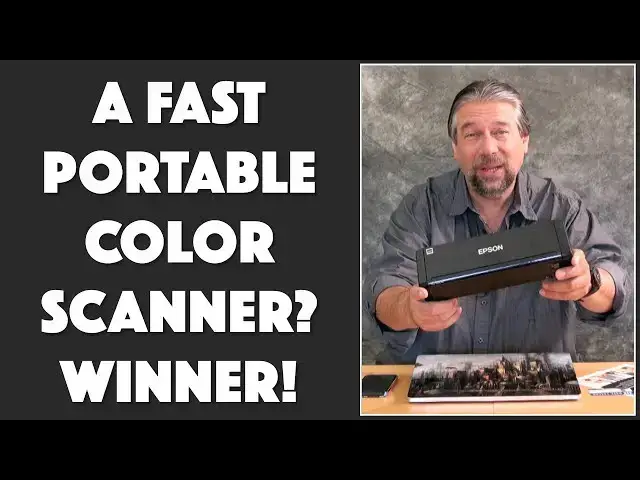
If you ever need to scan documents, receipts, business cards or photos, you know that scanners are big, clunky and take up half your desk. Right? WRONG! With the tiny, portable and battery powered Epson Workforce ES-300W you can toss your new color scanner into your backpack. But that doesn't mean it's bare bones: The ES-300W features wireless two-sided color scanning directly to smartphones, tablets and computers. Don't have a wifi network? You can use it as a hotspot! Document feed also works with up to 20 sheets of paper, rather amazingly.
Tech expert Dave Taylor of https://www.AskDaveTaylor.com/ put the Epson ES-300W through a variety of tests with both a smartphone and computer, finding that it works very well just about every time. There are some issues to know about, however, and some flaws that might make you rethink your purchase, as he explains in this detailed review.
Check out the Epson on Amazon: https://amzn.to/2xiQMWs
Show More Show Less View Video Transcript
0:00
a wireless portable color scanner let's
0:02
try it out Dave Taylor here and I'm
0:12
looking at this this is the epson
0:14
workforce es 300 w wireless portable
0:17
color scanner it's a lot of words but
0:20
it's a really cool piece of technology
0:21
as you can see it's portable it's so
0:24
Wireless it even has its own battery you
0:27
can plug it in you can use it via a USB
0:29
with your computer but I love the fact
0:31
that I can just do this just like this
0:33
and use it so instead of talking about
0:36
it let's use it first thing obviously
0:38
you have to open it up and it unfolds
0:41
and then these come out and now you have
0:42
your document feed set up and then on
0:45
the side there's three switches or a
0:47
switch with three settings I should say
0:49
so you can have it join a Wi-Fi network
0:51
which is what I've been using or you
0:53
could have it become its own basically
0:55
wireless hotspot and then you can use
0:58
things like your mobile device to
1:00
connect to it super sweet or you can
1:02
actually do old-school and you can have
1:04
a USB wire plugging into your Mac or PC
1:07
I'm really all about Wireless so we're
1:09
gonna do that we're gonna set it up to
1:11
be its own Wi-Fi hotspot I'm gonna turn
1:14
it on takes a couple of seconds and all
1:18
the setups a little tedious on all the
1:19
different apps that's just the nature of
1:21
wireless devices so I'm gonna go on to
1:23
my phone and let's go ahead and get this
1:26
recording started so I'm gonna record so
1:29
you'll be able to see step by step
1:31
everything that I do so you're ready so
1:34
here I am I'm at the Epson document skin
1:37
but I'm not ready yet because I actually
1:39
have to go back and go to settings
1:40
because I have to pick this as a Wi-Fi
1:44
hotspot so I go here and hopefully it
1:47
shows up we'll give it a moment or two
1:50
maybe three moments you know both those
1:55
lights are on so it should be there
1:57
we'll just wait a second there it is
2:01
so now it's shown up and I can see on
2:05
the top that I am connected and of
2:08
course there's no internet connections
2:10
exactly what you'd expect this is not an
2:12
intern
2:12
hotspot this is a scanning hotspot so
2:15
exciting now we'll go back to the
2:17
program and we're gonna choose scan and
2:21
it's gonna search and it finds the
2:22
scanner so now to scan a business card I
2:26
slide the top part to turn off document
2:28
feed and there's a little display here
2:31
that shows you where to put it looks
2:34
like we're ready to roll I'm gonna just
2:36
do yeah document size we'll do business
2:38
card and then I'll just choose scan and
2:43
it goes in it scans it comes out and
2:48
then on the phone we have the document
2:52
and it oriented it the wrong way that's
2:54
kind of interesting so that's something
2:56
I'm gonna have to mess around with let's
2:58
try that exact same scan when we get to
3:01
the computer but now instead of doing
3:03
that we're gonna just go back and cancel
3:06
oops
3:07
we'll save this and then we're gonna
3:09
scan something different so we'll go
3:11
home and scan and this time I'm gonna
3:16
just go ahead and do a color document so
3:20
now there's the little tiny feeds and
3:23
all this sort of stuff and now let's get
3:27
rid of the business card and we'll just
3:29
go back to eight-and-a-half by eleven
3:30
and we're gonna save this as a PDF but
3:33
here's one thing that's really cool we
3:35
could do a double-sided scan and it'll
3:37
scan both sides of this document
3:39
simultaneously let's see what that looks
3:41
like
3:42
let's see move oops ha see it's smarter
3:46
than I am so it's reminding me I need to
3:49
turn this back to the document feeder
3:51
and in fact I think we're gonna find my
3:53
computer's in the way so let's give it a
3:54
little space here and go and I will say
4:02
this is a crazy fast scanner so it's
4:05
already scanned that in color and as you
4:08
can see here it got both sides it's had
4:11
a little problem with things being
4:13
square but that's just sort of the
4:15
nature of these I think the problem
4:17
there is that the little document edge
4:19
unit is just a little bit short for some
4:22
thicker documents this is
4:25
more like cardboard but nonetheless done
4:28
how cool is that now let's go and try
4:31
the same things I'm gonna save this okay
4:34
and now let's go and try the same things
4:37
on the macintosh software so i'll put
4:40
the phone down and now I'm gonna turn
4:43
this off and then switch the slider to
4:48
be on the Wi-Fi network and then turn it
4:51
on again and this takes a little while
4:54
but this time we'll also try the
4:55
document feed with multiple sheets so
4:57
we're on the Mac and now I need now I
5:01
need to catch another screen recording
5:04
program this one on the Macintosh so
5:06
we'll get this ready to go and ok so now
5:13
we should be recording so now there are
5:16
a whole bunch of Epson apps that come
5:18
with the program it's actually a little
5:20
confusing but what why Juan is Epson
5:23
smart source can smart now it's still
5:26
you can see by these flashing oh just
5:28
finished so it was still trying to get
5:30
on to the Wi-Fi network and now it's on
5:32
here and as you can see in the program
5:34
it is found the scanner so that's cool
5:38
so now let's see let's start with just a
5:40
business card scan so again I'll put
5:43
this in here and now we'll do single
5:48
sided scan and let's see what happens
5:59
that is a perfect skin that is very nice
6:02
now it does come with some software to
6:04
let you actually analyze business cards
6:06
and pull data off of them I haven't used
6:09
that I mean honestly business cards to
6:11
some extent feel the little old-school
6:12
but you know whatever we'll go to that
6:15
so now this time I want to scan multiple
6:18
pages will try the automatic document
6:20
feed
6:21
absence says this works up to twenty
6:24
sheets so let's see what happens we're
6:26
just gonna do single sided scans and go
6:30
let's just move this out of the way
6:35
[Music]
6:37
there's a very nice quick document
6:40
scanner and the fact that I can actually
6:42
just throw it in my backpack or carry it
6:44
with me it is amazing and let's see on
6:47
the computer you can see page one page
6:50
two okay so all of these worked these
6:53
are a game I'm working on designing so
6:56
don't get too excited reading all this
6:57
but that'll work great let's try one
7:00
more test let's try the two-sided color
7:03
so again we're gonna go back to this
7:06
thicker card and you can see here that
7:09
it doesn't actually curve to match the
7:12
scanner that's why it was having a
7:14
little problem with skew so let's scan
7:17
again but this time I'm gonna do a
7:18
double sided scan let's see how that
7:20
works out so it's super fast and we
7:27
should see the same stuff that we saw on
7:29
the phone but this time it'll be on the
7:31
Mac and there we have it so there's the
7:33
front of that document and there's the
7:34
back of that document now for any one of
7:37
these I can then actually go and I can
7:40
share them share it share all of them
7:42
and as you can see you can send them to
7:45
Google Drive you can send it to Dropbox
7:47
or Evernote you can print them you can
7:50
automatically attach them to email
7:52
messages really nice there's a lot to
7:55
really like about this scanner now with
7:58
all of this let's go ahead and let me
8:01
turn off the recording there we go so
8:04
now let's talk about this scanner
8:06
because as you can see it's
8:08
heck of a piece of engineering I'm gonna
8:09
turn this power off but it comes with
8:12
some issues so first off document feed
8:15
up to 20 pages I haven't tried 20 pages
8:18
but you saw with my 5 page or 6 page
8:20
scan I was about as easy as it could
8:22
possibly get that's really nice
8:24
it does have some built-in OCR software
8:27
but that is something where it's kind of
8:30
fussy to get it to work properly so if
8:32
you need OCR that is something that
8:34
might or might not meet your needs
8:36
duplex scanning both sides
8:39
simultaneously how awesome is that super
8:41
nice and then to automatically save it
8:43
to a PDF so convenient
8:45
now it also is up to 25 pages per minute
8:49
you saw that when I was doing the Multi
8:51
Ice Sheet document that was going
8:53
through pretty darn fast and it scans
8:56
it's a super important it's 600 by 600
8:58
dpi because of course the resolution is
9:00
really important particularly if you're
9:02
looking at things like photographs or
9:03
anything that's a complicated color
9:06
image like this that's a pretty
9:07
complicated image and it's scanned it
9:09
and it looked really good now like I
9:12
said you can Clint scan directly to
9:14
cloud storage drop node Dropbox Evernote
9:17
not drop note every box although who
9:20
knows maybe those are both services that
9:21
are shortly going to be coming out or
9:24
you can scan to your smartphone so these
9:26
scans are sitting on my smart phone I'm
9:28
not sure what happened with the business
9:30
card I think I would probably just use
9:31
the regular eight-and-a-half by 11 scan
9:33
and then crop it so that would work just
9:36
fine and it obviously runs off battery
9:39
power so that is also really cool that's
9:42
part of what makes it so heavy now I
9:44
couldn't figure out how long it lasts on
9:46
a battery but you know it does come with
9:49
a power cord of course so you can plug
9:50
it into the wall and it does have a
9:52
little indicator whether it's charging
9:53
the battery or the battery's fully
9:55
charged my guess is that it's going to
9:57
be good for at least 50 or 60 scans so
10:00
if you're a researcher and you want to
10:02
take a scanner to the library or
10:03
something this could be fantastic it
10:05
does push the document through obviously
10:08
so on a flatbed scanner it's much less
10:11
damage or much less impact on a document
10:13
if you're working with rare documents
10:15
this also isn't gonna work really well
10:17
with books but if you have sheets of
10:20
paper this can be fantastic
10:21
it can scan receipts they even include
10:24
receipt management software at least on
10:26
the windows sign so that's pretty nice
10:29
as I said it's about three pounds so
10:31
it's not the world's lightest device and
10:34
the dimensions are it's about a foot
10:36
long three and a half inches long and
10:39
then two and a half inches tall so it's
10:42
actually a surprisingly compact unit
10:45
considering just how much is packed into
10:47
here but having said that there are some
10:50
issues with the software now if you go
10:53
and look on Amazon for the reviews
10:55
you'll see boy people are all over the
10:57
place some people adore this thing and
10:58
other people find it super frustrating
11:00
now a lot of the complaints I saw people
11:03
made were probably to do with earlier
11:06
generations of the epson software epson
11:08
ships a bunch of software and drivers
11:10
and everything and I found like on my
11:13
iPhone this is an iPhone 10 running iOS
11:16
11 we're not quite at iOS 12 and so I
11:19
find that that whole setup was really
11:21
straightforward and well documented but
11:23
nine months ago it might have been a
11:25
little more confusing so take a grain of
11:27
salt when you're or take the reviews on
11:30
Amazon with a grain of salt because it's
11:33
entirely possible those are referring to
11:34
earlier generations of the software but
11:37
again having said that the scanner
11:40
supports actually there's a button on
11:43
the scanner that says start scan but it
11:46
doesn't work on a Macintosh so
11:47
supposedly works on Windows I haven't
11:49
tried that on the windows side I don't
11:51
really care because I could just as
11:53
easily manage it from whatever device
11:54
I'm scanning to so that doesn't really
11:57
matter to me but if it's something where
11:59
you want to put in a document push a
12:00
button and then have the right thing
12:02
happen then might or might not work it
12:04
might require you being plugged in via
12:06
USB it might require the software
12:08
already running on your computer
12:09
you know variations on the theme but
12:12
probably the vast majority of scanners
12:14
are going to have exactly that same
12:16
issue now the other thing that bothers
12:18
me more on my Macintosh is on the menu
12:21
bar as you can see here there's a little
12:23
helper app that actually shows you
12:25
whether the scanners connected or not
12:27
but it never ever tells me the scanners
12:30
connected even while I'm actually
12:32
scanning so I find that really bizarre
12:35
and what's more frustrating is I can't
12:37
figure out how to get rid of it so you
12:39
know it's really hard
12:42
my cat also is highly unimpressed with
12:45
that we'll have to figure out what's
12:46
going on in a moment but let me just
12:49
tell you real quick that the Epson hang
12:53
on a second I'll be back okay we got
12:56
that all worked out apparently my cat
12:58
really really wanted me to use a PC for
13:00
this demo but I got a Mac so that's what
13:03
we did okay so now let's talk about it
13:07
just the last little bit of information
13:09
but before we get there do me a favor
13:12
and click on that subscribe button I
13:14
post a ton of product reviews and it
13:16
would really be great if you were
13:17
watching them and giving me feedback on
13:19
all of them so thumbs up thumbs down
13:21
comments whatever it's all good now this
13:25
is as I've said the epson workforce es
13:29
300 w and you can pick one up at
13:31
amazon.com for two hundred and forty
13:34
nine ninety nine that's pretty spendy
13:36
for a scanner but when you look at all
13:38
the features and functionality it has
13:40
that's that pretty darn good deal so
13:42
this is Dave Taylor I think I'm gonna
13:44
get back to scanning and try to figure
13:45
out exactly what's going on with the
13:47
business card scan on my smart phone so
13:50
that means I'll catch you in my next
13:52
video
13:56
[Music]
#Consumer Electronics
#Consumer Resources
#Photo Printing Services