Up next in 10



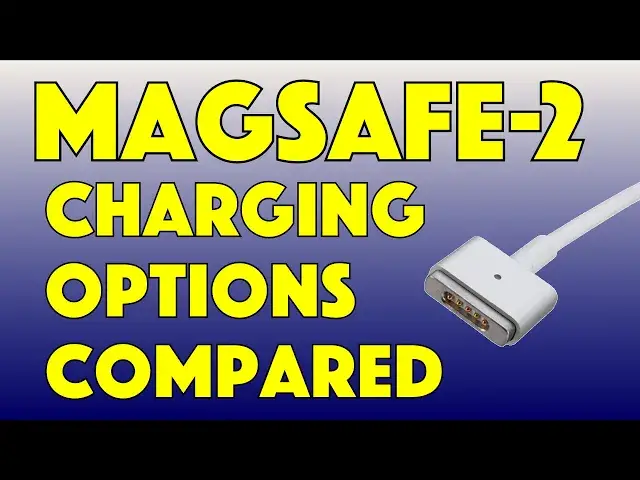
If you're a long-time Apple user, then you probably have multiple chargers that have different connectors. MagSafe-1, MagSafe-2, even USB-C. But if you have an older computer like a MacBook Pro that requires one connector but you have another, is there any way to reuse or adapt?
Tech expert Dave Taylor of https://www.AskDaveTaylor.com/ checks out a variety of solutions, from third-party MagSafe-2 chargers to the tiny Apple MagSafe to MagSafe-2 converter with an older charger to a nifty little USB-C to MagSafe-2 charging cord. Which works? Which works well? Check it out...
Links to products mentioned:
Apple MagSafe to MagSafe-2 converter: https://amzn.to/2Ey4WHa
MagCozy Leash: https://amzn.to/2EuRxPU
Aioum USB-C to MagSafe-2 charging cord: https://amzn.to/2EvpPTh
BigLittle MagSafe-2 60W charger: https://amzn.to/2M8CrUq
Show More Show Less View Video Transcript
0:00
Need another charger for your MacBook
0:02
Let's look at an adapter, adapter cable, and third-party charger to see which one's best
0:12
Dave Taylor here, and I have my daughter's MacBook Pro. This is my old hand-me-down MacBook Pro
0:22
So it's a big previous generation in terms of hardware design, which means that its charger is a mag-safe 2
0:29
charger. But the problem is that I now use a USBC charger, which is the latest generation. And we also
0:38
had previous generation MagSafe 1. So when she lost her charger, I said, hmm, instead of just going to
0:45
Apple and spending 79 bucks on a new charger, let's see what the options are. So here's what I got to
0:52
look at. Number one, I have a cable that lets me plug into my USBC charger
1:00
and then it has the MagSafe 2 T connection. And real quick, MagSafe has an L connection, looks like this
1:08
MagSafe 2 has a T connection that looks like this, and of course USBC, which is the latest
1:14
which won't work with this computer, just looks like a USBC plug
1:18
Pretty easy. So on my computer, I have a number of USBC chargers
1:23
and this cable lets us get MagSafe 2 out of it. Make sense
1:28
Now, also turn to it. turns out I have MagSafe 1 chargers and a MagSafe 1 charger as I said has this T
1:35
connection on the bottom but there's a pretty cool little metal do-hicky that let you go from
1:41
MagSafe 1 to MagSafe 2 so I got that and I got this little leash this little rubber
1:47
leash so it wouldn't get lost because this is a part that for sure would get lost otherwise
1:52
Third possibility got a third party charger. There are a ton of third-party chargers. They often run
1:57
rather hot. So you really want to read the reviews. But this particular one is a 60 watt
2:04
and it's kind of cool because it not only is MagSafe 2 on one end, as you can see
2:09
it is a hardwired connection. You can't use it for something else. But it also gives you USBC and
2:17
USB 3. So it's sort of a multi-purpose charger. So that's pretty cool. So my question was
2:24
with all these different options what does what so here's how we're going to do
2:29
this I'm going to plug them in we're going to look at the wattage on the charger
2:32
and then I'm going to show you the wattage that the MacBook Pro is reporting and it
2:38
turns out that the Macbook Pro actually let just double check that I getting screenshots when I pushing these buttons Let see
2:49
That looks good. Great. So here's an example. So this is out of the hardware configuration of the Mac
2:54
And you can see on the highlighted section, this is giving me 60 watts
2:59
So this is definitely charging the computer with this third-party charger. So that's pretty nice
3:04
These are as low as $23 on Amazon. So that's pretty nice
3:09
But what about these other options? So the least expensive of all of them is to just get this
3:17
This little do-hicky is darn useful. This is a MagSafe to MagSafe 2 converter, and it's $999 at Amazon.com
3:29
Now, since I have this old charger that's literally just sitting in my office unable to be used
3:34
because we don't have any computers that work with this, but I never throw anything away
3:39
So we have this 85 watt charger, and then if I put the MagSafe 2 onto MagSafe
3:45
excuse me, we have a special guest cat. Goodbye cat. It gets worse, but hopefully that's as bad as we'll get today
3:53
So you plug it in. It's a magnet because it's MagSafe, so pretty easy to work with
3:58
So now I'm going to plug this 85 watt charger in, and let's see, this is, hmm, this piece is not
4:07
feeling good. Let's not use that particular adapter and we'll use this one. Now these, if you're
4:13
like me, you have a whole bunch of these because all of these come with every single Apple product
4:17
you get that has a charger and they are all interchangeable, which is great. So I'm going to
4:21
plug this in. And then we're going to use the adapter to actually plug in to the MacBook Pro
4:30
And nothing is lighting up. Oh, there we go. It is a little susceptible to dirt. So if you
4:37
do get one of these adapters. You want to make sure everything is hooked up correctly
4:41
And it looks like we might need to refresh the system here
4:49
There we go. And let's see. Well, hmm, I'm skeptical. It's reporting still 60 watts
4:57
which doesn't entirely make sense. Unless perhaps this particular Mac is limited to that
5:03
But let's go ahead and bring up this report again. and what I'm doing is I'm going into system information and then going to power
5:12
And that's where you can see what's happening with your adapter. And let's see
5:20
It's mighty confused by this. I don think it is a clue what going on because as you can see let me take that screenshot I don really know what it reporting here
5:34
I've never seen this before. So it's not telling me wattage. It's not telling me anything
5:40
So I am seeing a charging icon, but there's something about the communication here that's not working right with the power system
5:49
So is it charging? Well, yes, I'm seeing the charging icon, so that's good
5:55
But is it charging effectively? Am I getting 85 watts or 60 watts or 12 watts
6:00
Who knows? So maybe that's not the optimal solution. So let's step back on this
6:07
And then I'm going to again close the system information. And our third option is, see, this is kind of fun, right
6:16
A little mad science going on here. So our third option is my..
6:21
61 watt Apple charger for the latest generation of MacBook Pros, which just has a USBC connection on the side
6:30
So I'm going to plug that in. And then I'm going to take this cable, and this is the IOM USBC to MagSafe 2 charging cord, 1699 on Amazon
6:40
So again, a very affordable option for one more extra charger. And when we plug this in, it lights up
6:50
That is a promising sign. And now, let's see. So we do see a charging icon, and it looks good
6:57
And if I go into system report and go down to power, let's just see what that's saying
7:04
Hopefully it understands what's going on. And there we go. So that looks a whole lot better
7:11
So again, I'm giving it 61 watts of power ostensibly, and it's reporting 60 watts, but whatever
7:19
I can live with that. important thing is it's saying yes it's charging so both of these seem to work fine this 85 watt
7:26
with the magsafe to magtafe two adapter or converter that one doesn't seem to be working right
7:32
and my just have a sneaking suspicion that 85 watts might be more than this thing wants to deal
7:38
with i think this generation did like 48 or 45 watts and 60 watts as the higher one um but
7:46
that's kind of a drag because that means this entire device is now essentially i need
7:50
usable because I can't even use it with the adapter. I will say if you do have things that match
7:55
then this little leash, this is the mag cozy leash, 599 at Amazon.com
8:00
This is actually a pretty cool idea because there's no question if you're gonna be using this, you're gonna lose it, right
8:06
Because it does have a nice good magnetic catch here but that not enough to keep it on forever So being able to tuck it into this little piece of rubber
8:17
or whatever it is there. See, now it's like that, and if it gets knocked off or you don't need it for some reason
8:24
then it stays and it's connected to the cable. So nice, simple solution
8:30
So to summarize, I had an old MagSafe 1, 85-watt charger that doesn't seem to be working very happily with this Backbook Pro, as you saw
8:41
The whole charging thing doesn't really know what to make of it. It suggests maybe it's charging, but I don't know
8:48
I'm not sure I want to rely on that. It is, however, the least expensive option
8:52
If you already have a charger, this little de metal piece is a $999 add-on
8:57
You know, add $5.99 for the leash, and you're still at $1598, which is still cheaper than the next possibility
9:03
If, like in my house, you have more modern chargers that have USBC, then this cable is actually really cool
9:13
This is the IOM USBC to MagSafe 2 charging cord, and it's 1699
9:19
I've become a fan of this. This is really helpful. And for this much, I can get one for my daughter
9:25
And if she loses this, this is a whole lot less painful to replace than a $79 Apple charger
9:31
or possibility three is pick up a new third party charger this happens to be from a little big i've
9:38
actually reviewed it here's my review elsewhere here on youtube and it's a perfectly functional device
9:44
with some nice add-ons and different ideas um it works with this it is a magsafe 2 charger it has a
9:52
wire and that wire has stuck on the end for you you have no option of changing it a mag safe 2 connection
10:01
22, 25 bucks, obviously a whole lot less painful than $79 from Apple
10:06
But here's all your choices. You know, if you really want to be hardcore and a real purist
10:12
then go drop $79 at the Apple store and get an official Apple charger
10:16
That's going to be your best result. But if you're looking to save a few bucks
10:20
then there's a lot of different options if you have chargers available. And if you don't, you can pick up a third-party charger for considerably less
10:28
And then you know all your options. So it's about all I got. Go ahead and click subscribe
10:33
I appreciate when you do that. And with that, I'll catch you in my next video
#Power Supplies
#Electronic Accessories