Up next in 10



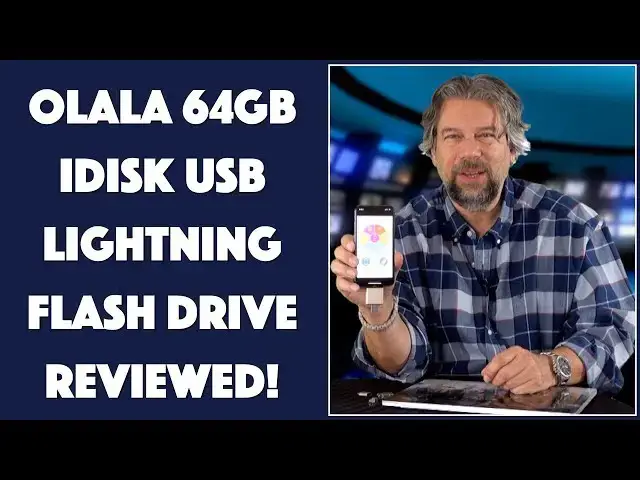
Need a flash drive that can plug right into your Apple iPhone or iPad, do one-touch backup of your photos and video content, and then easily pop into your Windows or Mac computer with a USB plug? Of course you do! That's why you're going to really like the OLALA 64GB iDisk flash drive with Lightning & USB 3.0 connector...
Tech expert Dave Taylor of https://www.AskDaveTaylor.com/ checks out the new OLALA iDisk 64GB and finds it works great for his Apple iPhone X and, with a small adapter, his USB-C only MacBook Pro. As demonstrated...
Check it out at Amazon: https://amzn.to/2GQ6H5o
Show More Show Less View Video Transcript
0:00
running out of space on your iPhone this
0:02
might be your solution Dave Taylor here
0:12
and I have an iPhone I have iPad I have
0:15
all those devices and they fill up it's
0:17
kind of inevitable with photos video
0:19
documents music whatever you put on
0:22
these there's just never quite enough
0:24
room so the problem is how do you deal
0:26
with it enter this this is the OhLaLa i
0:30
disk this is a 64 gig flash drive with
0:33
lightning on one end and USB 3 on the
0:38
other and that's a pretty nice
0:40
combination with 64 gig it's plenty of
0:42
space and here's what's really nice is
0:45
with the accompanying app called I disc
0:48
me you simply plug it in and then assume
0:54
you didn't automatically lock your phone
0:56
when you did that it launches the I disk
0:59
me app and it's a bright cheery easy to
1:01
work with app and that button in the
1:03
middle there back up that's the single
1:06
best feature here's you can do a full
1:08
backup of basically your photos and
1:10
videos but you can do it at a single
1:12
touch and that means that like my
1:14
children who aren't very good at doing
1:16
backups of their phones can have a copy
1:18
of all of those precious photos now one
1:21
of the neat things is you can see here
1:23
in settings you can actually turn on
1:25
password protection and face protection
1:27
- so if someone finds this and they put
1:30
it into their phone they don't just
1:31
automatically have access to all your
1:33
stuff that's a good thing but really the
1:36
question to me is always how fast is it
1:38
so not only how fast is it copying from
1:41
your phone to the device but what about
1:43
getting from the device on to say a
1:45
computer so I've already gone through
1:47
the process of backing up all my videos
1:50
and you can see here the step by step
1:52
it's pretty straightforward
1:53
though it takes a little while to
1:55
understand that it's the edit button
1:57
that actually lets you select and copy
1:59
I'm not sure why they say it's caught me
2:01
and I'll label it edit maybe that's some
2:03
sort of user interface guideline but it
2:05
would be nice if it was called select or
2:07
something anyway you select things and
2:09
then you get the progress bar and time
2:11
passes and
2:12
backed up all of my photos and all of my
2:15
videos off of this phone and if I go
2:18
into the photos folder for example here
2:21
there's a lot of photos here I have just
2:24
about 900 photos on here so let's see
2:28
how long it takes to copy that onto my
2:29
macbook pro we'll do that since there's
2:32
no unmount by just popping out the
2:34
device so now unfortunately this is USB
2:38
3 and my macbook pro is USBC so handy
2:42
adapter not included with this
2:44
particular device you have to give that
2:46
separately but I'm pretty sure everyone
2:48
that has a MacBook Pro with USB C
2:50
already has one of those now I'm gonna
2:53
put it in and let's switch around and
2:55
you can see on the screen what's going
2:57
on the device comes up immediately on my
3:00
desktop it's called no-name okay we can
3:02
live with that and you can see photos
3:05
lots of photos and we can go back we can
3:09
see videos and not so many videos so
3:13
let's go to photos that's a pretty big
3:15
folder let's copy it onto the desktop
3:17
and see how long it takes and super easy
3:19
to accomplish and let's see here's our
3:22
progress bar so we're copying 1.1 4
3:25
gigabytes of data and this is gonna take
3:28
us about what 7 8 seconds or so ok so
3:32
now it's done I have to drag the folder
3:35
back on to the desktop so you can see it
3:37
or actually this side of the desktop and
3:39
open it up and sure enough it's gotten
3:42
every single image and if you're
3:43
wondering with the HEI CR that's the new
3:46
high resolution image format that the
3:50
iPhone 10 is using so as you can see
3:53
lightning fast really really great let's
3:56
try going in the other direction so
3:58
we're gonna actually rename this folder
4:00
let's go back here and we'll call it
4:03
macbook photos and I will just copy it
4:09
on to the flash drive and let's see how
4:12
long this takes
4:13
so usually writing is slower than
4:15
reading so I'm expecting this to take
4:17
probably a minute or two about a minute
4:20
ok so that's what Apple is suggesting
4:23
from Mac os10 and you know what we're
4:26
not kind of
4:26
this so let's just switch back to me
4:28
being on camera and we'll pick this up
4:29
later there you go so actually pretty
4:33
fast and that's even using this adapter
4:36
one can only assume that if we were just
4:38
using a straight USB three or maybe some
4:40
day they'll have a USBC version of this
4:43
it would actually be faster but I'm
4:45
quite pleased with that performance and
4:46
of course with all those new photos will
4:49
you say new with air quotes if I put
4:52
that back into my phone then we look on
4:55
the eye disk and now there's sir enough
4:57
there's a folder called MacBook photos
4:59
so super easy to work with and really
5:02
like this and it's a little bit bigger
5:05
than some of the other units I've seen
5:07
some of the other ones have looked at
5:09
they like one of them will recess and
5:11
you can alternate between them and stuff
5:12
I don't really like that I don't really
5:14
care these little covers are perfectly
5:17
fine and once you put it on it is a
5:19
pretty good click so I'm figuring that
5:22
they're not gonna fall off or get lost
5:24
so this works perfectly well USB 3.0
5:28
lightning on the other end I'm a big fan
5:30
I like to have backups I am perhaps
5:33
slightly paranoid about losing things
5:35
losing data losing photos I do cloud
5:38
backups I do redundant backups I like
5:41
having this - this is great for in the
5:42
field - let's say you're on a big
5:44
backpacking trip you can use this to
5:47
make sure you have backups of what
5:49
you've taken on your phone so pretty
5:51
nice still to figure out how to charge
5:52
your phone on a backpacking trip but
5:54
there are solar panels for that so not a
5:56
big deal now only thing I'll have to
5:58
talk about really is the price and the
6:00
price is actually pretty reasonable
6:01
before we get there though can I ask
6:04
that you click Subscribe and subscribe
6:05
to my youtube channel really appreciate
6:08
when you do that thank you
6:09
now this is kind of interesting because
6:12
in gold it is 64 gig and it'll run you
6:15
$44.99 at amazon.com but the olala
6:19
I disc a hundred and twenty-eight gig is
6:22
actually in rose gold instead of gold
6:24
and that one jumps up a little bit it's
6:26
$74.99 so depending on the size you want
6:30
apparently the colors are different
6:31
I'm sure why maybe that's just how
6:33
Amazon has a structure but 64 gig olala
6:37
I disc flash drive is
6:39
$34.99 at amazon.com and $74.99 for 128
6:44
gig this is Dave Taylor this is a keeper
6:47
in my opinion and I will tell you to
6:50
check it out and I'll catch you in my
6:52
next video
6:59
[Music]
#Computer Peripherals