Up next in 10



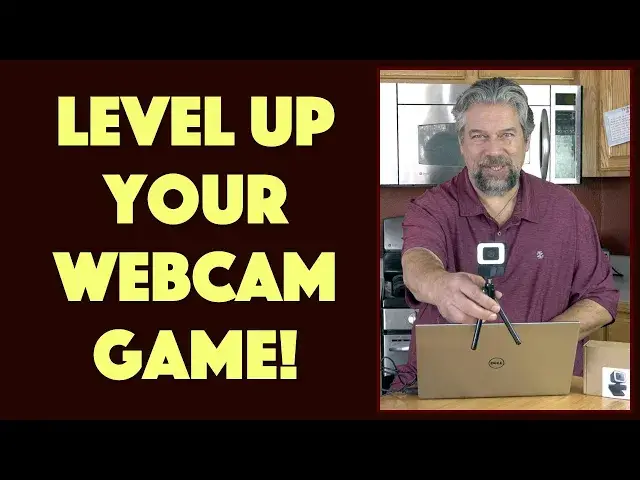
Frustrated about how poorly you look on Zoom, Skype or other video chats? It might just be time to level up your webcam! Tech expert Dave Taylor of https://www.AskDaveTaylor.com/ checks out the astonishingly affordable Mosonth FHD 1080p External USB Webcam for Windows 10 and MacOS and finds it a great option. It even includes a handy tabletop tripod. This review includes footage recorded directly from the Webcam and a demonstration of how it compares with the Dell XPS 13 built-in webcam within Zoom.
Impressed? Check it out on Amazon: https://amzn.to/2K1nk1h
Show More Show Less View Video Transcript
0:00
A full HD webcam and you won't believe the price. Let's check this out
0:04
Dave Taylor here and I'm checking out this external webcam. Now you might have a built-in
0:16
webcam on your laptop or notebook or your computer, but odds are it's probably kind
0:22
of mediocre. So getting an external one gives you a lot of flexibility and better resolution
0:28
This little guy, and you won't believe what the price is, we'll get there near at the end
0:32
but this is the Mosompf FHD 1080p webcam. And as you can see, it is a little standalone unit. You
0:41
plug it in via USB 3, that common rectangular plug. I'm going to leave it plugged into my
0:48
computer here. And then it has a clip that adjusts so you can use it just clipped onto
0:56
the back of your computer and you adjust the clip and then you adjust the camera and you
1:03
are good to go. So you've just done a significant upgrade, but it also includes a tripod. So if you
1:09
want, you can actually screw the bottom into the tripod and then you have a whole different range
1:15
of other places you can put this, which is really good fun. So I can, for example, have it over here
1:21
and now I have a very different angle than I would get from my computer, right? Super easy
1:27
Now the camera itself is basically like the kind of sensor you see in a modern smartphone. So it's
1:34
a native 1080p resolution, which means it's 1920 by 1080 at 30 frames per second, fixed focus
1:42
94 degree view angle, and it has a two megapixel CMOS sensor. So probably your smartphone's
1:49
forward-facing camera could be a very similar sort of chip. Works with Mac and Windows and really any
1:55
device that has video input. I imagine you could probably use this with a phone if you have the
2:00
right adapter. Not sure about that, but it's definitely great for Mac or Windows. And as you
2:06
saw, it has a soft ring light around the edge. It doesn't illuminate very much, so odds are that's
2:13
not going to make it work great in an otherwise dark room. But it's kind of fun and it does give
2:18
you a nice indicator light that it's working. So, for example, I will switch and I am actually
2:25
running the camera app on my computer and that lets you step between different cameras and this
2:31
is actually now on, which is why the light has turned on. So it becomes a nice little sort of
2:36
status indicator that, hey, you're live, you're on. Cable's five feet long, so there's plenty of
2:42
distance if you want to have it, for example, on top of a second monitor. So here's one thing I
2:48
encounter a lot in video conferences, is that people have their computer with their webcam
2:53
but they have a second screen and the second screen is what they're looking at. So the end
2:59
result is it looks like they're just looking like this the whole time, which kind of stinks. So
3:04
putting an external camera on top of that second monitor solves the problem. Now, it has a built-in
3:11
microphone. Like I said, it does include the tripod. I will warn you there's no privacy cover
3:16
but something like this, it's really easy to just put a piece of paper or throw a sock over it if
3:21
you're worried or unplug the thing. That's not that hard, right? In fact, that's a huge benefit
3:26
that you don't have on a regular computer webcam. You don't know what the heck's happening. So let
3:32
me show you. First off, I want to just capture using the camera app. I'm going to capture some
3:38
video from the built-in webcam on my Dell, and I have to warn you it's not a very good camera. And
3:45
then we will use the same capture methodology in the camera app, which is included in your Windows
3:51
10 computer, to actually capture some video from this. And as I go, I'll just sort of cut back and
3:57
forth so you can get this sort of longer view. So, all right, let's get started. Why don't we
4:02
start with the external webcam, because it's already on. So, directly off of the Mosanth
4:08
webcam, and as you can see, the resolution is really good. And just so you're confirming, there
4:14
we go. I can see my finger getting real close, and you're getting the audio quality and the video
4:19
and everything, and it looks pretty clean. So now, let me go ahead and stop and switch to the internal
4:25
Dell webcam. In the camera app, all I have to do is click the icon that's supposed to give you
4:31
forward or backward facing. I guess that's designed for a phone. I don't have a rear-facing
4:37
camera on my laptop, but it just lets me step between cameras. So now, I'm going to do the
4:42
same basic little recording snippet, but I'm going to do it using the built-in Dell webcam
4:49
All right, so the Dell built-in webcam, and as you can see, it's not doing really great with the
4:55
color. The resolution is pretty good, but the colors, and the location of the webcam, it's all
5:00
the way down here, which is on the hinge, which is really kind of a bizarre location, because if I'm
5:06
typing, you're getting really big fingers, right? That also means that you're even more getting that
5:12
sort of up-the-nose angle, which ain't attractive in anybody. But this is a good demo, and as you
5:18
can see, I probably need to adjust the height of my, or the angle of my screen and everything to
5:23
get it to look good, but suffice to say, that external webcam is looking a whole lot better than this
5:29
All right, so there's that, and now let me do one more demo, because I want to show you what this
5:33
all looks like in Zoom, just so you can see that programs like Zoom, and Skype, and Microsoft
5:39
Meeting, and Google Meet, I think it is now, not Google Hangouts, all of those allow you to choose
5:45
from all the cameras that are available on your computer, and this is Mac or Windows, of course
5:50
So I'm in Windows, give me a second to just get everything set up, and then we'll just look and
5:56
see how that comes out. All right, so in Zoom, you can actually, you don't even have to start a
6:01
meeting, just launch the Zoom app, and then go to settings, and if I go to video, then it will
6:07
choose, in this case, it defaulted to the FHD webcam, which is full HD, which is the external
6:14
webcam we're talking about. You can see it's nice, and I can certainly move it around, and I can
6:19
maybe, even though it's on the tripod, I can still hook it onto my computer. So now I have
6:25
my camera at the top, rather than the bottom. It's a little bit overblown. I could adjust that
6:29
by having the lighting being a little bit more tranquil, but that's okay. Now, by comparison
6:36
let's go to my integrated Dell webcam, and of course, now I have it at the wrong angle
6:43
and it's all green for reasons I can't explain, and it's all the way down here at the hinge
6:47
which honestly, Dell, why are you putting it down at the hinge? It doesn't make any sense to me at
6:52
all. Anyway, so those are the different examples of how you can do all this within Zoom, and then
7:00
of course, you can also go to audio and just double check. I just have it set to same as system
7:06
and then that gives you the advantage of having it be whatever you switch your video input to
7:12
you also get that audio input. So that's how you do it in Zoom, and it's easy enough
7:17
and it looks pretty sweet. So let's jump back. Pretty convincing demo, I hope. I mean, honestly
7:24
having something like this really ups your video game, whether you're a teacher or a student
7:30
or you're using it for business purposes, or you just want to stay in touch with family
7:34
you know, all of that. You look better, the colors are better, you get more options
7:39
and it just improves your game, right? And now, honestly, some computers don't even have webcams
7:46
so for those, you're kind of in the dark, right? Not anymore. And again, as I said, if you're using
7:52
something other than your computer screen as your main viewing screen for a video chat, and I do this
7:58
a lot, I push my video chats onto my big TV screen using Chromecast. If I put this on top of that TV
8:05
then I might be a little far away, but at least I'm actually looking at the camera, which makes a big
8:11
difference. So there's really a lot to like about this, and when I talk about the price, you're
8:15
going to just go, oh, well, duh, I'm just going to go get one, because it's really easy. Now, I looked at
8:20
another one of these webcams a while back, and I liked a lot about it, but the problem was that
8:27
they had not designed this little hinge correctly, but this one's exactly right. It has just the right
8:33
resistance, so whatever angle you put it at, it stays at that angle. And how does that work? Well
8:40
it works like this, that if you want, you can simply just clip it onto the back of your computer
8:47
There's no screw, there's no mount, there's no sticky tape, there's nothing to do. It literally
8:53
just sits on there, and you can see from this side view, that is exactly how you want it to work
8:58
Super easy to work with. When you're done, you take it off, put it on the desk. In fact, you can
9:03
even just have this on your desk, and you can just use it like that. I mean, it's really flexible
9:09
So, let me talk about the price, but before I get to the price, let me ask if you can subscribe to
9:15
my channel. Really appreciate that, and it's really easy. So, go ahead and just click or tap on that
9:21
red subscribe button on the lower right, and boom, we're in. Great. Now, this little device with the
9:29
tripod is the Mosanth FHD 1080p webcam, and it is a remarkable $44.99. No, it's down to $31.99
9:40
with a promo pricing and $8 coupon right now at amazon.com. $31.99 to significantly up your video
9:50
game. It's kind of a no-brainer. So, find the link in my description, click on it, get one of these
9:55
for yourself, and you will not be sorry. Definitely a smart upgrade, and with that, I think I'm going
10:01
to get this back on, and I do have a Zoom call coming up. So, I think I will do that, which means
10:07
I'll catch you in my next video. Transcribed by https://otter.ai
#Computer Peripherals
#Camera & Photo Equipment
#Product Reviews & Price Comparisons