Up next in 10



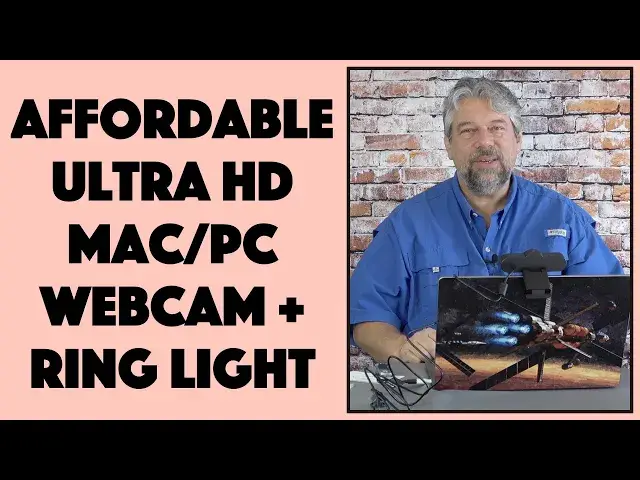
Tired of the low-res, fuzzy, and hard-to-understand webcam that's built into your PC or Mac system? For far less than you'd think, you can now upgrade to the terrific eMeet C970L Ultra HD Webcam with Ring Light and massively improve your video experience. Tech expert Dave Taylor wrestles with the box in the unboxing, then plugs the eMeet webcam into his MacBook Pro to demonstrate that it really is plug-and-play. This review includes demo footage so you can see - and hear! - the eMeet unit too.
Check it out on Amazon at: https://amzn.to/3eEpNKO
Check out Dave's Q&A Web site at: https://www.AskDaveTaylor.com/
#webcam #hdwebcam #1080p #ultrahd #emeet #askdavetaylor
Show More Show Less View Video Transcript
0:00
This is an affordable Ultra HD webcam
0:03
Let's open the box and check it out. Dave Taylor here, and I'm checking out this
0:14
This is the E-Meet C-970L webcam with ring light, and it's still in the box
0:21
So let's start out with an unboxing, which means I use my unboxing tool and obligatory warning
0:29
Don't try this at home if you're not good with knives. Even if you are good with knives, be careful
0:36
Okay, so let's get the plastic cut. And all of these sort of webcams talk about how they're plug and play
0:44
So I thought it'd be really fun to literally pull it out of the box and plug it straight into my Macintosh and see if it really is plug and play
0:52
So plastic, don't need that. So now let's see what's in the box
0:57
And sometimes these boxes are pretty snug. In fact, this one looks like I might need to use my unboxing tool to slide underneath and lift it up
1:09
I'm not sure what's going on here, but this does not want to open up. Oh, let's see
1:15
No. Well, it should be opening. Let's try the other end. Maybe this is a security feature, right
1:22
This other end is the same problem. So first thing I will observe, not so easy to open
1:31
Yeah, you can see here the cardboard actually folds underneath. I don't know what the deal is, but we'll just destroy the box opening it
1:42
That is not an easily unboxed product. I'm not sure what they were thinking with their packaging, but, jeesh, finally got it open
1:50
We'll just get rid of that too. and get rid of that
1:57
And check this out. I mean, this is complicated, right? So, ah, look at that
2:05
The side opens. My bad. User error. But be that as it may
2:11
Let's see what's in the box. We have a quick start guide, always helpful
2:16
We have the webcam itself, and it has a built-in wire with U.S
2:22
SBA on the end of it and it has a little Velcro so you can stretch it out and
2:29
now that I have completely incorrectly opened the box it's what happens with
2:34
unboxing. We'll just get rid of the box, close my knife and we'll just move smoothly
2:40
on to the next phase of this review Okay so here we have the camera and it has a plastic cover which is good make sure it stays in good shape during transit But of course you want to take it off to get best possible results
2:58
And then you can see that it bends and it has the sort of classic little, there we go
3:06
hinge on it so you can put it on the edge of a laptop or computer screen, as I can demonstrate here
3:13
So there we go. and then we can adjust this to get the perfect height and has a nice long wire
3:21
And that's USBA on the end, which I luckily anticipated with a USBC adapter
3:27
But let me tell you some specs about this. And then we're going to go ahead and just turn it on and see how it works
3:33
So this is, like I said, the E-Meat C-970L, and it's a full 1080P at 60 frames per second video camera
3:43
which means you're going to look nice and crisp. It's a 75-degree field of view, which is nice
3:49
Some cameras are doing like 90 or 100 or 110 degrees, and that's a lot of stuff around you
3:55
It ends up being not only a little distorted, but it might be more background than you want
4:02
So 75 degrees should be really nice. Now, built into the unit are two noise reduction microphones
4:09
so you should also sound pretty good. It has autofocus and then there's a mechanism when it's powered on that if you fold it backwards, it automatically covers the screen and turns off the microphone
4:21
Also worth noting on the top is a touch sensor and that's how you adjust the brightness of the ring light, which is obviously this white part here
4:30
It's a three level ring light and it also works with the Emeat link app, which I have already downloaded onto my Mac
4:39
So now let's go ahead and plug this in and run it through some tests, shall we
4:45
Let's start with the E-MeetLink app. It's pretty easy to use. I have the camera plugged into my computer, so it's showing up here
4:52
I click on it, and now you're seeing the image of me from the camera
4:57
And there's a little tiny blue button just here to the side that's showing me that the camera is actually on
5:03
But notice that by default, we got 480P. So let's go ahead and turn that up to maximum resolution
5:11
And that should look a little better. Excuse me. And let's go ahead and auto exposure
5:17
So that should look a bit better. But let's turn on. This has a built-in light
5:21
Let's see what that looks like. So here we are on the first level illumination
5:27
second level illumination, and maximum illumination. And I will show you in a moment what that looks like
5:35
But so this is straightforward You can do things like switch vertical not sure what the usage case for that is flip horizontal which puts my hair in the part in the wrong side
5:46
More importantly, you can go to things like your video settings, and you can see there's different filters
5:52
We can go to black and white and have everything be very dramatic, or we can just go back to normal
5:59
And then there are also some other settings. I can check for a firmware update, and as you can see here
6:06
It is in fact up to date with the firmware, A plus
6:10
So that's E-Meet link, a free download, Mac or PC. Now let's go ahead and I'm going to launch Zoom
6:17
And what Zoom is going to let me do is Zoom is going to let me actually record
6:25
so you can hear and see what's going on. But first, let's go into settings
6:30
So if I go into video settings, then we're still looking at the E-Meet camera
6:36
You can see when I point my finger, it goes right to the center of that lens, but I can switch
6:41
And here's what's going to be funny. If I switch to the built-in camera with my Mac, then webcam's in the way
6:48
So we'll move it out of the way a little bit there. So now we have both of these working
6:52
So now I can show you the three illumination levels, right? So there's the touch-sensitive button on the top, off, low, medium, and bright
7:04
So bright is pretty bright. and this is a 2021 MacBook Pro, so it is a very new webcam technology by comparison
7:14
But let's go ahead and switch to the E-Meat. And now I'm going to do my audio, and let's just go ahead and grab the microphone from the E-Meat
7:26
That looks good. And then one fun thing you can do in Zoom, if you don't have a lot of friends
7:31
you can start a meeting with just you, which works out pretty well, because now you're hearing and seeing the E-Meat 1080P 60 frames per second webcam
7:42
And one of the ways you can see it's a 60 frames per second is I'm not getting a lot of motion blur on my hand
7:47
Now let me go ahead and turn that light back on. That's a little bit better
7:51
There's a lot of light over here from my big window and reflections of the sun and everything
7:57
So that's hard to compete with. But you can see it's doing a pretty good job and it looks really good
8:02
So now, let me turn everything off and I'll play back this recording and you'll be able to see and hear exactly what someone would get on the other end of this Zoom call
8:12
You can start a meeting with just you, which works out pretty well because now you're hearing and seeing the E meet 1080P 60 frames per second webcam
8:22
And one of the ways you can see it a 60 frames per second is I not getting a lot of motion blur on my hand So there you go That my full demo of the E meet webcam I really like it And what really cool about it is it at a remarkably affordable price So close this up and let
8:41
talk about the price a little bit. And by the way, notice that with just the stand, I can do this
8:45
and have this work fine. But there's also a tripod mount screw. It's a quarter-inch screw hole
8:53
on the bottom. So you could easily put this on a tripod, and there are some other really neat
8:59
devices that are like octopus legs that you can just hook it around a pipe or something
9:04
depending on what your configuration is. So all of that's super easy. It was absolutely plug and play
9:10
It was super easy to work with. I plugged it in, and it looked great on Zoom
9:15
which means it's going to look great on everything. And I could use it for FaceTime. I could use it for
9:20
Skype, whatever, right? So works really, really. well. In terms of dimensions, it is 4.7 by 1.7 by 2 inches, and it's 12 ounces. It's very light
9:32
And that's really important because when you have it sitting on the edge of your computer screen
9:38
you don't want it to be heavy because either that's going to drag the clip down
9:43
which means it's going to constantly be at the wrong angle, or it will actually close your computer
9:48
You don't want to have happen, I'm sure. So, really, the only thing we have to talk about is
9:53
the price. So before we get to the price, I'm going to ask if you could subscribe to my channel
9:58
what a great New Year's resolution. Go ahead and click or tap on that subscribe button and we're
10:03
connected. Super. Now, this is the E-Meet C-970L HD webcam with ring light. Let's go ahead and turn
10:12
that light on. And it is 6499, discounted down to 5999. And when I checked, there was a $30
10:22
coupon dropping it down to an incredible $2999 at Amazon.com. That is an absolute fantastic price for this device
10:32
Super easy to work with. You can download that E-Meet link software from Mac or PC. It is Linux
10:39
compatible. It really works with a lot of different devices. It's easy. You'll be up and running and
10:45
looking way better in minutes, if not seconds. So if you can figure out how to open the box, which I think was the
10:52
challenge with this particular product then you've got it made definitely wanted to
10:57
check out and I hope to catch you in my next video You know
#Camera & Photo Equipment
#Photo & Video Services