Up next in 10



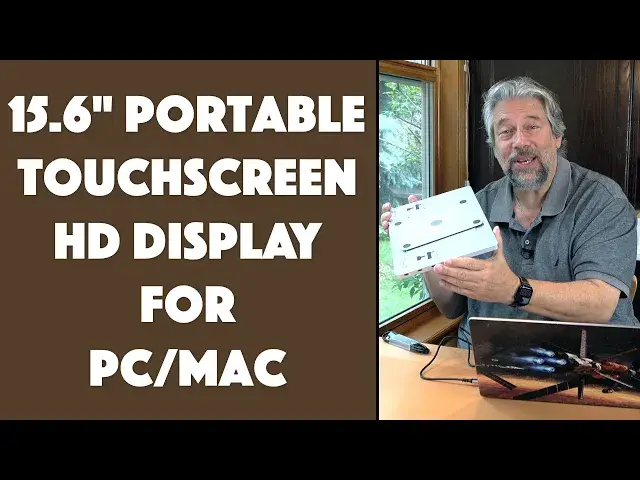
Imagine having a spare 15.6" HD display for your PC, Mac, Chromebook, even PS4 or Switch, that folds down to less than 1" thick. Now, how about adding touchscreen capabilities and a strong and super flexible aluminum stand that offers 360º swivel but still folds down to less than 0.75" total thickness!! That's the FEZOBR 15.6" HD Portable Touchscreen Monitor, and tech expert Dave Taylor shows you all its cool features, including the on-screen keyboard, on-board configuration screen and more.
Check it out on Amazon at: https://amzn.to/3XmF88r
Visit Dave's Q&A Web site at: https://www.AskDaveTaylor.com/
#fezobr #display #monitor #1080p #hd #portable #touchscreen #askdavetaylor
Show More Show Less View Video Transcript
0:00
A portable display with a built-in aluminum stand
0:02
Let's check it out. Dave Taylor here, and I'm checking out this
0:13
This is really cool. This is the Fiesel BR-180P 15.6-inch portable touchscreen monitor
0:21
And I have it hooked up to my Macintosh. But check this out. Because it's a touchscreen monitor, I can actually control the mouse
0:29
from the display with my finger. This is a whole revelatory experience for us Mac users
0:35
from the PC you're used to touch screens. So this is a 10-point touch screen, which is really good
0:42
But let me give you some of the other specs, too. It's 1920 by 1080p with 178-degree viewing angle
0:49
which means I can have it at a pretty rough angle far away from where I'm looking
0:54
and it's still going to look pretty darn good. It has 220 nits of brightness
0:59
can display 16.7 million colors. Even is a built-in blue light filter
1:05
although your software on your computer is going to give you that feature too
1:10
It also works in landscape. When you pop this off, it's a little tricky to do this, right
1:16
But you can actually take the display off and put it on the stand in portrait display mode
1:24
Let me just adjust this so it's going to work. And now I would obviously
1:29
need to adjust my software, which is pretty easy to do on a computer. But once you've done that
1:35
you can use this. Imagine like having a document next to you while you're working. Super helpful
1:41
You can also use the display without the lower portion of the stand. Let me show you the back
1:47
because it also has these little feet. So you can use it on this actual surface you're working on
1:56
as if it's just like a little tablet or something, right? So lots of different ways to use this, which I really like
2:03
And now you can see this is a pretty hardcore, strong aluminum stand
2:09
Let me get it back to its normal landscape mode. And it's pretty darn easy to do this
2:15
My guess is people probably won't change orientation very often. But once I have it in the right orientation, let me unplug it
2:22
I just want to show you a couple more things. So you can fold it up
2:26
up and it folds down. You can see on the back that's with the built-in aluminum stand
2:34
And this is a really cool stand because it gives you a 360 degree rotatable device. And because
2:40
it's all metal, it dissipates heat from the screen. So you're going to have a little longer
2:45
lifespan on the device too. And again, even with the feet or with the stand on, I can still
2:51
do this and then use it in this mode Obviously I have to plug it in a computer So let look at the edges On the top is a power button that also gives you access to a cool hidden feature
3:04
I'll show you that in a second. And then on the right hand side, there are four USBC ports
3:10
So you can use this to power other USBC devices once you have it all working
3:16
Obviously, you also need to have it plugged into your computer. And it will work with a Mac, a PC, Linux, Chrome, PS4
3:24
for Xbox, even a switch you can use it with, although the modes are going to be a little different
3:30
You can see how I'm rotating it here to get this to be oriented correctly
3:35
And generally speaking, you're going to use this USBC to USBC. And yes, on the computer end, you can definitely use an adapter to get USBA
3:45
which is the rectangle. I'm lucky that I have USBC to USBC
3:50
So plug it in, plug it into my computer. and it'll automatically turn on and everything will work great
3:59
If you can't do that, then it also comes with a USBC
4:06
This is a little complicated to figure this out, but basically it lets you plug into the display with USBC
4:14
and then you can use HTML output from another device, like a switch
4:19
and you get USBA for power, and then you'll have another USBC
4:23
another USBA if you need it for getting this its actual power. So it gets a little more
4:30
complicated because you'll need to include your own 10 watt minimum wall charger with this
4:35
configuration. But if you don't have USBC, they do have you covered with this. If you do have
4:41
USBC, by the way, it includes two of these USBC to USBC cables, which is pretty sweet. So I've
4:50
shown you how it rotates. Let me show you that there's actually an on-screen menu just a two fingers down gets you the on-screen
4:59
configuration and two fingers going back up takes it off now let's see the
5:05
cool hidden feature I'm gonna push this for a second and then let go and then
5:10
what's gonna happen is it's gonna display it's gonna change its orient or change
5:16
its resolution and now it shows a built-in on-screen keyboard and turns out
5:22
There's nine different language keyboards you can switch between, but this is now giving input to the computer as if you would plugged in a keyboard
5:32
So that's a really cool feature, especially if you want to just lay it down on a surface
5:37
and you want to have it some distance from your computer, like your PC
5:41
Maybe it's under your desk and you have a big monitor, but you really want this on your lap
5:45
So you can just lay back and do some gentle poking around and maybe just consume some content
5:51
When you done with the keyboard give it a one second bush and it will realign and reorient everything and it go back to being how I have my computer figured is it mirroring what on my Mac But you can also set it up as a separate display on a Mac or a PC or Linux machine et cetera et cetera
6:11
So the only other thing I wanted to demonstrate, let me get to system settings and make sure it's correct, is that it also has three, not one, not two, but three built-in speakers
6:24
So let's hear what that sounds like with some music. So I'm going to just jump over here and here we go
6:32
And turn the volume up. I guess we turn up the volume by going on to the on-screen display
6:42
And it's not going to replace your hi-fi system. But I will say that if you want to watch a video and have the audio from that
6:54
coming out of that screen too while you're working on your computer this is perfect and the
7:01
speakers are entirely functional there's no base at all but that's what you get out of typical
7:06
tiny little speakers go ahead and pause this actually let's pause it with the touchscreen
7:11
well I'm saying to do the touch screen and for example let's say that I do want to watch a video
7:17
so let's watch this one and now I should be able to get it to full screen
7:24
Let me do it here because it's a little hard orientation-wise. There you go
7:28
So got that and I'll pause again. But you can see there's a lot you can do here
7:36
And it's really, really nice. And what I really, really most appreciate about it
7:40
And my cat most appreciates about it is this aluminum stand because I've gotten a bunch of different displays to test out
7:48
And they typically have these sort of folding soft magnetic covers and stuff
7:52
And that works great for portability, but it's not so great for getting it positioned just so
7:58
But here you can see that it's, let me move these cables out of the way
8:03
it's pretty darn easy for me to get it just where I want. I can tilt the angle, I can adjust the height, I can lower it down a little bit if I want
8:12
and it's just perfect for me to be able to work and have that second display
8:18
And when I'm done with the second display, I can just fold the whole thing up
8:22
and just put it away in a drawer or put it back on my office or something
8:27
But this is so cool and it's very portable. Now, the two limitations I'll say is, number one
8:34
it really needs a cover and doesn't include one. So you'll probably want to figure out like a little envelope case you can put it in or something for travel
8:42
And number two, it might be just this unit, but I found that the USBC connections were pretty hard to work with
8:49
And I really had to push them pretty enthusiastically to get it
8:52
it to work But honestly that something that I am sure that as I use the device it will actually loosen up and become easier to work with So let me plug it back in And again notice how on my Mac it automatically wakes up and it automatically turns on
9:11
and my Mac automatically detects it and I automatically have everything ready to roll in just a couple of seconds
9:18
This is so nice. So that's really everything I wanted to tell you and show you with the
9:24
virtual keyboard and the two different orientations and the fact that it's compatible with a ton of different devices
9:30
In terms of its shape and dimensions, it is 14.3 inches by 9.2 inches by about 7 tenths of an inch when it's fully folded up
9:40
And it's 3.9 pounds, so it's pretty hefty. But a lot of that heft is coming from this aluminum stand
9:47
And let me just turn it around a little further so you can see a little more how that stand works
9:53
And it's just really nice. I really like these sort of heavy-duty aircraft aluminum stands
10:00
because I feel like there's not much you're going to be able to do that's going to be a problem and they're nice, tight hinges
10:07
So whatever angle you prefer, it's just going to sit at that exact angle
10:13
Now, you might have to use two hands to get it to adjust exactly where you want
10:17
But once you do, then it's going to stay exactly right there
10:22
And that's really cool. So all we need to do is talk about the price
10:26
But before we get to the price, go ahead and subscribe to my channel by clicking on that
10:30
subscribe button. And if you found this helpful, useful, and interesting, go ahead and a like is much appreciated
10:36
So thumbs up or a like. Thank you. Sweet. This is the FisoBR or Fiso Burr, I'm not sure how to pronounce it
10:46
1080P 15.6 inch portable touchscreen monitor and it's 2999, currently minuses Minus $100
10:54
There's a $100 coupon right now, and it's down to, therefore, $19999 at Amazon.com
11:02
That is a pretty darn good deal for a 15.6 inch HD display with this much flexibility and this killer stand
11:11
I really like this stand. It's so portable and so functional. So this is probably now going to become my go-to second display
11:21
I just got to figure out how to find a case so that I can protect the screen
11:26
But other than that, lots to like here. Definitely one to check out
11:30
That's all I got. I'm going to go back to my video of me. That's a little weird
11:34
And I'll have to catch you in my next video
#Gadgets & Portable Electronics
#Virtual Reality Devices