Up next in 10

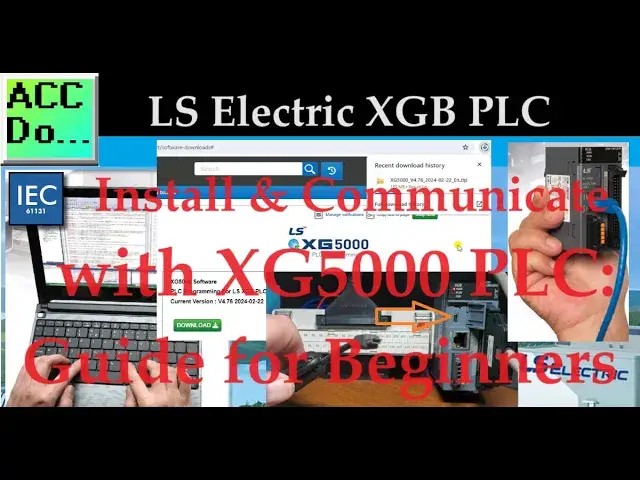
Programming a PLC (Programmable Logic Controller) can be daunting, especially if you need to become more familiar with the software and hardware. We'll guide you through installing the XG5000 programming software to program the LS Electric XGB PLC. A mini USB cable will establish communication and set up the Ethernet port on the CPU unit. We will then communicate to the PLC via an Ethernet cable.
Installing the XG5000 programming software is the first step toward programming your LS Electric XGB PLC. Here's how you can do it.
Detailed information and links can be found in the corresponding post here.
https://accautomation.ca/install-com-w-xg5000-plc-guide-for-beginners/
The entire XGB PLC Learning Series can be found here:
https://accautomation.ca/series/ls-electric-xgb-plc-series/
00:00 Install & Com w/ XG5000 PLC: Guide for Beginners
01:24 Step 1: Check System Requirements
01:48 Step 2: Download the Software
03:59 Step 3: Installing the XG5000 Software
05:01 Step 4: Launch the Programming Software
05:26 Step 5: Connect Your PLC to Your Computer (Establish Communication)
17:17 Step 6: Start Programming
LS Electric XGB PLC Series https://accautomation.ca/series/ls-electric-xgb-plc-series/
FAQ
https://accautomation.ca/series/ls-electric-xgb-plc-series/ls-xgb-series-xem-plc-faq/
Show More Show Less View Video Transcript
0:00
Programming a PLC, programmable logic controller, can be daunting, especially if you need to
0:11
become familiar with software and hardware. We'll guide you through installing the XG5000 programming software to program the LS Electric
0:19
XGB PLC. A mini USB cable will establish communication and set up the Ethernet port on the CPU unit
0:28
We will then communicate to the PLC via Ethernet cable. Before we begin, let's look at what a PLC is and why it is essential
0:37
A PLC is a digital computer used to automate electromechanical processes such as controlling
0:42
machinery or factory semi-lines, amusement rides, or light fixtures. It is designed to withstand harsh industrial environments and provide reliable equipment control
0:54
In short, it's the brain of your industrial automation systems. Installing the XG5000 programming software is the first step toward programming your
1:03
LS Electric XGB PLC. Here's how we can do it. Detailed information contained in this video can be found at accautomation.ca
1:13
A link has been put in the description below. If you have not watched the other videos yet, there will be links in the description below
1:18
that will start you at video 1. There will be links to the rest of the videos in this series as well
1:25
Step 1. Check System Requirements Before you start the installation process, ensure that your computer meets the system requirements for the XG5000 programming software
1:37
The software is compatible with the following versions of Windows operating systems
1:48
Step 2. Download the Software You can download the XG5000 programming software
1:55
from a manufactured website or a trusted software download site like AutomationDirect
2:00
The XG5000 version 4.76 is the latest IEC or International Electrotechnical Commission
2:08
programming software. This will download a zip file to your computer. This free programming software is an advanced tool for configuring and programming LSPLCs
2:20
This highly developed software has been fine-tuned over the years to provide a wealth of features
2:24
and capabilities including Program Segmentation with different scan programs and various task
2:31
programs, numerous data types including IEC standard data types, 64-bit available, and
2:39
3-dimensional arrays, handy 2-dimensional trend graphs, xy plotter, easy edits of local
2:48
and global variables using MS Excel or View Variable, View Device, View Flag, and autofill
2:55
options in software, convenient program edits with unlimited undo-redo functions, block edits in cell units, an enhanced find-replace program functionality, and program execution
3:09
controls and more. Various monitoring functions are available such as Variable Device, System Trend, and
3:16
Special Module Monitoring, various message windows to edit and inspect the program easily
3:25
custom events that allow actions to take place once user-defined conditions are met for a
3:29
specific device, editing, monitoring, or manage multiple interlocked PLCs including in the
3:36
same project at the same time, online editing capabilities, plus there are many more features
3:47
Once this 447MB zip file has been downloaded, right-click on the zip file and select Extract All
3:59
Step 3. Installing the XG5000 Software Once you have downloaded the software and extracted the files, right-click on the XG5000
4:09
file and click Run as Administrator. You must allow the software to change your computer to continue the installation
4:17
Follow the online instructions to install it. You will be prompted to select other necessary software, installation directory, and other
4:24
options during installation. This is customized to your computer. Make sure you read and understand each step before proceeding
4:53
An icon will be placed on your computer desktop for easy access to start the XG5000 programming software
5:03
Step 4. Launch the Programming Software Once the XG5000 programming software has been installed on your computer, you can launch
5:11
it by double-clicking the icon on the desktop or searching for the XG5000 application from
5:16
your Start menu
5:27
Step 5. Connecting the PLC to your Computer To program your LS Electric XGB PLC, connect it to your computer using a mini-USB serial
5:37
communication cable, which you must purchase separately. Once connected, open the computer's device manager
5:45
A quick way to do this is to press the Windows key plus X and select Device Manager from
5:49
the menu. The LSIS XG Series Driver is under the Universal Serial Bus Controller selection
6:01
This ensures that the communication drivers have been installed correctly
6:24
Start a new project by selecting the icon on the XG5000 Programming Software main menu
6:29
You can also call up this option by selecting New Project under the Project Selection on
6:34
the main menu or using the shortcut CTRL-N. The New Project window will now be displayed
6:43
We will leave the default directory and call the project ACC Automation
6:50
Under the PLC heading we will select the XGB IEC for the CPU series, XEM-DXXXH2 for
6:59
the CPU type and leave the PLC name as the default
7:19
We will change the program name to first underscore program. You will see that you cannot use spaces or special characters for the program name
7:31
Leave the language as the default LD or ladder and we will add a comment for this project
7:43
Select OK. The project navigation window in the software will show you all of the different parameters
7:53
of the project
8:21
Select Connection Settings under the Online option on the main menu. Change the connection type to USB
8:29
If you are unsure about the connection to the PLC you can use network browsing
9:16
Once we select the option, the bottom of the XG5000 programming software will turn
9:23
different colors. The red means that we are connected and the PLC has stopped
9:29
Once connected, select Online Read from the main menu. This will run the IOS synchronization so the XG5000 and XGB PLC are the same
10:03
We can now select the I0 parameters in the project window. This will show us the physical inputs and outputs on the XGB PLC CPU and their addresses
10:16
Inputs are %IX0.0.0 to %IX0.0.15 and outputs are %QX0.0.0 to %QX0.0.15
10:33
This makes up our 32 I0 on the XGB CPU. Turning on the XGB PLC switch will cause the mode to run
11:11
The green at the bottom of the screen on the XG5000 software indicates that the PLC is
11:16
running or executing its program. Our existing program has just an end statement
11:38
This is the default program in the XGB PLC. Select FENet Settings in the project window under Network Configuration
12:02
This will display the standard settings. FENet Window, the built-in Ethernet port on our XGB PLC CPU
12:11
Set the IP address for the network that we will connect to
12:15
This will include the DNS server settings. We will set the server mode to Smart Server
12:47
This will do both the programming software and the Modbus TCP. Select OK
13:02
Save the project. Select OnlineWrite to set the parameters for our Ethernet port
13:18
The CPU switch must be in Program Mode for these new settings to be written or downloaded to the PLC
13:25
We will set the IP address for the network that we will connect to
13:31
This will include the DNS server settings. Select OnlineWrite to set the parameters for the network that we will connect to
13:41
This will include the DNS server settings. Select OnlineWrite to set the parameters for the network that we will connect to
13:51
This will include the DNS server settings. Select OnlineWrite to set the parameters for the network that we will connect to
14:01
This will include the DNS server settings. Select OnlineWrite to set the parameters for the network that we will connect to
14:11
This will include the DNS server settings. Select OnlineWrite to set the parameters for the network that we will connect to
14:20
This will include the DNS server settings. Select OnlineWrite to set the parameters for the network that we will connect to
14:28
This will include the DNS server settings. Plug the Ethernet cable into the CPU unit
14:36
Select OnlineWrite to set the parameters for the network that we will connect to
14:40
This will include the DNS server settings. Select OnlineWrite to set the parameters for the network that we will connect to
14:48
Select OnlineWrite to set the parameters for the network that we will connect to
14:52
This will include the DNS server settings. Select OnlineWrite to set the parameters for the network that we will connect to
15:00
This will include the DNS server settings. Select OnlineWrite to set the parameters for the network that we will connect to
15:08
This will include the DNS server settings. Select OnlineWrite to set the parameters for the network that we will connect to
15:16
Select Ethernet as the new connection settings. Enter the IP address that we set for the PLC
15:24
Enter the IP address that we set for the PLC. Enter the IP address that we set for the PLC
15:32
Enter the IP address that we set for the PLC. Enter the IP address that we set for the PLC
15:40
Enter the IP address that we set for the PLC. Enter the IP address that we set for the PLC
15:48
Enter the IP address that we set for the PLC. Enter the IP address that we set for the PLC
15:56
Enter the IP address that we set for the PLC. Enter the IP address that we set for the PLC
16:04
Enter the IP address that we set for the PLC. Enter the IP address that we set for the PLC
16:12
If this does not work, use the network browsing and find the IP setting for the PLC
16:16
Select Connect. Enter the IP address that we set for the PLC
16:44
Enter the IP address that we set for the PLC. Enter the IP address that we set for the PLC
16:52
Enter the IP address that we set for the PLC. Enter the IP address that we set for the PLC
17:00
Enter the IP address that we set for the PLC. Enter the IP address that we set for the PLC
17:08
Enter the IP address that we set for the PLC. Change the CPU selector to Run
17:16
Step 6. Start Programming. You can start programming your industrial automated systems
17:24
with the software installed and the PLC connected. The programming software includes a user-friendly interface with drag and drop tools
17:32
for creating ladder logic diagrams and other IEC programming languages. There are also other software packages installed with the XG550
17:40
We will be exploring these at a later time. Programming an LS Electric XGB PLC requires installing the programming software
17:48
Following the steps outlined in this post, you can successfully install the XG5000 programming software
17:56
and start programming your XGB PLC. Remember to always read the documentation and follow the manufacturer's instructions
18:04
to safely and effectively use your industrial automated systems. If you enjoyed this video, please hit the like button below
18:12
If you have any questions about the video, please leave a comment below and I will do my best to answer it
18:16
If you want more information about us or you want our free e-books on Narmoring Systems or Robust Data Logging
18:20
please click on the link in the description below to get it
18:24
A new video is uploaded every Monday, so make sure you hit the subscribe button to get more videos like this in the future
18:28
Remember to click the bell beside your subscription to actually receive those notifications
18:32
Thanks so much for watching. I'll see you next time. Stay safe
#Computers & Electronics
#Factory Automation
#Factory Automation
#Home Automation
#Development Tools
#Intelligent Personal Assistants