live_tv
Livestream Starting Soon
00
Hours
:
00
Minutes
:
00
Seconds
Up next in 10

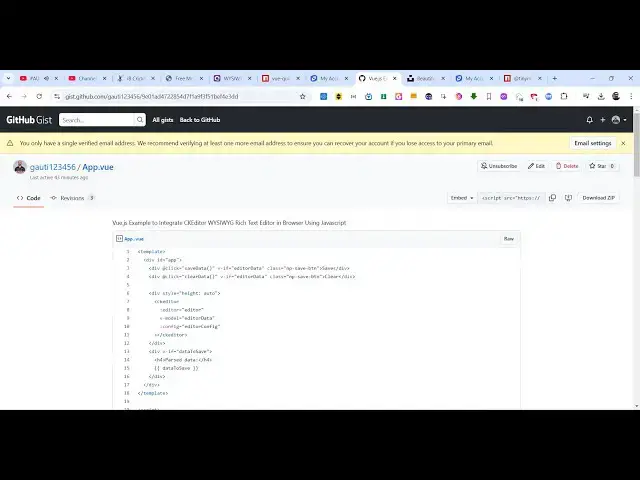
Vue.js Example to Integrate CKEditor WYSIWYG Rich Text Editor in Browser Using Javascript
Jan 9, 2025

Get the full source code of application here:
https://gist.github.com/gauti123456/9e01ad4722854d7f1a9f3f51bef4e3dd
Show More Show Less View Video Transcript
0:00
uh hello guys welcome to this video so
0:02
in this video I will show you yet
0:04
another viic Rich Text Editor which is
0:07
called a CK editor inside your VJs
0:10
application so we have this nice little
0:12
demo running so you can see we have this
0:15
nice little Rich Text Editor you can
0:19
have all these rich controls available
0:20
to you if you want to add bullet points
0:24
numbering will
0:28
see so you you can change this to in
0:31
heading here you will see there is also
0:34
a support for adding images you can even
0:36
add tables as well right
0:39
here so the name of the package is CK
0:42
editor so it's a rich text editor you
0:45
can have even add images hyperlinks all
0:48
these things you can select the text and
0:51
change to bold and then you can save
0:53
this click the save button and it will
0:55
give you the HTML code right here which
0:57
you can simply copy this and paste it in
1:00
any Rich Text Editor
1:02
so the package is if you just type here
1:05
CK
1:07
editor this is the rich text edor that
1:10
we are using
1:11
so there is a specific package for vuejs
1:15
application that you need to
1:18
install I already installed it so you
1:21
need to install these two
1:23
packages I have given the link in the
1:26
description of this
1:27
video of this full project project so
1:30
you can clone this project the link is
1:32
given in the description
1:35
so I will just guide through actually
1:38
the code here that we written so right
1:40
in this main.js file of your vuejs
1:43
project you need to install this module
1:45
or connect the module so for connecting
1:48
it we do need to add these two lines
1:51
first of all we are importing
1:58
the let me just zoom in so that you can
2:01
clearly see so
2:04
import and then we are importing this CK
2:09
editor from this package which is CK
2:19
editor essentially we are doing like
2:21
this so if you
2:23
refresh we are importing it from this
2:26
package writing this import line and
2:28
then we are using it as a middle view.
2:30
use and that's all that we need to do in
2:33
this file and just go to your app. view
2:36
file and here you need to first of all
2:39
add your template
2:46
tag close the template
2:56
tag and here you will add an ID here of
2:59
app and here you'll be having two
3:01
buttons uh save and clear these two
3:04
buttons will only appear if the user has
3:07
entered the data you will see we have
3:10
added this V if condition that if the
3:13
editor data is available then only show
3:15
these buttons to the
3:18
user after this after these two buttons
3:21
so we
3:22
will first of all in the script
3:26
tag we will import this module so
3:32
we will use the import statement and
3:34
then we import this classical editor and
3:38
it will be coming from this package CK
3:46
editor and here from this we just need
3:50
to
3:51
import
3:52
the actual package here which we
3:55
installed CK editor 5 buil classic
4:05
so after
4:10
this we provide this export
4:14
here this data object which actually
4:17
contains the implementation of the
4:20
classic editor we are putting this
4:22
component right here editor data editor
4:25
config we have declaring a data to save
4:28
variable and then we are defining
4:29
finding these two methods when we save
4:32
the data and create the data we are
4:35
saving this data in the HTML so now
4:38
coming back to your
4:40
HTML we will embed this editor so now to
4:44
embed the editor it's very simple after
4:47
this two
4:51
buttons we use this tag CK
4:56
editor and inside this
5:00
opening and closing tag so this
5:04
component takes some options right here
5:06
we provide colon and then actual editor
5:09
so this will be your actual editor so
5:11
now if you see the editor is now showing
5:14
and some more options it takes the
5:17
second option I will say
5:19
is the V model so actual data you need
5:22
to
5:23
specify so I will bind this editor data
5:27
so now what happens if you
5:30
add you will see these two buttons
5:35
appearing and one more configuration we
5:38
need to add
5:40
is the config
5:45
object which is your editor
5:50
config now you can see you can change it
5:53
to
6:00
so in this way you can display this
6:02
integrate the CK
6:04
editor inside your view three
6:08
application so I have given the link of
6:11
this complete repository in the
6:13
description of this video so you can get
6:15
this so thank you very much for watching
6:18
this video and do check out my website
6:20
as well free mediat tools.com uh which
6:24
contains thousands of tools regarding
6:26
audio video and image and I will be see
6:29
see you guys in the next video
#Programming