0:00
uh hello guys welcome to this video so
0:02
in this video I will show you uh a
0:04
extension which you can use in vs code
0:06
to directly implement the eclipse Java
0:10
IDE which is developed by Apache Eclipse
0:13
if you all know it's a very popular IDE
0:16
similar to vs code it's developed by
0:19
Eclipse foundation and it's I think it's
0:23
it's also open source but if you want to
0:26
use the theme directly inside vs code
0:29
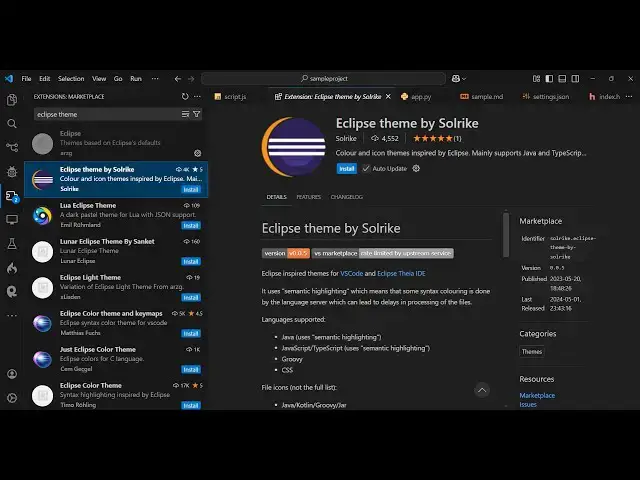
there is an extension just type Eclipse
0:32
extensions and if you drag down you will
0:35
see this theme available familiar Java
0:39
themes it's almost called 50,000
0:42
installs and it's basically the familiar
0:45
color themes inspired by Java IDE like
0:48
eclipse and inell IDE so install and
0:52
activate this so once you activate this
0:54
quite a number of themes which will be
0:56
there Eclipse dark light ener t
1:03
light so this is actually the Dark theme
1:08
see can see that so this is Eclipse not
1:12
a lot of color highlighting is there in
1:17
this this is actually your light
1:22
theme this is a inia you can see that
1:28
so so this is one extension you can use
1:32
it let me now show you the next one if
1:35
you just type here in Eclipse
1:42
then there are more themes available
1:44
this theme I think Eclipse tee
1:51
by click on the install button and as
1:54
soon as you install it you will see this
1:56
is actually the light theme of
1:58
eclipse you can install this as
2:13
theme so quite a number of extensions
2:16
third party extensions you can install
2:19
it of eclipse so I showed you step by
2:23
step so thank you very much for watching
2:25
this video and also check out my website
2:28
as well free media tools.com which
2:31
contains thousands of tools regarding
2:33
audio video and image